Connecting to Your Hytale Server
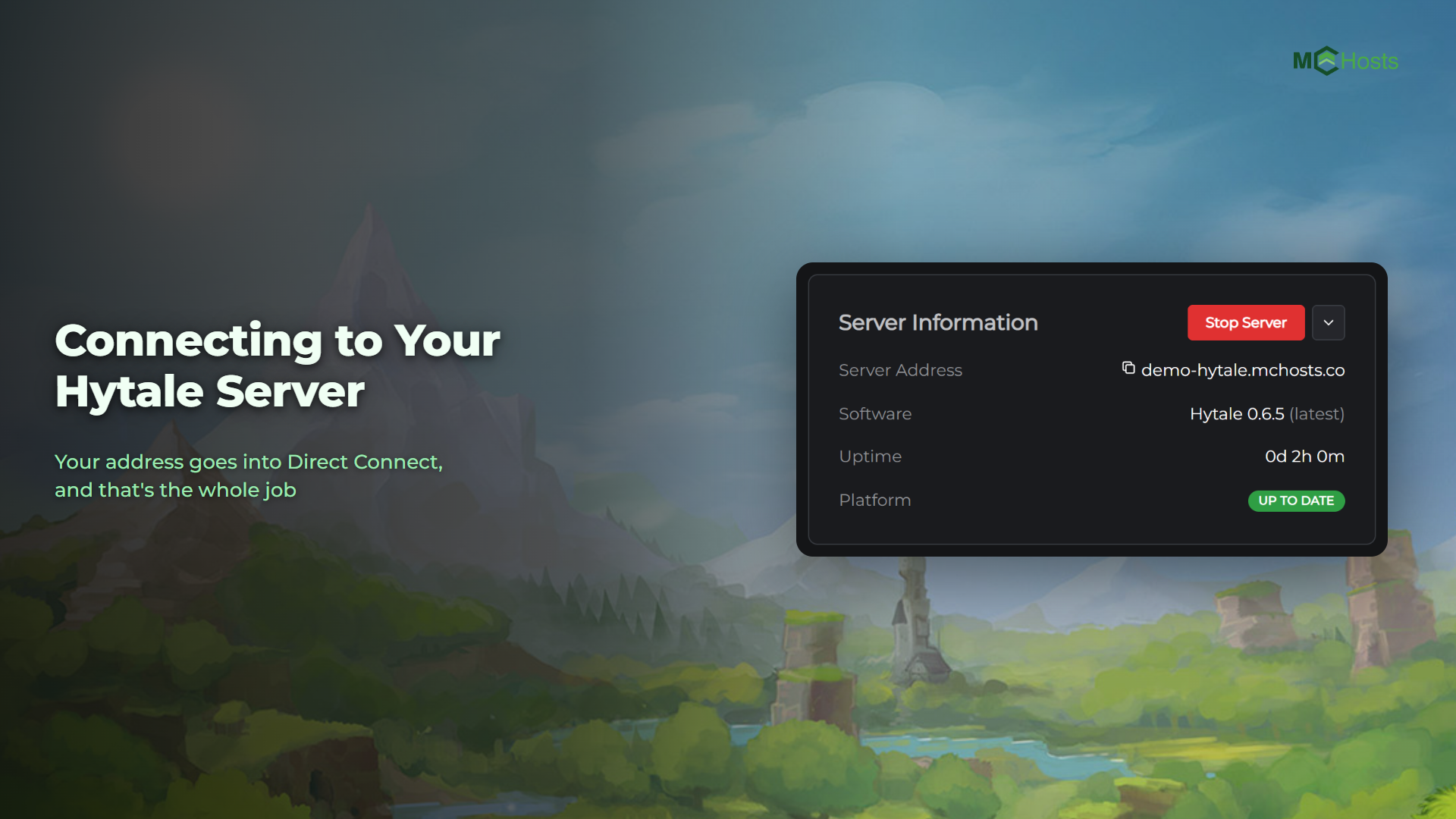
Your Hytale server has an address of its own. This guide shows you where to find it and how to join from the game.
Find your server address
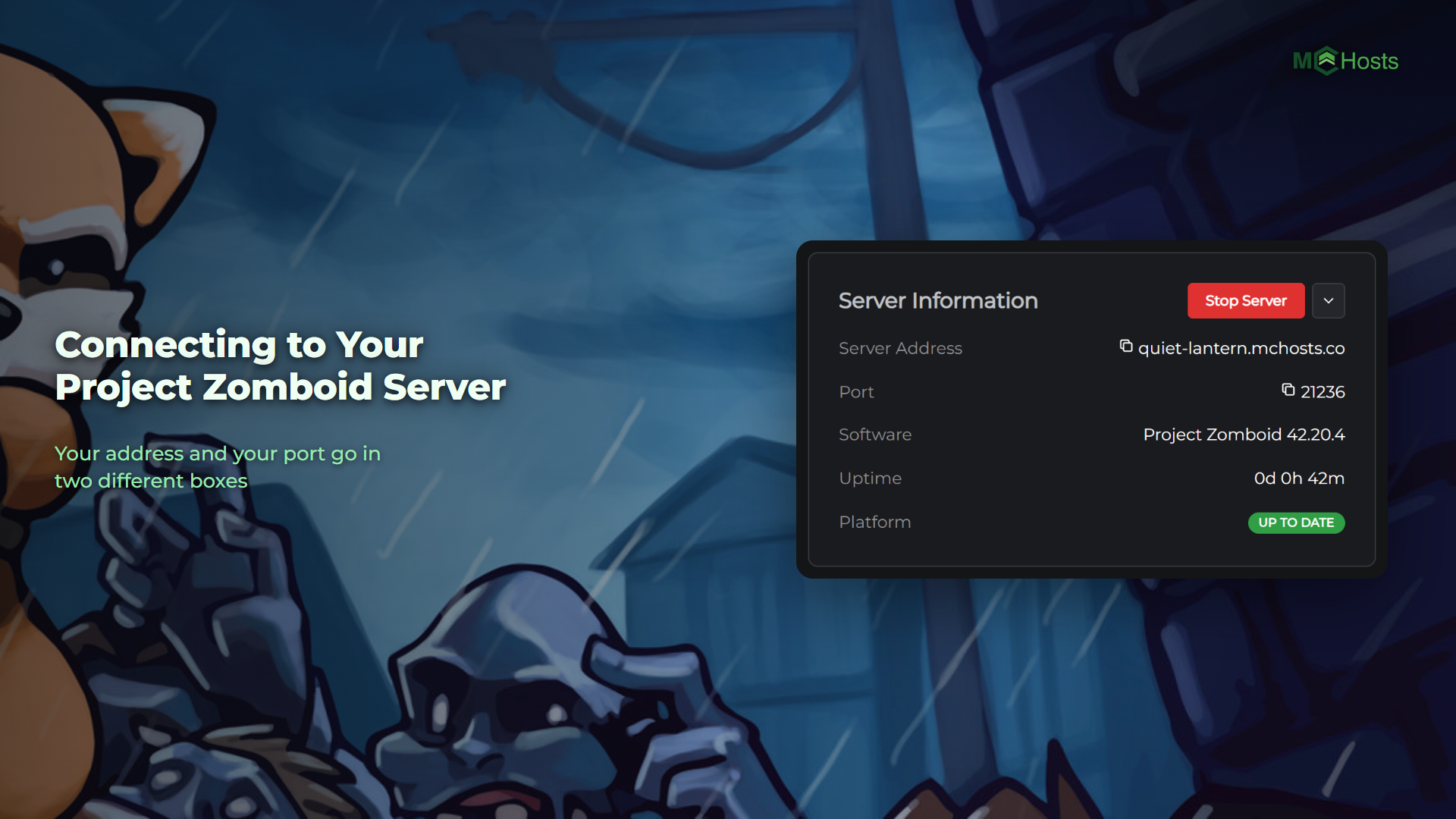
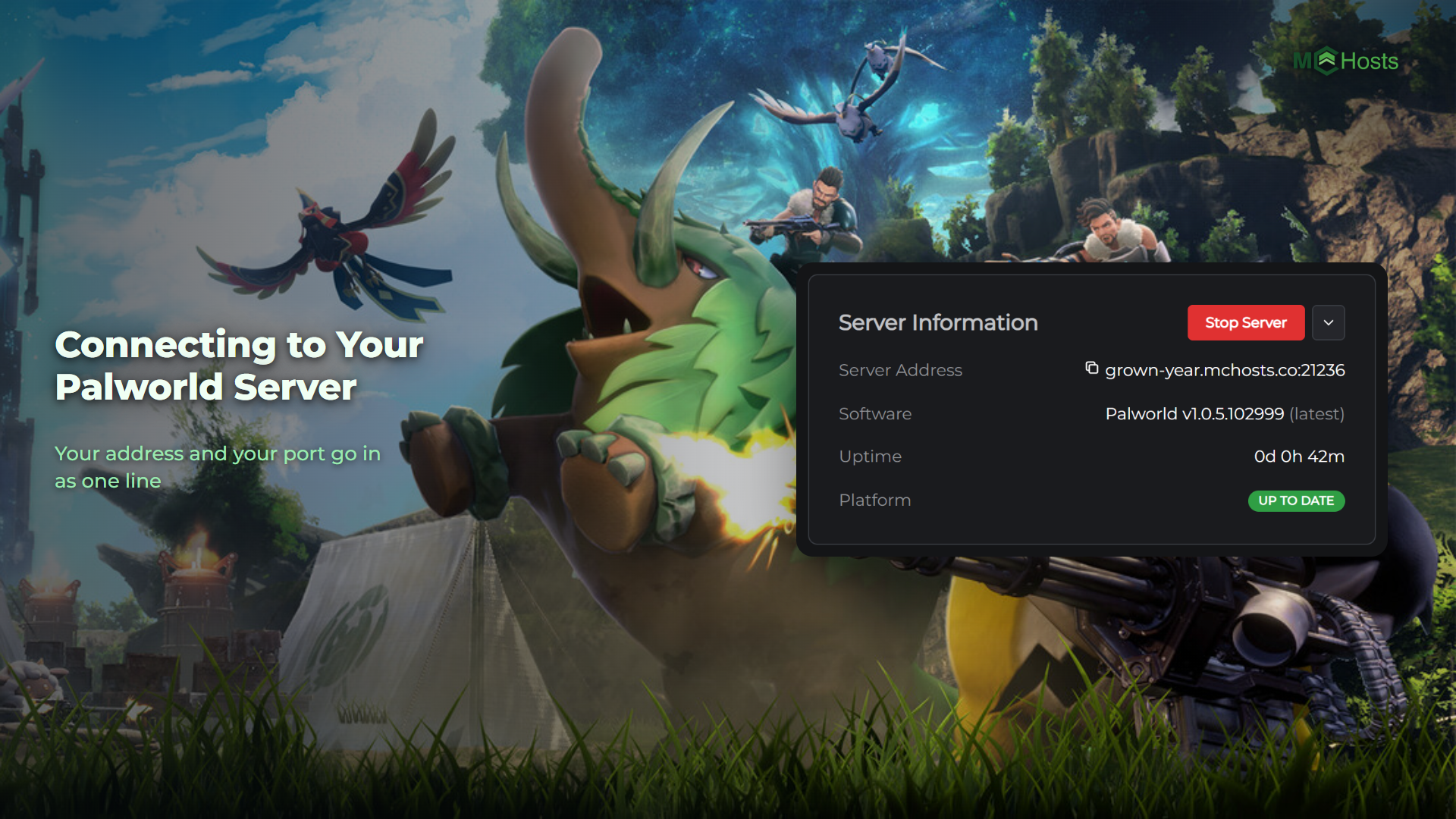
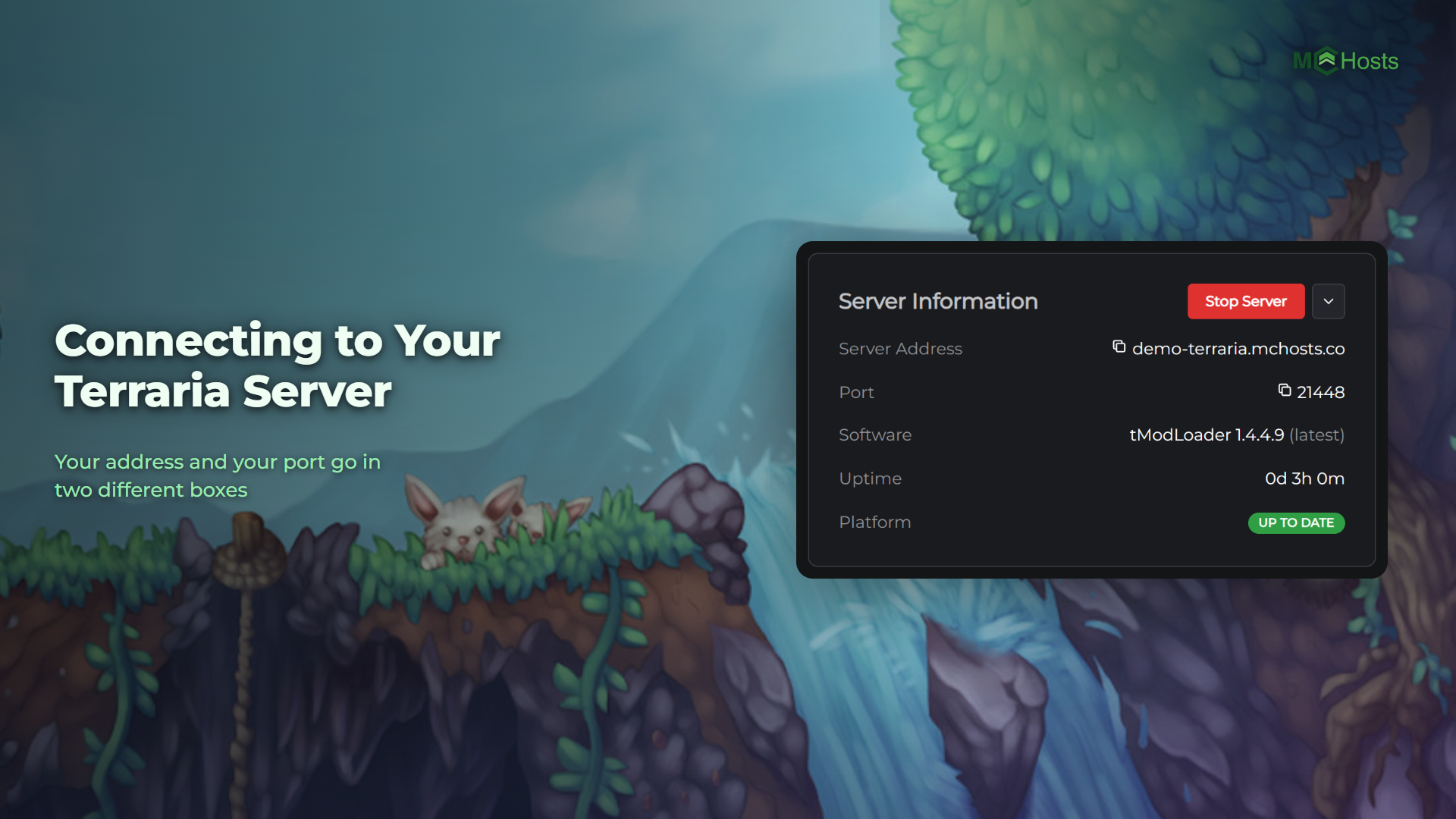
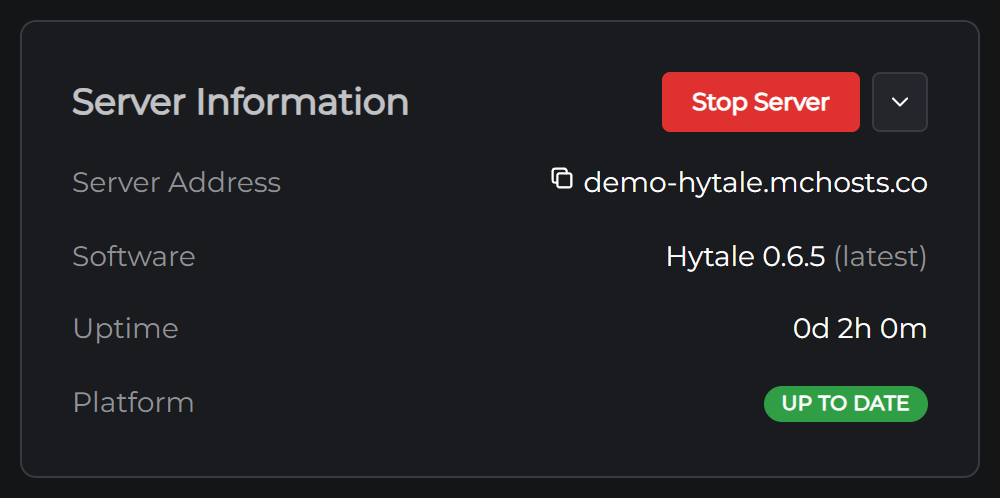
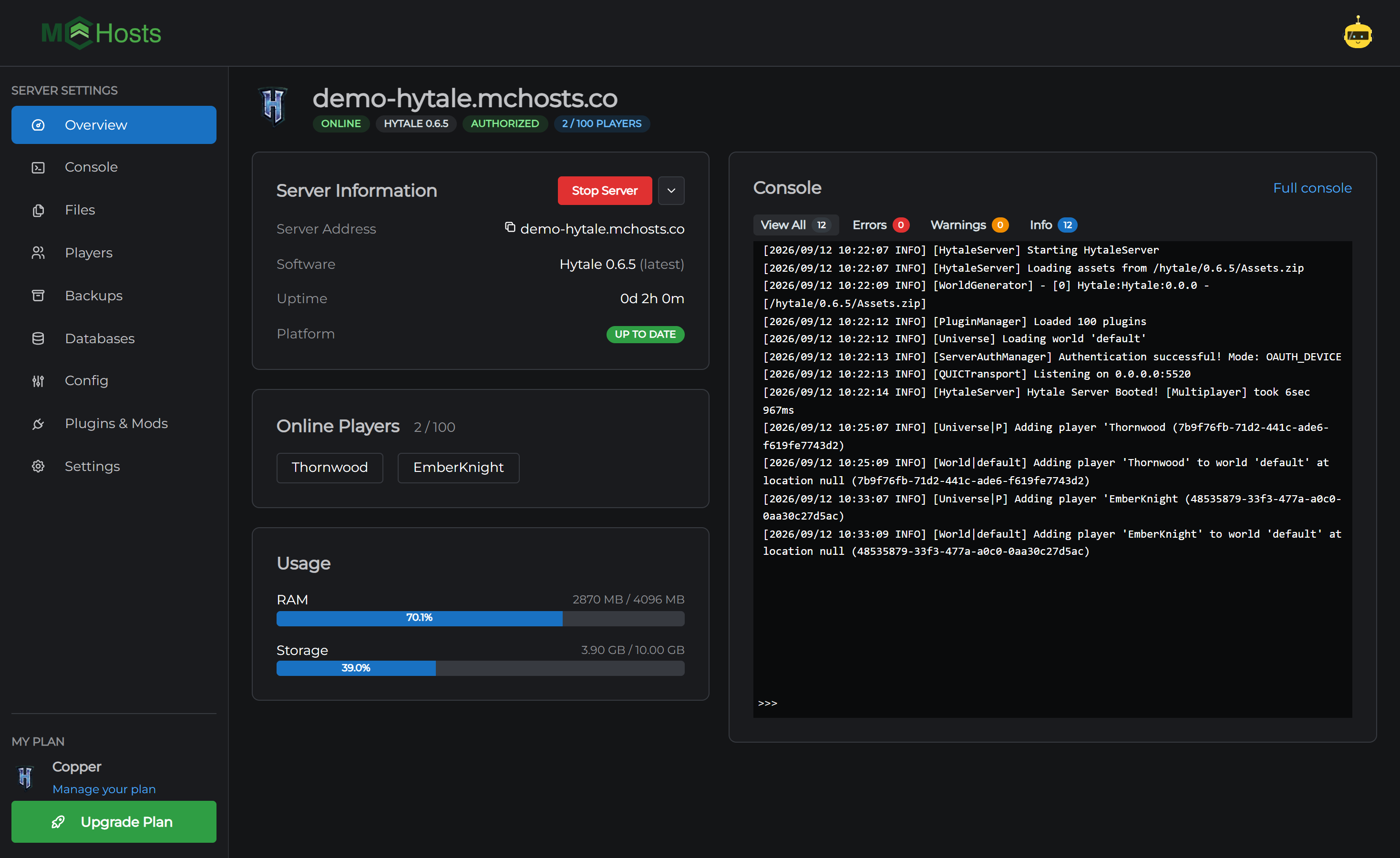
Open your control panel and look at the Overview page. Your address is the first line under Server Information, and it looks like this:
yourname.mchosts.co
Click the address to copy it.
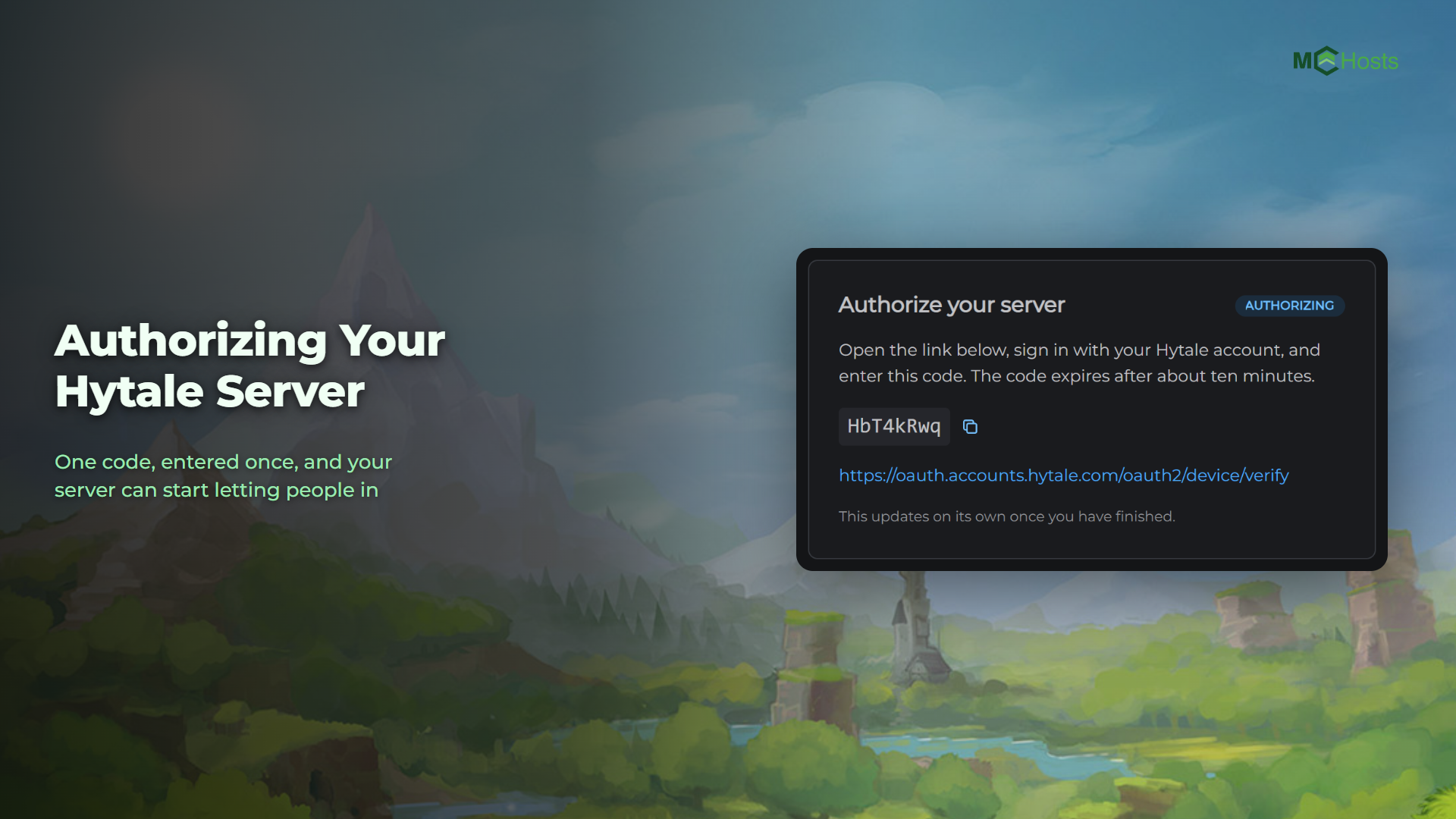
While you are there, check the badges under your server's name. You want Online and Authorized. If the badge says Unauthorized, nobody can join yet. See Authorizing your Hytale server first. It takes about a minute.
Join from Hytale
- Open Hytale
- Click Servers on the main menu
- Click Direct Connect
- Paste your server address
- Click Connect
That is all there is to it. You do not need to add a port number. Hytale's standard port is 5520 and your server already uses it, so yourname.mchosts.co and yourname.mchosts.co:5520 both work.
To keep the server in your list, use Add Server instead of Direct Connect. Paste the same address, give the server a name, and it will be there next time you open the game.
Sharing the address
Anyone with the address can join, unless you turn on the whitelist. Send it to your friends as it is; they follow the same steps above.
If you want the server private, open the Config tab, turn on Whitelist, and add players with whitelist add TheirName in the Console. You can also do it from the Players tab.
If you can't connect
The server may be offline. On the Overview page, check for the Online badge. If it says Offline, click Start Server and give it a minute.
The server may still be starting. A Hytale server takes about ten seconds to start, and a bit longer after an update. Watch the Console for the line Hytale Server Booted! and try again.
The server may be unauthorized. If the badge says Unauthorized, your server is running but turning everyone away. Fix it in Authorizing your Hytale server.
Your game and the server may be on different versions. Hytale only lets you play on matching versions. Your server updates itself when Hytale releases a new version, and your launcher updates your game. If one of them has updated and the other has not, wait a few minutes and try again. See Hytale updates and restarts for how that works.
The whitelist may be on. If you turned it on, only players you have added can join.
If none of that helps, open a support ticket and tell us what the game says when it fails.
Using your own domain
You can point a domain you own, like play.myserver.com, at your Hytale server with a CNAME record. Hytale does not use SRV records, so a CNAME is the one to set up. See Setting up a custom domain.
Now that you are in, you might want to install some mods.