Console
Control Panel
24 May 2026 · By Josh P
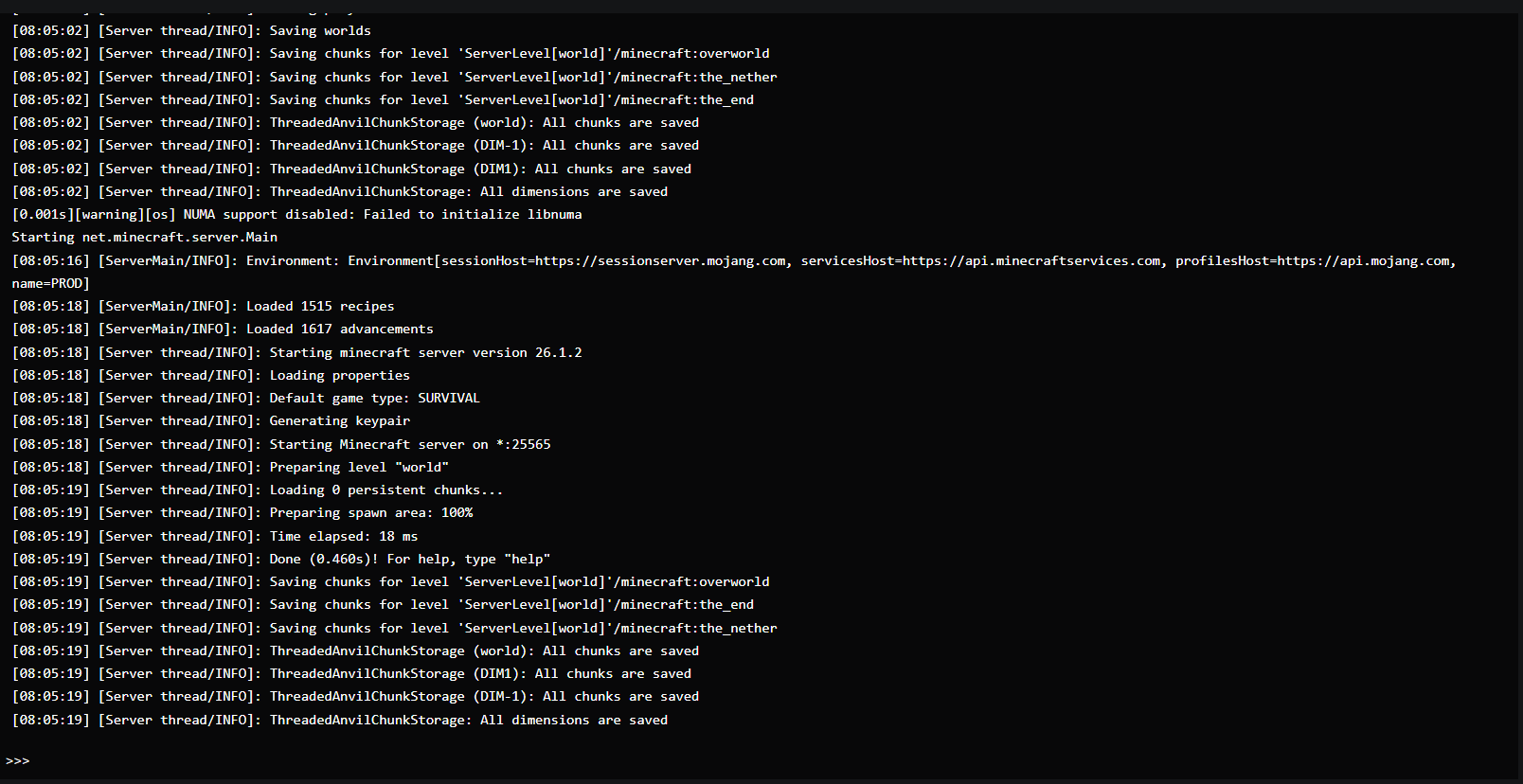
The Console tab gives you a live view of your server's log output and lets you run commands directly without needing to be in-game.
Reading the log
The console streams every line the Minecraft server writes to its log in real time. When you first open the Console tab, the full log history from the current session is loaded so you can scroll back and review earlier output.
Auto-scroll: the console automatically scrolls to the bottom as new lines come in. If you scroll up to read older output, auto-scroll pauses. Scroll back to the bottom to resume.
Running commands
The command input bar at the bottom of the Console tab lets you send any Minecraft server command.
- Type the command and press Enter to run it
- Do not include a
/prefix - console commands are entered without the slash (e.g. typesay Hellonot/say Hello) - The command output appears in the log immediately
Common commands
| Command | What it does |
|---|---|
say <message> | Broadcast a message to all players |
op <username> | Grant operator status to a player |
deop <username> | Remove operator status |
kick <username> | Disconnect a player |
ban <username> | Ban a player |
give <username> <item> | Give an item to a player |
time set day | Set the world time to day |
weather clear | Clear the weather |
whitelist add <username> | Add a player to the whitelist |
whitelist remove <username> | Remove a player from the whitelist |
stop | Gracefully stop the server (same as the Stop button) |
Diagnosing issues
The console log is the first place to look when something goes wrong. Look for:
- Lines containing
SEVEREorERROR- these usually indicate a problem - A Java stack trace (multiple lines starting with
at com.orat net.) - this shows the cause of a crash - Messages about a specific plugin or mod crashing - you can usually identify the culprit from the mod/plugin name in the trace
← Dashboard | Next: File Manager →