File Manager
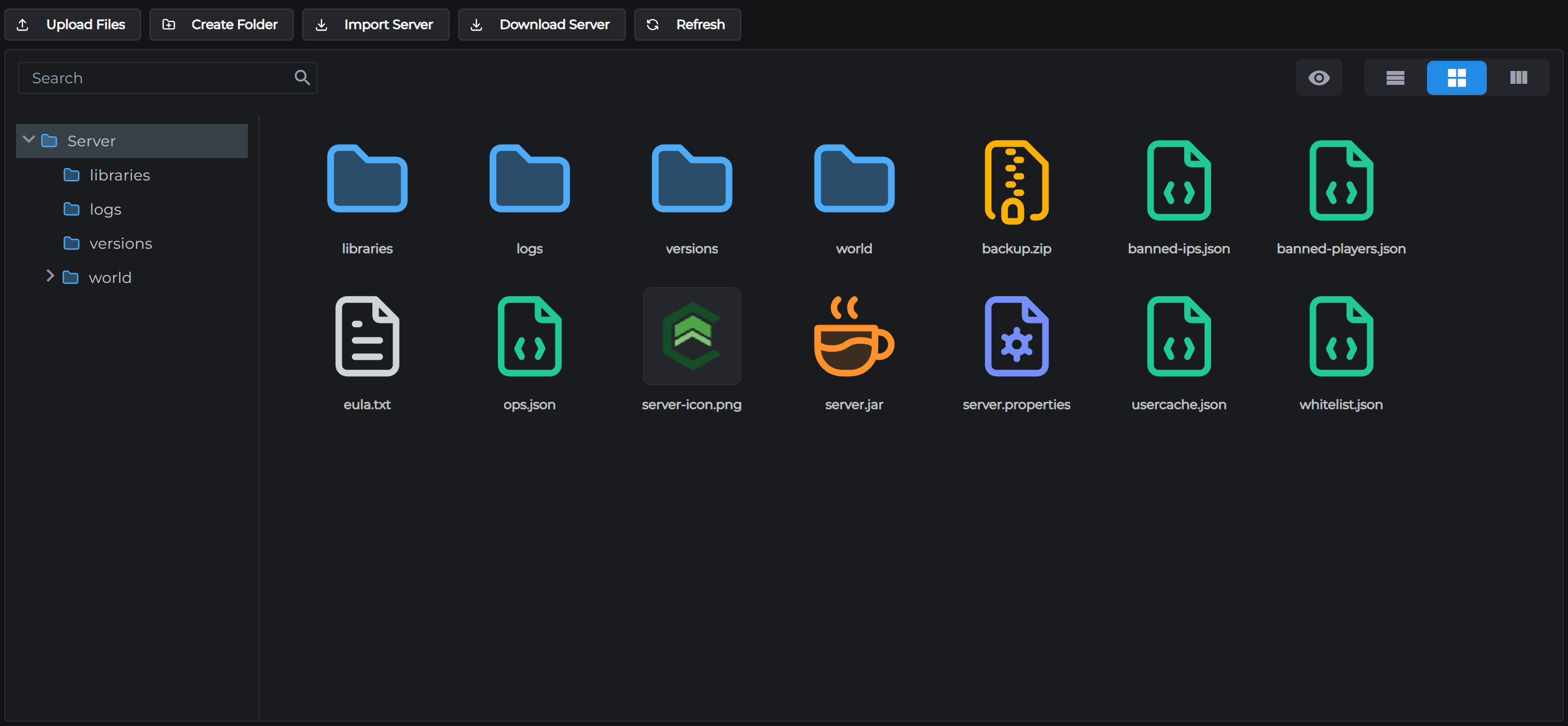
The File Manager tab gives you a full browser for your server's files. You can upload plugin JARs, edit config files, download your world, and more, all from the browser.
The file browser opens at the root of your server directory. Double-click a folder to open it, or click any folder in the sidebar tree on the left. The tree follows you as you browse and highlights the folder you're in. To go back up, click a parent folder in the tree.
Use the search box at the top to filter files by name, and the buttons in the top right to switch between list, card and two-panel views. The eye button opens an info panel showing a file's type, size and date.
Toolbar actions
These buttons appear at the top of the file manager:
Upload Files
Click to open the upload dialog, or just drag files straight onto the file browser. Both do the same thing.
- Maximum 100 MB per file
- New files can be uploaded while your server is running
- Replacing a file that already exists needs the server stopped
- You cannot upload to protected system directories
Note: If every upload is refused while your server is running, restart your server once from the panel to pick up the latest update.
Create Folder
Opens a prompt to name a new folder in the current directory.
Import Server
Opens the import wizard for moving an existing server to MCHosts.
Download Server
Streams your entire server to your computer as a zip. It doesn't use any of your server's storage space, so it's an easy way to keep your own copy of your world.
- The server must be stopped to use this
Refresh
Reloads the file listing from your server.
Right-click actions
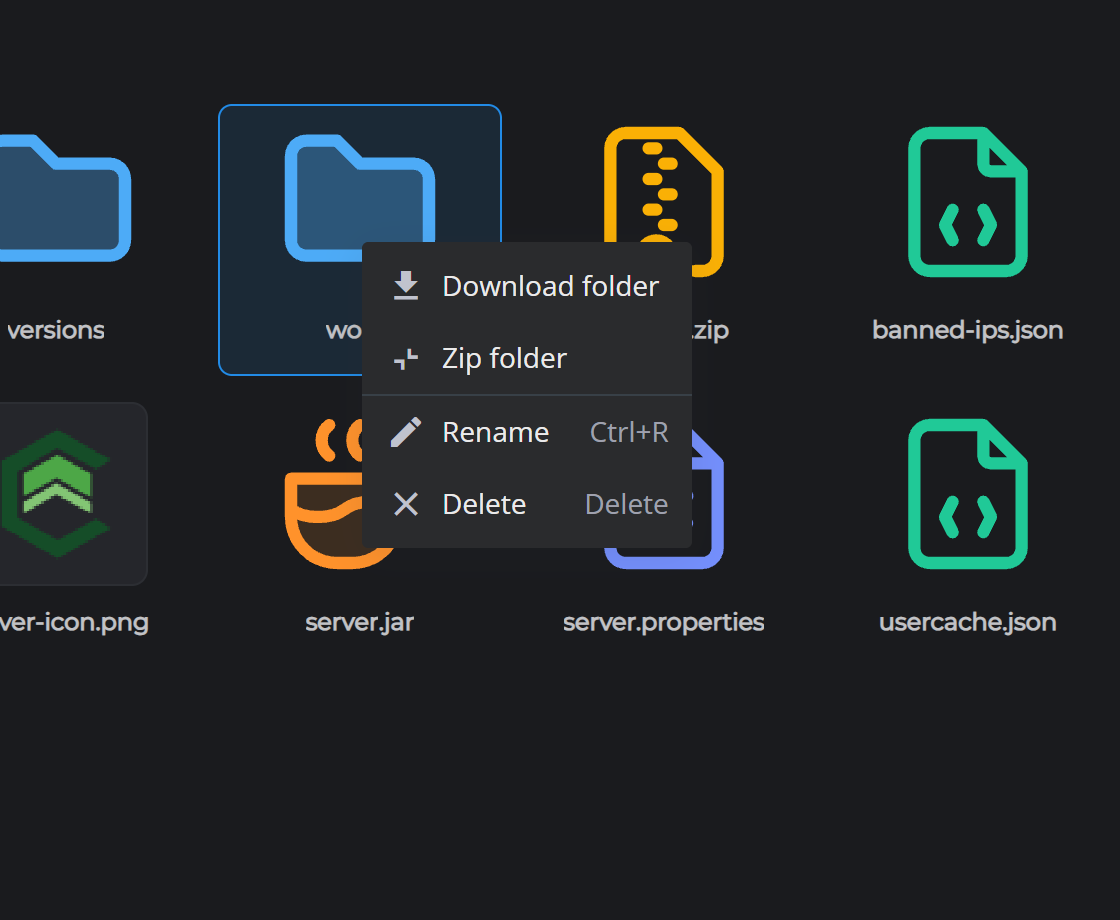
Right-click any file or folder to see the context menu:
| Action | Works on | Notes |
|---|---|---|
| Download | Files | Saves the file to your computer |
| View image | Images | Opens the image in the panel |
| Edit file | Text files | Opens a text editor in the browser for .properties, .yml, .json, .txt and similar |
| Download folder | Folders | Downloads the folder as a zip; server must be stopped |
| Zip folder | Folders | Compresses the folder into a ZIP archive on the server; server must be stopped |
| Unzip | ZIP files | Extracts a ZIP archive in place; server must be stopped |
| Rename | Files and folders | Server must be stopped |
| Delete | Files and folders | Asks you to confirm, then permanently deletes; server must be stopped |
You can also select a file and press the Delete key to delete it.
Editing a file
Right-click a text file and choose Edit file, or just double-click it. Make your changes and click Save; the file is written back to your server immediately. This is the easiest way to edit server.properties, plugin configs, or any other text-based file.
Tip: Most server changes from the MC Settings tab also write to
server.propertiesdirectly, so you rarely need to edit it manually.
Viewing images
Double-click an image file, like server-icon.png, to view it in the panel. Image files also show a small preview on their card in place of the file icon.
Protected directories
Two directories cannot be accessed or modified through the file manager:
| Directory | Purpose |
|---|---|
| System directory | Internal MCHosts system files |
| Backups directory | Local backup storage |
These are protected to prevent accidental data loss.
← Console | Next: Player Management →