Bedrock Edition (GeyserMC)
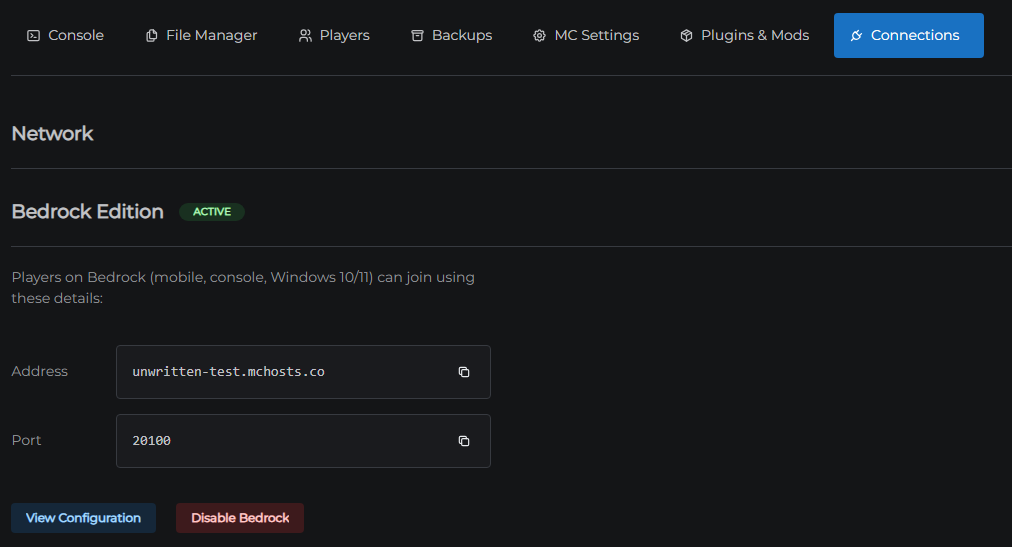
Bedrock Edition support lets players on mobile, console, and Windows 10/11 join your server alongside Java Edition players - no separate server needed.
This feature is free and included on every plan.
What you need
- A server running PaperMC, Fabric, or NeoForge - Vanilla servers do not support plugins or mods, so Bedrock support cannot be enabled on them. See Server Types if you want to switch.
Step 1 - Enable Bedrock support
- Open the control panel
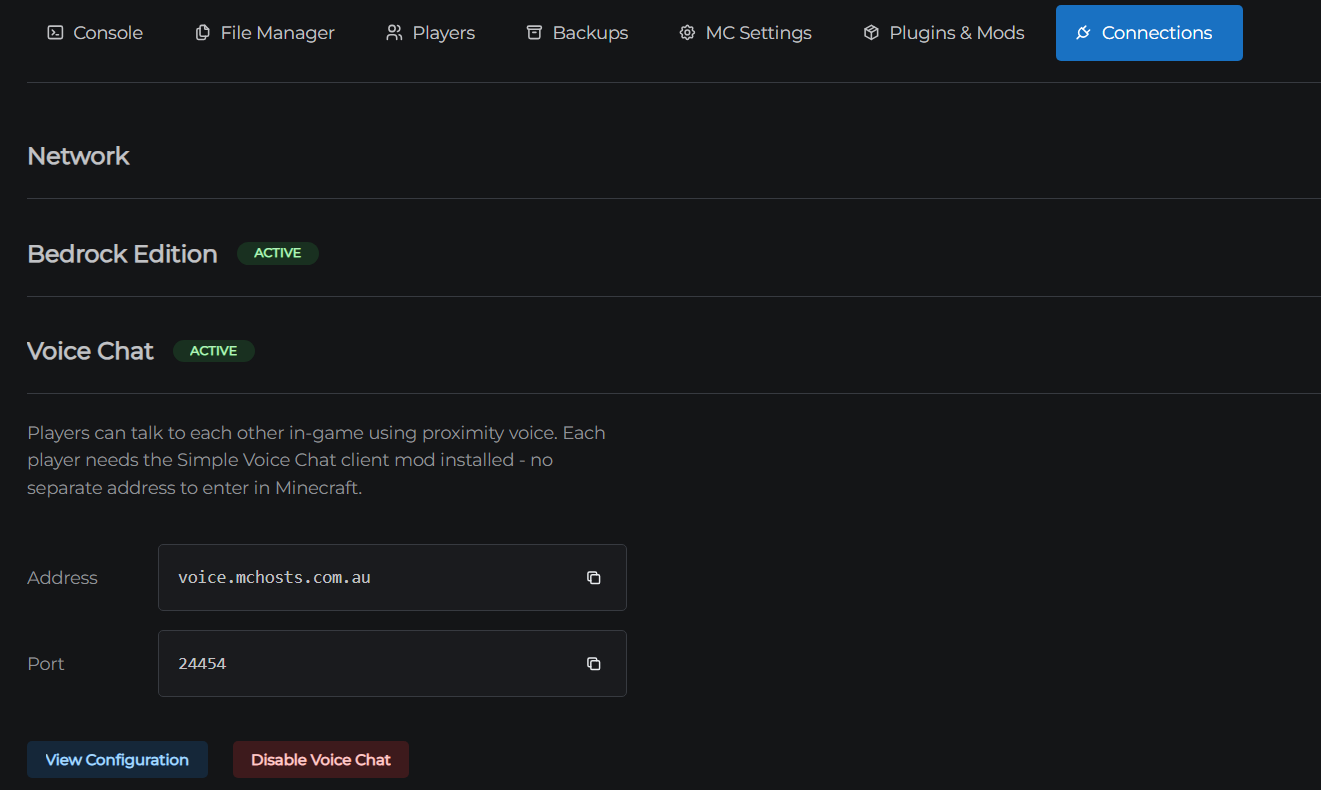
- Click the Connections tab
- Click Bedrock Edition to expand the section
- Click Enable Bedrock Support
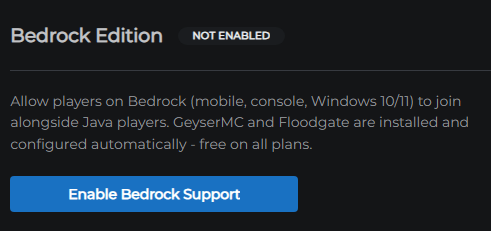
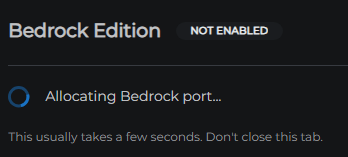
MCHosts automatically installs and configures the GeyserMC and Floodgate plugins for you - there's nothing to download or upload yourself. This takes a minute or two. The section shows an Installing status with progress while this happens.
Step 2 - Connect from a Bedrock device
Once the status shows Active, the section displays two values:
| Field | Example |
|---|---|
| Address | yoursubdomain.mchosts.co |
| Port | A number unique to your server (e.g. 20143) |
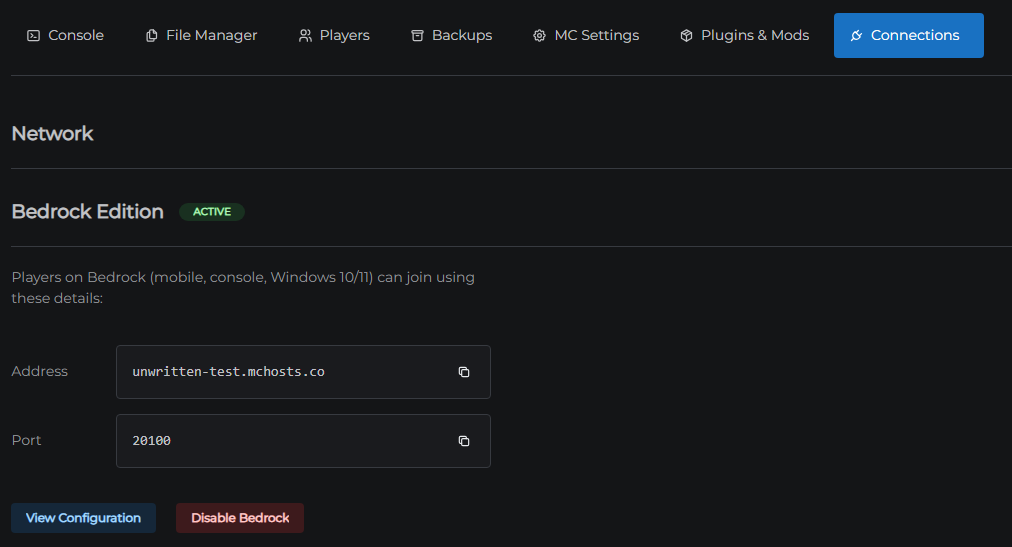
Unlike Java Edition (which only needs the address), Bedrock's "Add Server" screen asks for both the address and the port - make sure to enter both exactly as shown in the control panel.
- Open Minecraft on the Bedrock device (mobile, console, or Windows 10/11)
- Go to Play → Servers → Add Server
- Enter a Server Name (anything you like)
- Enter the Server Address from the control panel
- Enter the Port from the control panel
- Save and join
Java and Bedrock players together
Bedrock players connect through the same server as Java players - they share the same world, inventory, and chat. No separate purchase or server is required for crossplay.
Disabling Bedrock support
- Open the Connections tab
- Expand Bedrock Edition
- Click Disable Bedrock
This releases the port and stops routing Bedrock traffic to your server. The GeyserMC and Floodgate plugin files remain in your plugins/mods folder - remove them manually from the File Manager if you no longer want them there.
Troubleshooting
Bedrock players can't connect - double check the port was entered correctly on the Bedrock device. Unlike the Java address, the Bedrock port is unique to your server and changes if you disable and re-enable the feature.
"Enable Bedrock Support" isn't available - your server is running Vanilla. Switch to PaperMC, Fabric, or NeoForge in Settings → Server first. See Server Types.
"Enable Bedrock Support" says my server needs an update, or you see a technical error mentioning "Failed to fetch" or "CORS" - both mean the same thing: your server is running on an older platform version that doesn't support Bedrock yet. A normal Stop/Start from the Dashboard won't fix this - it only restarts the Minecraft process, not the underlying platform. Go to MC Settings → Danger Zone and click Reboot Instance instead, then come back and try again. See Danger Zone if you're not sure where that is.
Bedrock players see outdated blocks or items after a Minecraft update - GeyserMC usually adds support for new Bedrock versions within a few days of release. If this persists for longer, open a support ticket.
← Crash Alerts & Offline Notifications | Next: Voice Chat →