MySQL Databases
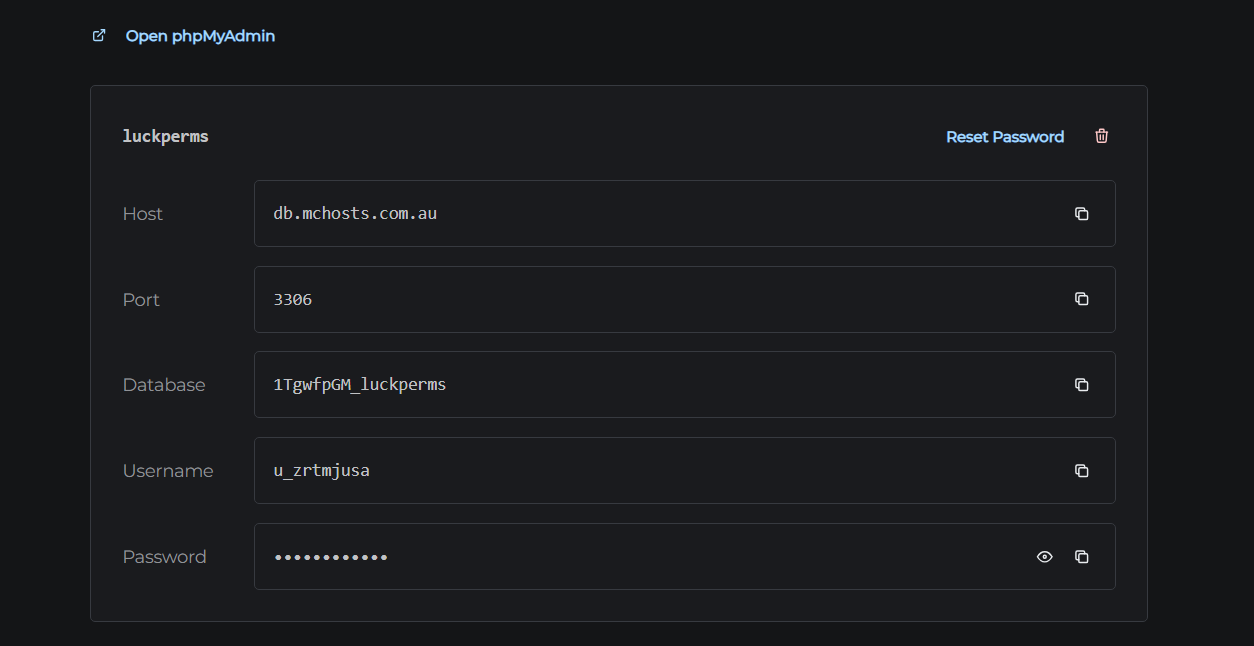
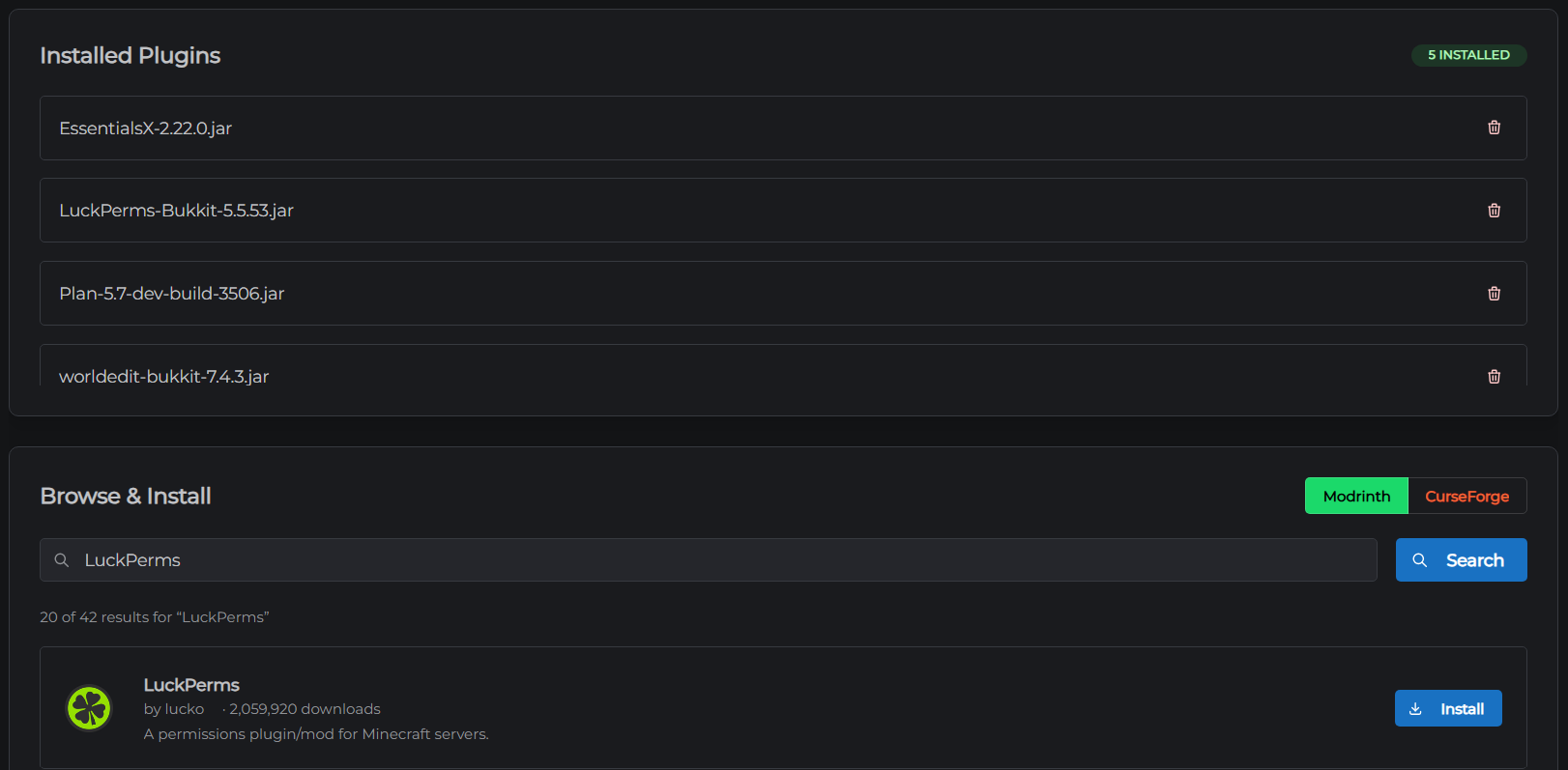
Some Minecraft plugins store their data in a database instead of flat files - LuckPerms, CoreProtect, and most economy plugins all support this. The MySQL Databases section in your Connections tab lets you create and manage databases directly from the control panel. MCHosts runs MariaDB under the hood, which is fully compatible with any plugin that supports MySQL.
This feature is available on Iron plan and above.
Creating a database
- Open the control panel
- Click the Connections tab
- Scroll down to MySQL Databases
- Click + Create Database
- Enter a label - use the plugin name in lowercase, for example
luckpermsorcoreprotect - Click Create Database
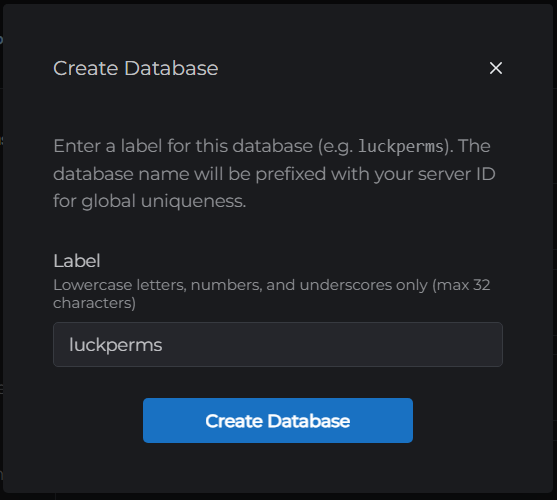
Your database is created in a few seconds. The credentials appear immediately on a card in the Databases section.
Your database credentials
Each database card shows everything you need to connect a plugin:
| Field | Description |
|---|---|
| Host | db.mchosts.com.au - the database server address |
| Port | 3306 - the standard MySQL port |
| DB Type | MariaDB - use this when your plugin asks for a database type |
| Database | The database name - generated automatically from your label |
| Username | A unique username scoped to this database only |
| Password | A randomly generated password |
Click the copy icon next to any field to copy it to your clipboard.
Using your database with a plugin
Open your plugin's config file and paste in the credentials. Every plugin is slightly different, so always check that plugin's documentation for the exact field names. Here is an example using LuckPerms:
- Stop your server
- In the File Manager, open
plugins/LuckPerms/config.yml - Find the
storage-methodline and change it tomariadb - Fill in the
datasection:
storage-method: mariadb

data:
  address: db.mchosts.com.au:3306
  database: your-database-name
  username: your-username
  password: your-password
- Save the file and start your server
Why
mariadband notmysql? MCHosts runs MariaDB. LuckPerms has a dedicated MariaDB driver that connects more reliably than the generic MySQL one. If your plugin only has amysqloption (notmariadb), that is fine - MariaDB accepts MySQL connections.
LuckPerms does not use a separate port field - the port goes on the end of the address line as db.mchosts.com.au:3306. Other plugins are different: many use separate host and port fields, so always follow that plugin's own documentation.
LuckPerms will create its own tables inside the database on first start.
Managing your database visually
The easiest way to browse and edit your database is through phpMyAdmin, which is built into the control panel - nothing to install. Click Open phpMyAdmin → at the top of the MySQL Databases section and log in with your Username and Password from the database card.
phpMyAdmin is useful for:
- Browsing and editing table data
- Exporting a backup of your database (use Export in the top menu)
- Importing a database you exported from another host
You can also connect using any MySQL client if you prefer. Some free options:
- DBeaver (free, Windows/Mac/Linux)
- MySQL Workbench (free, Windows/Mac/Linux)
- HeidiSQL (free, Windows only)
Connect using the credentials from your database card - host db.mchosts.com.au, port 3306. MC Hosts is not affiliated with any of the external tools listed above.
Resetting a password
If you need to change a database password:
- Find the database card in the MySQL Databases section
- Click Reset Password
- A notification pops up with your new password - copy it immediately
- Update the password in your plugin's config file and restart the server
The new password is also saved in the control panel - you can view it on the database card after the page refreshes.
Deleting a database
Deleting a database permanently removes all data inside it. This cannot be undone.
- Find the database card and click the red trash icon
- Click Confirm Delete to proceed
Remove the database credentials from your plugin's config before deleting, otherwise the plugin will log connection errors on startup.
Troubleshooting
Plugin can't connect - double-check each credential field. A single wrong character (especially in the password) will cause a connection failure. Use the copy buttons rather than typing manually.
"MySQL databases are available on the Iron plan and above" - your current plan does not include this feature. Upgrade your plan to Iron or higher to unlock it.
Lost your password - click Reset Password on the database card to generate a new one, then update your plugin config.
← SFTP Access | Next: Crash Alerts →