SFTP Access
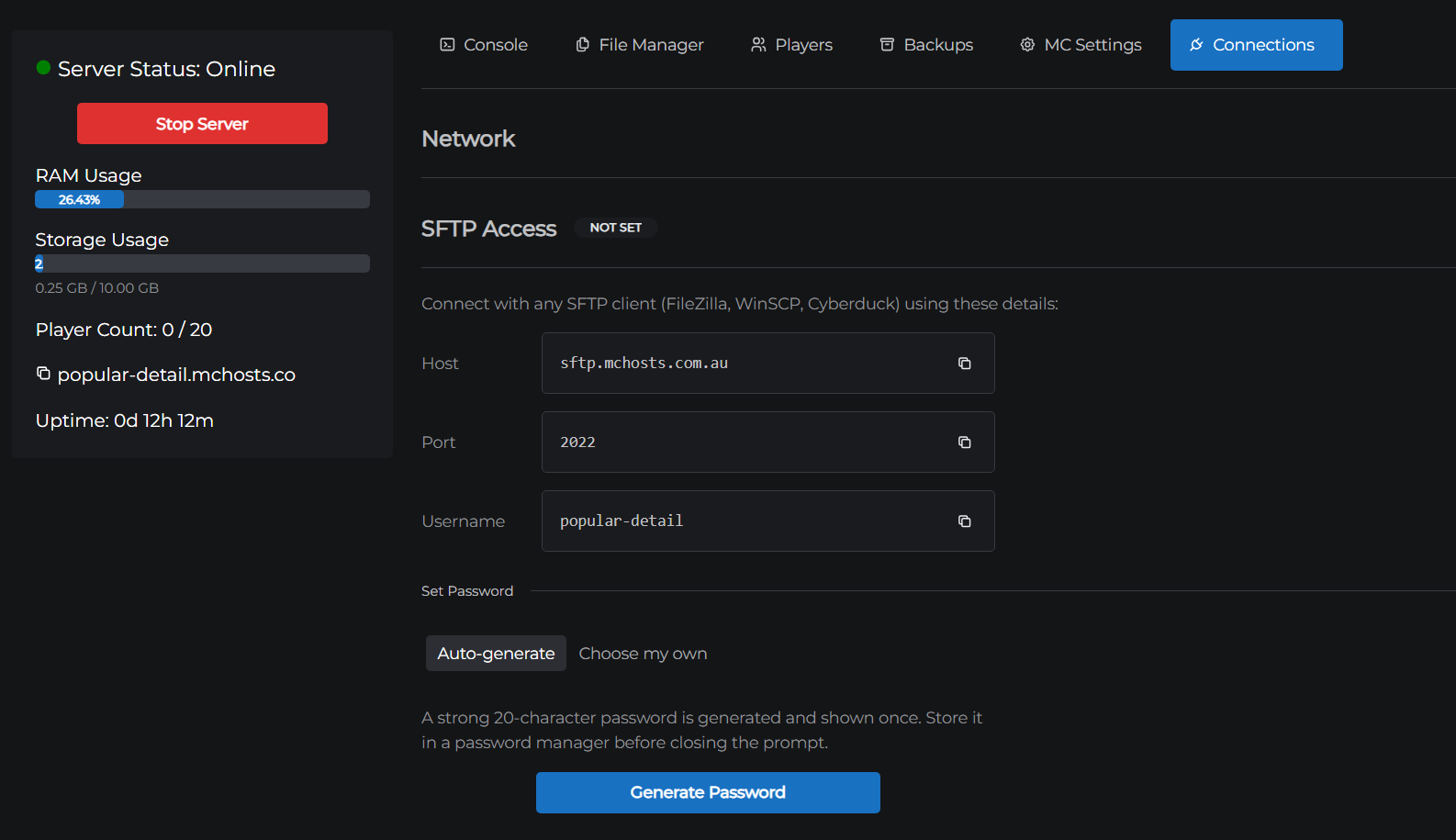
SFTP lets you connect to your server's files using a program on your computer - useful for uploading large files, moving entire folders, or making bulk changes that would be slow to do in the browser.
What you need
- An SFTP client installed on your computer. Some popular options:
- A password set for your server (you do this once in the Connections tab)
Step 1 - Set a password
Before you can connect, you need to set an SFTP password for your server.
- Open the control panel
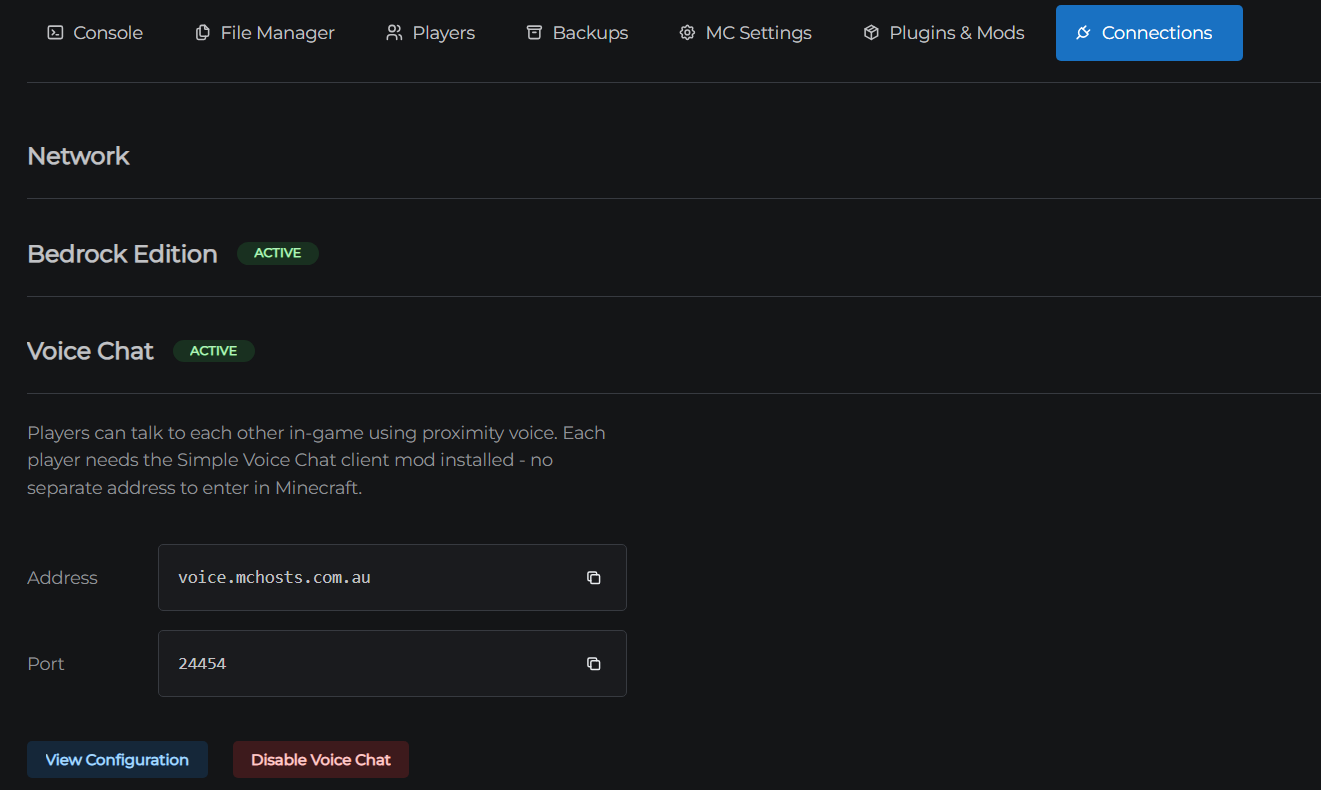
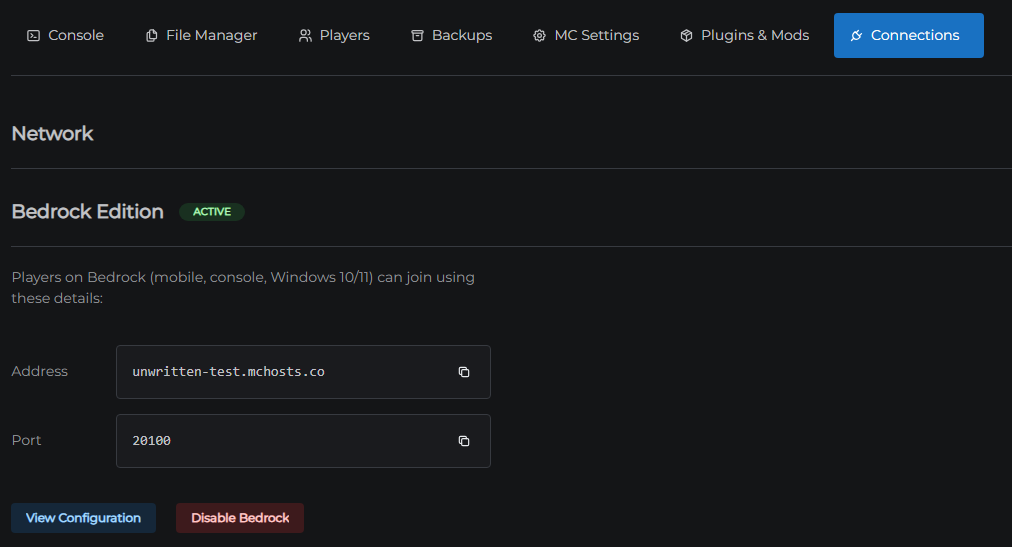
- Click the Connections tab
- Scroll down to SFTP Access
- Choose how you want your password set:
- Auto-generate - MCHosts creates a strong random password for you and shows it once. Copy it before closing.
- Custom - type your own password (minimum 8 characters)
- Click Set Password
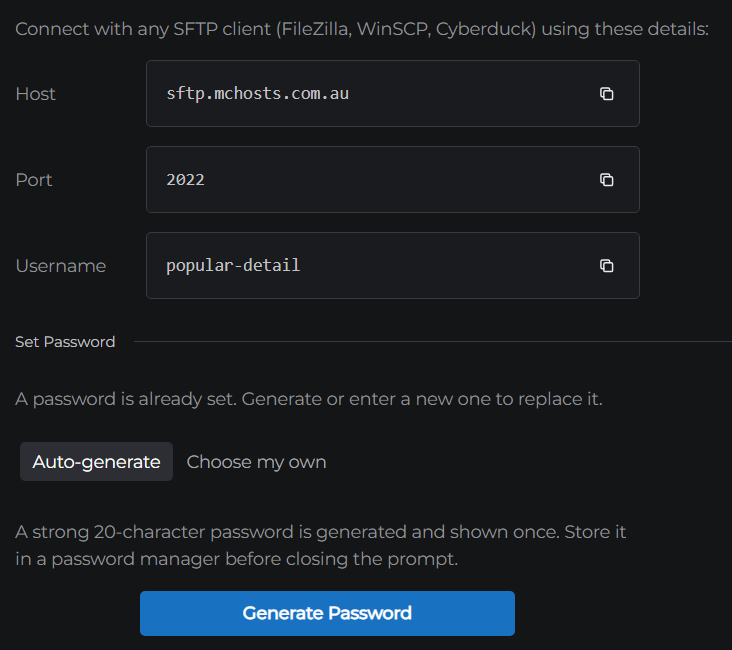
Your password is set. You only need to do this once - it stays until you change it.
Step 2 - Connect with your SFTP client
Any SFTP client will work. The steps below use FileZilla as an example since it is free and widely used - but the same host, username, password, and port details apply to any client you choose. MC Hosts is not affiliated with FileZilla or any of the clients listed above.
Open FileZilla and fill in the Quick Connect bar at the top:
| Field | Value |
|---|---|
| Host | sftp://sftp.mchosts.com.au |
| Username | Your server's subdomain - the part before .mchosts.co (e.g. if your address is cool-dragon.mchosts.co, your username is cool-dragon) |
| Password | The password you just set |
| Port | 2022 |
Important: Make sure to include
sftp://at the start of the Host field. Without it, FileZilla defaults to regular FTP and the connection will fail.
Click Quickconnect.

Your server's files will appear on the right side of the screen. You can now drag files between your computer (left side) and your server (right side).
Finding your files
Your server files are in the /data folder. This is the same folder you see in the control panel's File Manager. Common locations:
| What | Path |
|---|---|
| World saves | /data/world, /data/world_nether, /data/world_the_end |
| Plugins folder | /data/plugins |
| Server config | /data/server.properties |
| Mods folder | /data/mods |
Tips
- Uploading a world: drag the world folder into
/dataand rename it to match the Level Name in your server settings (usuallyworld) - Stop the server first before uploading or replacing world files - editing files while the server is running can cause corruption
- If FileZilla shows a warning about an unknown host key the first time you connect, click OK to trust it and continue
Changing or resetting your password
Go back to Connections > SFTP Access at any time to set a new password. The old password stops working immediately.
← Plugins & Mods | Next: MySQL Databases →