Plugins & Mods
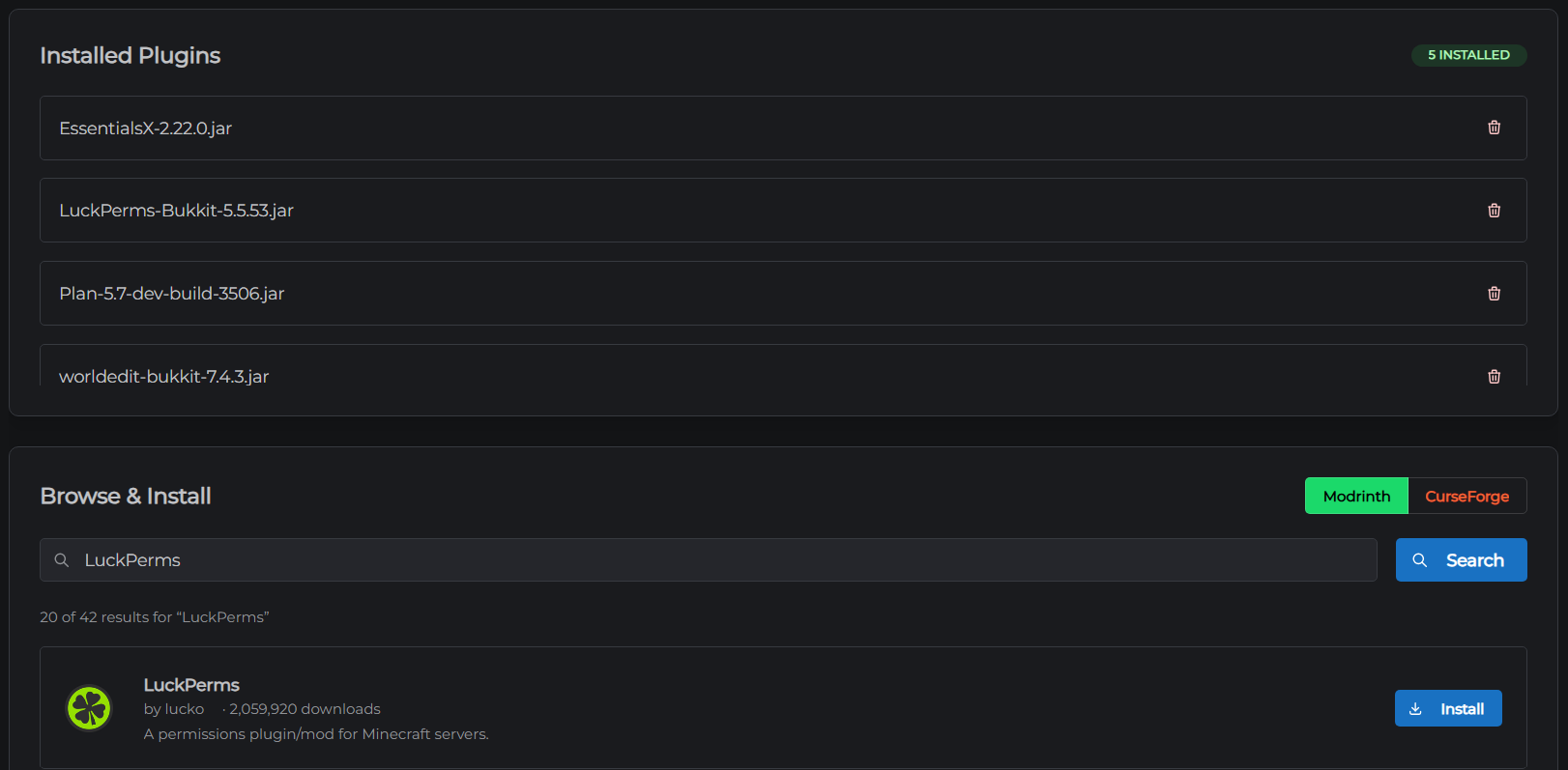
The Plugins & Mods tab lets you search for and install plugins or mods directly from the control panel - no manual file uploads needed.
Which servers support this
What you can install depends on your server type:
| Server type | What you can install |
|---|---|
| PaperMC | Plugins (installed into Server/plugins/) |
| Forge / NeoForge | Mods (installed into Server/mods/) |
| Fabric | Mods (installed into Server/mods/) |
| Vanilla | Not supported - Vanilla servers do not load plugins or mods |
If your server is Vanilla and you want to use plugins, switch to PaperMC in Settings → Server.
Browsing and installing
- Click the Plugins & Mods tab in the control panel
- In the Browse & Install section, choose a source:
- Modrinth - a large, free plugin and mod repository (default)
- CurseForge - another popular repository with a wide mod selection
- Type a name in the search box and press Enter or click Search
- Find the plugin or mod you want and click Install
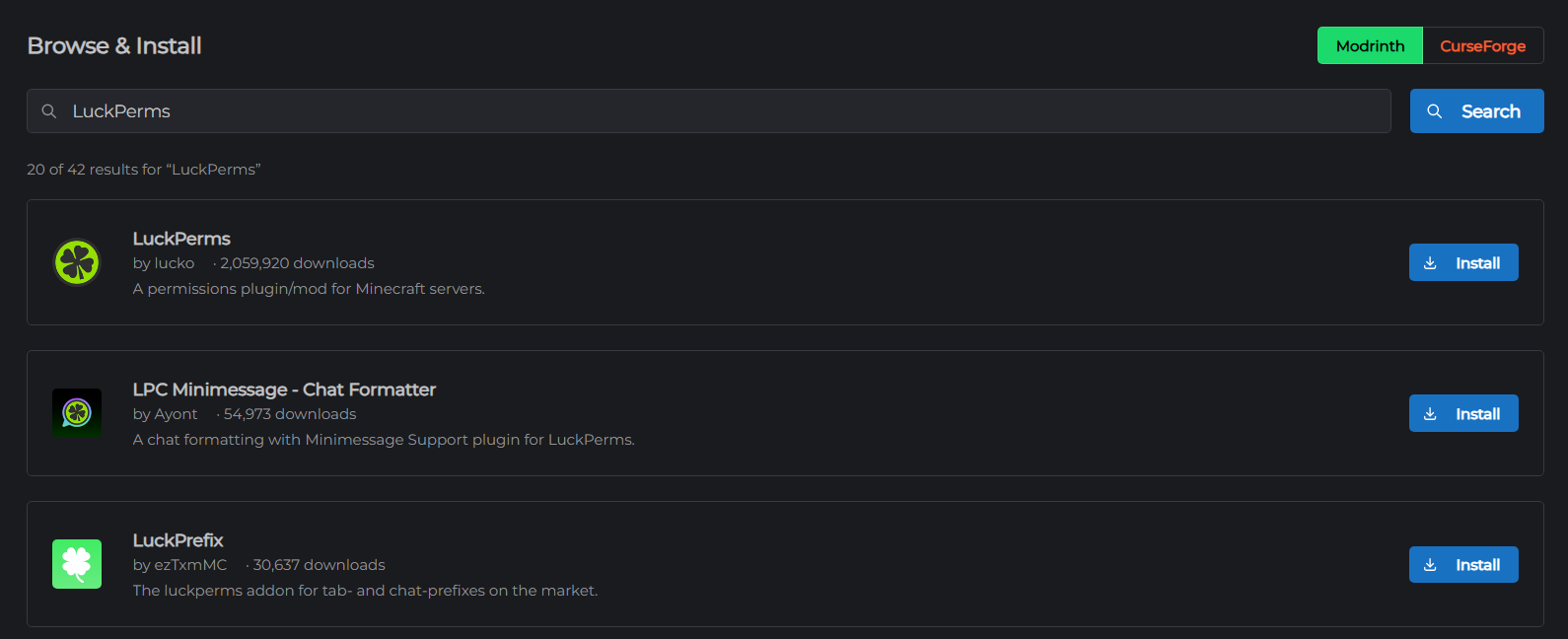
The file downloads directly to your server. A progress bar shows the download as it happens. Once it finishes, a confirmation appears and the installed list at the top refreshes automatically.
Installed plugins and mods
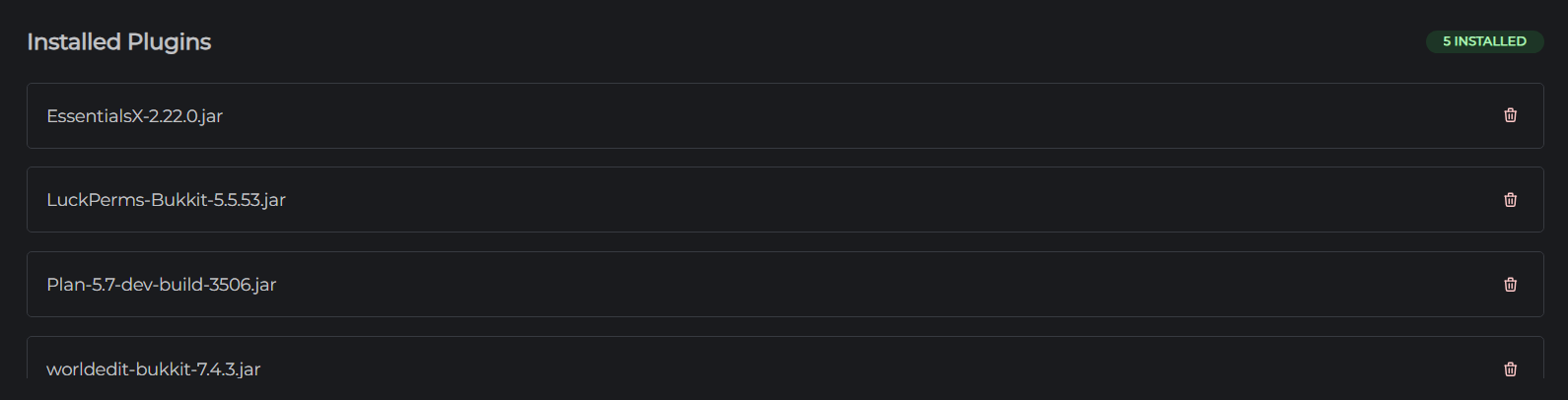
The Installed section at the top of the tab shows every .jar file currently in your plugins or mods folder.
Restarting after changes
Installing or removing a plugin or mod takes effect the next time the server starts. If your server is currently running, restart it from the Dashboard after making changes.
Uninstalling
To remove a plugin or mod:
- Find it in the Installed list at the top of the tab
- Click the red trash icon next to its name
- Confirm the prompt
The file is deleted immediately. Restart the server for the change to take effect.
Tips
- Not seeing your plugin in search results? Try a shorter search term - searching for "essentials" finds EssentialsX, for example. Results are filtered to your current Minecraft version and server type, so a plugin that only supports older versions may not appear.
- Check for dependencies - some plugins require other plugins to be installed first (for example, many economy plugins require Vault). The plugin's page on Modrinth or CurseForge will list any requirements.
- Plugin configs - after installing and restarting, most plugins create a folder inside
Server/plugins/with their config files. You can edit these in the File Manager.
← Danger Zone | Next: SFTP Access →