Connecting to Your 7 Days to Die Server
Players join a 7 Days to Die server by its address and port, from the game's Join a Game screen. Your server can also show up in the game's server list.
Find your address and port
Open your control panel and look at the Overview page. Under Server Information you'll see your Server Address, with your Port on the row below it.
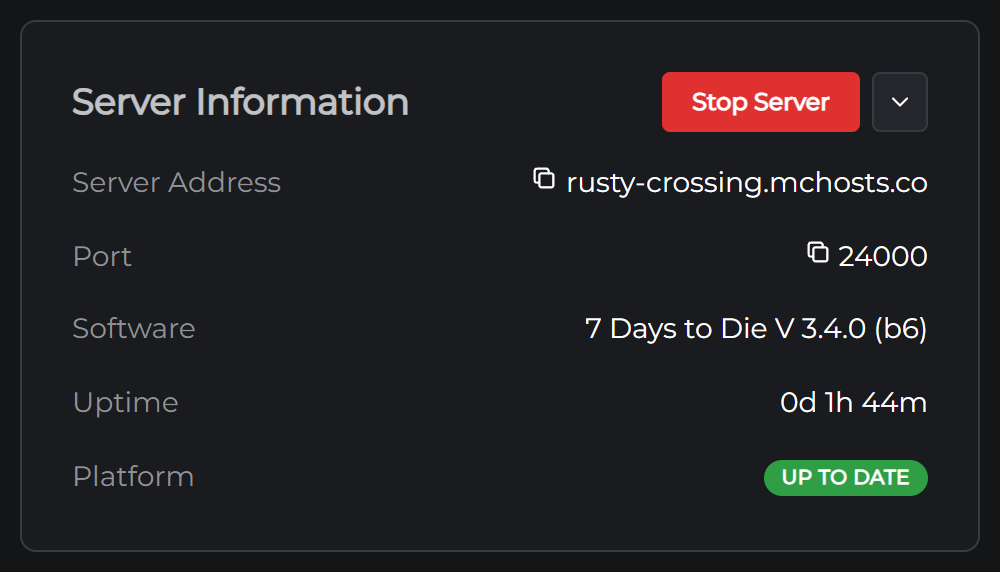
Every server here has its own port so they can all share one address. Click either one to copy it.
Join by address
- Start 7 Days to Die and click Join a Game
- Click Connect to IP at the bottom of the server list
- Type your Server Address into the IP box and your Port into the Port box, then click Connect
If your server has a password, the game asks for it before it lets you in.
The first time you join a world, the game downloads it from your server. A random world can take a minute or so.
Find it in the server list
A new server is listed publicly under the name on your Config tab, which starts as 7 Days to Die [Brought to you by MCHosts]. In Join a Game, search for your server's name and join it from there.
To keep it off the list, set Who can find it to Not listed on the Config tab and restart your server. Players can still join by address.
Set a password
A new server has no password, which means anyone who finds it can join. Set one before you share your address.
- On the Config tab, type a password under Join password in the Server card and click Save
- Restart your server from the Overview page
You can save while your server is running. The password applies once it restarts.
Make yourself an admin
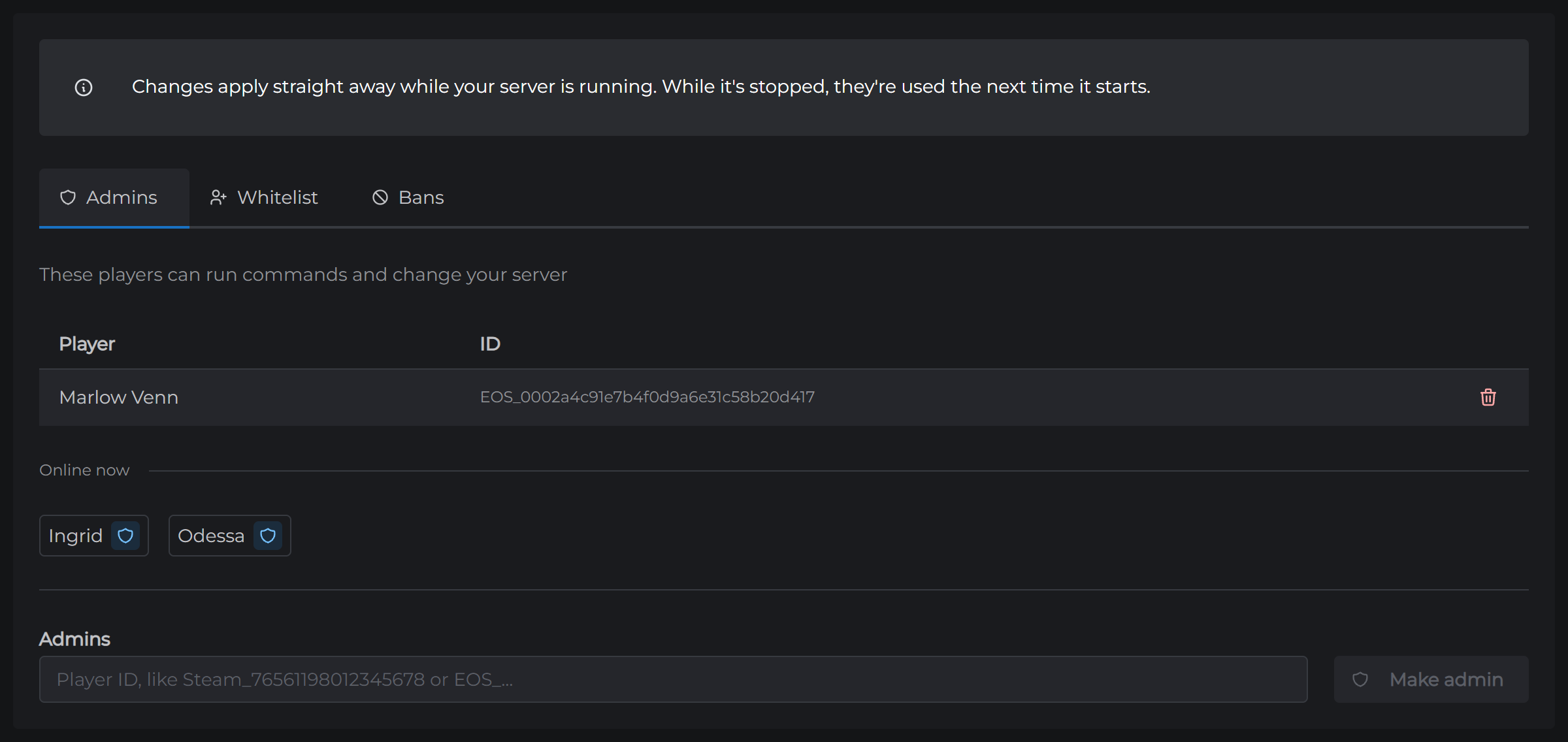
The game's own console needs admin rights. Join your server, then open the Players tab in your control panel and click Admins. Your name is under Online now. Click the shield beside it and you're an admin straight away.
Sharing with friends
Send them your Server Address, your Port and the password. Anyone who owns 7 Days to Die on PC can join.
If you've added mods that change the game's code, EasyAntiCheat has to be off on your server. Some mods also have to be on each player's PC, and a mod's own page says when.
If you can't connect
Your server may be off. On the Overview page, look for the Online badge. If it's offline, click Start Server. The very first start downloads 7 Days to Die from Steam, about 18GB, so it takes a while longer than the ones after it.
It may still be loading. The Console tab shows a line ending StartGame done once your server is ready for players. A new random world is made before that line, which takes a minute or two.
Check the address and port. They go in two separate boxes, and the port has to be the one on your Overview page.
Check the password. It's on the Config tab, and it has to match exactly. A password you've just saved only applies once your server has restarted.
Check the version. Players have to be on the same version of 7 Days to Die as your server. Your server takes each update when it restarts, so if Steam has just updated the game, restart your server from the Overview page and it catches up. If your server is on the Experimental version, your players have to pick the same version in Steam.
Check the whitelist. If anyone is on the whitelist on the Players tab, only those players can join.
Still stuck? Open a support ticket and tell us what the game said when it failed.
Next: 7 Days to Die Server Settings