Connecting to Your Valheim Server
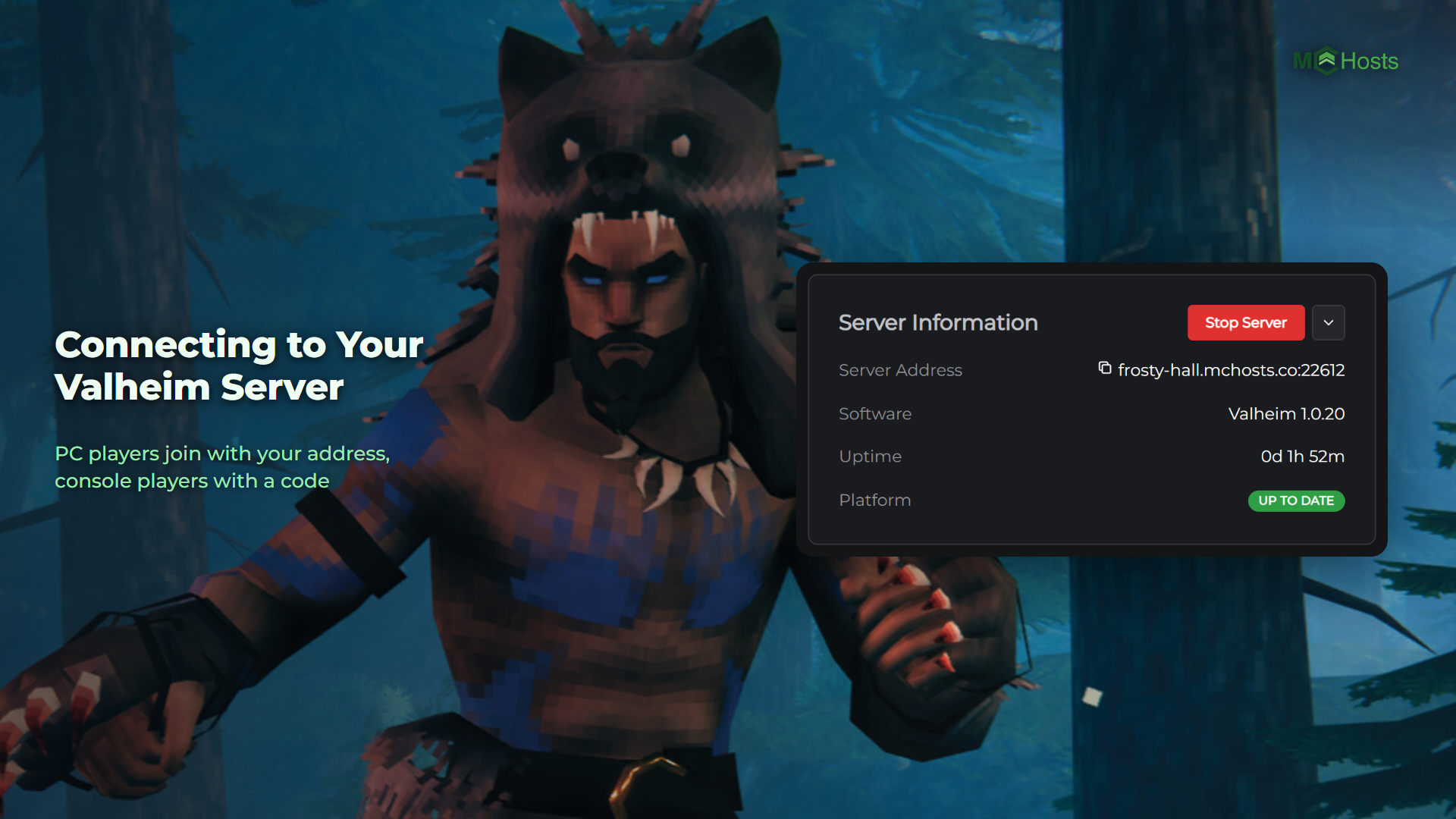
Players on PC join your Valheim server with its address, and players on console join with a code. Both are on your control panel ready to copy. Here's where to find them and how everyone gets in.
Find your address
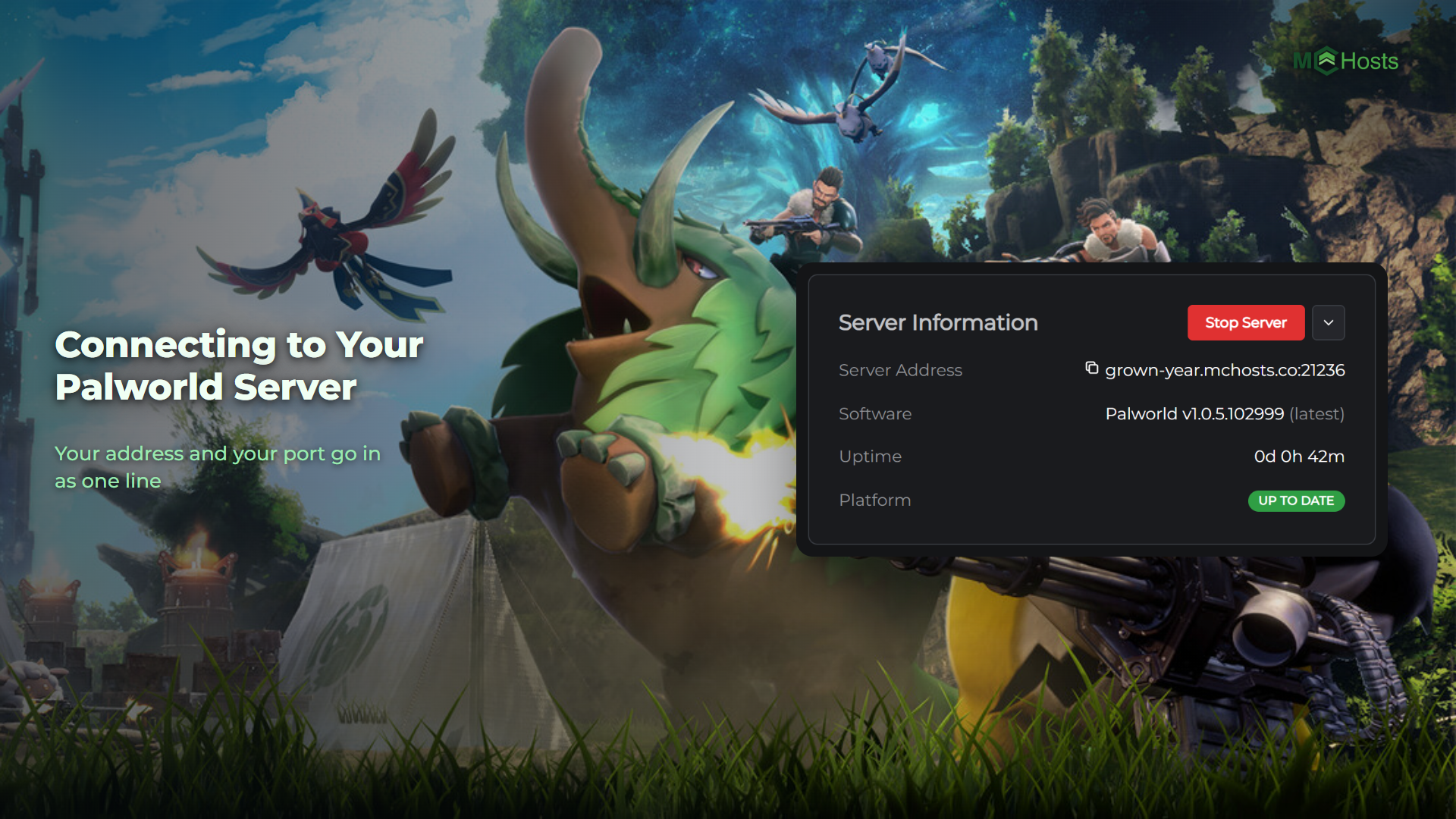
Open your control panel and look at the Overview page. Under Server Information you'll see Server Address, and it looks like this:
yourname.mchosts.co:22612
Click it to copy the whole thing.
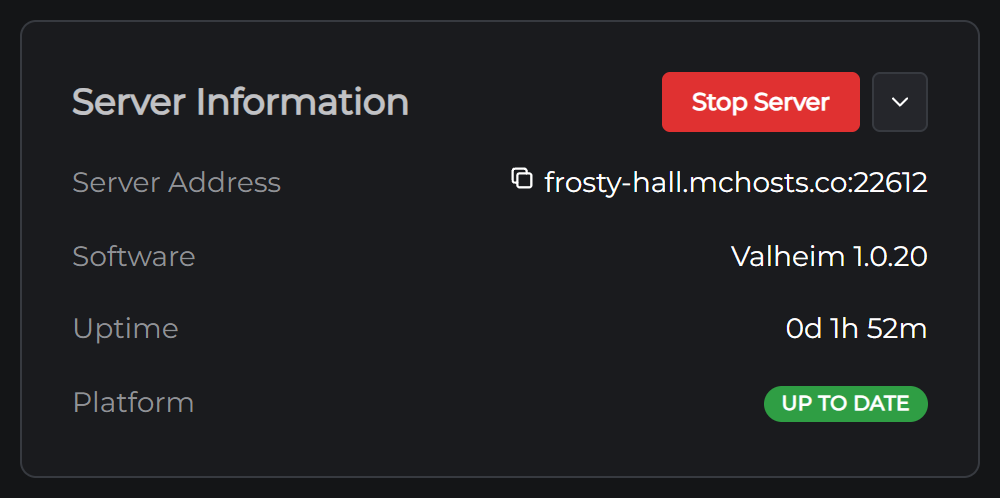
The number after the colon is your port, and it's yours alone. Valheim's usual port is 2456 and yours won't be, because every server here gets its own number so they can all share one address. Copy the whole line, colon and all.
Join from Valheim on PC
- Start Valheim and pick your character
- Open the Join Game tab
- Click Add server and paste your whole address, including the part after the colon
- Choose your server and join
The game asks for your server password, and then loads you into the world.
Console players and the join code
Players on Xbox, PlayStation 5 and Nintendo Switch 2 join with a code instead. It shows at the top of your control panel, under your server's address, as Join code followed by six numbers. It's on the Overview page under Online Players too.

In Valheim, they open Join Game, click Add server and type the code there. PC players can use the code too, if that's easier than the address.
The code can change when your server restarts, so check it before you send it out. Your server restarts once a day by default, at 4am Brisbane time.
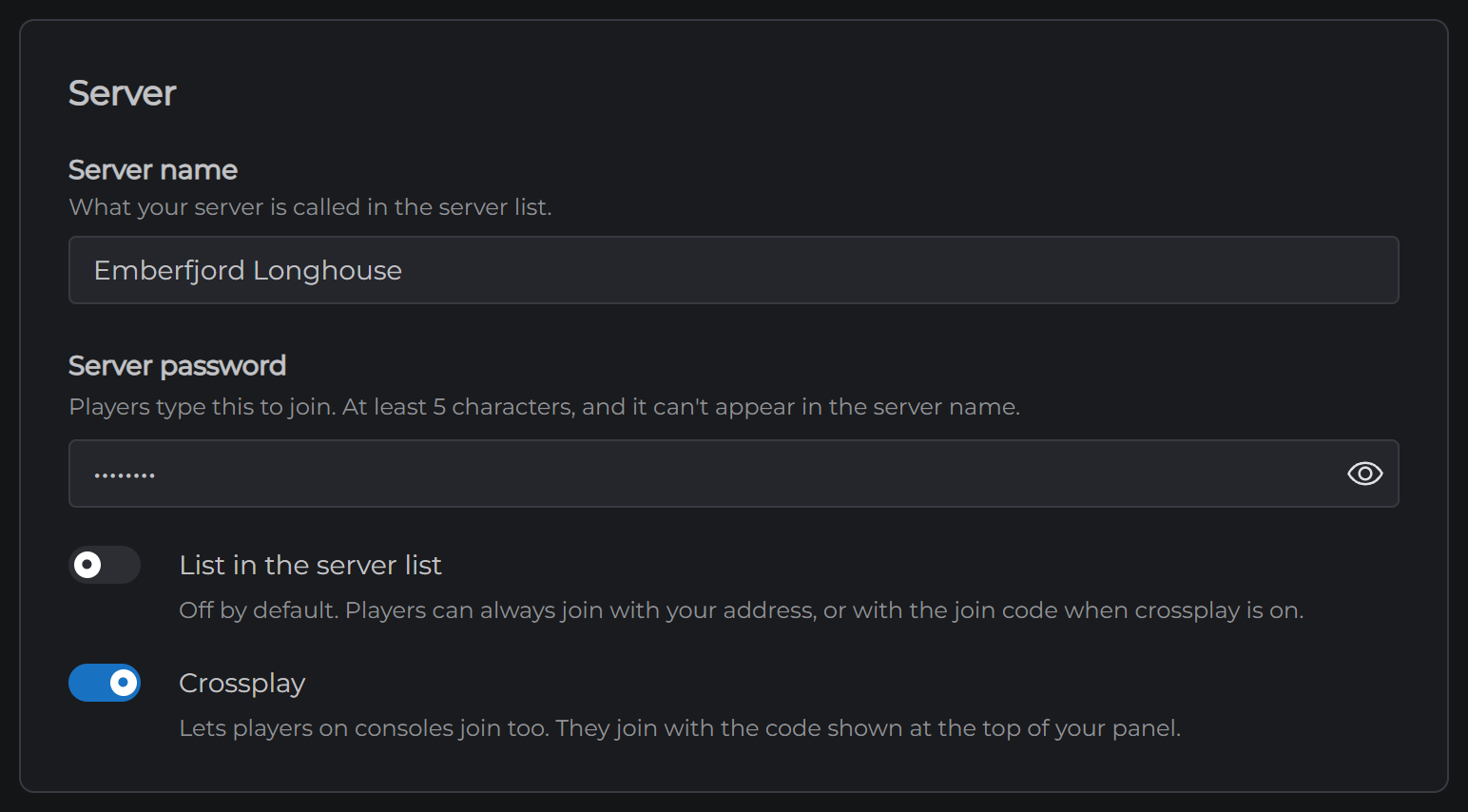
Crossplay is what makes the code work, and it's on unless you've turned it off. The switch is on the Config tab, in the Server section. Xbox players who can't see crossplay servers at all may need to allow it in their console's parental controls.
If you run mods, read How to Install Valheim Mods first. Console players can't install mods, which limits the ones your whole group can use.
Sharing with friends
Send them your address and your server password. That's all they need.
The password is on the Config tab, in the Server section. Your server came with one already set, and you can change it there.
If you can't connect
Your server may be off. On the Overview page, look for the Online badge. If it's offline, click Start Server and give it a minute.
It may still be starting. A new world takes a little longer the first time, while it's generated. The badge says Online once players can get in.
Check the address. A digit out of place in the port fails exactly the way a server that's off does. Copy it from the panel rather than typing it.
You may have left the port off. Valheim needs the whole line. The address on its own won't find your server.
The join code may have changed. If your server has restarted since you sent the code, check the panel for the current one.
Check the password. It's on the Config tab, and it has to match exactly.
Check you're on the current version. Your server runs the current version of Valheim and takes each update when it restarts. If Steam has just updated the game and your friends can't join yet, restart your server from the Overview page and it will catch up.
Still stuck? Open a support ticket and tell us what the game said when it failed.
Next: Valheim Server Settings