Connecting to Your Palworld Server
Palworld takes your address and port as one line, and it is sitting on your control panel ready to copy. Here is where to find it and how everyone joins.
Find your address
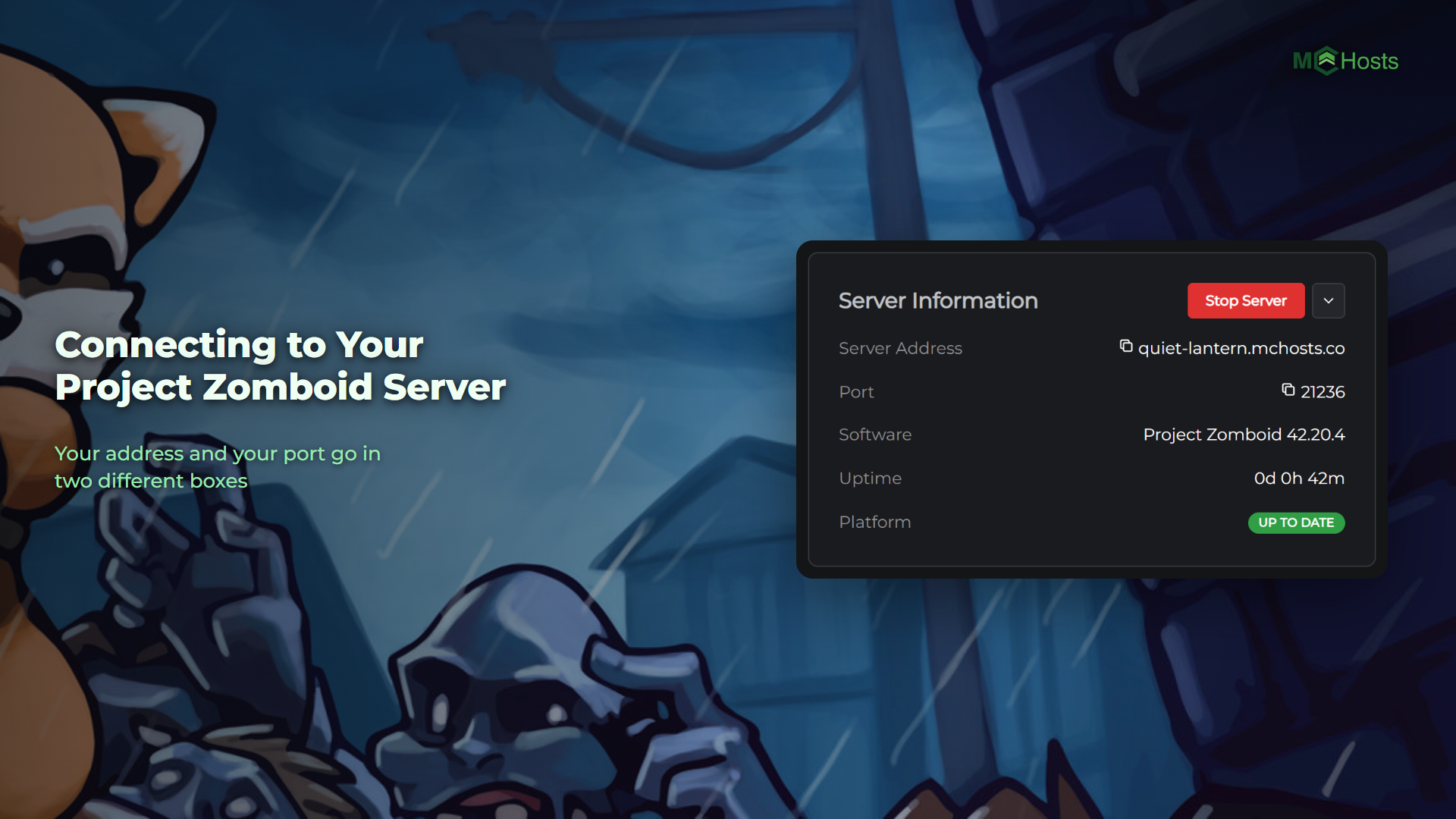
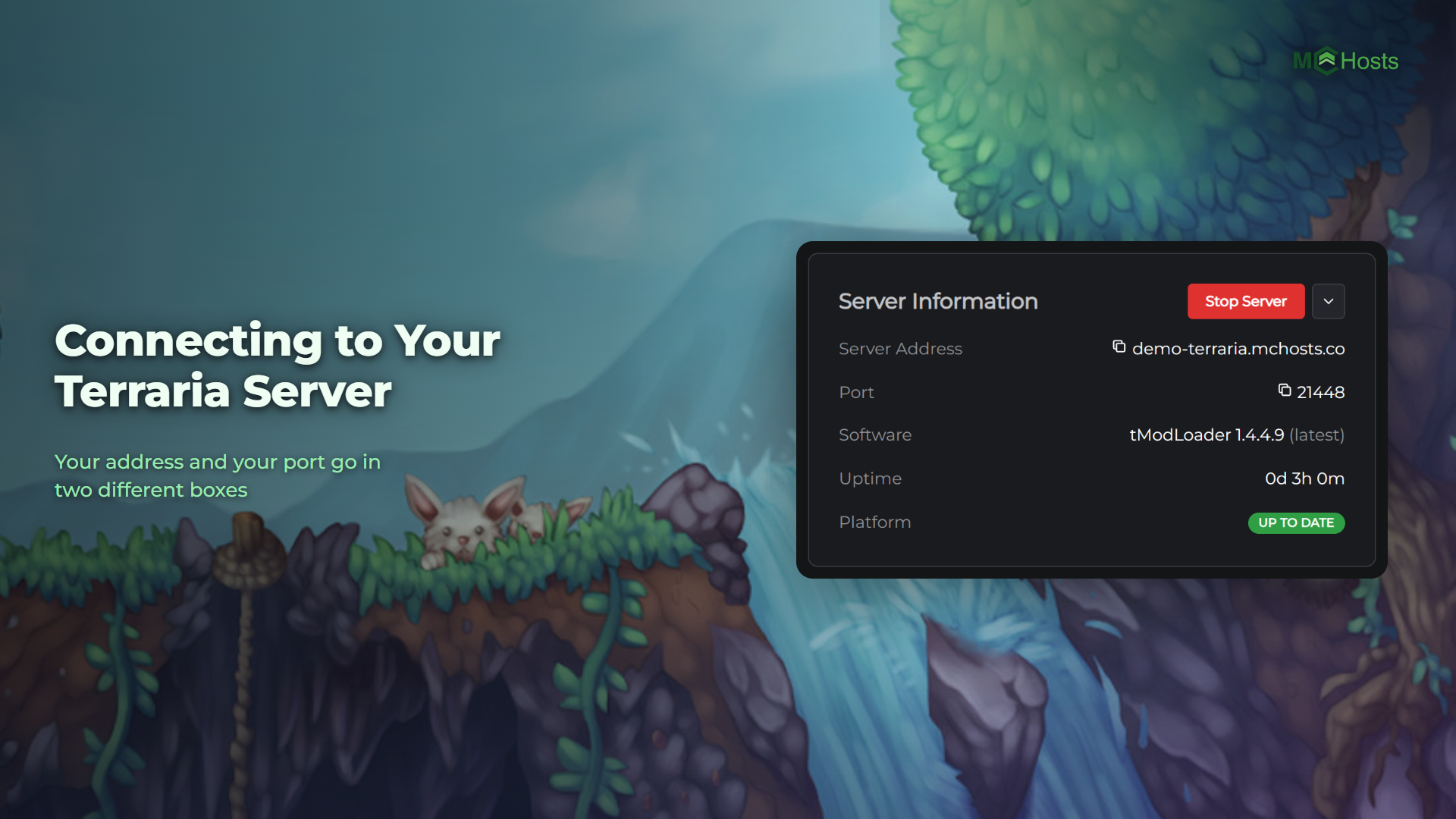
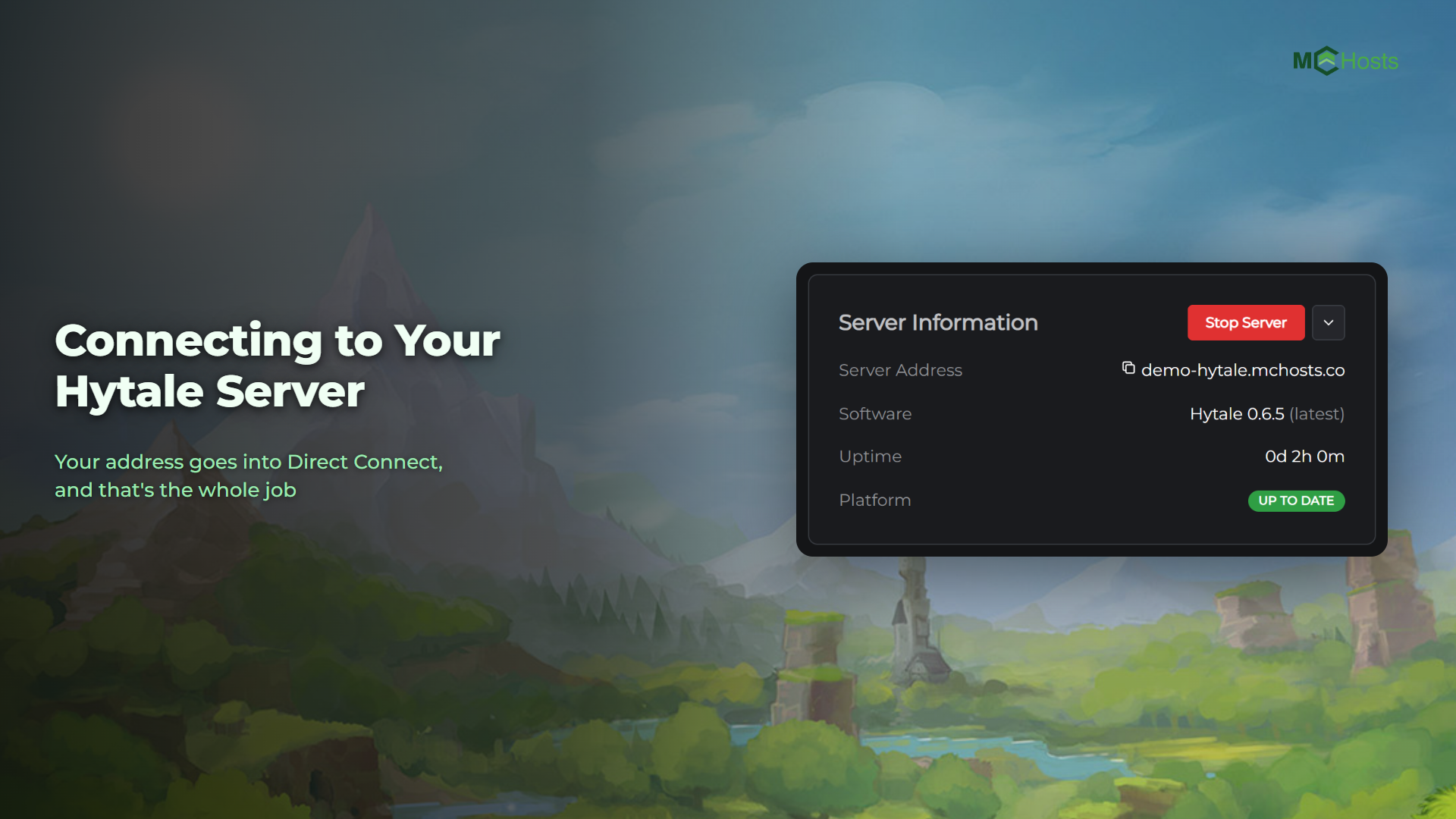
Open your control panel and look at the Overview page. Under Server Information you will see Server Address, and it looks like this:
yourname.mchosts.co:21236
Click it to copy the whole thing.
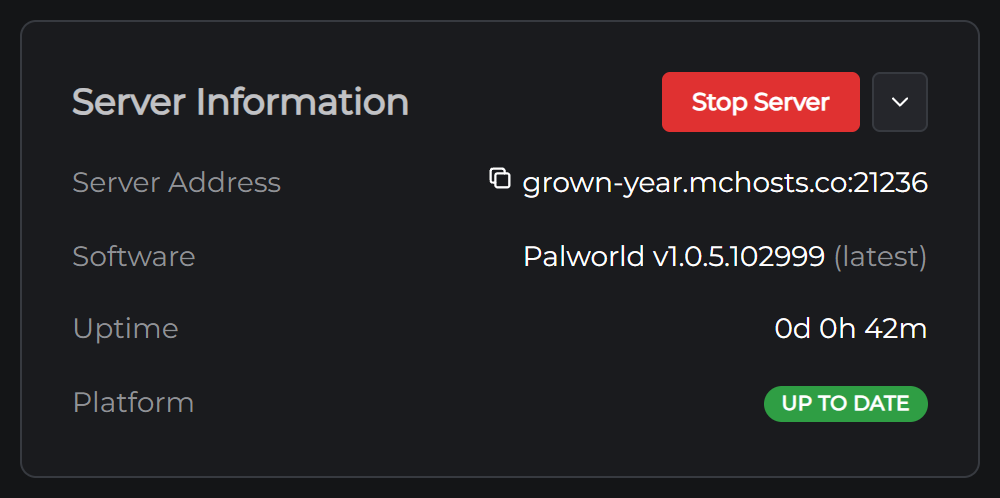
The number after the colon is your port, and it's yours alone. Palworld's usual port is 8211 and yours won't be, because every server here gets its own number so they can all share one address. Copy the whole line, colon and all.
Join from Palworld
- Start Palworld and choose Join Multiplayer Game
- A list of servers appears. Ignore it and look at the box underneath it, the one that takes an address
- Paste your whole line in, including the part after the colon
- Press Connect
Your server will not be in that list unless you have turned the Server Browser on, and it does not need to be. The box below the list is how you reach it by address.
The game loads the world and drops you in. If you set a password, it asks for that next.
Sharing with friends
Send them the one line. There is nothing else they need.
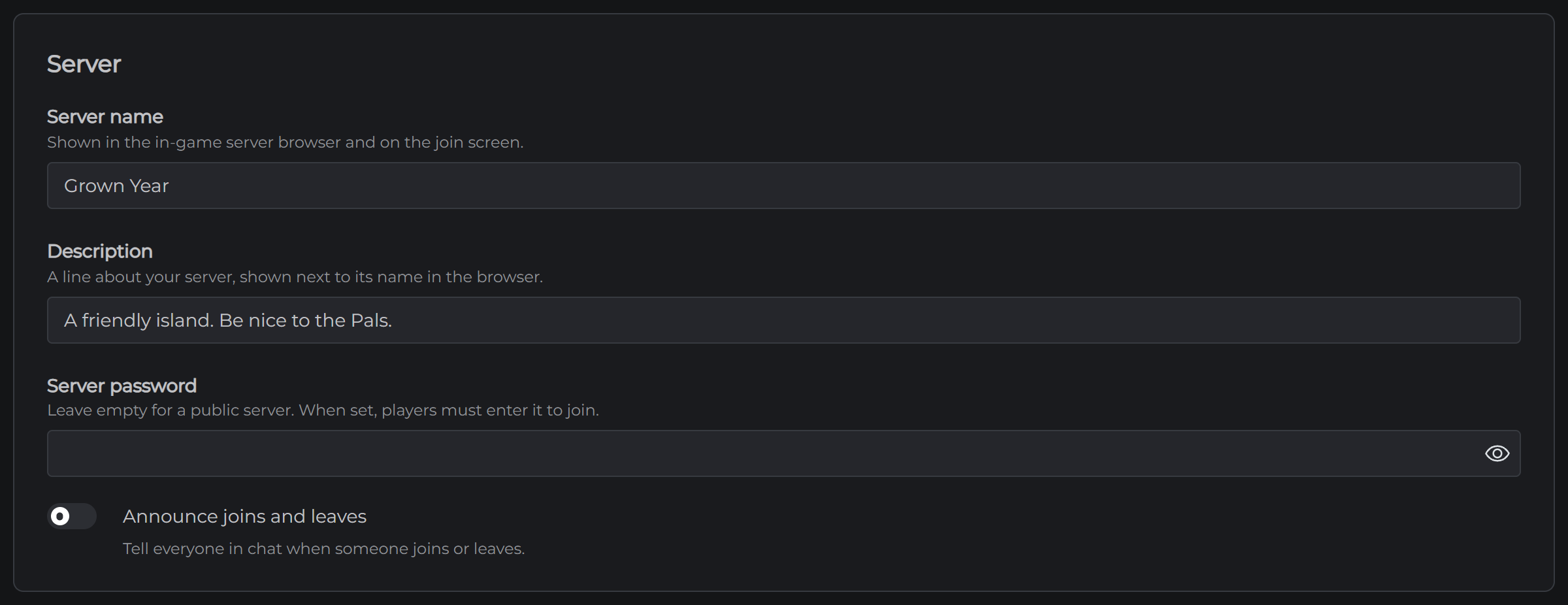
If you want the server private, open the Config tab, find Server password under Server, and set one. Everyone is asked for it when they join, so send that along too.
Xbox and PlayStation players
Console players can't type an address in, so the steps above won't work for them. Their game finds servers in Palworld's own in-game list instead.
To get your server into that list, open the Settings tab and find the Server Browser card, then turn it on and save. The change applies the next time your server starts, so restart it afterwards.
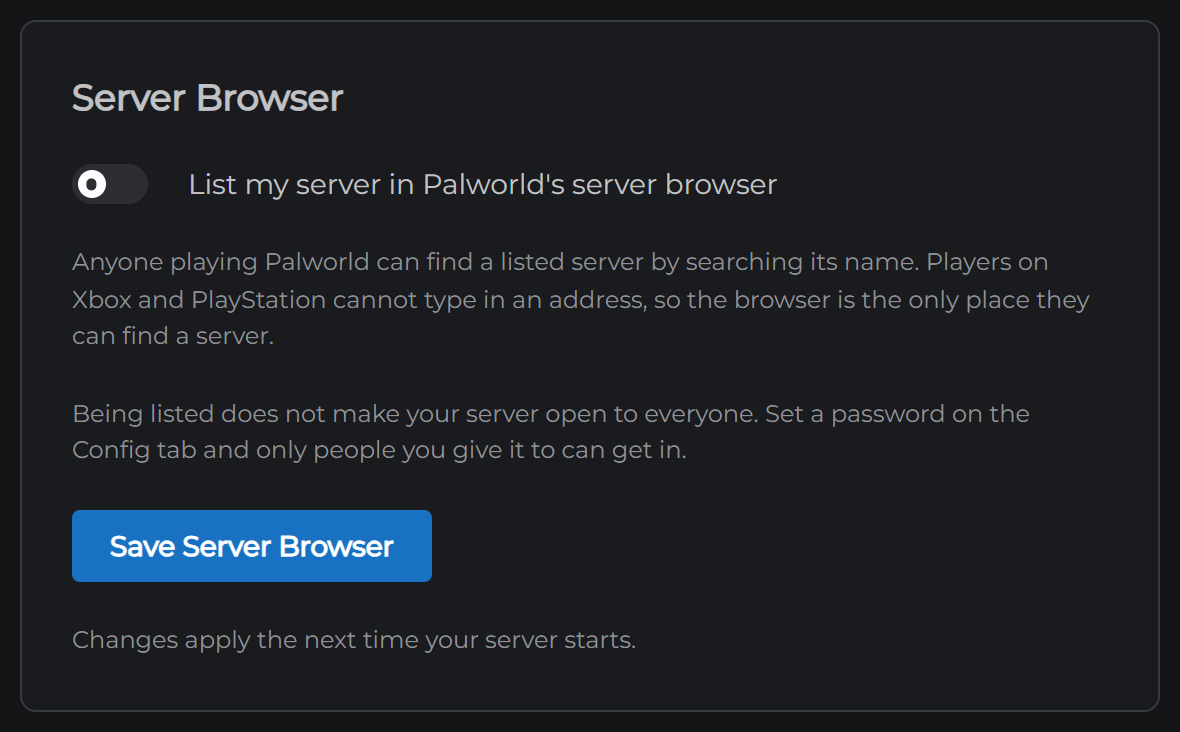
Turning this on lists your server publicly, so anyone browsing can find it. Set a password as well and only the people you give it to can actually get in. If nobody you play with is on a console, leave the browser off and share the address instead.
If you can't connect
The server may be off. On the Overview page, look for the Online badge. If it is offline, click Start Server and give it a minute.
It may still be starting. Watch the Console. Your server prints a line when it is ready, and that line names the port.
Check the address. This is the most common one. A digit out of place in the port fails in exactly the same way as a server that's off, and it's easy to drop the last character when copying by hand.
You may have left the port off. Palworld needs the whole line. The address on its own won't find your server.
There may be a password. If you set one in Config, everyone needs it, including you.
Still stuck? Open a support ticket and tell us what the game said when it failed.
Once everyone is in, the next thing most people change is the server settings.