Palworld Server Settings
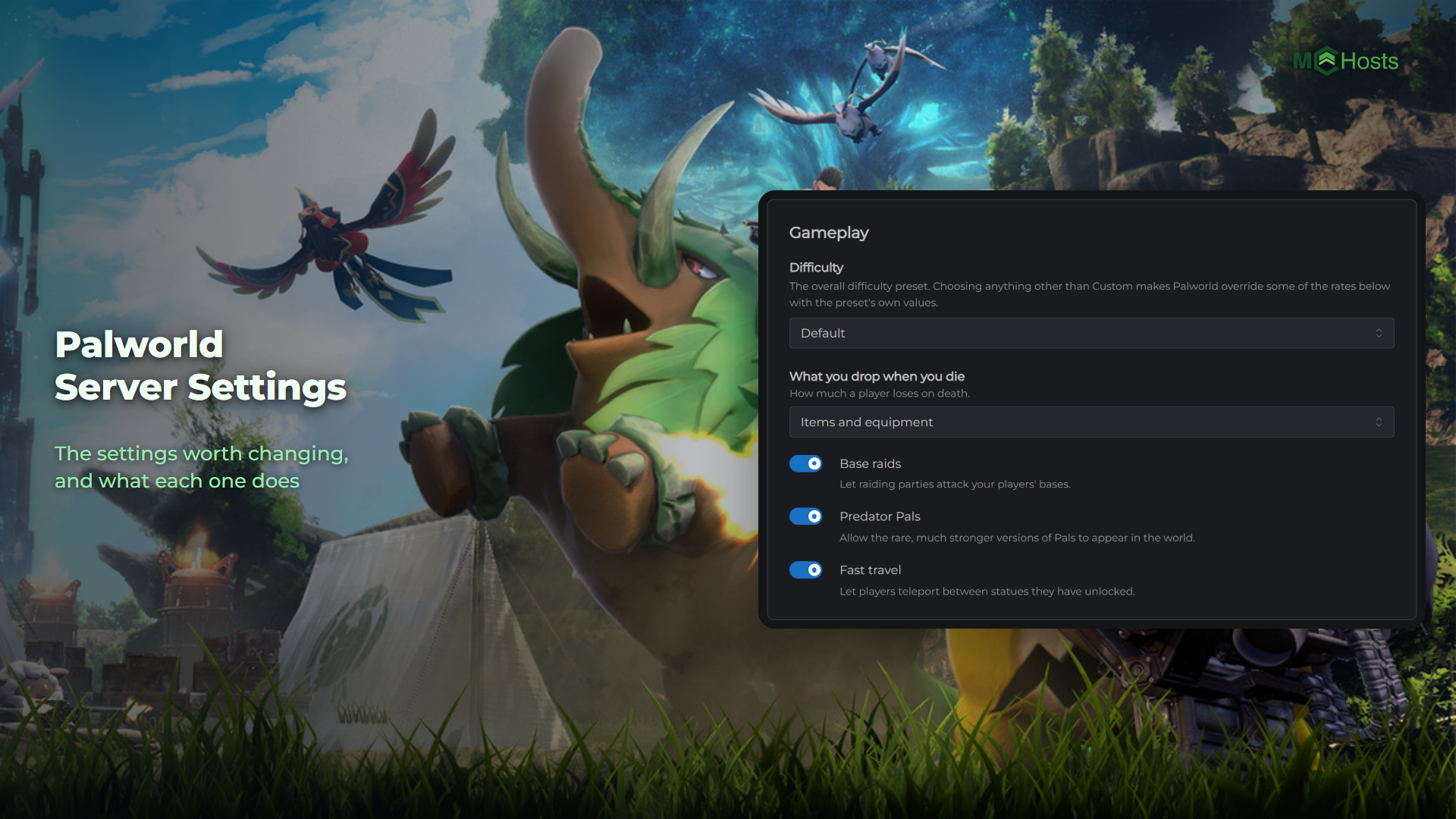
Palworld keeps its settings in one long file that is painful to edit by hand, so your control panel lays it out as a form instead. Here is what you can change and what happens when you do.
Where the settings are
Open your control panel and click the Config tab. Everything is grouped into five sections.
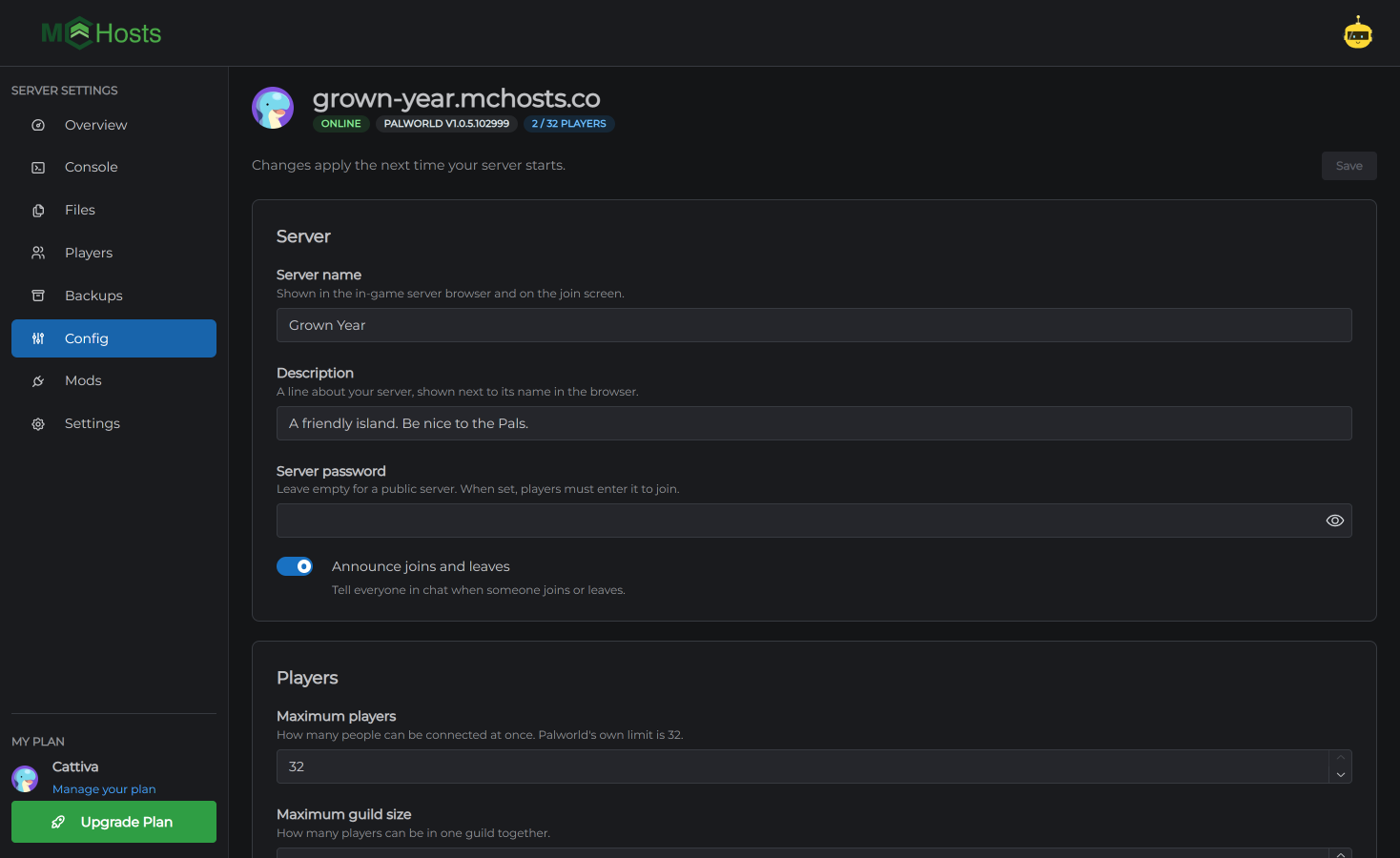
Server. Your server name, the description players see, a password, and whether joins and leaves are announced in chat.
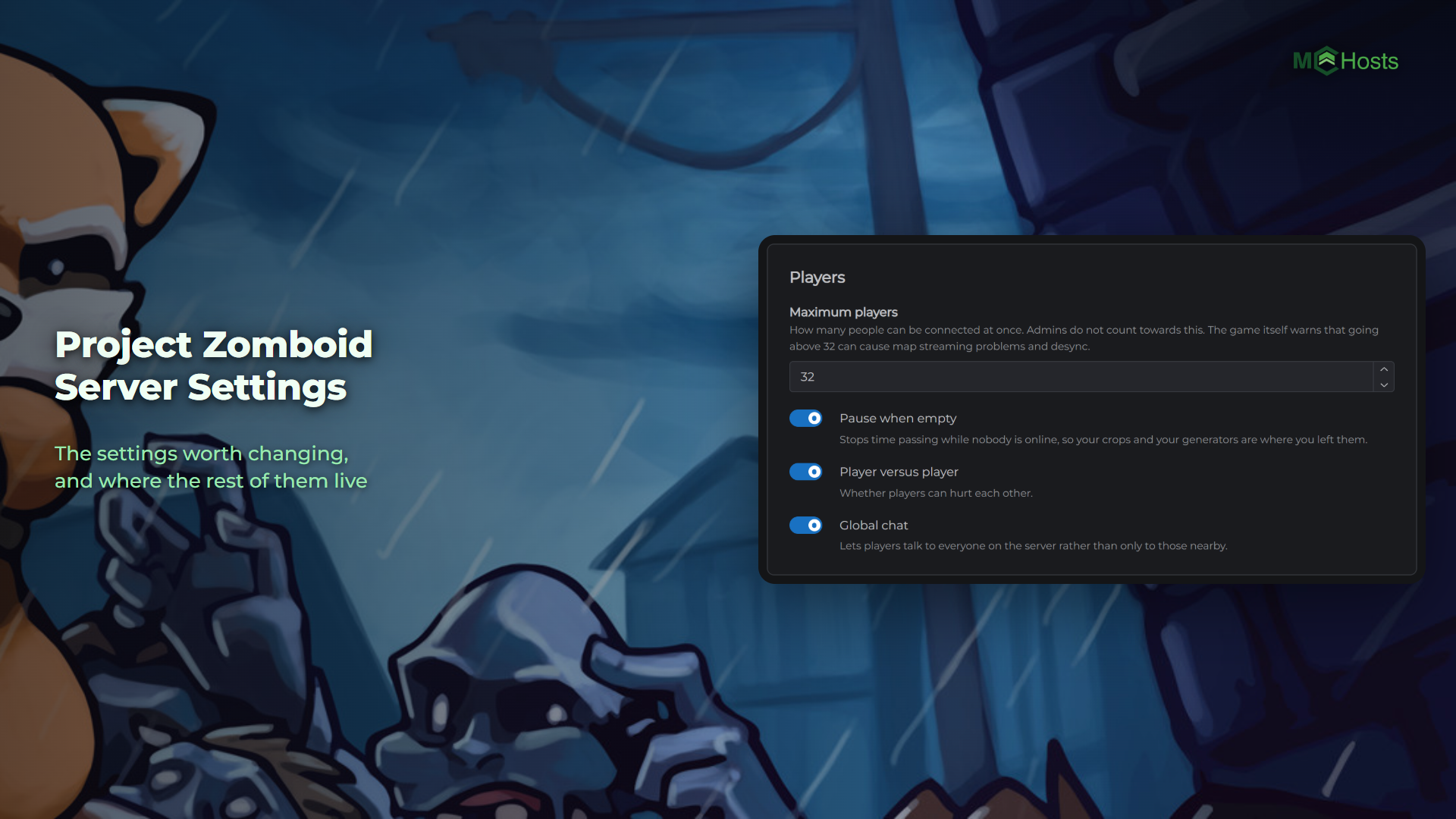
Players. Maximum players, maximum guild size, and whether players can hurt each other.
Gameplay. Difficulty, what you drop when you die, base raids, Predator Pals and fast travel.
Rates. Experience, capture rate, Pal spawn rate, gathering yield, enemy drops, how fast Pals work, and how long day and night last.
World limits. Maximum base camps, base camps per guild, Pals per base camp, maximum buildings, how long dropped items stay, and how often the world saves.
Changing a setting
- Open Config
- Change what you want
- Click Save
Your server reads these when it starts, so a change does nothing until you restart. Restart it from the Overview page and it comes back with what you saved.
Difficulty and the settings below it
Difficulty is a shortcut. Pick Easy, Normal, Hard or Hardcore and the game decides the rates for you. Pick Custom and the game uses your own numbers in Rates and World limits instead.
If you change a rate and nothing happens in game, difficulty is the first thing to check.
Settings we look after
A few settings are not in the form, because your server needs them set a particular way to work here:
- The port your players connect on, which is yours and fixed
- The admin password your control panel uses to talk to the server
If you go looking in the file itself, you'll find them. Changing them stops the control panel talking to your server, which takes the player list, the buttons and the clean shutdown with it.
Editing the file directly
You can, and you rarely need to. Open the Files tab and look under Pal/Saved/Config. The settings live in a folder there, in a file called PalWorldSettings.ini.
Two things to know before you do. The whole file is one very long line, so a text editor won't wrap it kindly. And a mistake in it isn't always obvious, because Palworld falls back to its own defaults rather than complaining.
If you've already edited it by hand, the Config tab reads whatever is in there, so your changes show up in the form.
Importing a world you already have
If you're bringing a world from somewhere else, there's one thing that catches people out. A single player save carries its own copy of the settings, and on a server that copy wins, which takes your control panel's access to the server with it.
Your server deletes that file for you on every start, so an imported world behaves like any other. You don't have to do anything.
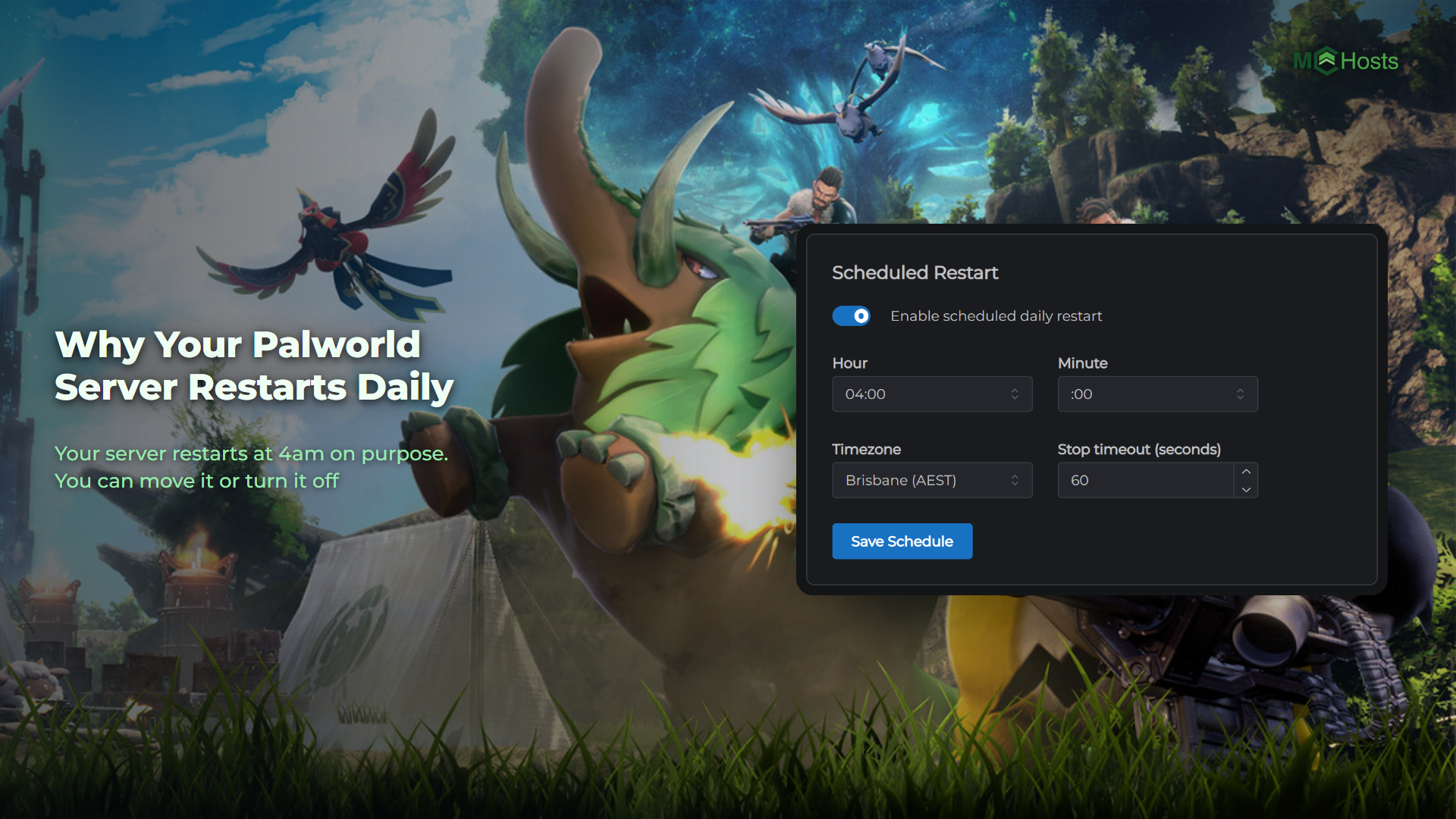
Next, most people want to know why their server restarts every day.