ARK Server Settings
ARK: Survival Evolved keeps its settings in two files inside the server, and it writes them back from memory every time it stops. Your control panel edits the ones you'll change most straight into the game's own file while your server is stopped, so nothing you set gets written over. Here's what you can change where.
Where the settings are
Open your control panel and click the Config tab. The settings are grouped into four sections.
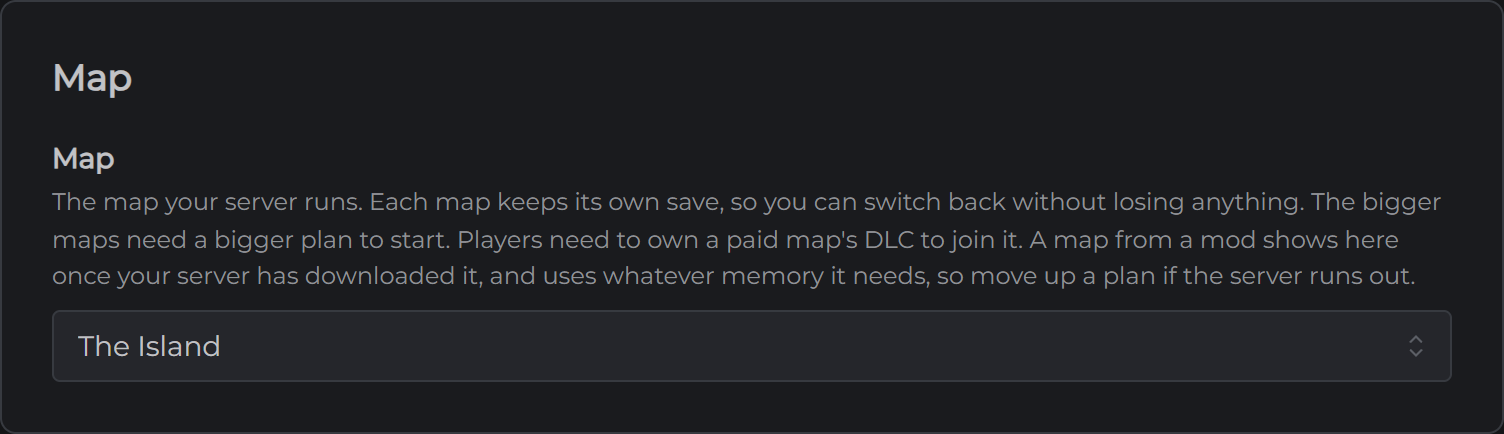
Map. Which of the thirteen official maps your server runs.
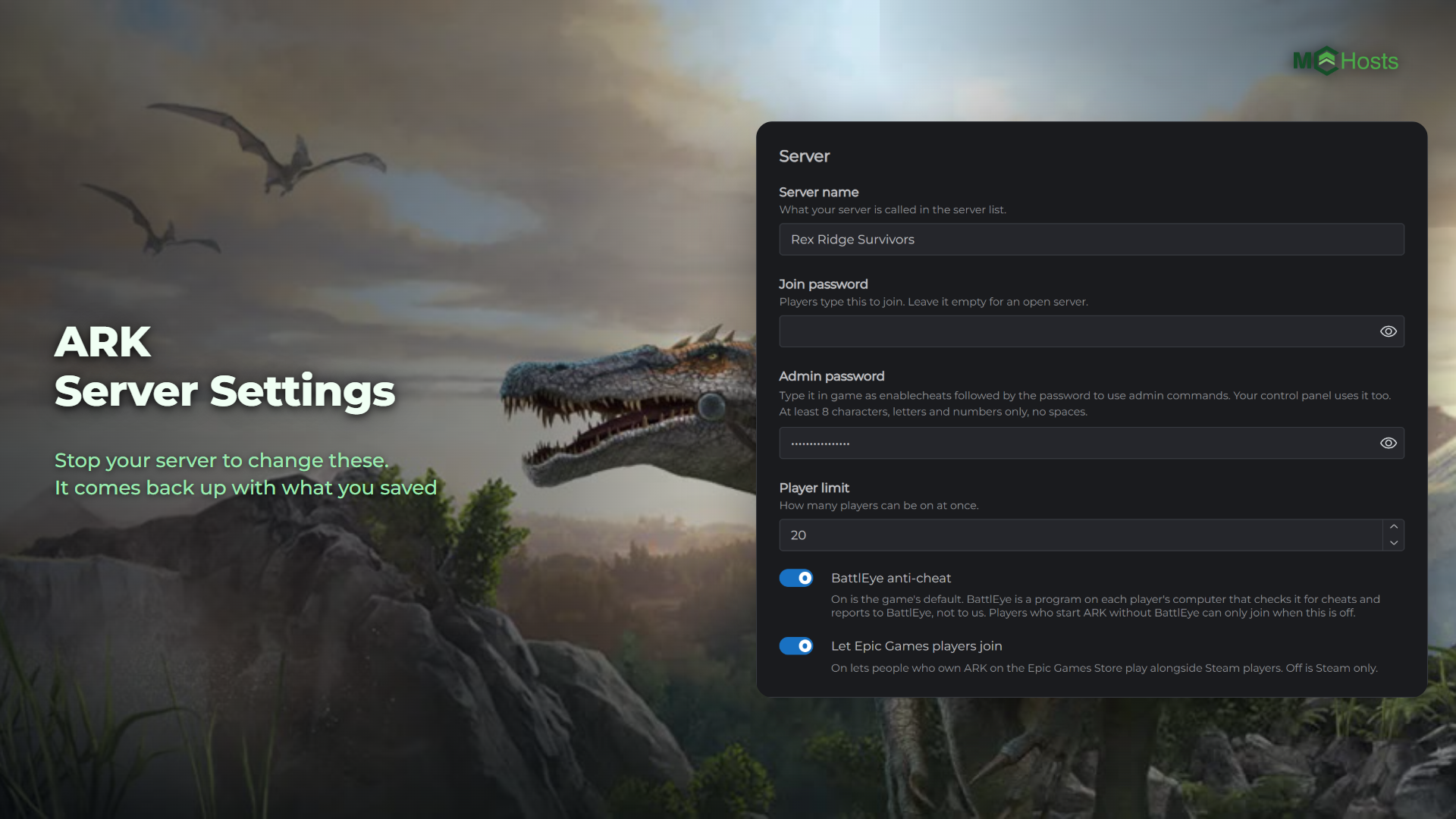
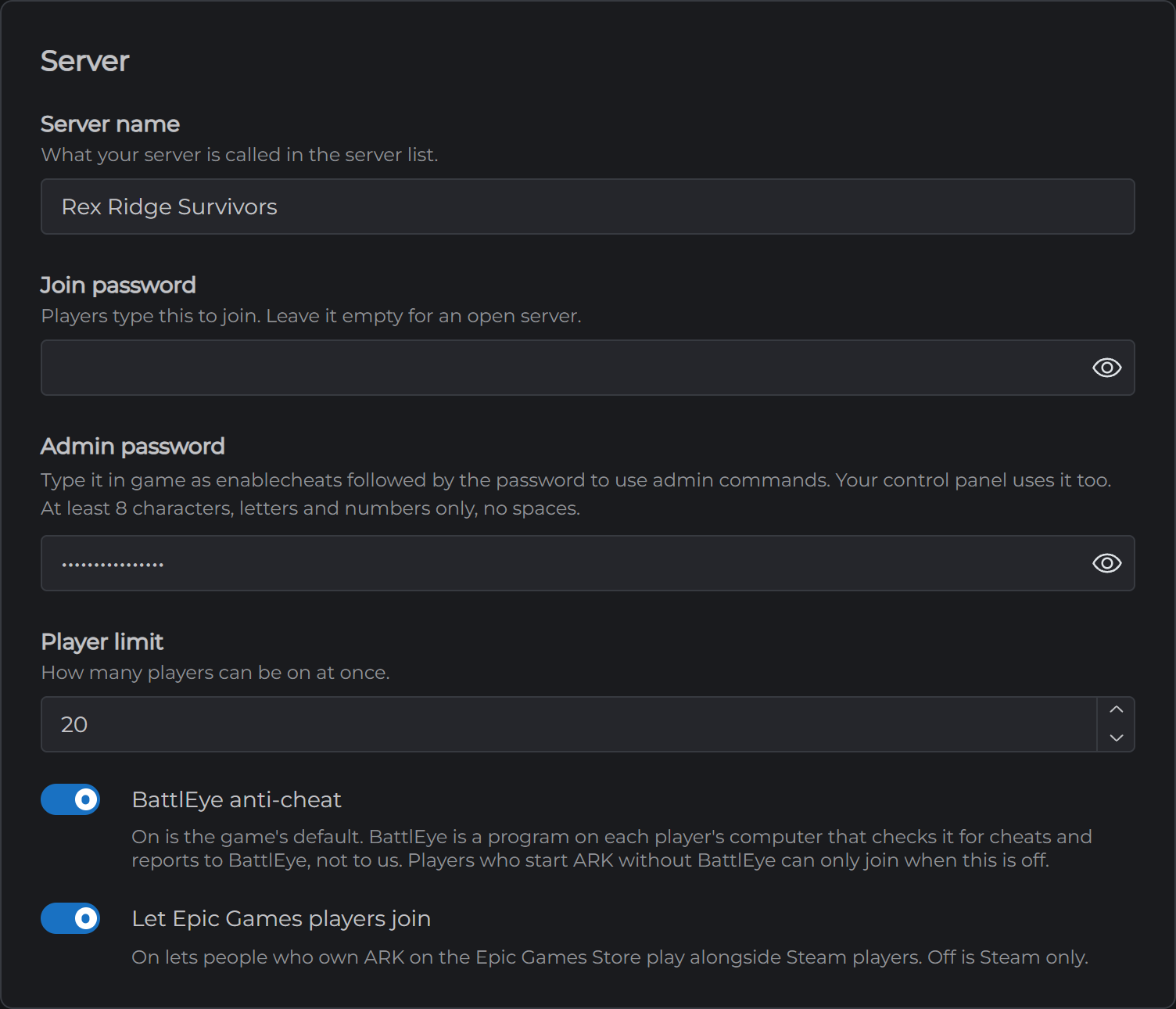
Server. Your server name, the join password, the admin password, the player limit and BattlEye.
Rules. PvE or PvP, the difficulty and how often the world saves.
Rates. Experience, taming speed and harvest amount.
Changing a setting
- Stop your server from the Overview page
- Open Config
- Change what you want and click Save
- Start your server again
The Config tab is locked while your server runs, and says so at the top. That's deliberate. ARK writes its settings file back when it stops, so a change made while it was running would be lost. Your server reads the settings as it starts, and the Console tab's first lines after a start tell you the map, the mode and the player limit it came up with.
The settings worth knowing about
Map is the big one. Every official map is already on your server, from The Island to Aquatica, and each one keeps its own save. Switch maps and your old world is still there when you switch back. Players need to own a paid map's DLC to join it. The bigger maps need a bigger plan to start, and the list says which. Genesis Part 2 needs the 14GB plan, and Genesis Part 1, Crystal Isles, Lost Island and Aquatica need 10GB or more. If you pick one your plan can't hold, the server tells you on the Console tab and stays off.
Join password is empty on a new server, which means anyone who finds it can join. Set one if you want to keep it to people you know.
Admin password is set when your server is made. In game, open the console with Tab and type enablecheats followed by your admin password to use admin commands. Your control panel uses the same password to talk to your server, so if you change it, restart before you expect the Console tab to answer again.
Player limit starts at 20 and goes up to 70, which is what official servers run.
BattlEye is on, the game's own default. Players who start ARK without BattlEye can only join when it's off. BattlEye runs on each player's computer, checks it for cheats and reports to BattlEye rather than to us. If you'd rather your players not run it, turn it off here and restart.
Difficulty is 5 on a new server, which is what official servers use. It lets wild creatures spawn up to level 150. The game's own default is 1, which caps them at level 30.
Save every is how often the world is written to disk, in minutes. The default is 15. Your server also saves when it stops.
The three rates are multipliers. 1 is the game's own rate, 2 is double. Harvest changes how much you get from every swing, taming how fast creatures tame and experience how fast everyone levels.
Admin commands from the panel
The Console tab takes ARK's admin commands and shows you the reply. Type listplayers to see who's on with their Steam IDs, broadcast followed by a message to tell everyone something, saveworld to save right now, or destroywilddinos to respawn the wild creatures. kick, ban and unban take a player's name as well as their Steam ID.
A full list of what the server takes is on the ARK wiki's console commands page. Commands marked as needing a target under your crosshair only work in game.
Admins, bans and who can join
These are on the Players tab, in three lists. Each takes a player's Steam ID, the 17 digit number, rather than their name. When somebody is online, the Players tab shows their Steam ID beside their name, so you can copy it from there.
Admins can use admin commands in game without typing the admin password. Your server picks up a change to this list within a few minutes.
Bans can't join at all. Banning somebody who is online kicks them too.
Allowed is a guest list. Add one person to it and everyone not on it is locked out, so leave it empty unless you mean that. A change to this list applies at the next restart.
Mods
The Mods tab is where Steam Workshop mods go. Search for one, or paste its Workshop link, and click Add. Your server downloads the mod itself the next time it starts and the console says how many it loaded, so add what you want and then restart.
Mods load from the top of the list down, and where two disagree the first one wins. Some mods say on their Workshop page that they need to be first. The arrows on each row move it up or down.
Players don't need to do anything. The game fetches the same mods for them when they join, which takes a minute or two the first time.
Turning a mod off keeps it on the server so it can come back without a download. Removing one deletes its files and gives the space back. A mod that won't fit in your server's storage is refused when you add it, with the numbers. If you need more storage, ask us through a support ticket. It's free.
Map mods take one more step. Add one on the Mods tab like any other mod and restart so your server downloads it. Once it has, the map appears in the Map list on the Config tab as "(mod map)". Pick it, save, and restart. Each map keeps its own save, so going back to your old map later brings that world back as it was.
A map from a mod uses however much memory it needs, and we can't check that for you the way we do for the official maps. If your server runs out after you switch, move up a plan.
Big overhaul mods such as SurvivalPlus install the same way as any other mod. Put one at the top of the list, as its page usually asks, and give it time to start, since a mod that size can take fifteen minutes or more to load every time your server starts.
Everything else
ARK has hundreds of settings beyond these, from structure limits to per level stat points. They live in the game's own two files, which you can open on the Files tab under arkserver/ShooterGame/Saved/Config/LinuxServer. GameUserSettings.ini holds the server settings and Game.ini holds the game mode settings.
The Config tab saves into GameUserSettings.ini too, so a setting you change there and a setting you change in the file are the same setting. Two things to know before you edit either file by hand. Stop your server first. ARK writes both files back when it stops, so a change made while it is running is lost. And keep the whole file rather than cutting it down to the lines you changed, because the server throws away a file that is missing its other sections and starts again from its defaults.
Next: Connecting to Your ARK Server