Project Zomboid Server Settings
Project Zomboid keeps its server settings in one long file, so your control panel lays the ones people actually change out as a form. Here's what you can change and what happens when you do.
Where the settings are
Open your control panel and click the Config tab. Everything is grouped into four sections.
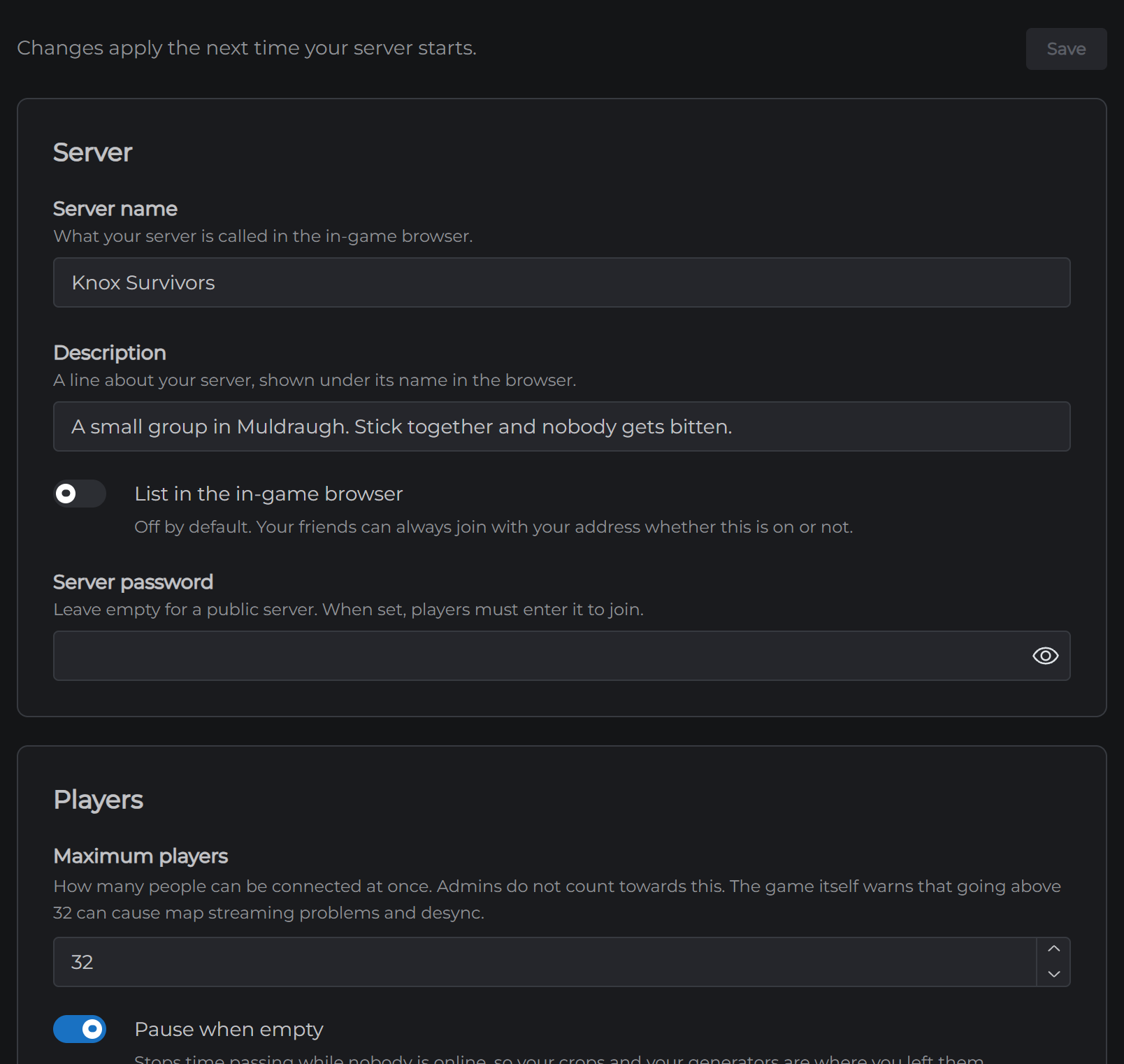
Server. Your server name, the description players see, whether it's listed in the in-game browser, and a password.
Players. Maximum players, whether time passes when nobody is online, player versus player, and global chat.
World. How often the world saves, whether players can sleep, where new players spawn, and the welcome message.
Safety. Whether anyone can join or only accounts you create, Steam's anti-cheat, and names above players' heads.
Changing a setting
- Open Config
- Change what you want
- Click Save
Your server reads these when it starts, so a change does nothing until you restart. Restart it from the Overview page and it comes back with what you saved.
The settings worth knowing about
Pause when empty stops time passing while nobody is on. Your crops stop growing, your generator stops burning fuel and your food stops rotting until somebody logs back in. It's on by default, which suits most private servers.
Maximum players starts at 32, and admins don't count towards it. The game lets you go as high as 254, but its own note on the setting warns that above 32 the map can struggle to keep up and players can fall out of sync. Treat 32 as the real ceiling.
Anyone can join is on by default. Turn it off and only accounts you've made can get in, which is the way to run a closed group. To make one, go to the Console tab and type adduser "name" "password" with their username and a password you choose, then send them both.
List in the in-game browser is off by default. Your friends can always join with your address whether it's on or not, so only turn it on if you want strangers finding you. Steam's own server browser lists every server either way. To keep people out, set a server password.
What you can't change here
Your ports. They're set by MCHosts and are what your server's address points at, so changing them would make your server unreachable.
Your mod list. That's the Mods tab, which keeps two settings in step for you. Editing it by hand is how a mod ends up downloaded and never loaded.
The settings that aren't on this form
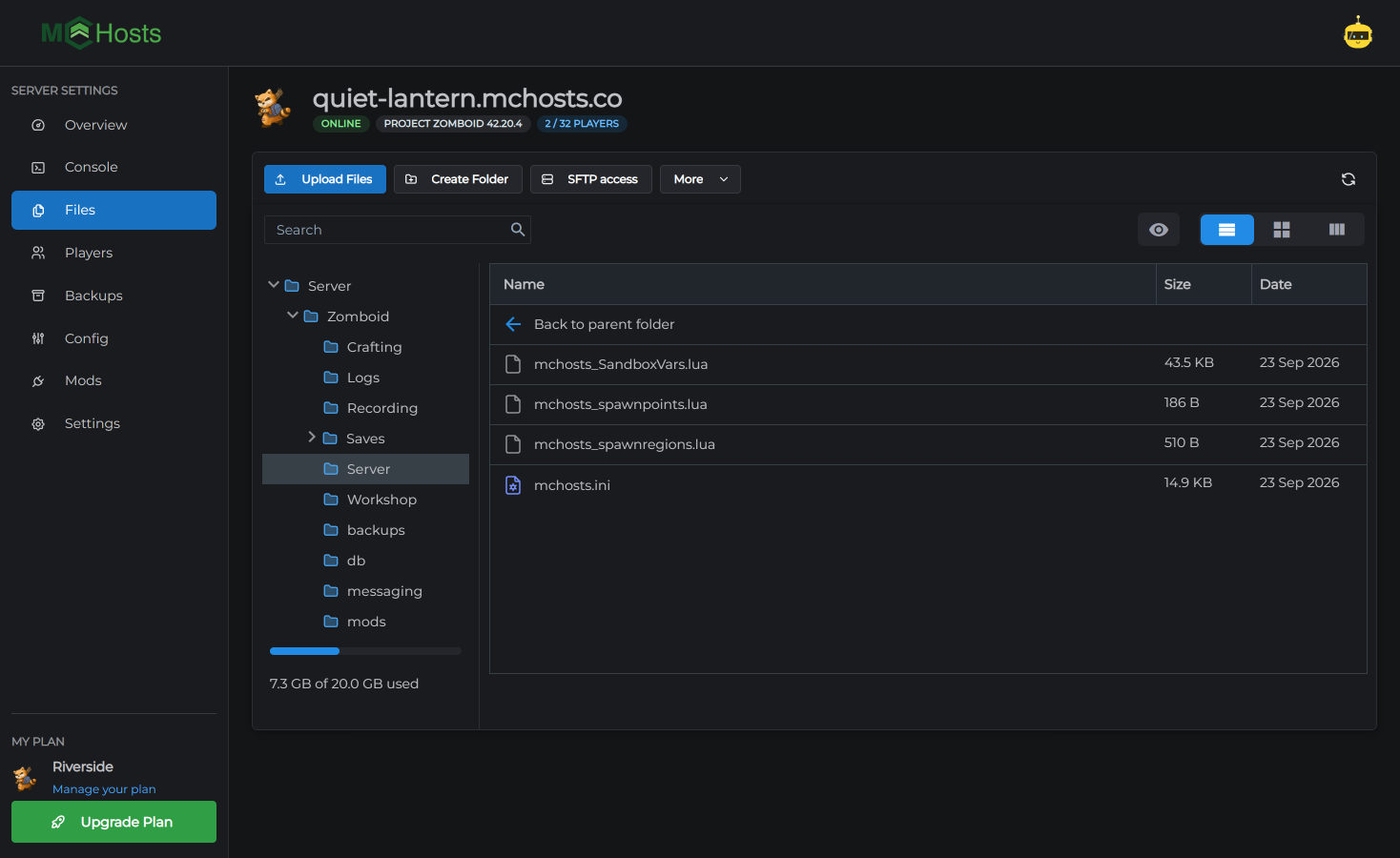
The form covers what people change. The whole file has 143 settings, and the server writes a short note above most of them explaining what each one does. You can edit it in the Files tab at Zomboid/Server/mchosts.ini. Anything you change there is left exactly as you wrote it when you save the form.
The world rules live in their own file right beside it, Zomboid/Server/mchosts_SandboxVars.lua. Zombie population, loot rarity, how fast your skills go up and whether the power stays on are all in there, along with a few hundred more, each with a note listing its options.
Restart your server after changing either file.
The admin account
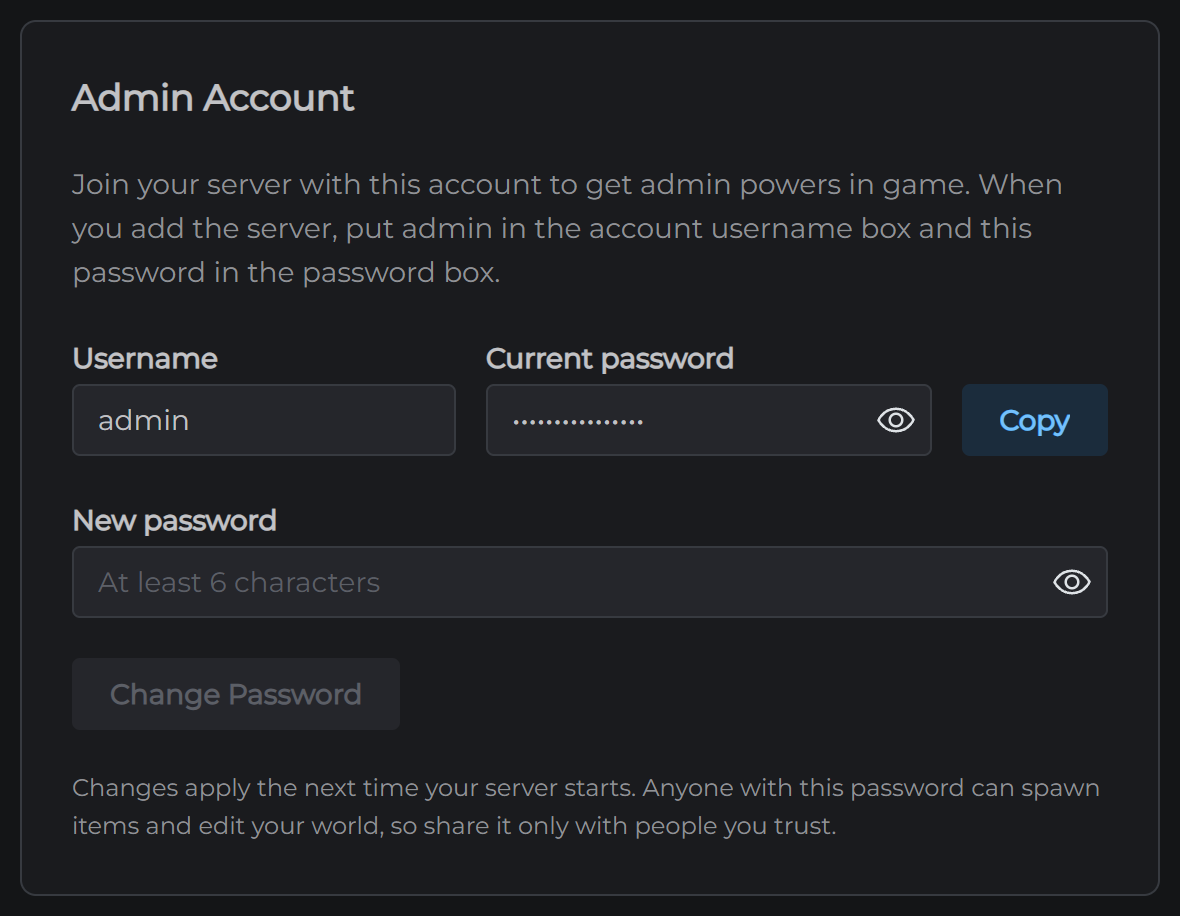
Your server has one admin account, and its password is on the Settings tab under Admin Account. To use it, add your server in Project Zomboid with admin as the account username and that password, then join. You'll have the admin tools, including the admin panel, spawning items and teleporting.
You can change the password on the same card, and it takes effect the next time your server starts. Anyone who has it can do anything to your world, so share it carefully.
Next: Adding Mods to Your Project Zomboid Server