How to Install Valheim Mods
Valheim mods run on BepInEx, a mod loader your server already has. You switch it on, download a mod from Thunderstore and upload the zip on the Mods tab. Mods are made by their authors, not by Iron Gate, and Valheim has no official mod support, so treat each one as something you try.
Turn mods on
- Open your control panel and click the Mods tab
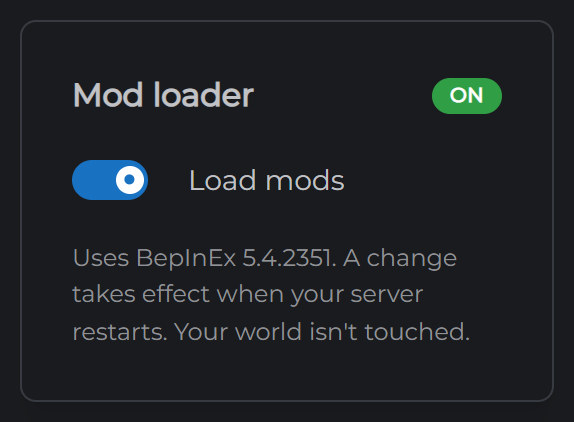
- Turn on Load mods in the Mod loader card
- Click Restart to apply
Once your server is back up, the badge beside Mod loader says On. Turning mods on doesn't touch your world, and you can turn them off again the same way.
Installing a mod
- Find the mod on Thunderstore, where nearly every Valheim mod is published
- Click Download on its page to get the mod as a zip file
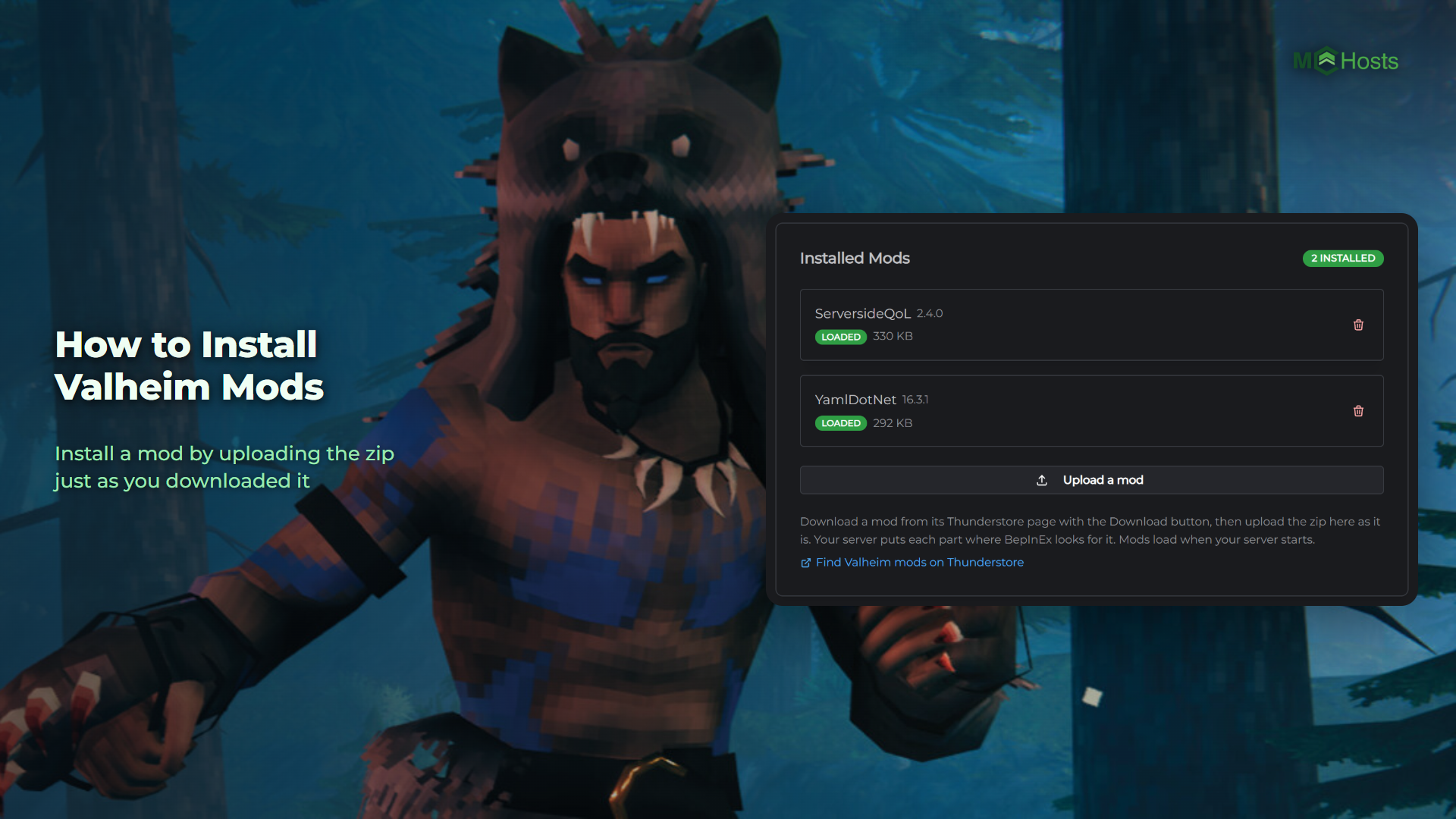
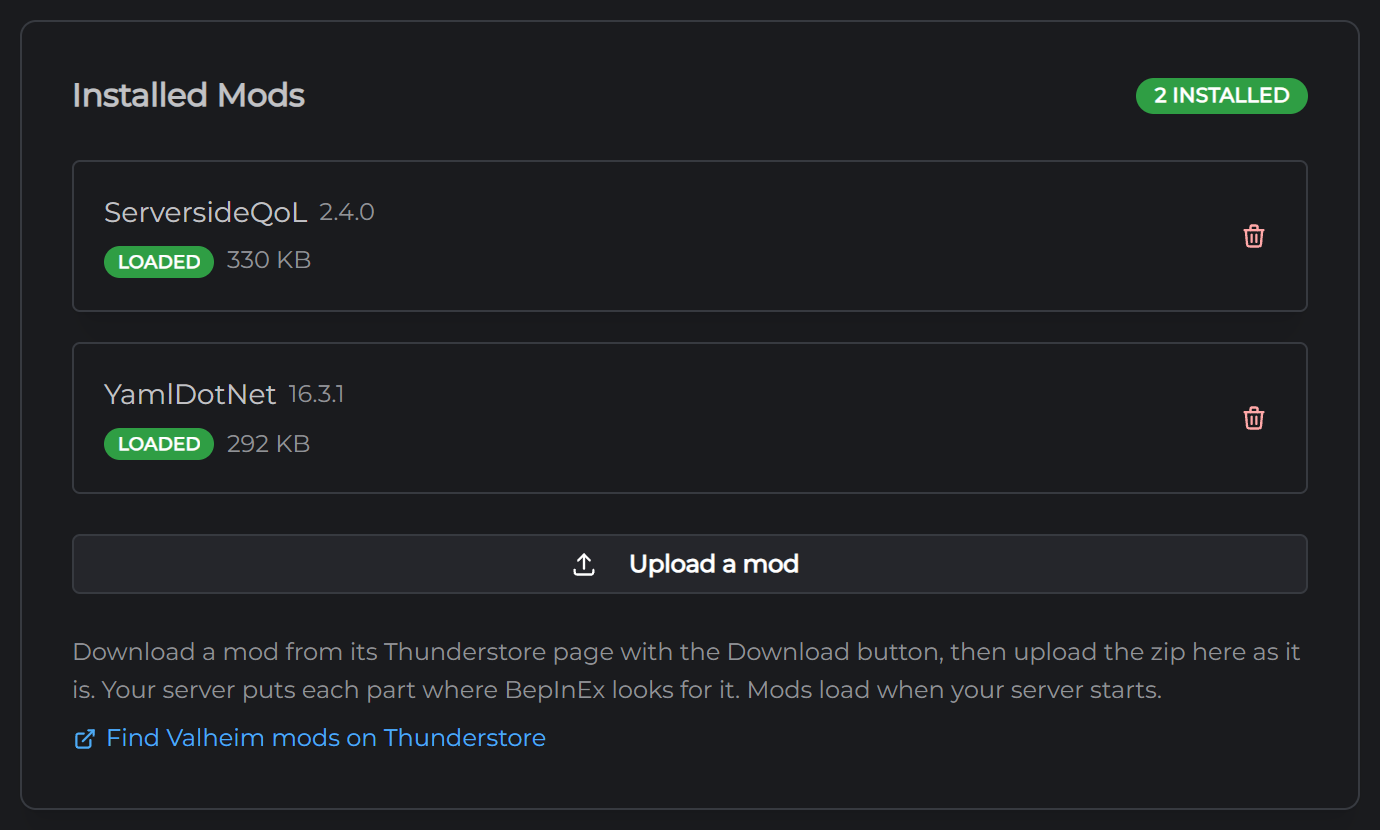
- On the Mods tab, click Upload a mod and pick that zip. There's no need to open it first
- Restart your server
Your server unpacks the zip and puts each part where it belongs. A mod is made of more than one folder more often than you'd think, and they have to land in the right places or the mod does nothing. That's why the zip goes in whole.
Mods load when the server starts, so a new one is marked Loads at next start until you restart. Uploads can be up to 100 MB.
Mods that need other mods
Plenty of Valheim mods are built on another mod, often a shared library. The mod's Thunderstore page lists what it needs on its Required tab.
Upload those the same way. If one is missing, the mod's row on the Mods tab names it, for example "Needs YamlDotNet, which isn't installed." Upload that one too and the message goes away.
Almost every mod lists BepInEx itself as required. You can skip that one, because your server already has it.
Checking a mod is running
Each mod shows what happened to it the last time your server started:
- Loaded means the mod started up.
- Installed means it's on your server and nothing reported it starting. Libraries look like this, and for them it's normal.
- Error at start means the mod reported a problem. Its own message is underneath its name.
- Loads at next start means you added it after the last start.
For more detail, open the Console tab after a restart. BepInEx prints a line for every mod it loads.
Do my players need the mod too?
Usually yes. Most Valheim mods have to be on the server and on every player's PC, in the same version, and your server can't send them out. The easy way for your players is a mod manager such as r2modman, which installs mods from Thunderstore for them.
Some mods only change the server, so players need nothing at all. Thunderstore lists many of them under its Server-side category, and a mod's own page normally says which kind it is.
Console players
Valheim has no official mod support, on PC or console, and console players can't install mods. If someone in your group plays on a console, stick to mods that work on the server alone. They may still be able to join then, though it depends on each mod.
Changing a mod's settings
Most mods write a settings file the first time they load. You'll find them in Files, in the valheim/BepInEx/config folder. Edit one, save it, then restart your server.
Your mods and their settings files are included in your backups.
Removing a mod
Click the bin icon next to it. It's gone at the next start.
Its settings file stays behind, so if you upload the mod again later, your settings come back with it.
To stop every mod without removing anything, turn off Load mods and restart.
Mods after a Valheim update
Your server restarts once a day and takes each new version of Valheim as it does. An update can stop a mod working until its author catches up. The Mods tab may show it as Error at start, or the mod may simply stop doing anything. Check its Thunderstore page for a newer version and upload that.
If your server won't come up after an update, turn off Load mods and start it again. That gets everyone playing while you work out which mod needs an update.
Still stuck? Open a support ticket and tell us which mod and what happened.