Authorizing Your Hytale Server
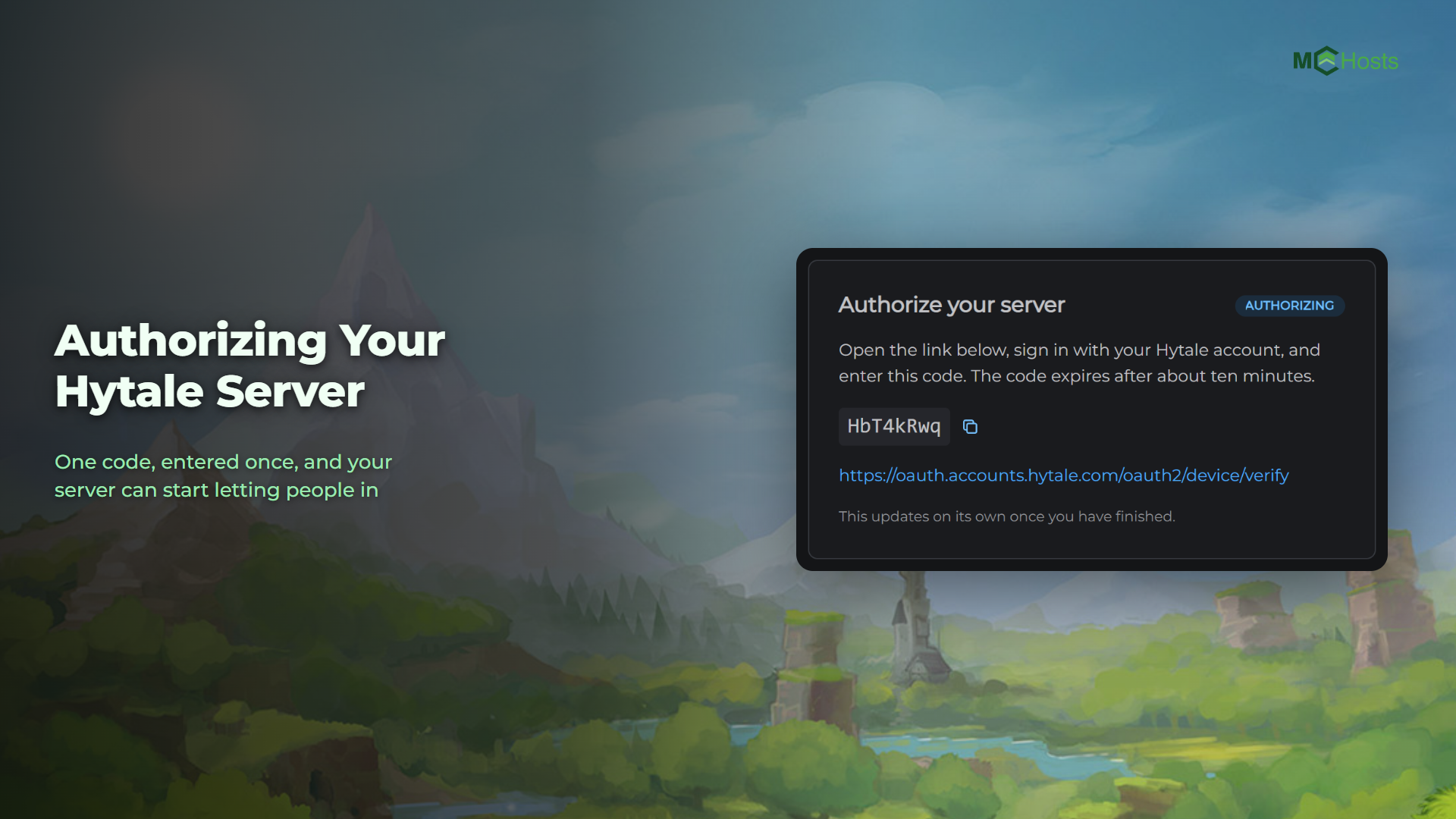
A new Hytale server runs straight away, but nobody can join it until it has been authorized with a Hytale account. This guide walks you through it. It takes about a minute and you only do it once.
Why this step exists
Hytale checks that every server is tied to a real Hytale account. Until yours is, it accepts a player's connection and then disconnects them, even though the server looks fine from the outside. Your control panel shows this as an Unauthorized badge under the server's name, and an orange card at the top of the Overview page.
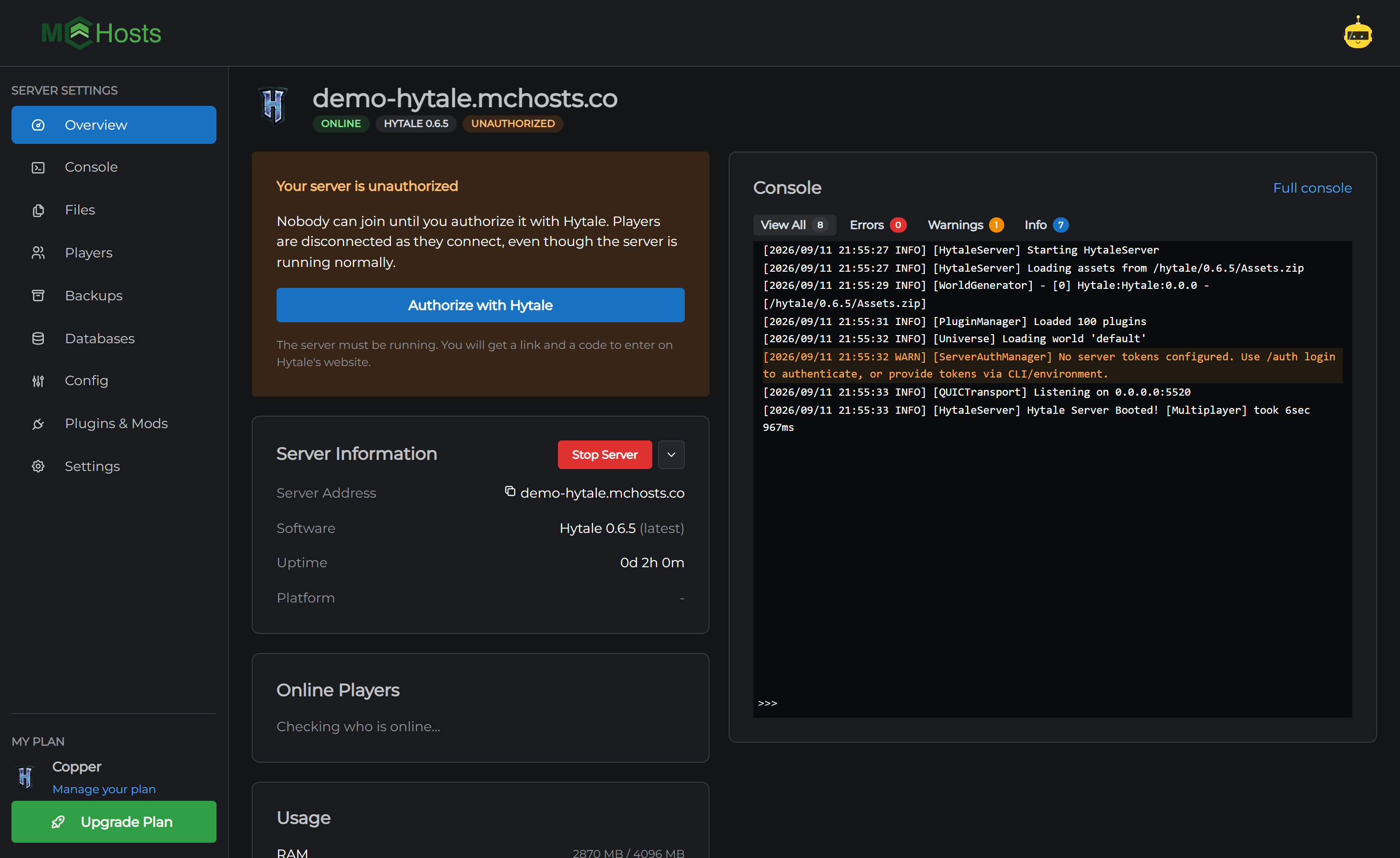
Any Hytale account will do, including the one you play with. One account can authorize more than one server.
Authorize your server
- Make sure your server is running. The Online badge tells you
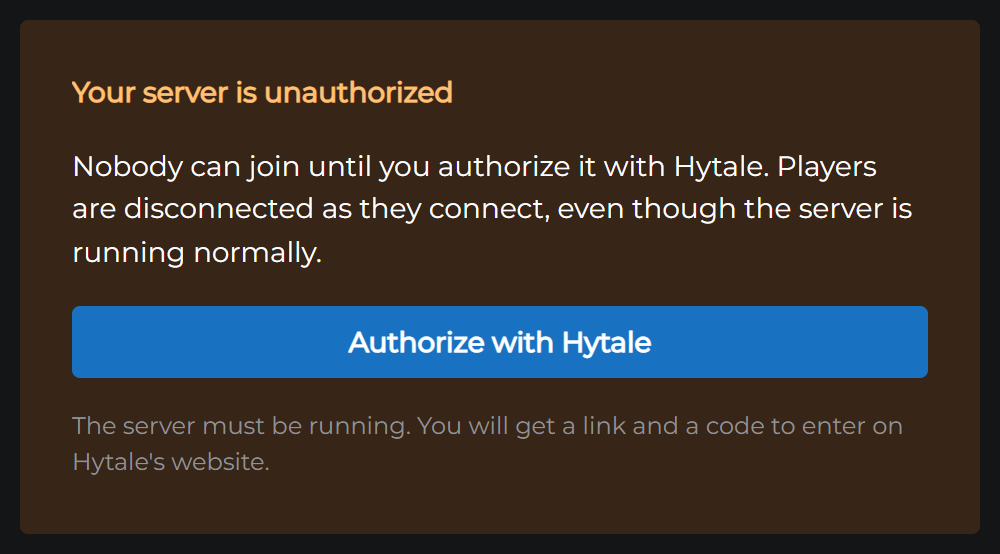
- On the Overview page, click Authorize with Hytale
- The card changes to Authorize your server and shows a code and a link. The code is good for about ten minutes
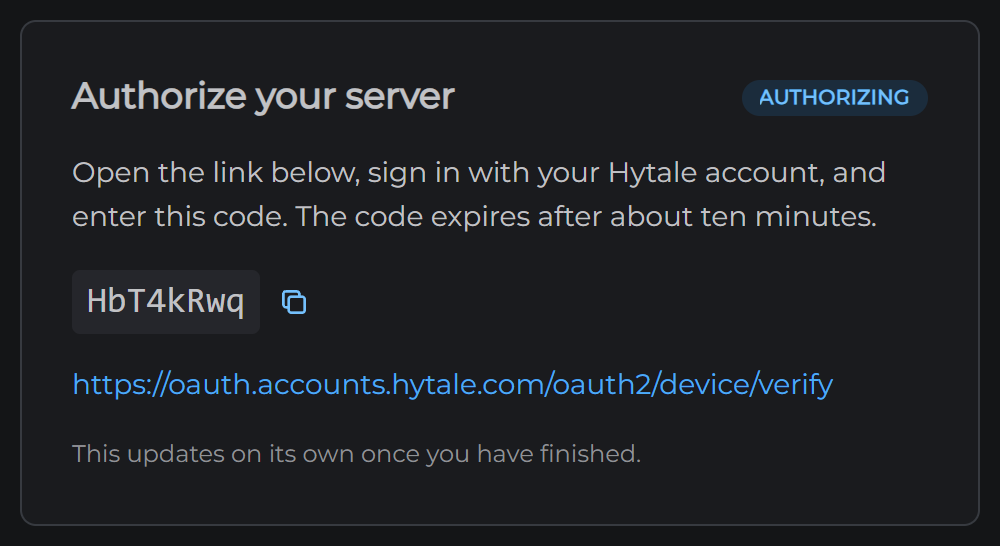
- Open the link. It takes you to Hytale's website
- Sign in with your Hytale account
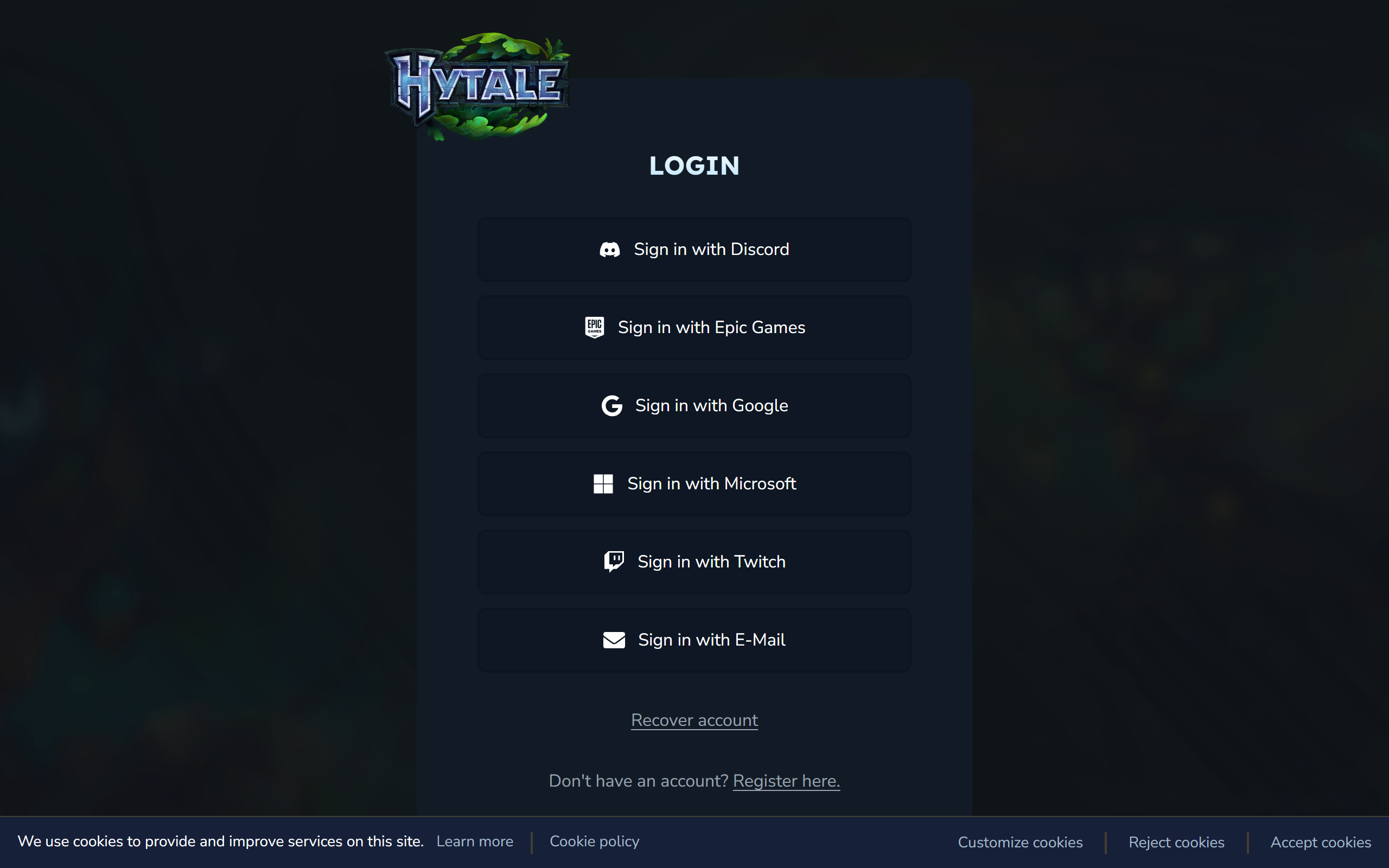
- Enter the code from the card and approve it
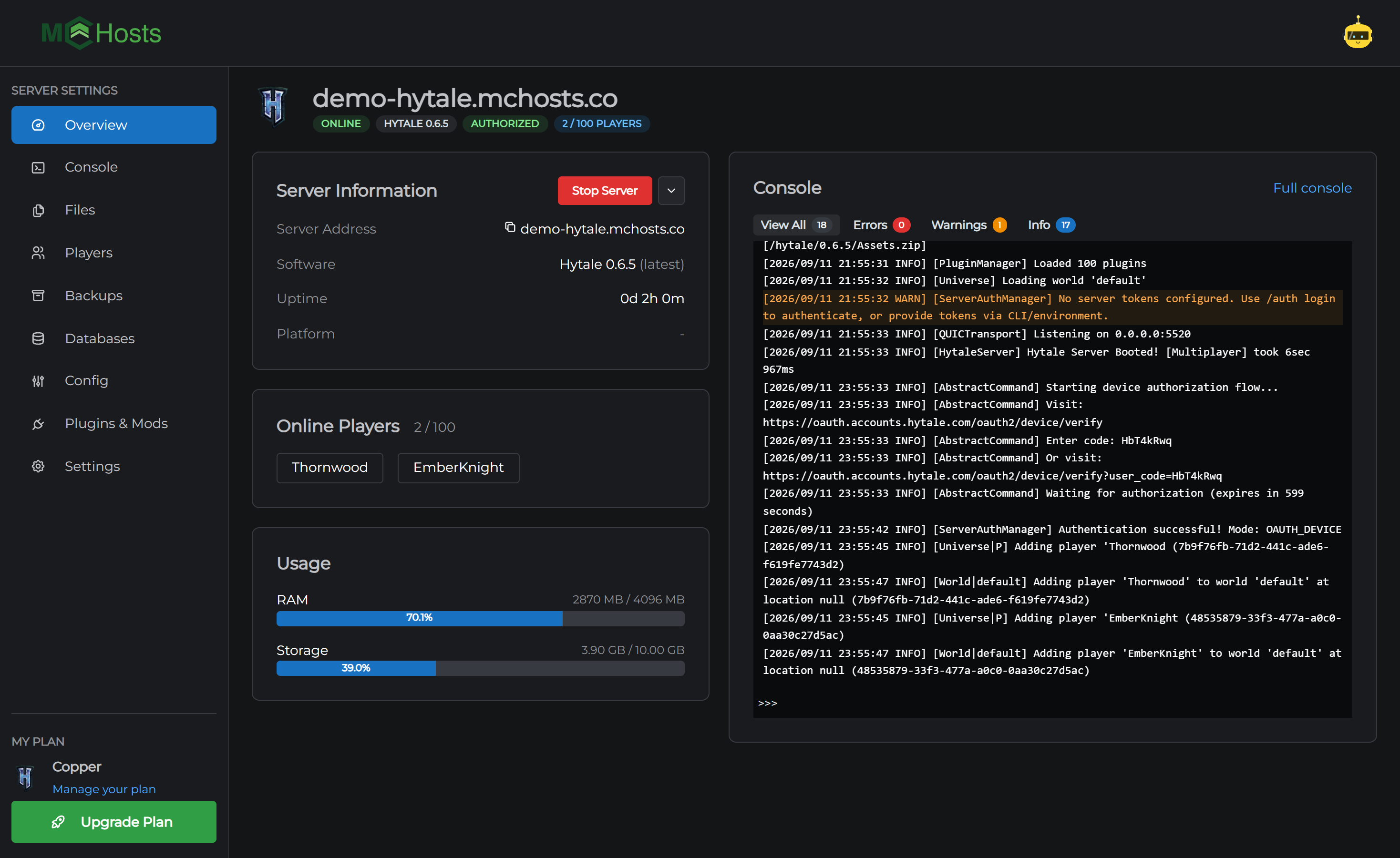
Back in the control panel, the card updates on its own. The badge turns green and reads Authorized, and players can join.
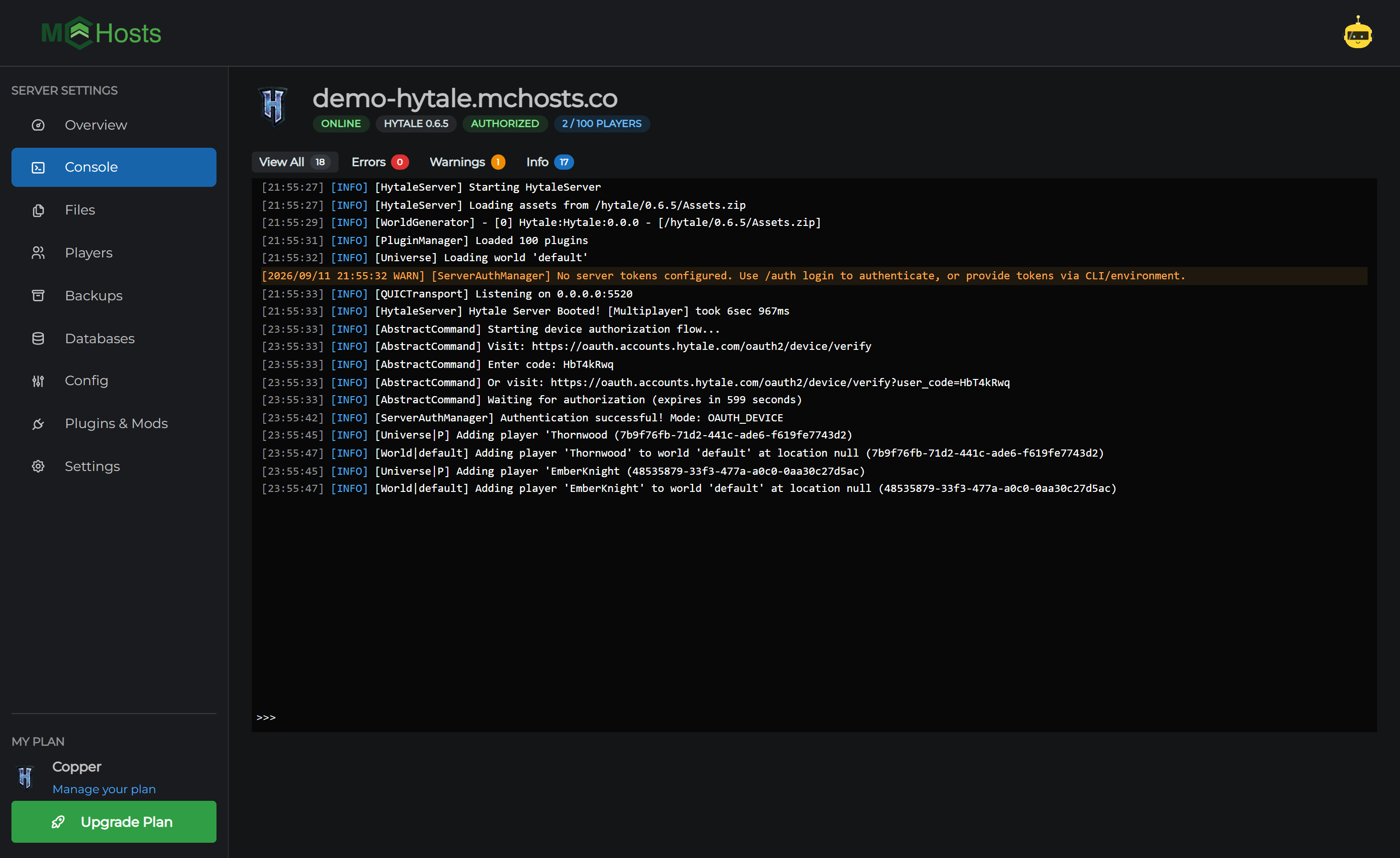
You can also start this from the Console by typing auth login device. The link and the code appear in the console instead.
It stays authorized
Your server remembers this. It stays authorized through restarts, Hytale updates and anything else we do behind the scenes, so you should not need to do it again.
You will need to authorize again after:
- Wipe Server in the Danger Zone, since that deletes everything in your server's folder
- Switching version lines in Settings, which does the same
The control panel warns you before both.
Your sign-in is part of your server's files
Hytale stores the authorization as two small files in your server's folder, auth.key and auth.enc. They are how your server proves it is yours, so a few things follow:
- They are included in your backups, local and off-site, along with everything else in the folder. Anyone who can restore one of your backups gets an authorized server
- If you download your server's files, they are in the download too
- Don't share them, and don't paste them anywhere
If you ever think they have got out, open a support ticket and we will help you sign the server out and in again.
If it doesn't work
The button does nothing. The server has to be running. Start it, wait for the Online badge, and click again.
The code has expired. Codes last about ten minutes. Click Authorize with Hytale again for a fresh one.
The card still says Authorizing. Give it a few seconds after you approve the code. If it is still waiting after a minute, check the Console for a line beginning Authentication successful. If it is there, refresh the panel.
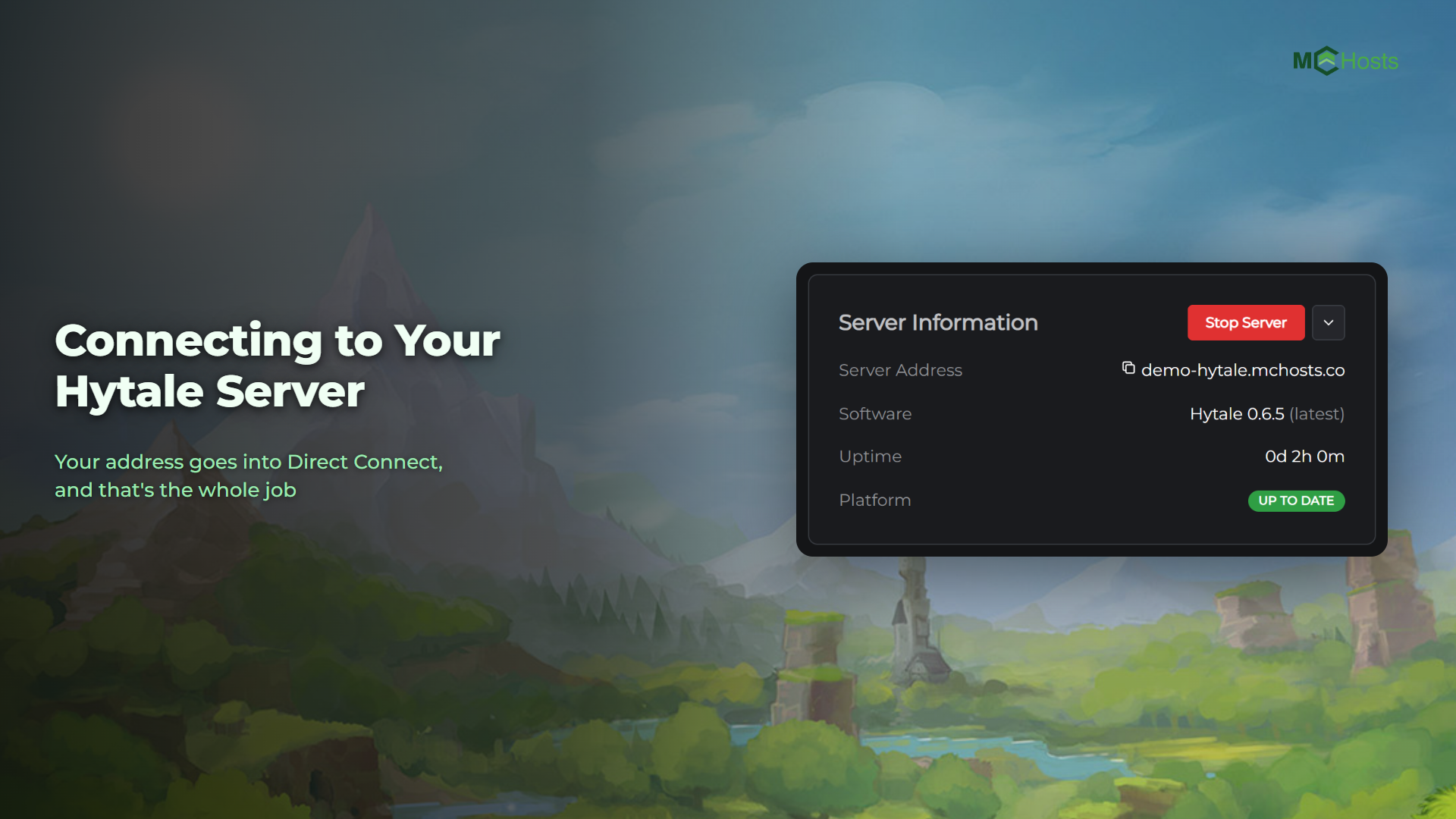
It says Authorized but nobody can join. Then this step is done and the cause is elsewhere. Work through Connecting to your Hytale server.
Once the badge is green, share your address and play. If you would like to add mods, see How to install Hytale mods.