Setting Up a Custom Domain
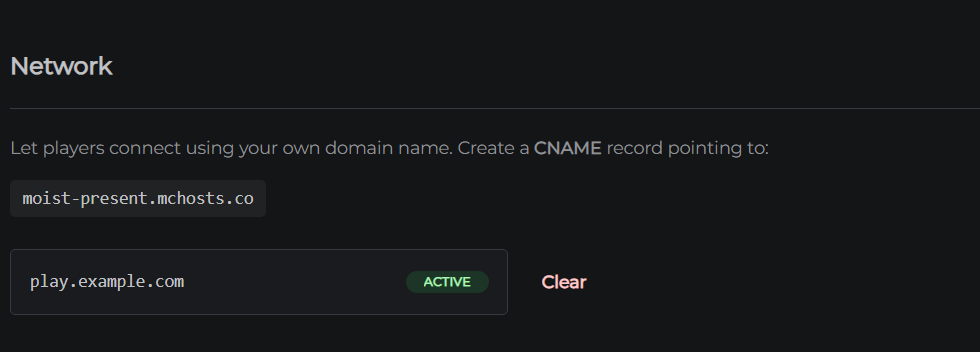
A custom domain lets players connect to your server using your own domain name - for example, play.myserver.com - instead of the default yourname.mchosts.co address.
Using your own domain is free and included with every server. You just need to own the domain and follow the steps below.
Not what you're looking for? If you don't own a domain and simply want a nicer
*.mchosts.coaddress - for example, changingquick-zombie.mchosts.cotoepic-realm.mchosts.co- that is a server rename, which is a separate one-time purchase. This article is about connecting a domain you already own, which costs nothing.
How it works
You create a DNS record at your domain registrar that points your domain to your MCHosts server address. MCHosts then recognises the custom domain and routes incoming connections to your server automatically.
Your original <yoursubdomain>.mchosts.co address continues to work alongside the custom domain.
Requirements
- A domain name you own (purchased from any registrar - Cloudflare, Namecheap, GoDaddy, etc.)
- Access to the domain's DNS settings at your registrar
Step 1 - Create a CNAME record
Log in to your domain registrar and navigate to the DNS settings for your domain. The exact steps vary by registrar - look for a section called "DNS", "DNS Management", or "Zone Editor".
Create a new CNAME record:
| Field | Value |
|---|---|
| Type | CNAME |
| Name / Host | The subdomain you want to use (e.g. play for play.myserver.com) |
| Value / Target | Your MCHosts server address (e.g. yoursubdomain.mchosts.co) |
| TTL | Auto or 300 |
Save the record after entering the details.
Step 2 - Save the domain in your control panel
- Go to control-panel.mchosts.com.au
- Open the Connections tab
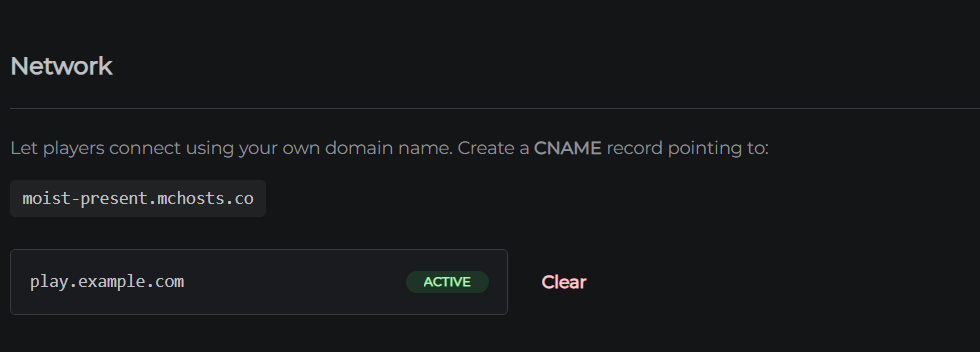
- Scroll to the Network section
- Enter your full custom domain (e.g.
play.myserver.com) - Click Save
The custom domain is active as soon as MCHosts registers it - no approval or review process.
DNS propagation
After creating the DNS record, the change may take a few minutes to a few hours to propagate globally. Until then, some players may not be able to connect via the custom domain. The original <yoursubdomain>.mchosts.co address always works immediately.
You can verify your record has propagated using dnschecker.org.
Changing or removing a custom domain
To change: enter a new domain in the Custom Domain field and click Save.
To remove: clear the Custom Domain field completely and click Save. Players will need to use the <yoursubdomain>.mchosts.co address again.
Limits and restrictions
- Each server can have one custom domain
- A custom domain can only be assigned to one server at a time - if a domain is already in use, you'll see an error
Troubleshooting
"This domain is already in use" - the domain is assigned to another MCHosts server. Remove it from the other server first, or use a different subdomain.
Players still can't connect after setting up - DNS propagation is still in progress. Wait up to 24 hours and check dnschecker.org to confirm your record is visible.