Version Management & Scheduled Restarts
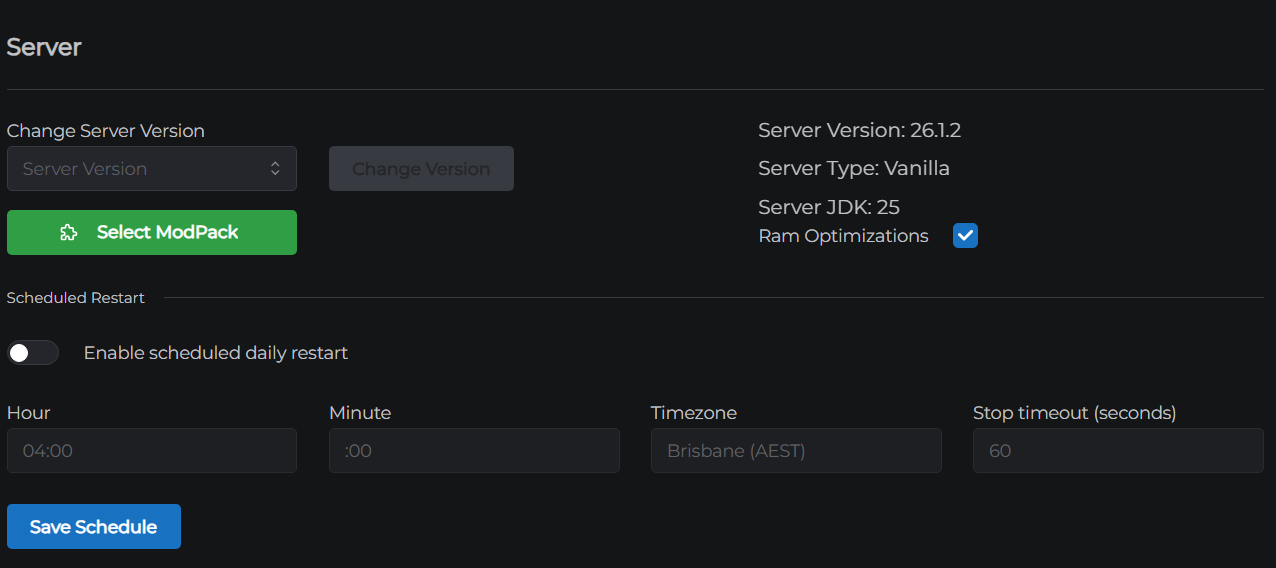
The Server panel in Settings covers two things: managing your Minecraft version and software type, and configuring a daily automatic restart.
Version & Modpack
The top of the Server panel shows your current server setup and lets you change it.
Current version
Three read-only fields show what your server is running right now:
| Field | Description |
|---|---|
| Server Version | The Minecraft version (e.g. 26.1.2) |
| Server Type | The server software (e.g. PaperMC, Forge, Fabric) |
| JDK | The Java version in use - set automatically based on your Minecraft version |
Changing the version
Use the version selector dropdown to pick a new Minecraft version and type. Versions are grouped by type (Vanilla, PaperMC, Forge, Fabric, NeoForge). Then click Change Version to apply.
Changing versions can affect your world. Downgrades and cross-platform changes (e.g. Vanilla to Forge) carry risk. See Changing Your Minecraft Version for full guidance.
Installing a modpack
Click Select ModPack to search for and install a modpack. The modloader is set automatically based on the pack you choose.
See Installing a Modpack for full instructions.

Startup Parameters
The Startup Parameters section controls the options your server's Java process starts with. Tuned garbage collection flags run by default on every server, and the switch lets you replace them with your own parameters if you know what you want. Memory settings always come from your plan and stay locked.
See Startup Parameters for a full explanation.
Scheduled Restart
The Scheduled Restart section automatically restarts your server at a set time each day - useful for clearing accumulated memory, applying settings that require a restart, and giving your server a regular maintenance window.
Enabling a scheduled restart
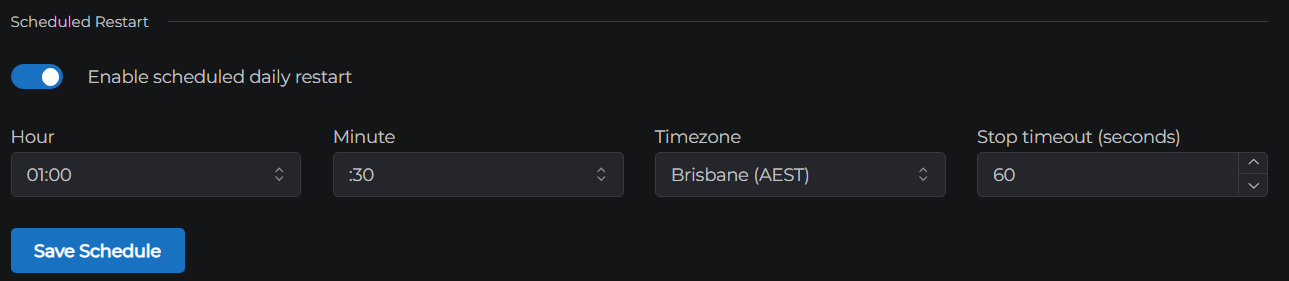
- Toggle Enable scheduled daily restart on
- Set your preferred time and options (see below)
- Click Save Schedule
Options
| Field | Description |
|---|---|
| Hour | Hour of day to restart (0–23) in the selected timezone |
| Minute | Minute within the hour, in 15-minute intervals: :00, :15, :30, or :45 |
| Timezone | The timezone the hour/minute is relative to - choose your local timezone so the restart happens when you expect |
| Stop timeout | Seconds to wait for a graceful shutdown before force-killing the process. Default is 60 seconds. Increase this for large worlds or servers with many plugins that take longer to save. |
How it works
At the scheduled time:
- The system sends the
stopcommand - triggering a graceful world save - It waits up to the stop timeout for the server to shut down
- If the server hasn't stopped by the timeout, the process is force-killed
- The server restarts automatically
Players are disconnected during the restart. The server is typically back online within 1–2 minutes.
Recommended times
| Use case | Suggested time |
|---|---|
| Active daytime server | 3:00–5:00 AM local time (lowest player activity) |
| Modded server | Every night - modded servers benefit more from regular restarts |
| Event server | A specific off-peak window between events |
Disabling
Toggle Enable scheduled daily restart off and click Save Schedule.
← Server Properties | Next: Danger Zone →