Server Properties
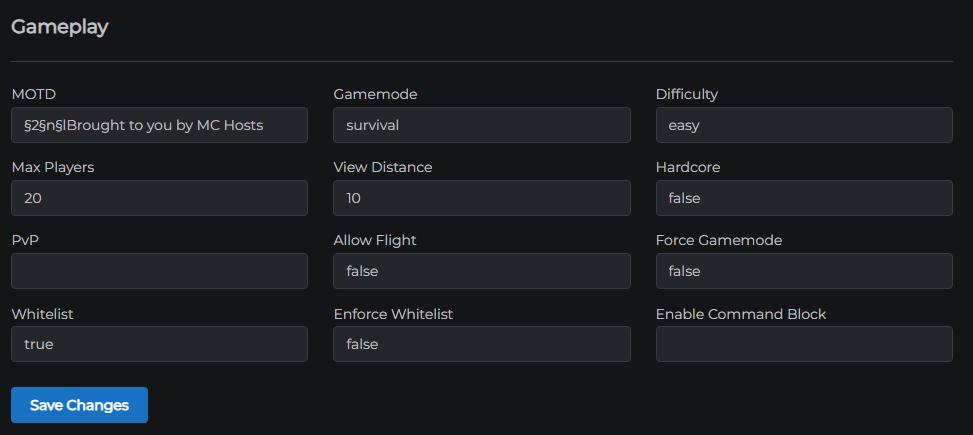
The Settings tab contains five collapsible panels. This article covers the two that write directly to your server.properties file: Gameplay and World.
Click Save Changes at the bottom of each panel after editing. Most changes take effect on the next server restart.
Gameplay
Controls player-facing rules and server behaviour.
| Field | server.properties key | Description |
|---|---|---|
| Gamemode | gamemode | Default gamemode for new players joining the server. Options: survival, creative, adventure, spectator. |
| MOTD | motd | The "Message of the Day" displayed in the Minecraft server list under your server name. Supports basic colour codes. |
| Difficulty | difficulty | World difficulty. Options: peaceful (no hostile mobs), easy, normal, hard. |
| Max Players | max-players | Maximum number of players allowed online at the same time. |
| View Distance | view-distance | How many chunks around each player are loaded and sent. Lower values (e.g. 6) reduce RAM and CPU usage at the cost of visible render distance. |
| Hardcore | hardcore | Set to true to enable Hardcore mode - players are permanently banned from the server upon death. |
| PvP | pvp | true allows players to damage each other. false disables player-vs-player combat. |
| Allow Flight | allow-flight | true prevents the server from kicking players for flying. Required if you have flight-enabling mods or plugins, or if players use Creative mode. |
| Force Gamemode | force-gamemode | true forces all players into the default gamemode every time they join, overriding their previous gamemode. |
| Whitelist | white-list | true enables the whitelist - only players on the whitelist can join. Manage the list in the Players tab. |
| Enforce Whitelist | enforce-whitelist | true kicks players who are currently online if they are removed from the whitelist while the server is running. |
| Enable Command Block | enable-command-block | true allows command blocks to function in the world. Disabled by default for security. |
World
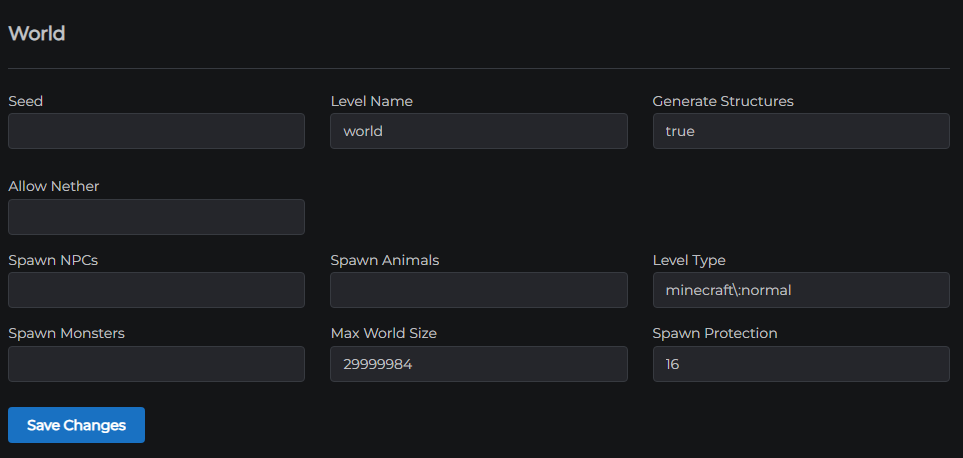
Controls how your Minecraft world is generated and what features are active.
| Field | server.properties key | Description |
|---|---|---|
| Seed | level-seed | Sets the world generation seed. Only affects newly generated chunks - changing this on an existing world has no effect until a new world is created. Leave blank for a random seed. |
| Level Name | level-name | The name of the world folder on disk. Changing this makes the server load a different world folder - the old world is not deleted, and the new folder is created if it doesn't exist. Default: world. |
| Generate Structures | generate-structures | true allows the world generator to create structures like villages, temples, strongholds, and ocean monuments. Set to false to generate a structure-free world. |
| Allow Nether | allow-nether | true enables the Nether dimension. Set to false to disable it (Nether portals will not function). |
| Spawn NPCs | spawn-npcs | true allows villagers to spawn in villages. |
| Spawn Animals | spawn-animals | true allows passive animals (cows, pigs, chickens, etc.) to spawn. |
| Level Type | level-type | Controls the world generator. Common values: minecraft:normal (standard), minecraft:flat (superflat), minecraft:large_biomes, minecraft:amplified. |
| Spawn Monsters | spawn-monsters | true allows hostile mobs (zombies, skeletons, creepers, etc.) to spawn. Disabling this is a lighter alternative to setting difficulty to peaceful. |
| Max World Size | max-world-size | Sets the radius of the world border in blocks from the centre. Default is 29999984. Reducing this (e.g. to 5000) can help keep world file sizes manageable. |
| Spawn Protection | spawn-protection | Radius in blocks around the world spawn point (0,0) that only operators can build in. Set to 0 to disable spawn protection. |
Tips
- Set View Distance to
6or8on smaller plans to significantly reduce RAM usage - If players are being kicked for "flying" on a server with an Elytra or flight plugin, enable Allow Flight
- Hardcore mode (
hardcore=true) cannot be reversed without editing the world'slevel.datfile
Changing the world
To start a fresh world without a full reinstall:
- Give the new world a different Level Name (e.g.
world2) - Click Save Changes
- Restart the server - a new world folder is generated with the current seed settings
The old world folder remains on disk in the File Manager and can be restored by setting the Level Name back.
World border
Setting Max World Size to a smaller value (e.g. 3000) can significantly reduce disk usage on servers with many active players. The world won't generate beyond that radius.
Flat worlds
To create a superflat world, set Level Type to minecraft:flat and Level Name to a new folder name, then restart. Existing worlds are not affected.
← Player Management | Next: Version Management & Scheduled Restarts →