Installing a Modpack
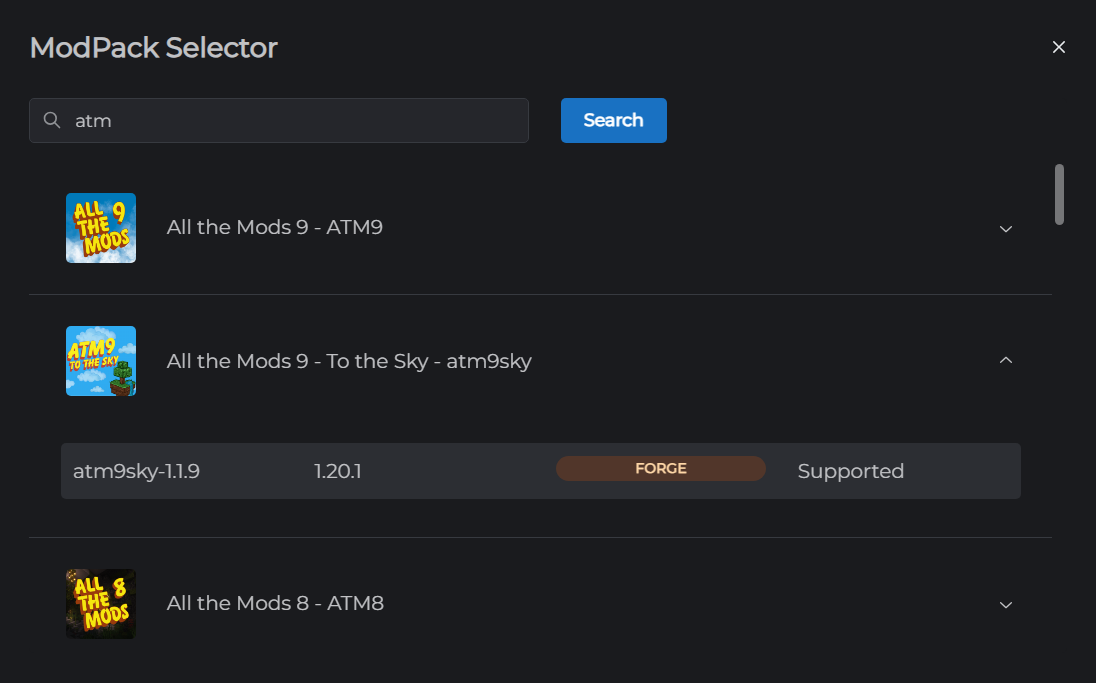
MCHosts has built-in modpack search, letting you install any supported modpack directly from the control panel - no manual file uploads needed.
Where to find it
Modpack search is available in two places:
- At checkout: on the
/checkout/[tier]page, click Select ModPack before completing your purchase - On an existing server: go to Settings → Server → click Select ModPack (green button)
Searching for a modpack
- Click Select ModPack
- Type the modpack name in the search box - results update in real time
- Each result shows the modpack name, logo, and available versions
- Click on a result to expand its version list
Choosing a version
Each version row shows four columns: the version name, the Minecraft version (e.g. 1.20.1), the mod loader (Forge / Fabric / NeoForge), and either Supported or Not Supported.
- Supported rows can be clicked to select that version
- Not Supported rows are darker and cannot be selected - no server pack is available for that version
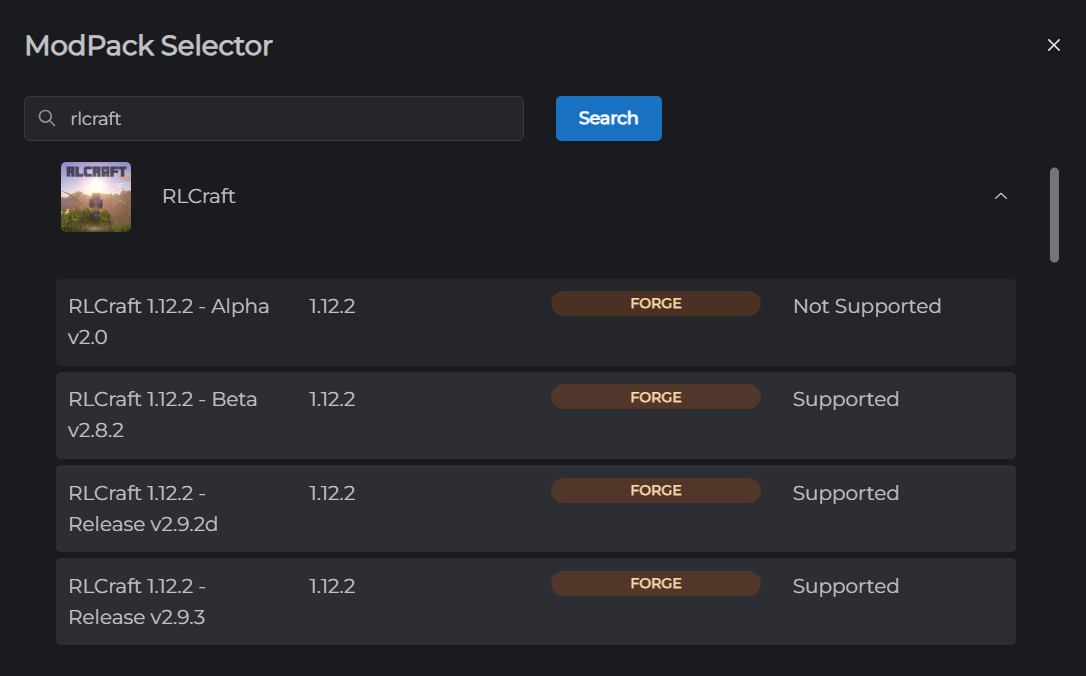
Click a Supported row to select that version.
After selecting a modpack
The mod loader type (Forge / Fabric / NeoForge) is set automatically based on the pack. The version change process runs the same way as a standard version change - a progress overlay shows download and installation steps, and the server restarts automatically.
Time to complete: 3–8 minutes depending on modpack size.
Client-side installation
Most modpacks require players to install the same modpack on their own computer. Players can search for the modpack by name and install it using their preferred Minecraft launcher.
Players must use the same version of the modpack as the server.
Switching to a different modpack
- Go to Settings → Server
- Click Select ModPack again
- Search for and select the new pack
Note: Switching modpacks will replace all server files. Create a backup first if you want to keep your current world.
Switching back to a standard server
To remove a mod pack and switch back to a standard server (Vanilla, PaperMC, Forge, Fabric, or NeoForge), use the version selector dropdown instead of the ModPack button. See Changing Your Minecraft Version for full instructions.