Why Is My Server Lagging?
If your server feels slow, blocks break with a delay, or mobs stutter, work through the steps below. Most lag comes down to one of a few causes, and they are usually fixable without upgrading.
First, work out which kind of lag it is
There are two very different problems that both feel like "lag", and the fix is different for each.
| What you see | What it is | Where to look |
|---|---|---|
Everyone stutters at the same moment; blocks and mobs lag; Can't keep up! in console | Server-side lag (low TPS) | This guide, steps below |
| Only you lag; high ping; others are fine | Network latency (your connection) | Your internet, not the server |
TPS (ticks per second) is the server's heartbeat, and a healthy server runs at 20 TPS. When TPS drops, the whole server slows down for everyone at once. If only one player lags while others are fine, that is a connection problem on their end, not the server.
Step 1 - Check the console for warnings
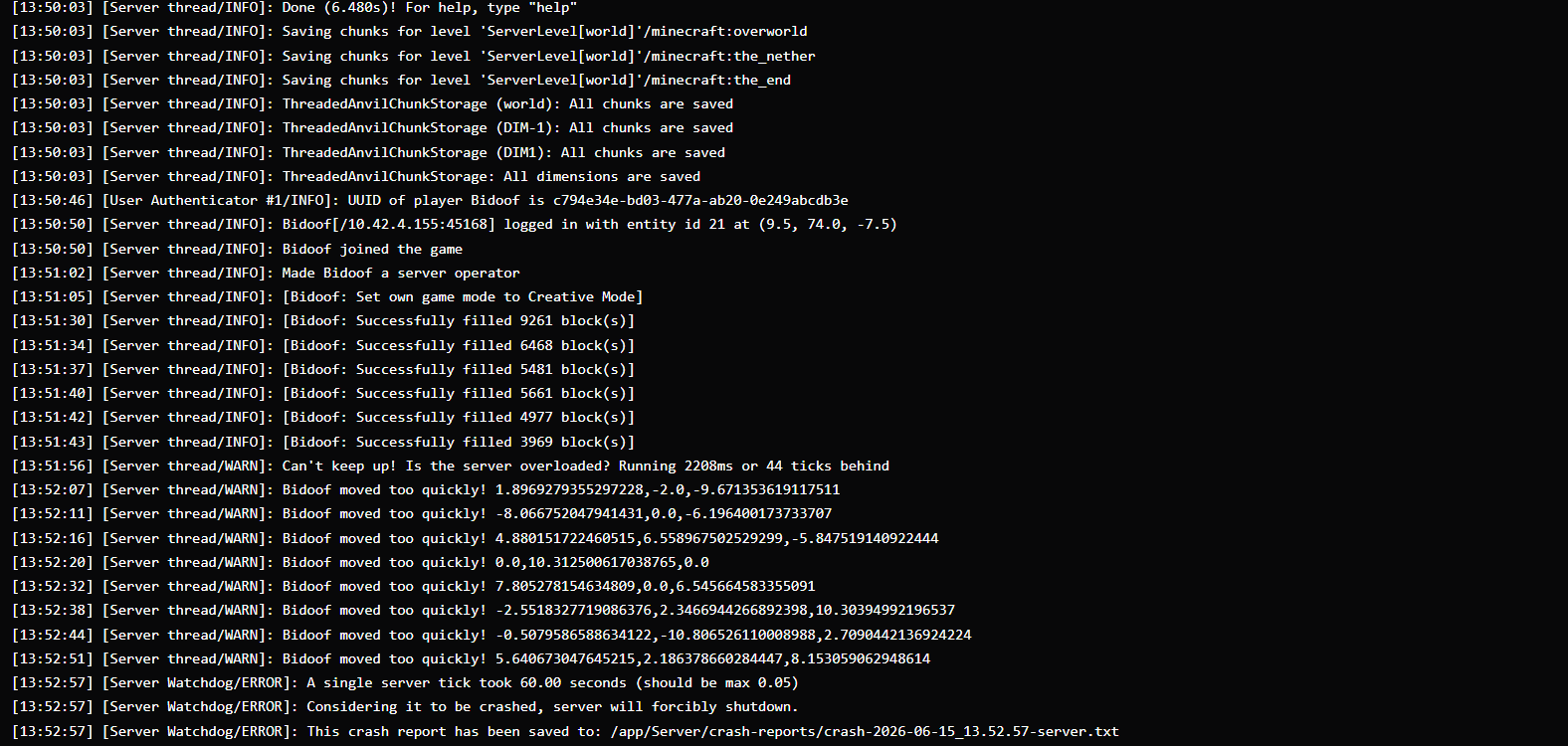
Go to the Console tab in your control panel and look for:
Can't keep up! Is the server overloaded?- the server is running behind, a clear sign of low TPSjava.lang.OutOfMemoryError- the server is running out of RAM- Repeated warnings mentioning a specific plugin or mod - a likely culprit
See Console for more on reading the log.
Step 2 - Lower view distance and simulation distance
These two settings are the most common cause of avoidable lag. They control how many chunks the server keeps loaded and ticking around each player, and the memory and CPU cost climbs fast as they go up.
- Go to Settings → Server Properties (see Server Properties)
- Lower view-distance (try 8 or 6)
- Lower simulation-distance (try 6 or 4)
- Save and restart the server
Lower simulation distance in particular gives back a lot of performance on busy servers with little visible downside.
Step 3 - Check your plugins and mods
A single badly behaved plugin or mod can drag the whole server down, no matter how much RAM you have.
- Remove or update recently added plugins and mods one at a time to find the culprit
- Watch for lag machines in-game: large redstone contraptions, giant mob farms, and thousands of dropped items all hammer the single main thread
- For a plugin server, a profiler like Spark can pinpoint exactly what is eating tick time
Step 4 - Check your startup parameters
MCHosts applies a tuned set of JVM flags automatically. These reduce the pauses that cause periodic freezing, and every server runs them out of the box, so there is nothing to turn on.
The one exception is if you have enabled custom startup parameters. If your server started lagging after you changed them, turn the switch off in Settings → Server → Startup Parameters and restart, which puts the tuned defaults back.
See Startup Parameters for how the feature works, and Best JVM Flags for a Minecraft Server if you want the full technical detail on why the defaults help.
Step 5 - Decide if you have simply outgrown your plan
If the console shows out-of-memory errors, or performance is fine when quiet and falls apart when your server is full, you may genuinely need more resources. Read How Much RAM Does My Minecraft Server Need? to check your setup against a sizing guide, then upgrade your plan if you are undersized. Upgrades are one click and keep your world and settings.
Still lagging?
If you have worked through every step and the server still runs poorly, open a support ticket and include the relevant part of your console log. You can copy text straight from the Console tab, and the more detail you provide, the faster we can help.