Server Crashed / Not Responding
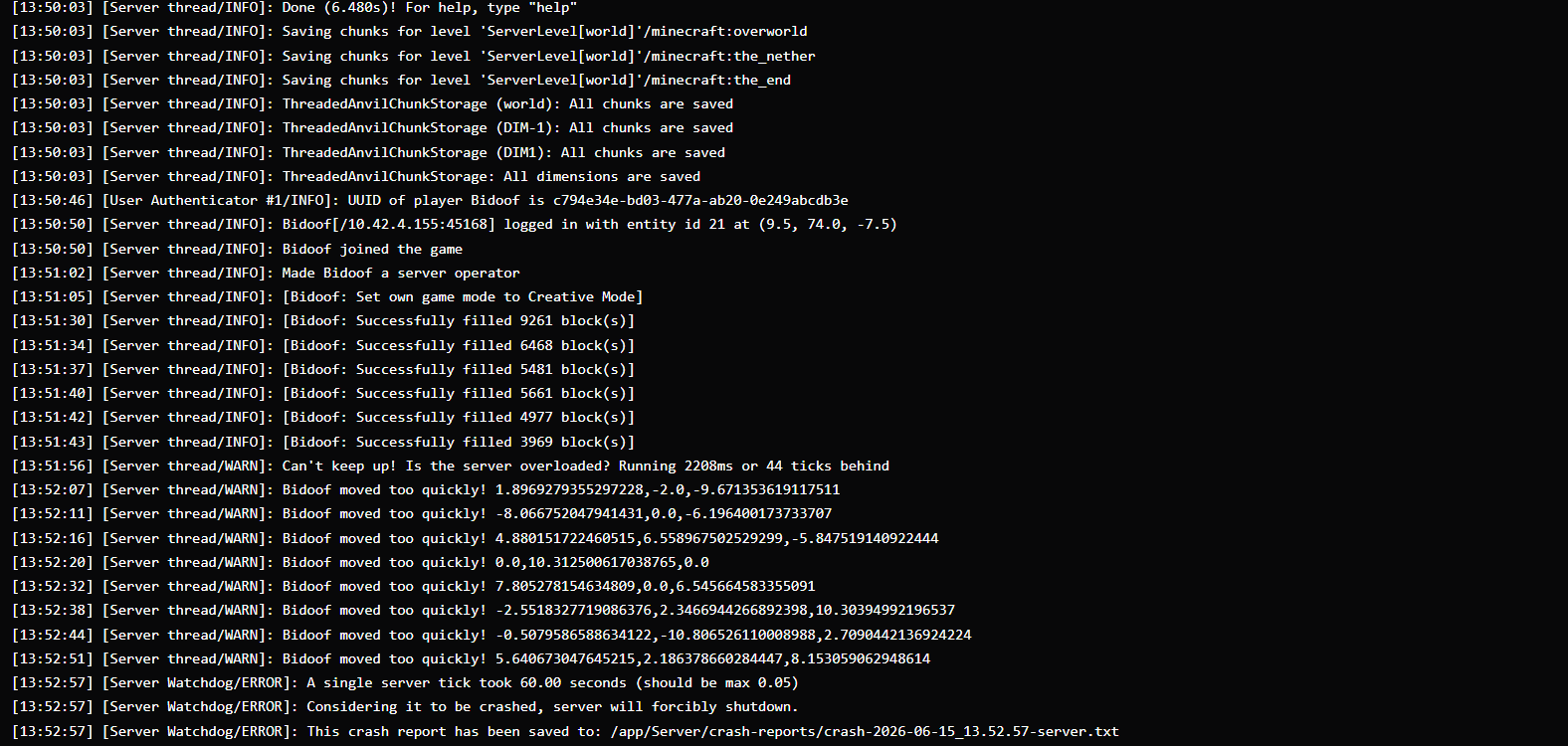
If your server has stopped unexpectedly or is no longer responding to player connections, follow these steps.
Step 1 - Check the Console
Go to the Console tab in the control panel. Look near the bottom of the log for:
- Lines containing
SEVEREorERROR - A Java stack trace (multiple lines starting with
at) - A message from a specific plugin or mod (often the plugin/mod name appears in the error)
The error message usually tells you what caused the crash. Common causes:
| Symptom in log | Likely cause |
|---|---|
java.lang.OutOfMemoryError | Server ran out of RAM |
RegionFile or ChunkSerializer errors | Corrupted world chunk |
| A mod or plugin name in the stack trace | That mod/plugin caused the crash |
| No error - server just stopped | Could be a scheduled stop, manual stop, or silent JVM crash |
Step 2 - Start the server
If the server is offline, click Start Server on the Dashboard. If it starts successfully and stays online, the crash was likely a one-off event.
Step 3 - Reboot the Instance
If the server won't start normally, or starts and immediately crashes again:
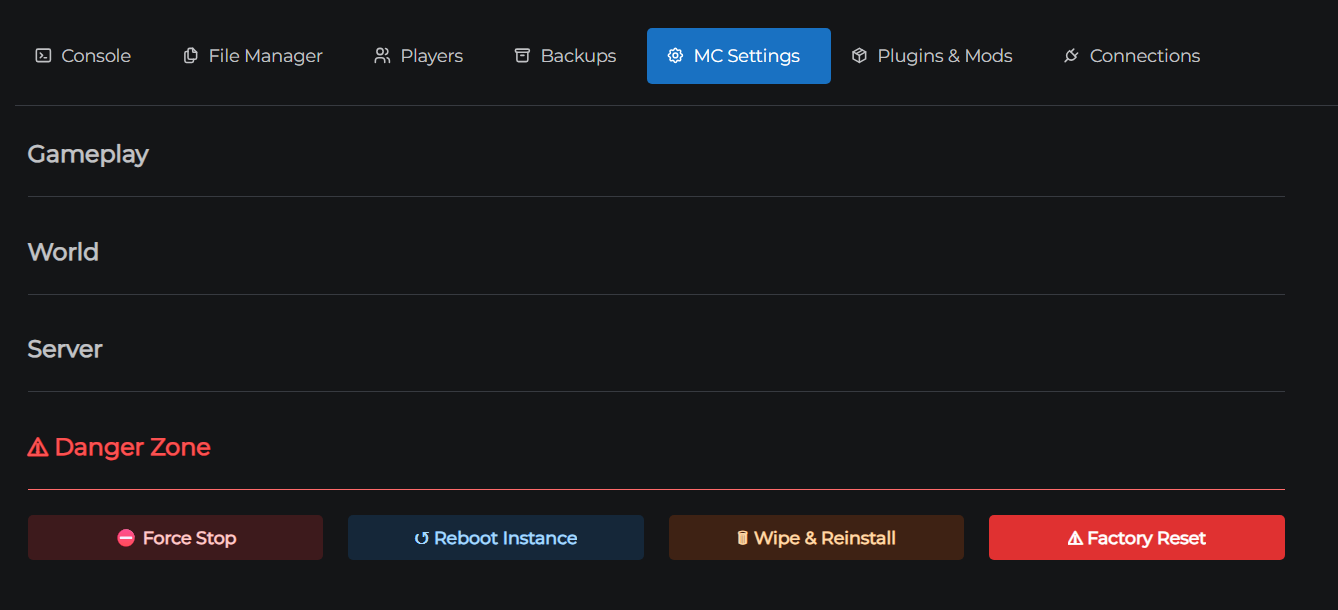
- Go to Settings → Danger Zone
- Click ↺ Reboot Instance
- Confirm the prompt
This restarts the underlying Kubernetes pod. All your server files are preserved - only the running process is restarted. Wait 1–2 minutes for it to come back online.

Step 4 - Force Stop (last resort)
If the server appears stuck (the Dashboard shows it as Online but the process isn't responding):
- Go to Settings → Danger Zone
- Click ⛔ Force Stop
- Confirm the prompt
This immediately kills the Java process without a graceful shutdown. The world may not save cleanly - use this only when the server is unresponsive to the normal Stop button.
After force stopping, start the server normally from the Dashboard.
Diagnosing recurring crashes
If your server keeps crashing:
Out of RAM: reduce view distance in Server Properties, remove heavy plugins/mods, or upgrade your plan.
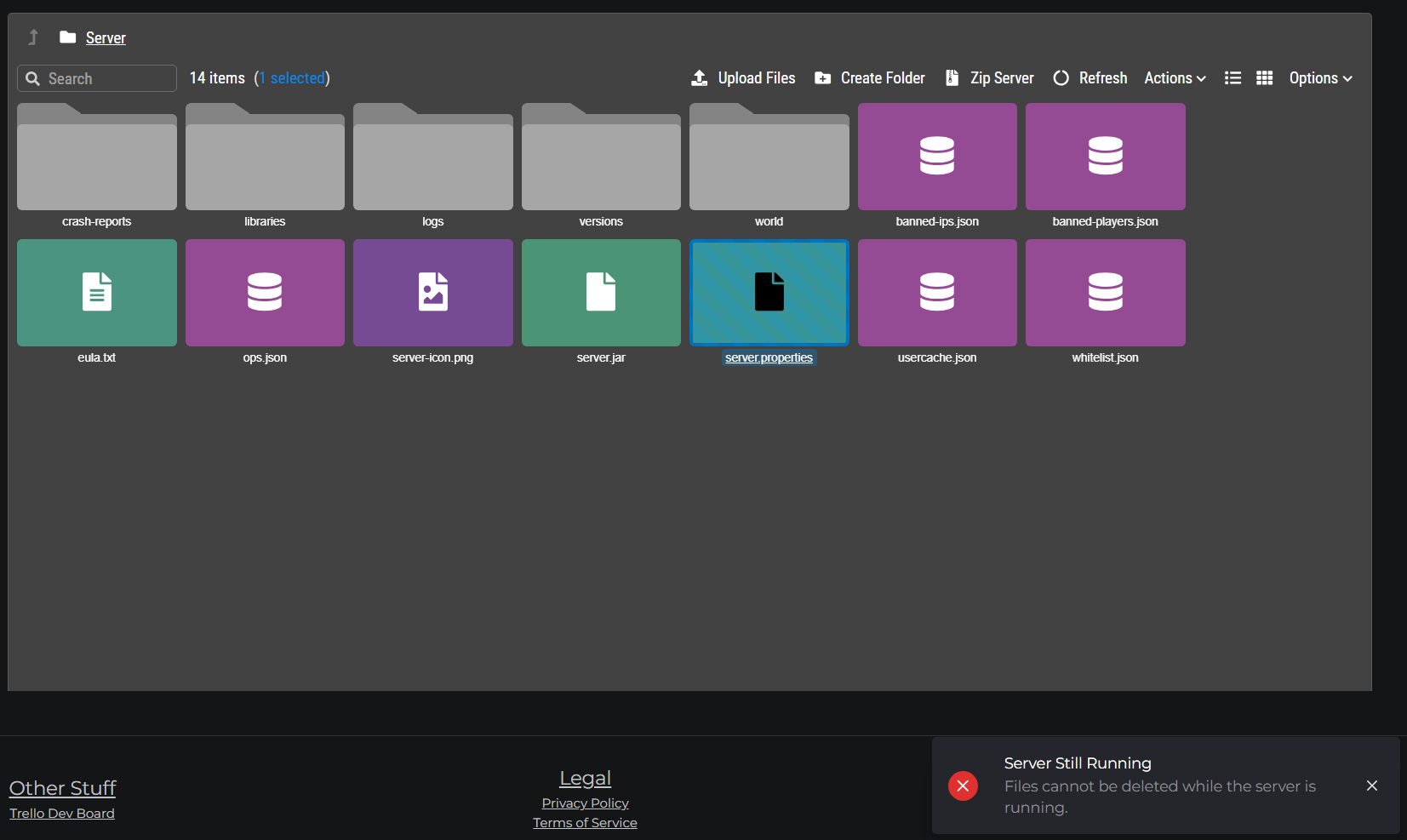
Corrupted chunk: the crash log usually shows the chunk coordinates. You can delete the affected region file using the File Manager - find it in world/region/ - but you will lose that chunk's data.
Mod/plugin conflict: try removing recently added or updated mods/plugins one at a time to find the culprit.
Still crashing?
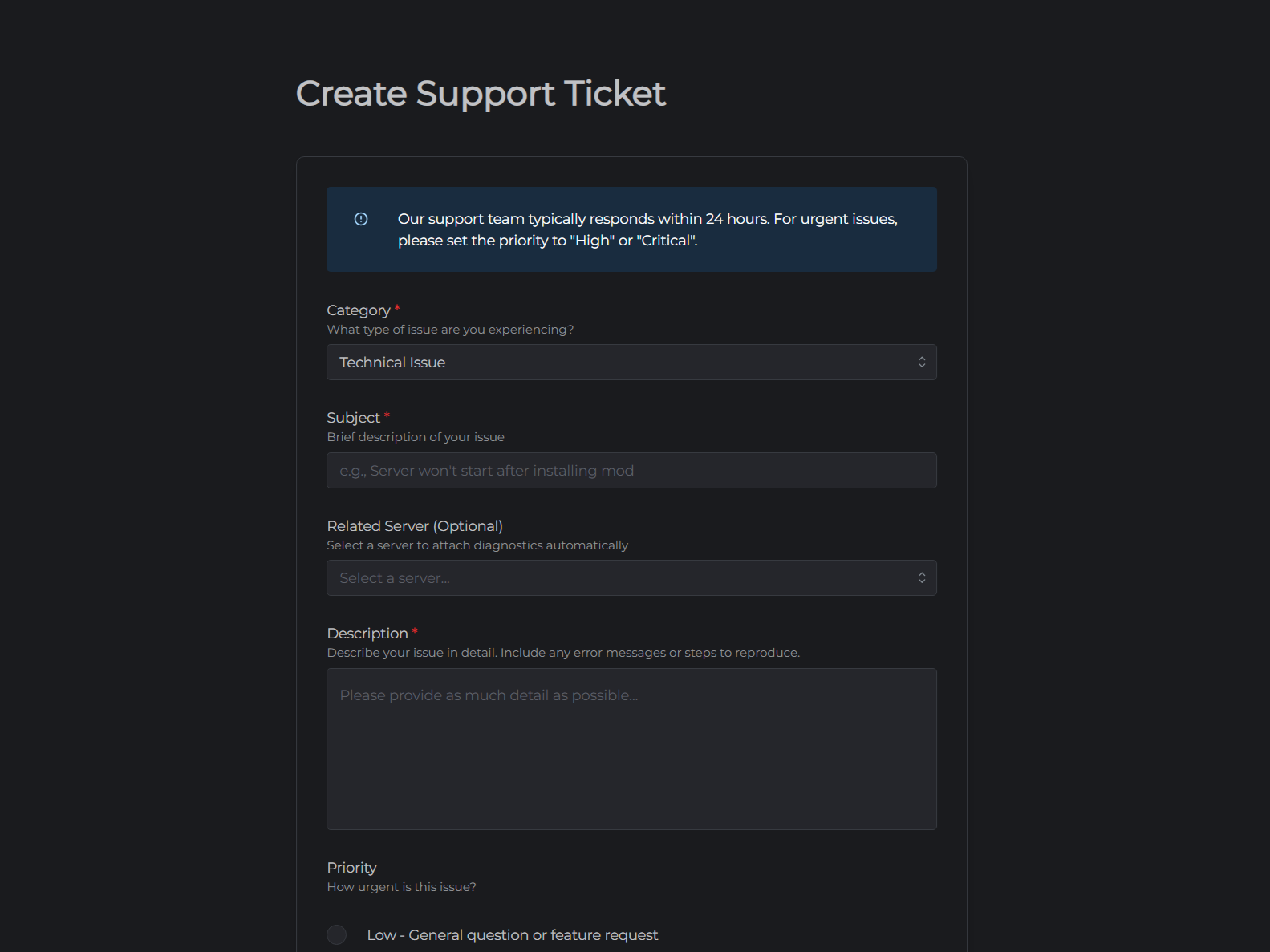
Open a support ticket and include the relevant section of your server log. You can copy text directly from the Console tab.