How to Whitelist Your Minecraft Server
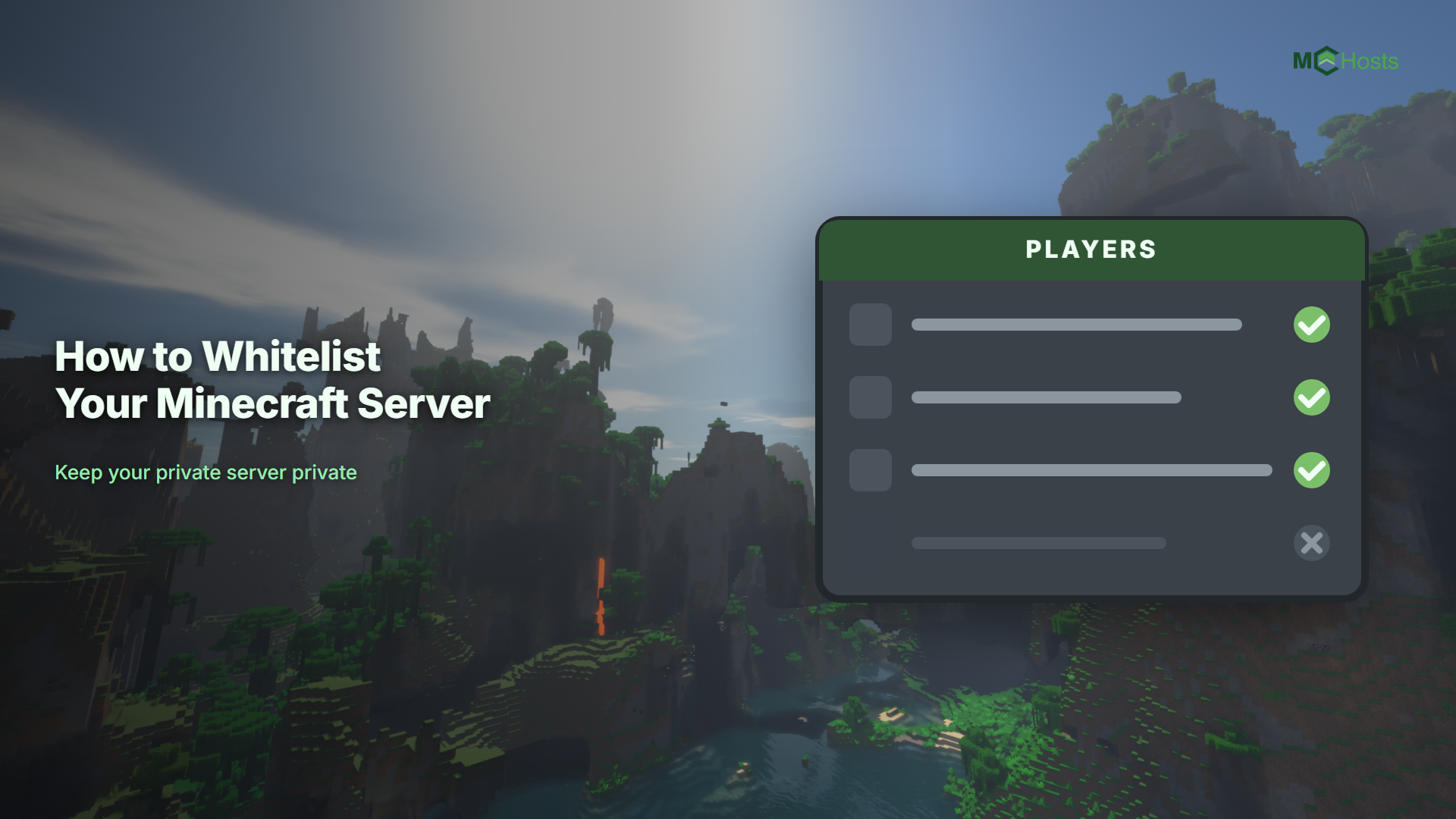
A whitelist is a list of approved players. When it is turned on, nobody can join your server unless their username is on that list. This is the simplest way to keep a private server private, and it is the first thing most people set up after inviting friends.
How the whitelist works
There are two separate parts, and you need both:
- The list itself contains the usernames you have approved
- The whitelist toggle decides whether the server actually checks that list
Adding names to the list does nothing on its own. If the toggle is off, anyone who knows your address can still join. This catches out a lot of new server owners, so it is worth checking both.
Method 1 - Use the Players tab (easiest)
- Open your control panel and go to the Players tab
- Make sure you are on the Whitelist sub-tab
- Type a player's exact Minecraft username into the add field
- Click Add
- Repeat for everyone you want to allow in
- Turn on Enable Whitelist at the top of the tab
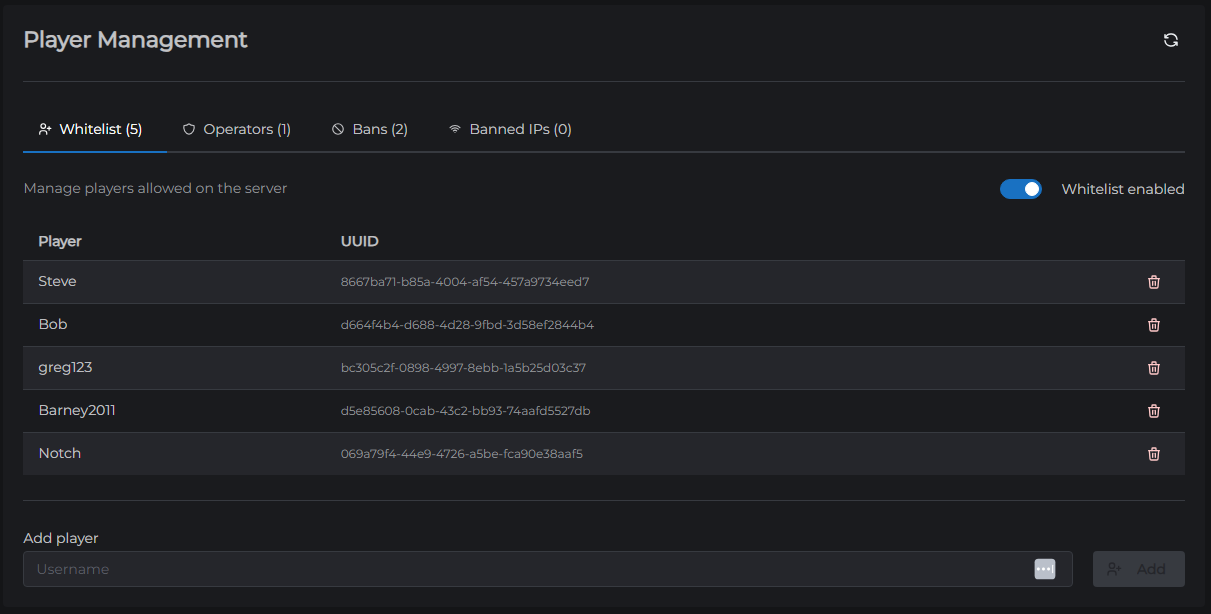
Changes take effect immediately. You do not need to restart the server.
To remove someone, click the trash icon next to their name. If the server is running and they are currently online, they stay connected until they disconnect, unless you also enable Enforce Whitelist (covered below).
Method 2 - Use the console
If you prefer commands, you can do the same thing from the Console tab with the server online:
whitelist add PlayerName
whitelist remove PlayerName
whitelist on
whitelist off
whitelist list
whitelist list prints everyone currently approved, which is handy for a quick check. See Console for more on running commands this way.
Enforce Whitelist
By default, turning on the whitelist only affects new connection attempts. Someone who is already online stays online even if they are not on the list.
To change that, go to MC Settings and open the Gameplay panel, then set Enforce Whitelist to true. Now anyone removed from the whitelist is kicked straight away rather than at their next login. Full details on that panel are in Server Properties.
Getting usernames right
Whitelisting works on exact Minecraft usernames, so spelling and capitalisation matter. A couple of things to watch for:
- Ask your friends to copy their username rather than typing it from memory
- Bedrock players joining through Bedrock Edition support usually appear with a prefix such as a dot in front of their name, so whitelist them using the name exactly as it shows in the console when they first try to connect
- If someone has changed their Minecraft name recently, add the new one
Common problems
A whitelisted player still cannot join. Check the username spelling first, then confirm the whitelist toggle is actually on and that they are not also on the ban list in the Bans sub-tab.
Everyone is being rejected, including you. The whitelist is on but your own name is probably missing from it. Add yourself from the Players tab, which works whether or not you can currently connect.
You want a public server instead. Simply turn the whitelist toggle off. The list is kept, so you can turn it back on later without re-adding anyone.
If players are still stuck after all that, Can't Connect to My Server covers the other common causes.
Next, you may want to give yourself OP so you can run admin commands in-game, or read Player Management for the full set of player controls including bans and IP bans.