Can't Connect to My Server
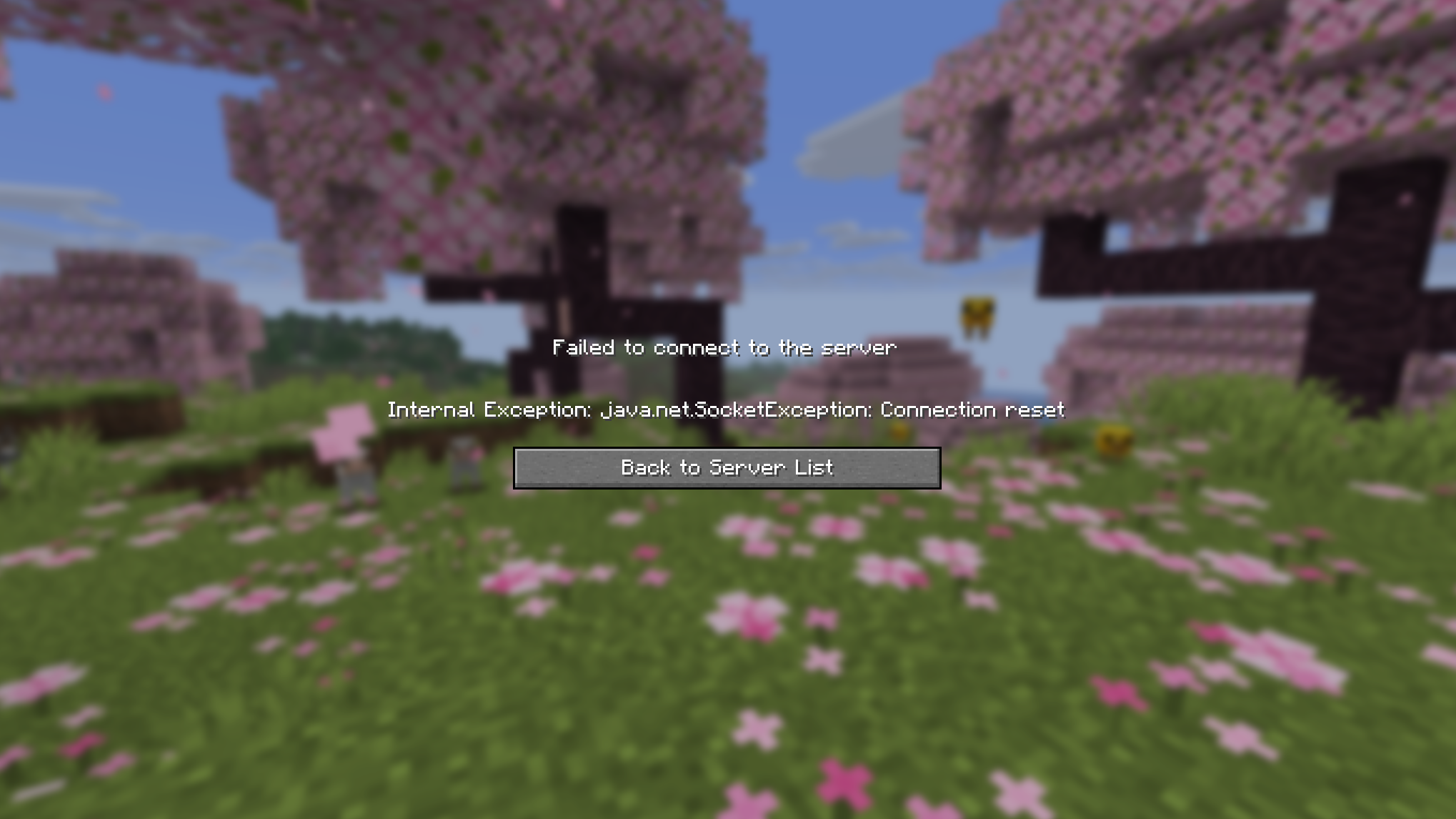
If you're getting a "Connection refused", "Connection timed out", or "Server is offline" error in Minecraft, work through this checklist.
1. Is the server running?
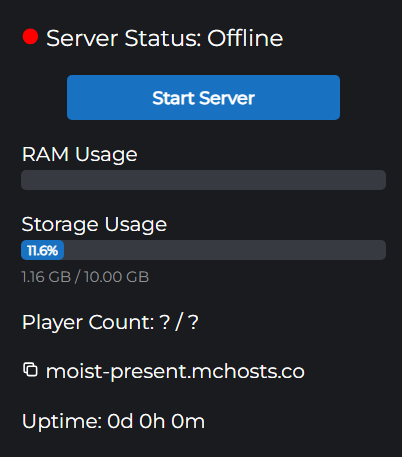
Go to control-panel.mchosts.com.au and check the Dashboard.
- If it shows Offline - click Start Server and wait 1–2 minutes, then try connecting again
- If it shows Online but you still can't connect - continue to the next steps
2. Are you using the correct address?
Your server address is shown on the Dashboard. Click the copy button to copy it exactly - don't type it manually.
It should look like: yoursubdomain.mchosts.co
No port number is needed. If you're entering a port (e.g. :25565), try removing it.
3. Is the whitelist blocking you?
If the whitelist is enabled, only players on the whitelist can connect.
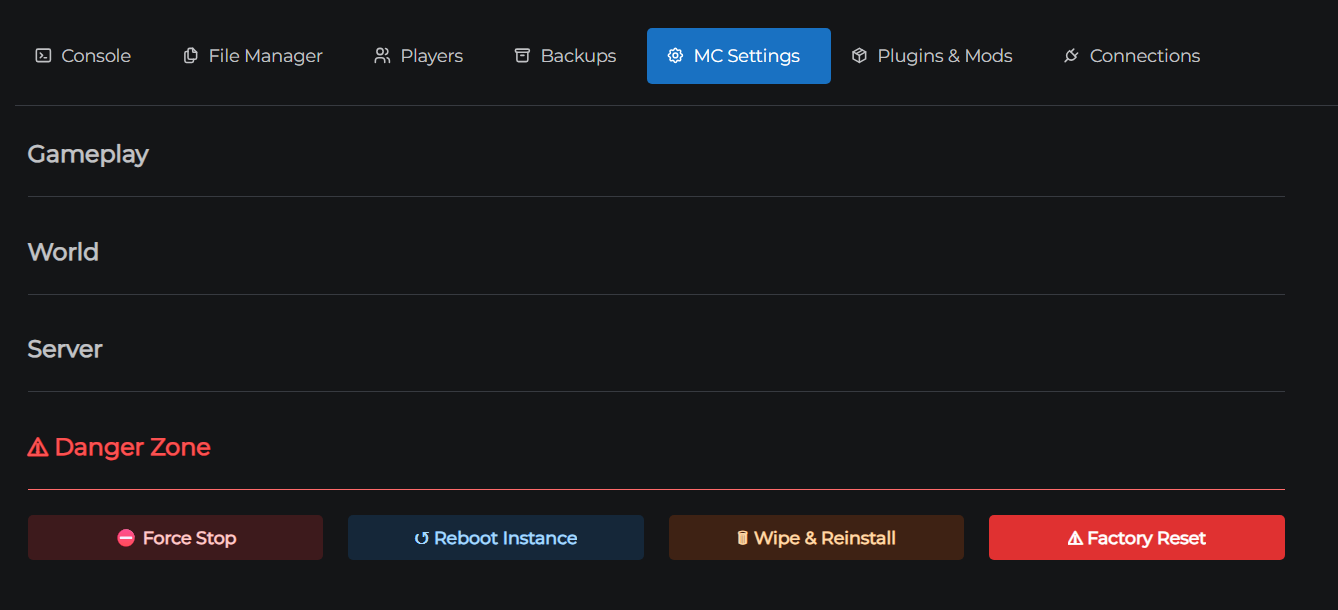
Go to the Players tab and open the Whitelist sub-tab. If Enable Whitelist is toggled on, confirm your username is listed.
If you're not on the list, add yourself and try again.
4. Is the server still starting up?
After clicking Start or after a version change/reboot, the server takes 1–2 minutes to be ready for connections. Minecraft may show "Connection refused" during this window.
Watch the Console tab - when you see Done (X.XXXs)! For help, type "help" in the log, the server is ready.
5. Did you recently set up a custom domain?
DNS changes take time to propagate. If you set up a custom domain recently and it's not connecting, try using the original yoursubdomain.mchosts.co address instead.
DNS propagation can take up to 24 hours in some regions.
6. Are you using Minecraft: Java Edition?
MCHosts only supports Java Edition. Bedrock Edition (Windows 10, mobile, console) is not compatible with MCHosts servers.
Still not connecting?
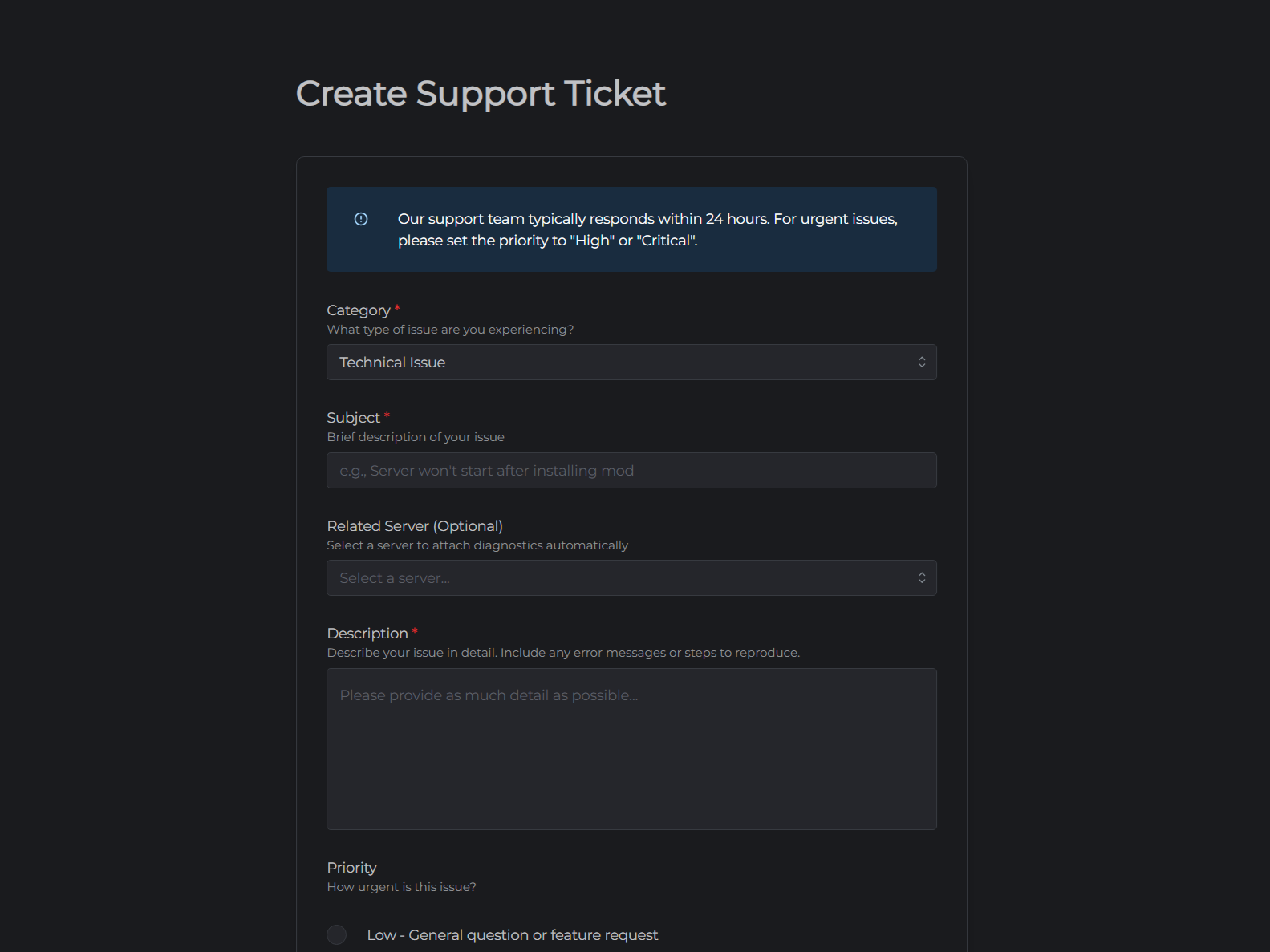
If none of the above resolve the issue, open a support ticket with your server hostname and a description of the error message you're seeing.