Connecting to Your Server
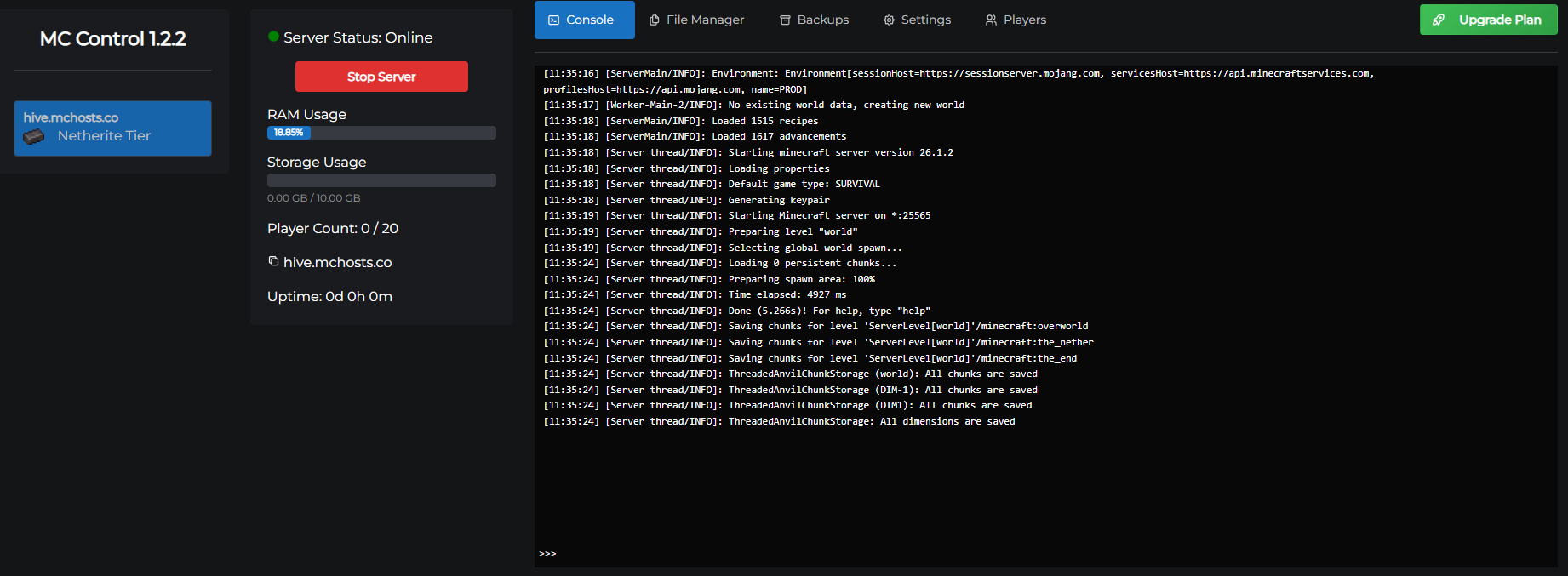
Once your server is provisioned, connecting is straightforward. This guide covers finding your server address and adding it in Minecraft.
Find your server address
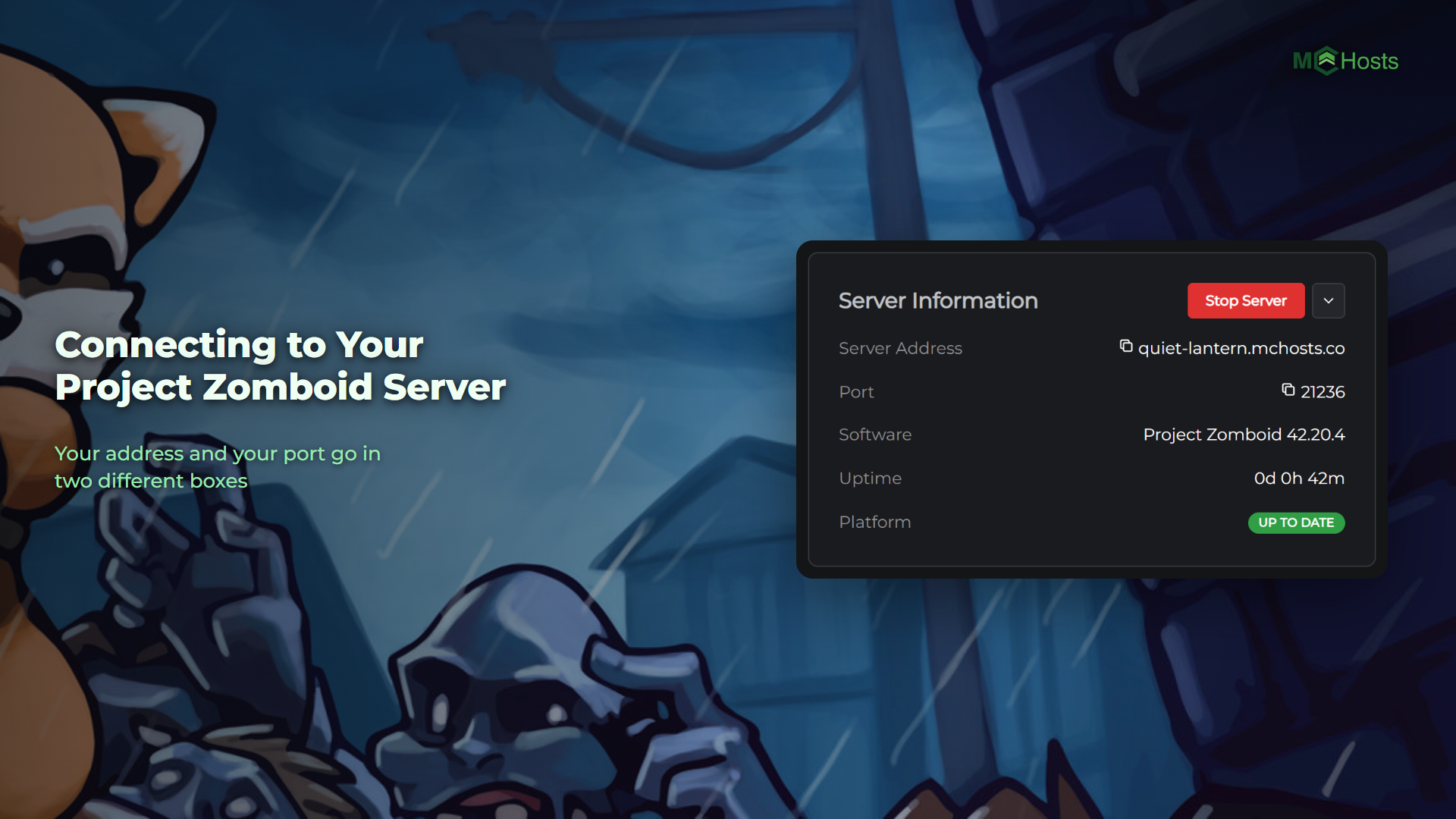
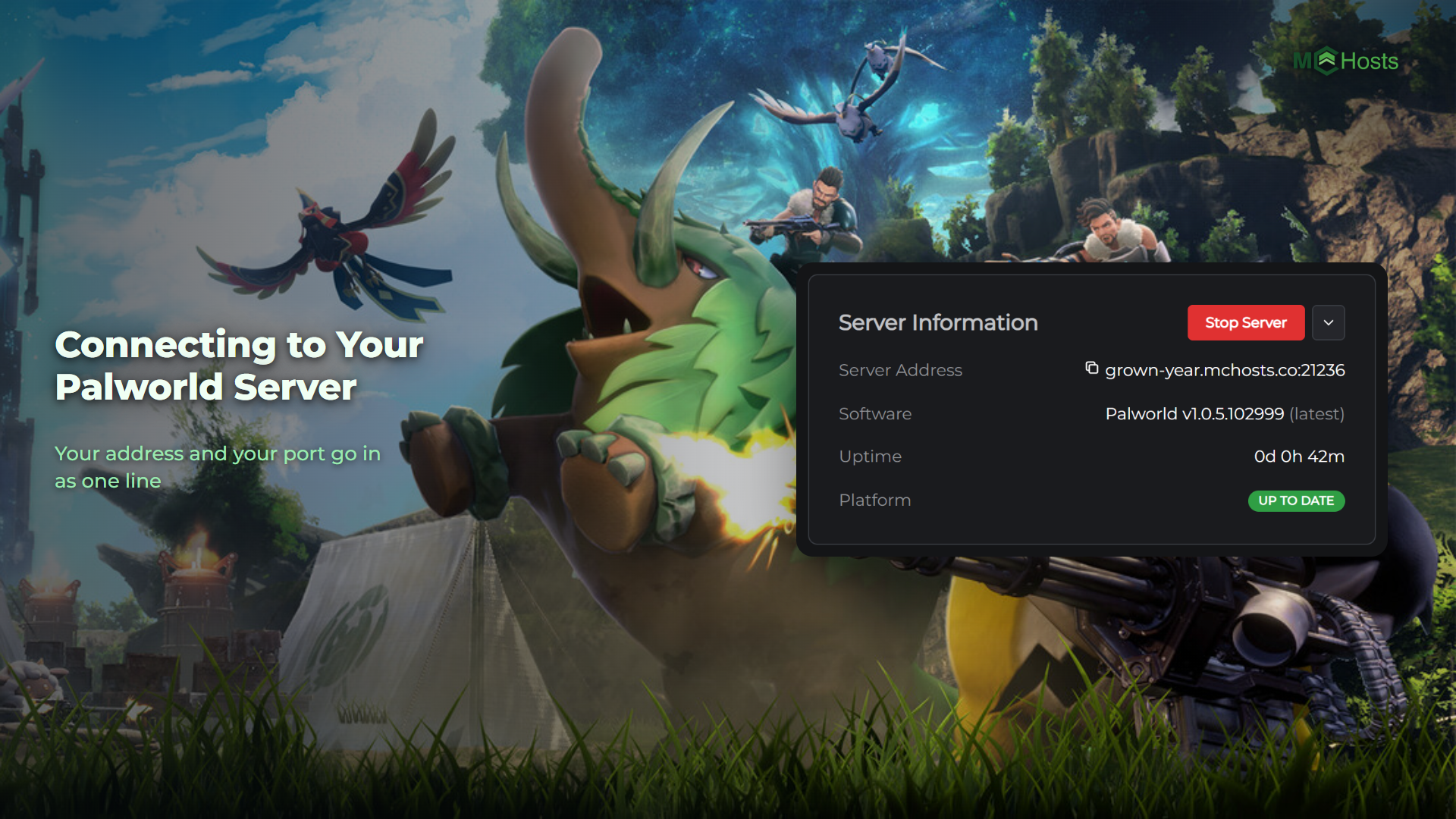
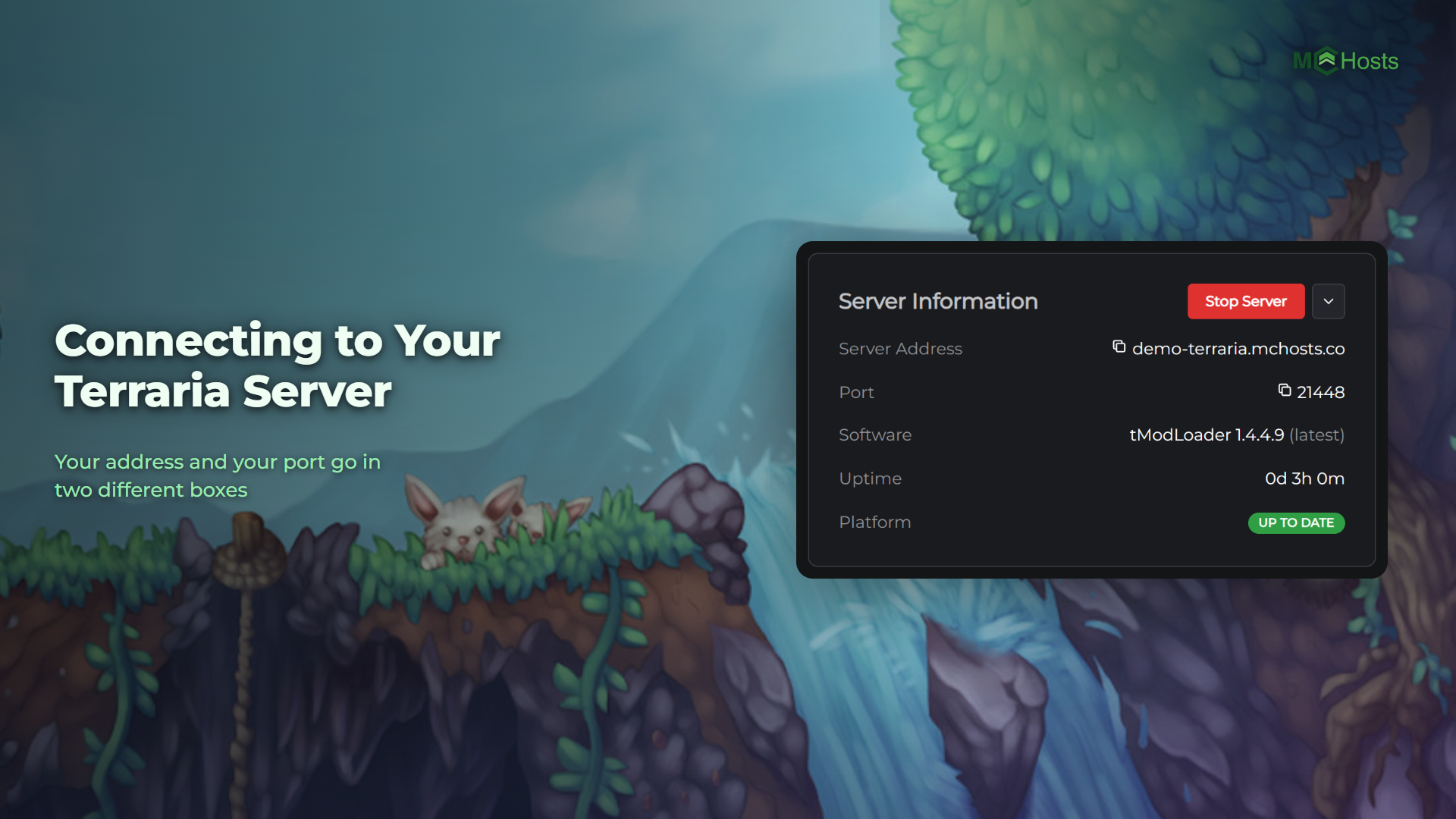
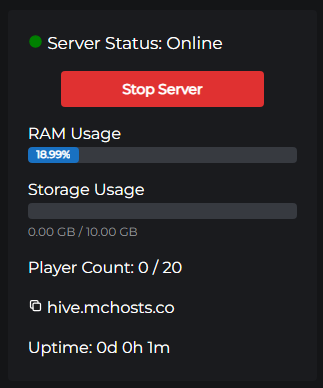
Your server address is shown in the control panel dashboard. It follows the format:
yoursubdomain.mchosts.co
Click the copy button next to the address on the dashboard to copy it to your clipboard.
Connect in Minecraft
MCHosts servers are Java Edition only.
- Open Minecraft: Java Edition
- Click Multiplayer
- Click Add Server
- Paste your server address into the Server Address field
- Give the server a name (anything you like)
- Click Done
- Select your server from the list and click Join Server
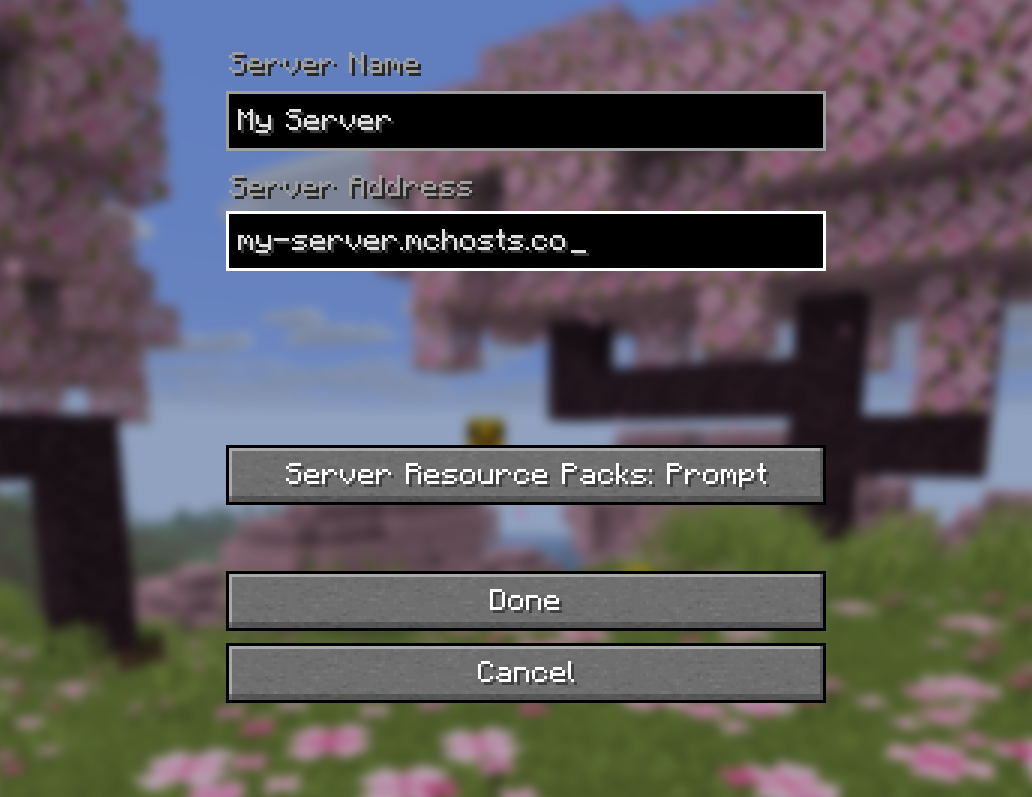
You do not need to add a port number - the default Minecraft port (25565) is used automatically.
If the server won't connect
The server may be offline. Check the control panel dashboard - if the status shows Offline, click Start Server and wait 1–2 minutes before trying again.
The server may still be starting up. After a fresh purchase or a restart, it can take 1–2 minutes before the server accepts connections. You can watch the startup progress in the Console tab.
The whitelist may be on. If the whitelist is enabled, only players on the whitelist can join. See Sharing with friends for how to add players.
Using a custom domain
You can point your own domain name (e.g. play.myserver.com) to your MCHosts server so players don't need to remember the .mchosts.co address. See Setting up a custom domain.