Sharing Your Server with Friends
Once your server is running, inviting friends is simple. This guide covers sharing the address, managing who can join, and giving players operator permissions.
Share your server address
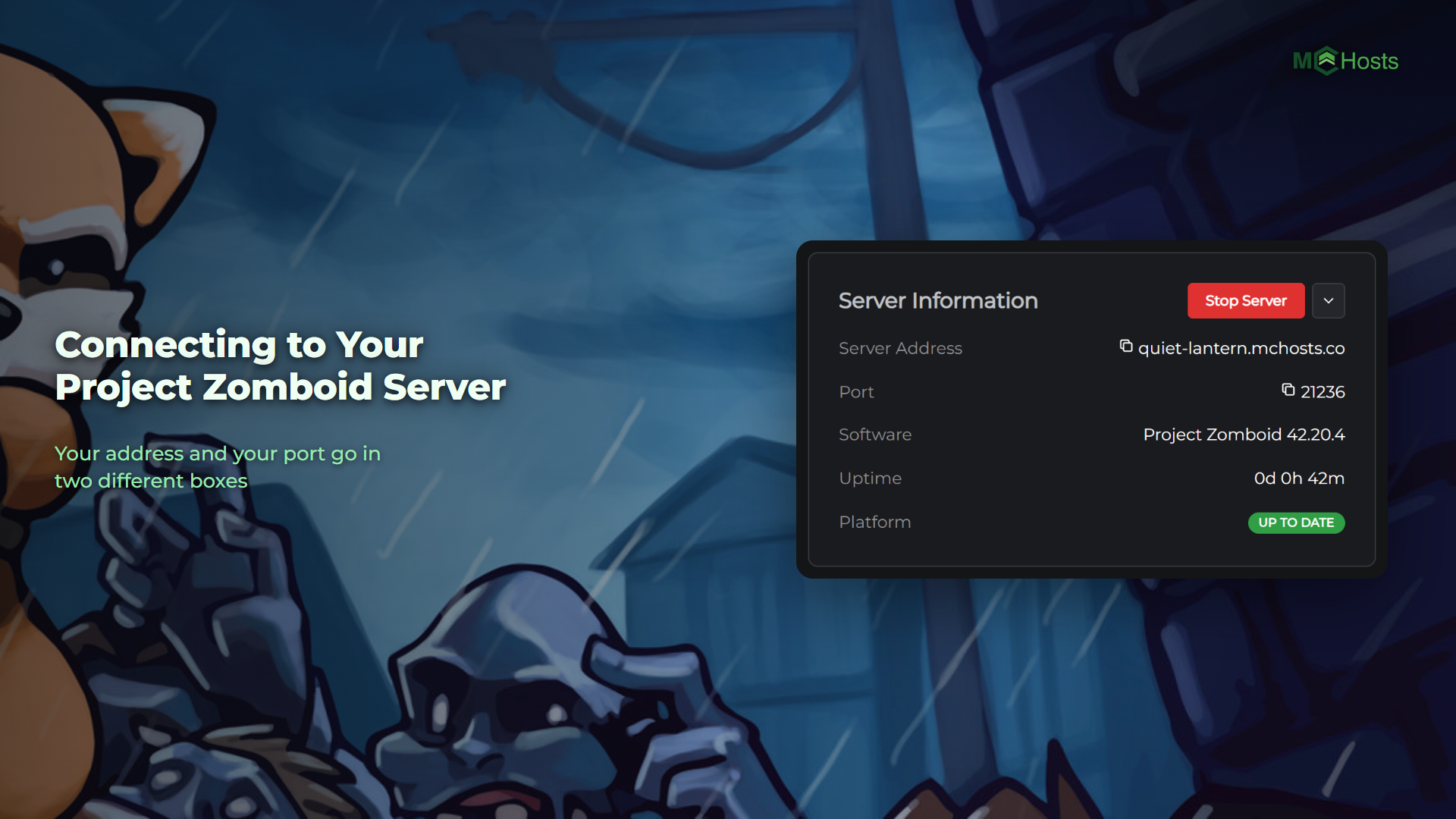
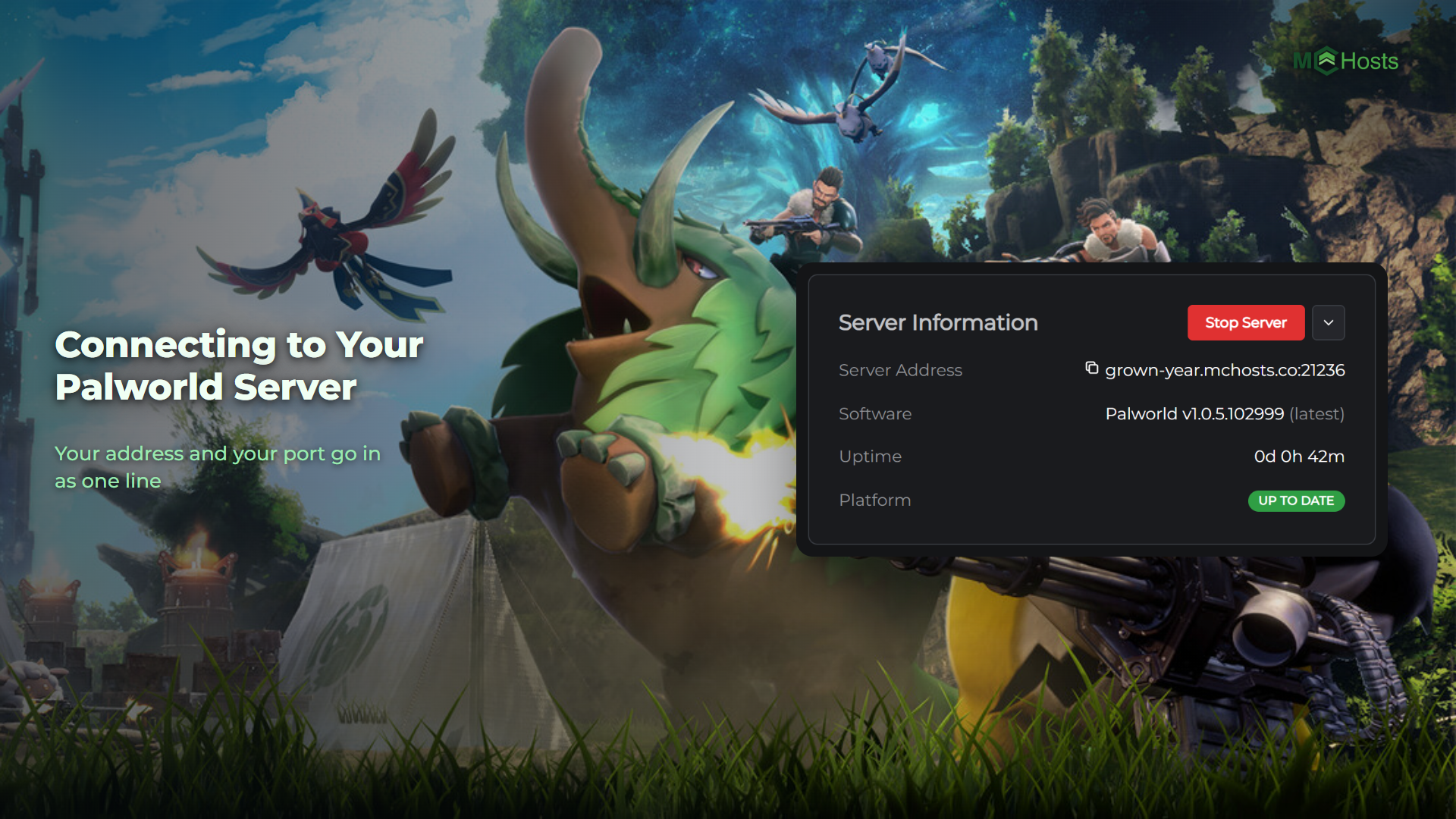
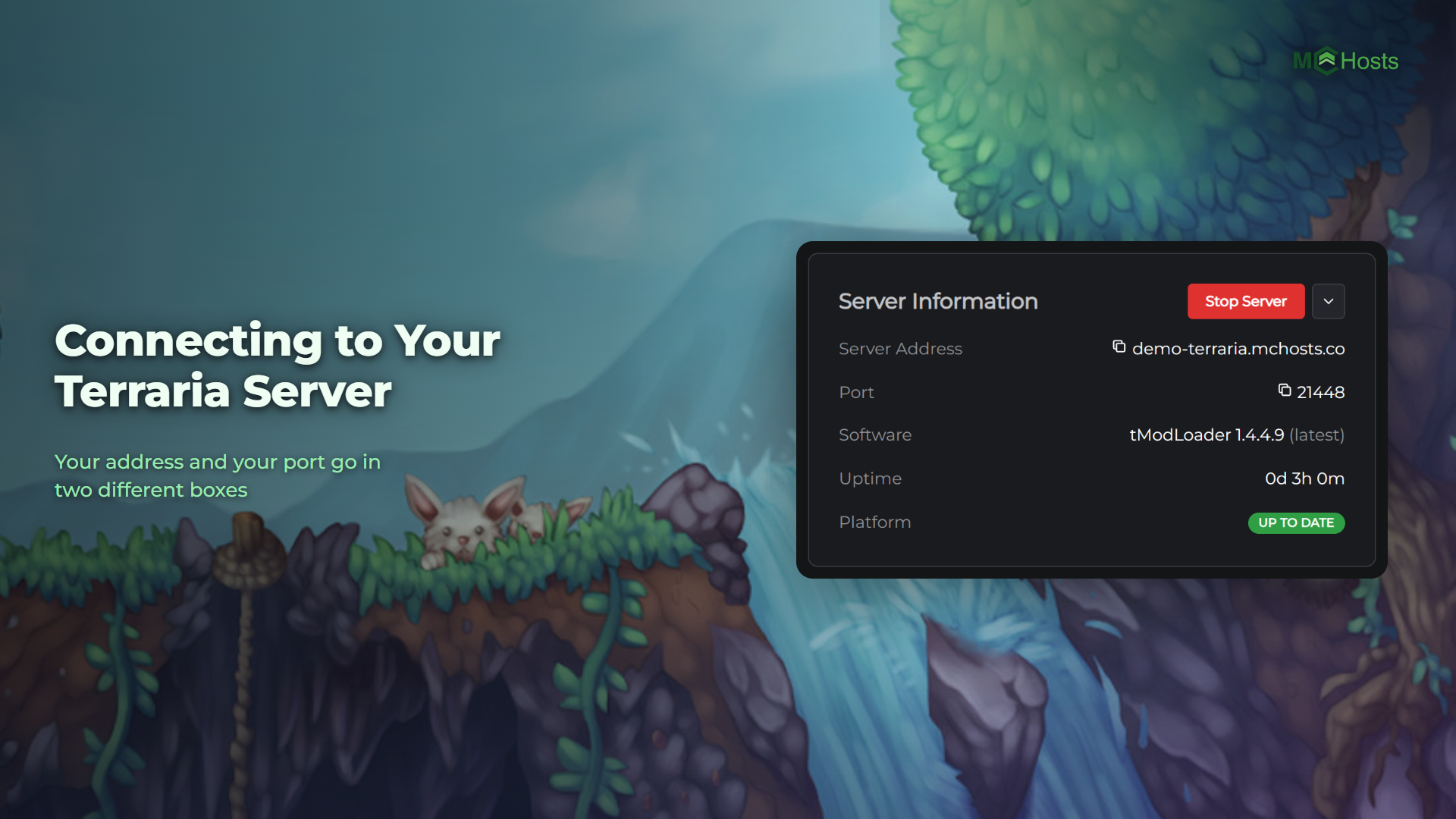
Give your friends the server address shown on your control panel dashboard:
yoursubdomain.mchosts.co
Your friends connect the same way you do - open Minecraft: Java Edition → Multiplayer → Add Server → paste the address.
Each player must own a legitimate copy of Minecraft: Java Edition.
Controlling who can join
Open server (default)
By default, anyone who knows your address can join (up to your player slot limit). This is the easiest option for small friend groups.
Whitelist
A whitelist restricts the server to approved players only. To enable it:
- Go to the control panel → Settings → Management Settings
- Set Whitelist to
trueand Enforce Whitelist totrue - Click Save Changes
- Go to the Players tab → Whitelist
- Type each friend's Minecraft username and click Add
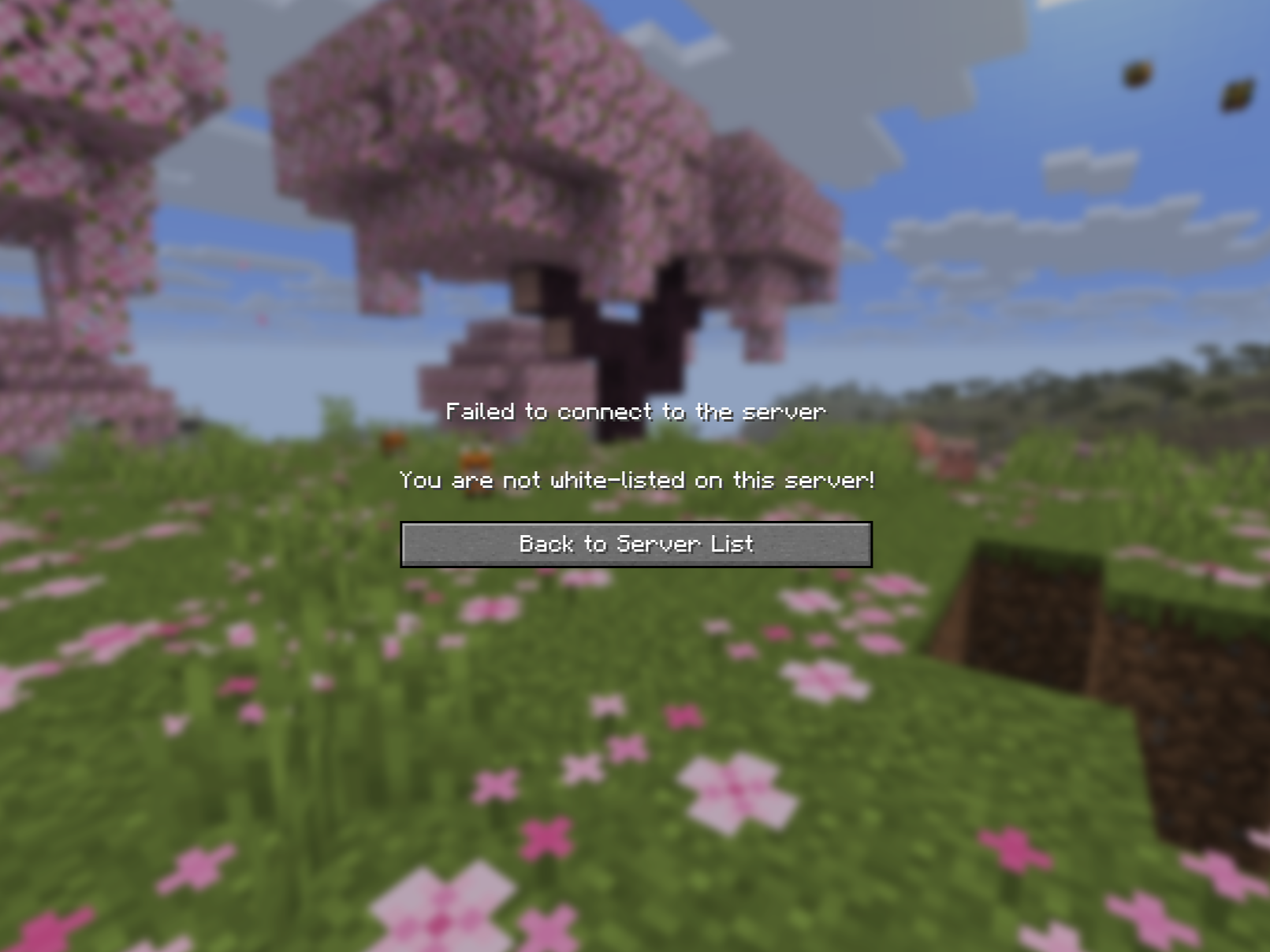
Players not on the whitelist will see "You are not whitelisted on this server" when they try to join.
Setting player limits
To change the maximum number of players allowed at once:
- Go to Settings → Common Settings
- Update the Max Players field
- Click Save Changes
Giving a friend operator (admin) permissions
Operators can run server commands, change game modes, and manage other players in-game.
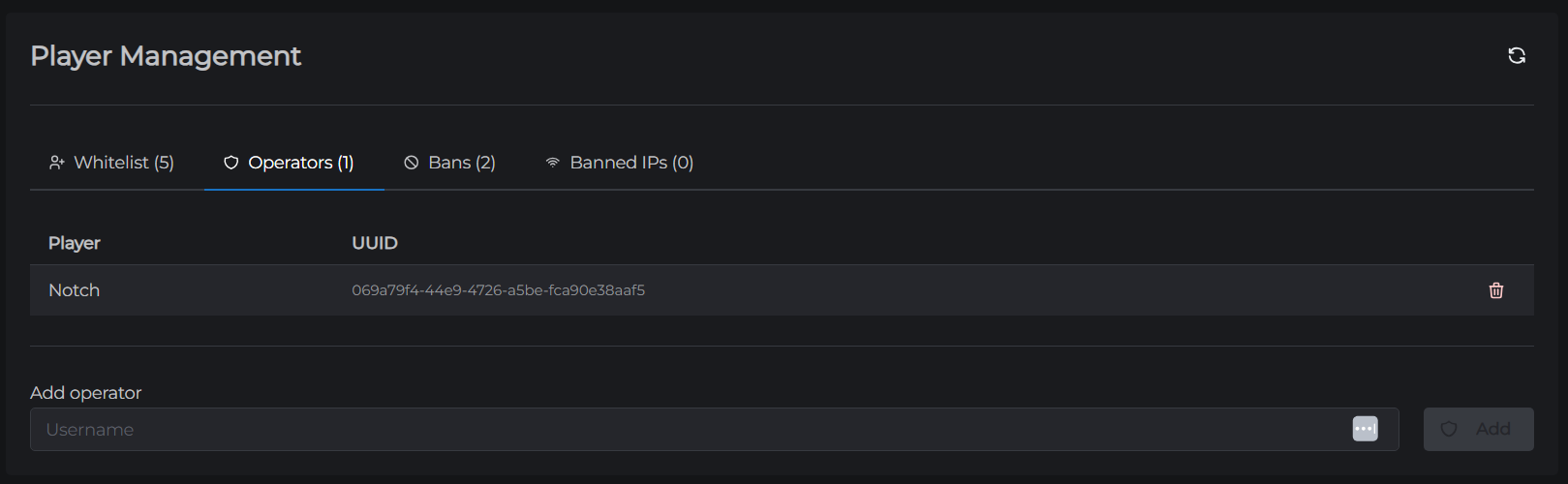
- Go to Players → Ops tab
- Type the player's Minecraft username and click Add
To remove operator status, click the trash icon next to their name.
Note: Be careful about who you give operator access to - operators have significant control over the server.
Banning a player
If you need to remove a player permanently:
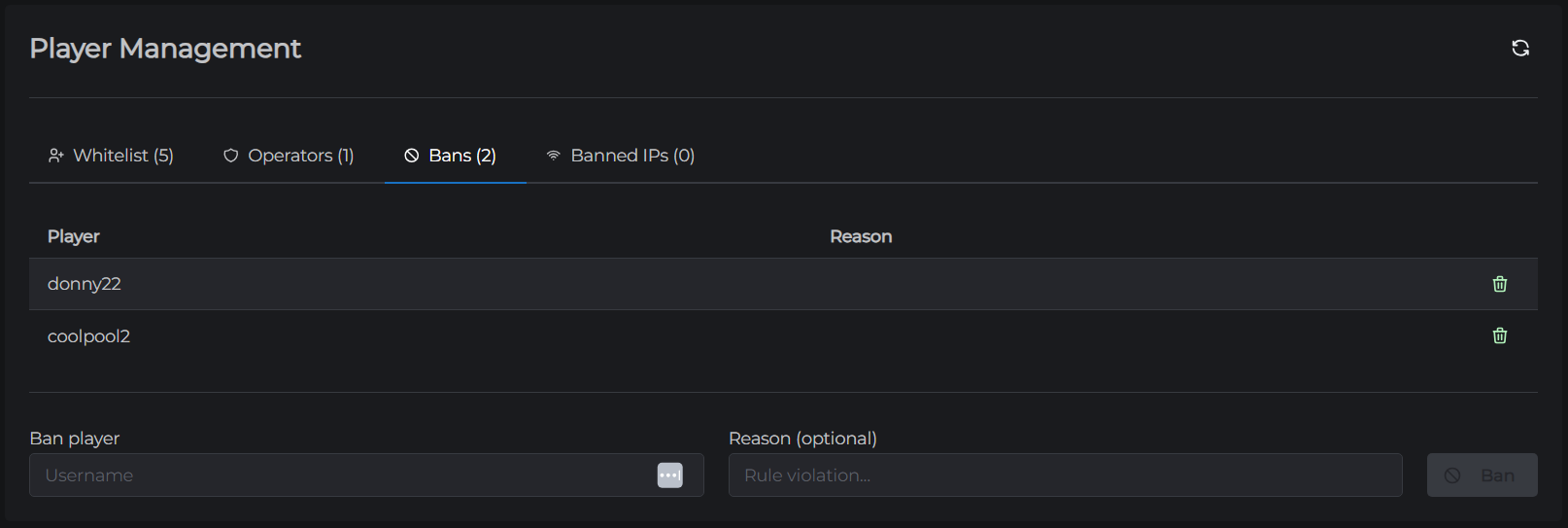
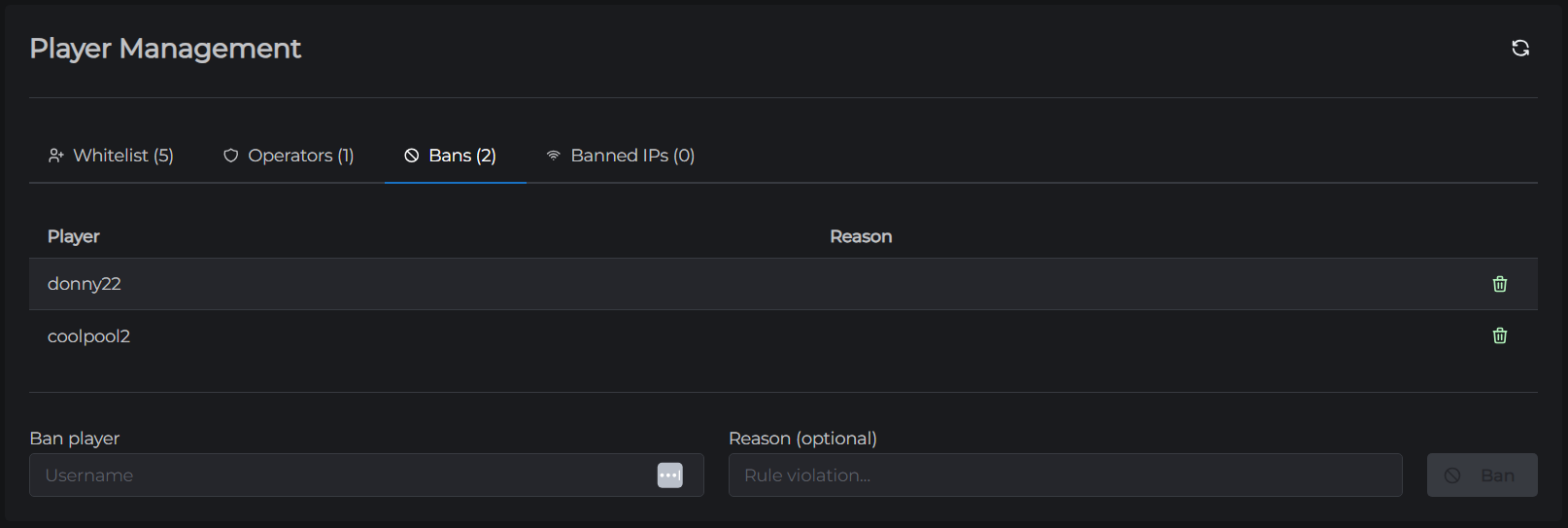
- Go to Players → Bans tab
- Enter their username, optionally add a reason, and click Add
To unban them, click the trash icon on their entry. You can also ban specific IP addresses from the Banned IPs tab.