How to Install Plugins on a Paper Server
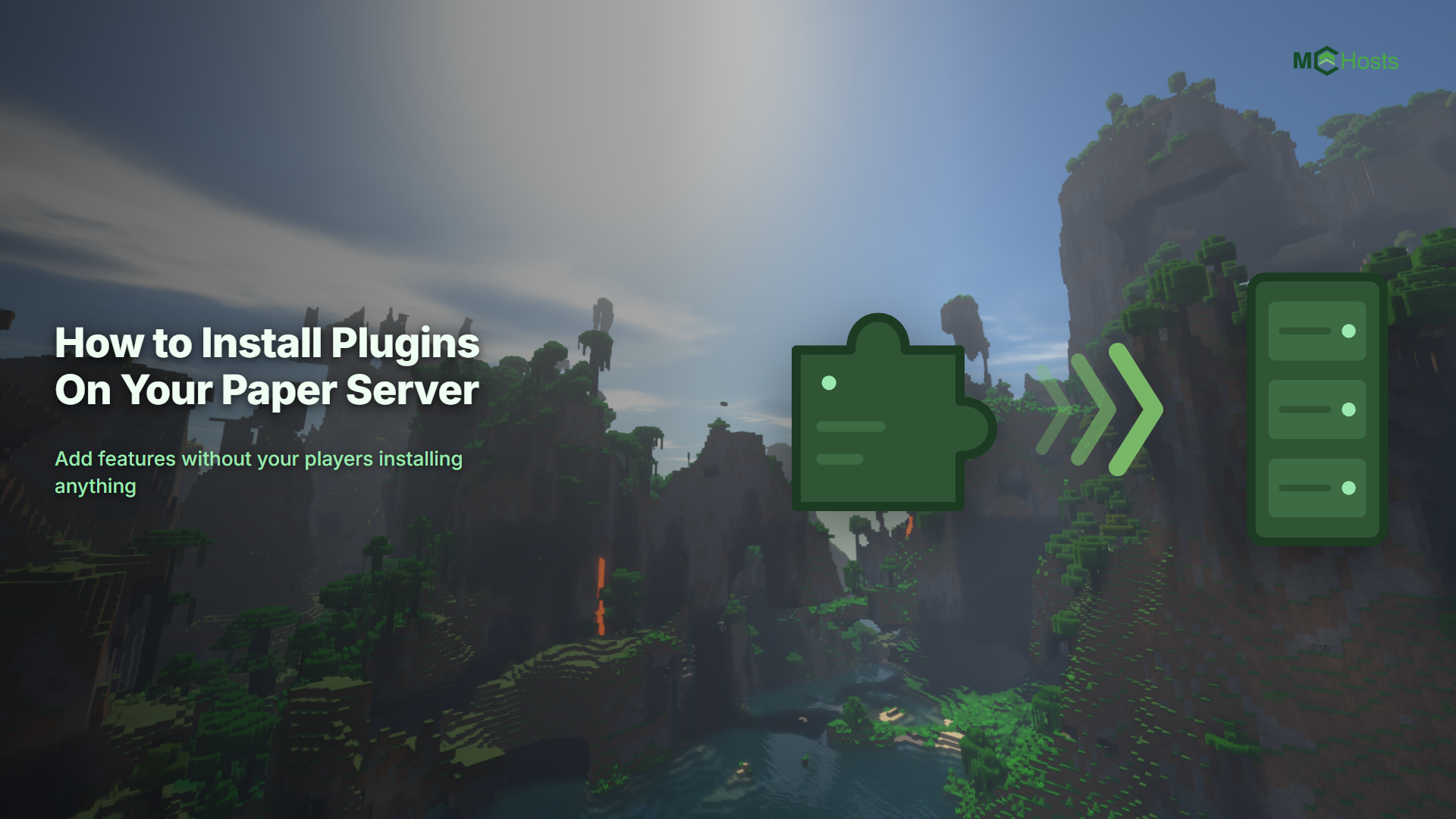
Plugins add features to your server such as land claiming, ranks, teleport homes, and shops. Unlike mods, plugins only run on the server, so your players do not need to install anything. This guide covers both ways to install them on MCHosts.
Before you start
Plugins only work on a PaperMC server. A Vanilla server ignores them completely, and Forge or Fabric servers use mods instead. Paper is a faster fork of Spigot and runs the same plugins, so anything built for Bukkit or Spigot works on it without changes.
To check or change your server type, open the control panel, go to Settings → Server, and look at the server type. See Server Types if you are not sure which to pick.
Method 1 - Install from the control panel (easiest)
MCHosts has a built-in browser, so you never need to download a file yourself.
- Click the Plugins & Mods tab
- In the Browse & Install section, choose Modrinth or CurseForge as the source
- Type the plugin name into the search box and press Enter
- Click Install next to the one you want
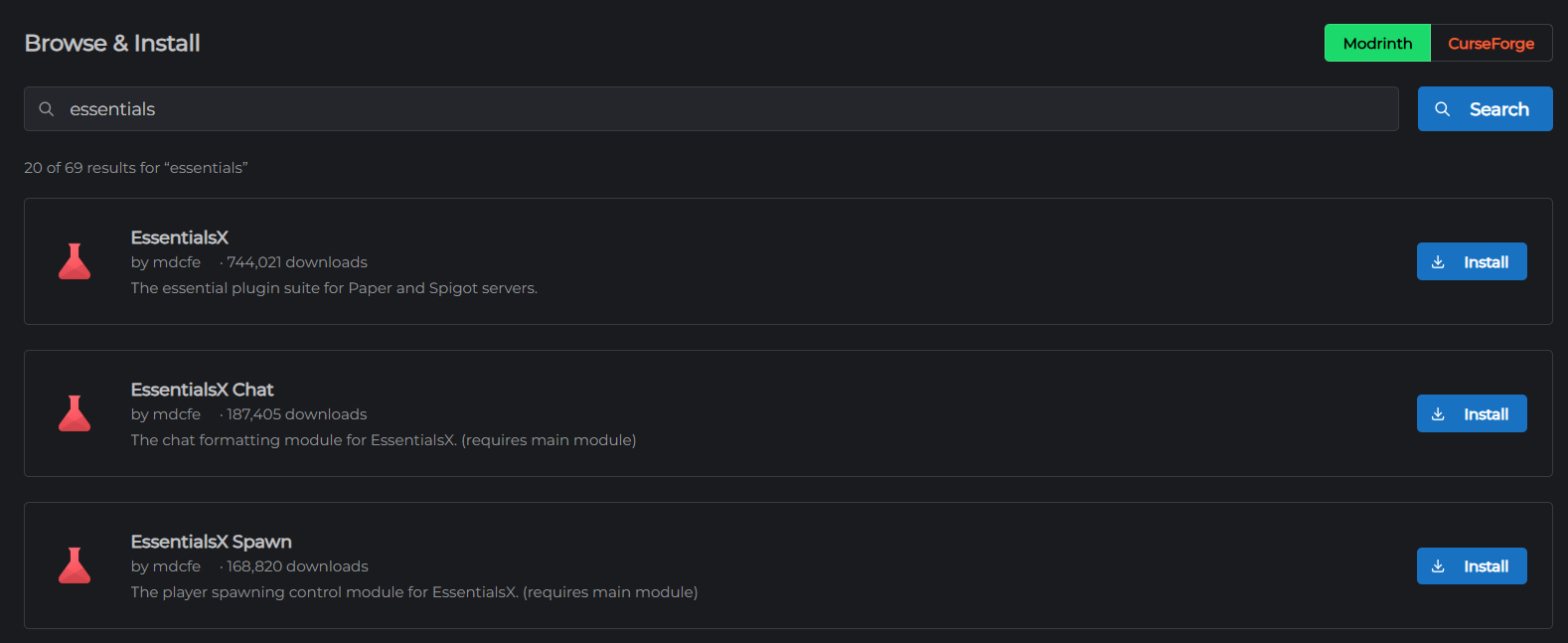
The file downloads straight into your Server/plugins/ folder. Search results are filtered to your Minecraft version and server type, so anything that appears is already compatible.
Once it finishes, restart the server from the Dashboard. Plugins are only loaded at startup, so nothing changes until you do.
Method 2 - Upload a plugin manually
Some plugins are only distributed on SpigotMC, BukkitDev, or a developer's own site. Those need uploading by hand.
- Download the plugin's
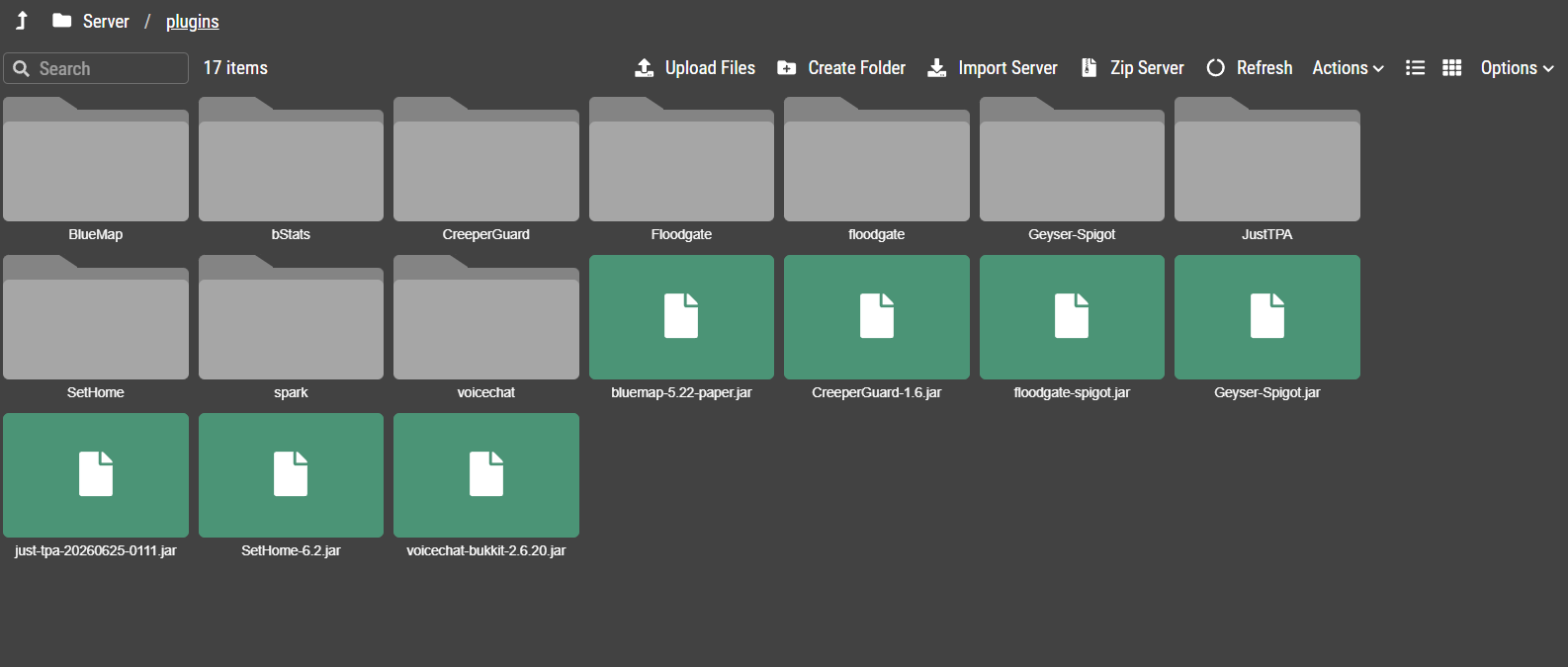
.jarfile from its official page - Open the File Manager tab in your control panel
- Go into the
Server/plugins/folder - Upload the
.jarfile into that folder - Restart the server
Only ever download plugins from their official pages. Reuploaded jars from unofficial sites are a common source of malware, and a malicious plugin has full control of your server.
Checking it worked
After the restart, open the Console tab and look at the startup log. Loaded plugins are listed as the server boots, with lines such as Enabling EssentialsX v2.20.1.
You can also run this in the console or in-game:
plugins
Green names are running correctly. Red names failed to load, usually because of a version mismatch or a missing dependency.
Configuring a plugin
Most plugins create their own folder inside Server/plugins/ the first time they run. Inside you will find a config.yml file you can edit in the File Manager.
Two things to keep in mind:
- YAML is fussy about indentation, so use spaces rather than tabs and keep the existing layout
- Save the file, then restart the server or run
/reload confirmfor the change to apply
Dependencies
Some plugins need another plugin installed first. Economy and permissions plugins very often require Vault, for example. The plugin's download page lists any requirements under a dependencies heading. If a plugin shows red in the plugins list, a missing dependency is the most likely reason.
A note on performance
Every plugin uses some memory and CPU. Ten well-chosen plugins are usually fine, while fifty overlapping ones will slow a small server noticeably. If your server starts lagging after an install session, remove anything you are not actually using and read Why Is My Server Lagging? and How Much RAM Does My Server Need?.
Removing a plugin
Open the Plugins & Mods tab, find the plugin in the Installed list, click the red trash icon, then restart. You can also delete the .jar from Server/plugins/ in the File Manager. The plugin's config folder is left behind, so delete that too if you want a clean slate.
For the full reference on the install tab, see Plugins & Mods.