How to Install Palworld Mods
Palworld mods come from the Steam Workshop, and your control panel installs them for you. You need a server on the Modded version first.
Before you start
Mods only work on the Modded version. If your server is on Standard, the Mods tab tells you so and points you at Settings.
Switching to Modded deletes your world, so do it before you build anything, or take a backup first. See Choosing between Standard and Modded Palworld for what else changes.
Installing a mod
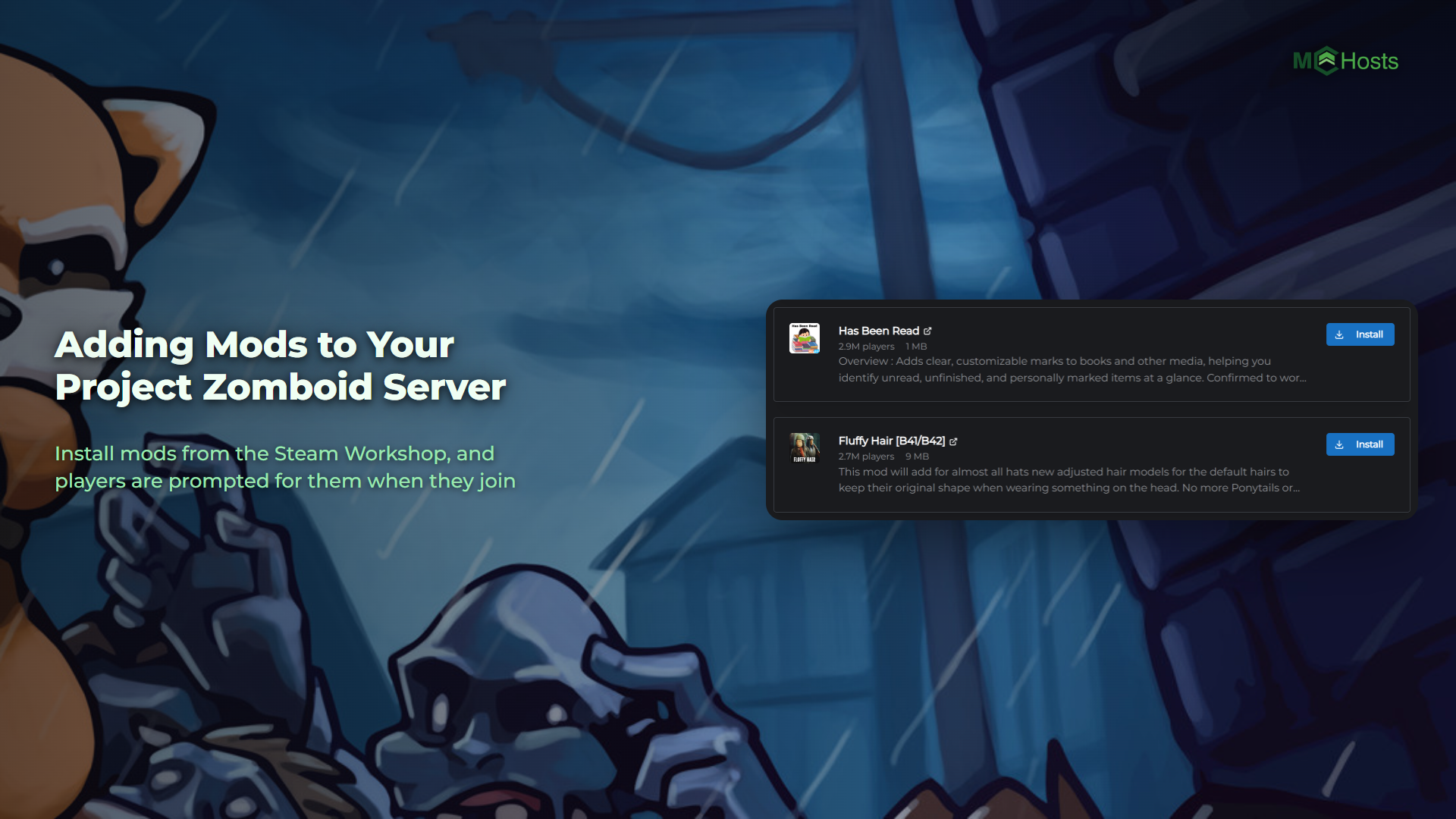
- Open your control panel and click the Mods tab
- Search for what you want, or browse by category on the left
- Click Install on the one you want
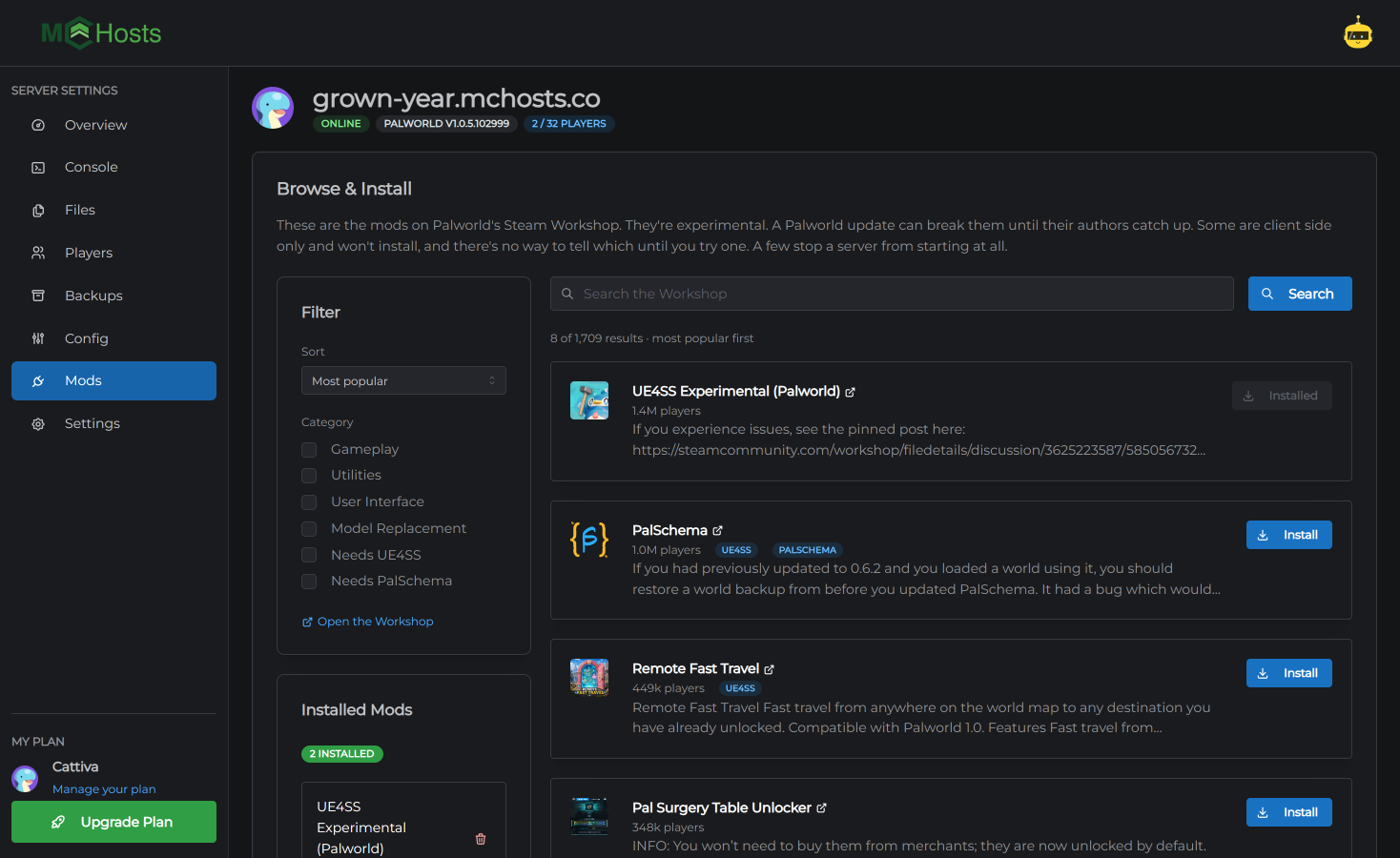
Your server downloads it, checks it, and puts it in place. Bigger mods take a while, and you can leave the page while it works.
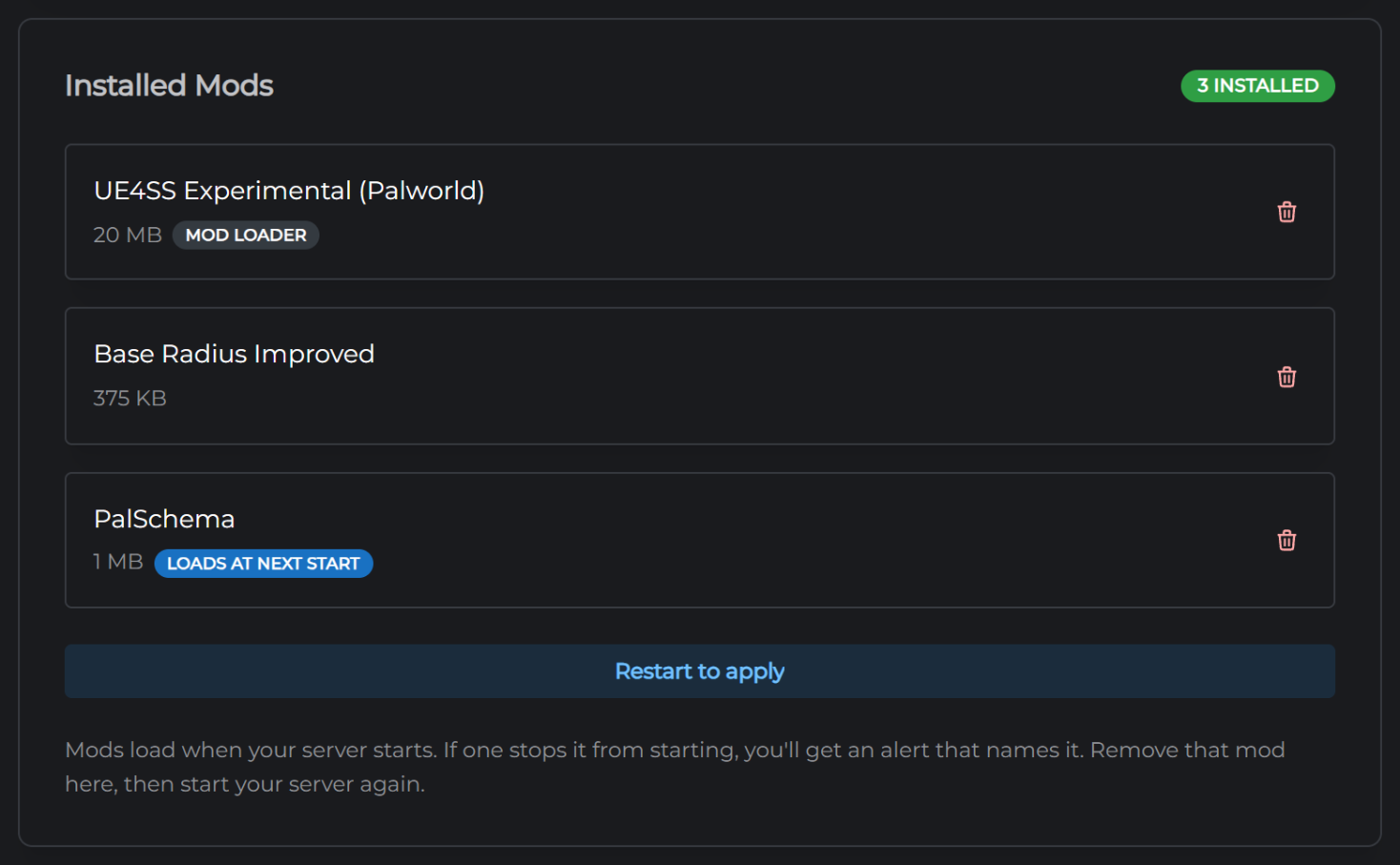
Mods load when the server starts. A new mod sits under Installed Mods marked Loads at next start until you restart. There's a Restart to apply button right there.
Mods that need other mods
Most Palworld mods are built on a mod loader, and some are built on a second one on top of that. You don't have to work out which.
When you install something that needs them, your server fetches them as well and says so. They appear in your installed list next to what you asked for. Leave them there. If you try to remove one that another mod depends on, the panel refuses and names what needs it.
Checking a mod is actually running
Open the Console tab after your server starts. It lists the mods that loaded:
[MCHosts] Mods running: Base Radius Improved

Some mods are only game files, with no code to run. Those can't report in, so the console names them separately and says to check them in game. That isn't a fault.
Do my players need the mod too?
Usually yes. Most Palworld mods have to be on the server and on every player's game, and your server has no way to hand one out. Everyone subscribes to it on Steam and turns it on in the game's mod menu, the same as you would for a single player world.
A few change the server only and your players need nothing. Which one you have is on the mod's own Workshop page, so check there before you tell everyone to install something.
A player missing a mod the server has may see nothing it adds, or fail to join at all.
Mods that will not install
Some are made for the game, not for a server. Plenty of Palworld mods only do something on a player's own machine. The Workshop doesn't mark these, so there's no way to tell before you try. Your server checks when it arrives and tells you it's a client side only mod.
Some stop a server starting. We've seen this with a popular mod's files. Your server doesn't come up, and you get a message naming the mod you added last. Stop the server, remove that mod on the Mods tab, and start it again.
Removing a mod
Click the bin icon next to it in Installed Mods. It is gone at the next start.
If something needs it, the removal is refused and you are told what. Remove that first.
Mods after a Palworld update
Your server takes each new version of Palworld when it next restarts, and an update can stop a mod working until its author catches up. If something stopped after an update, check the mod's Workshop page for a newer version, and give the author time if there is not one yet.
If the update stops your server coming up, remove the mods, get it running, and add them back one at a time.
Still stuck? Open a support ticket and tell us which mod and what happened.