Control Panel Overview
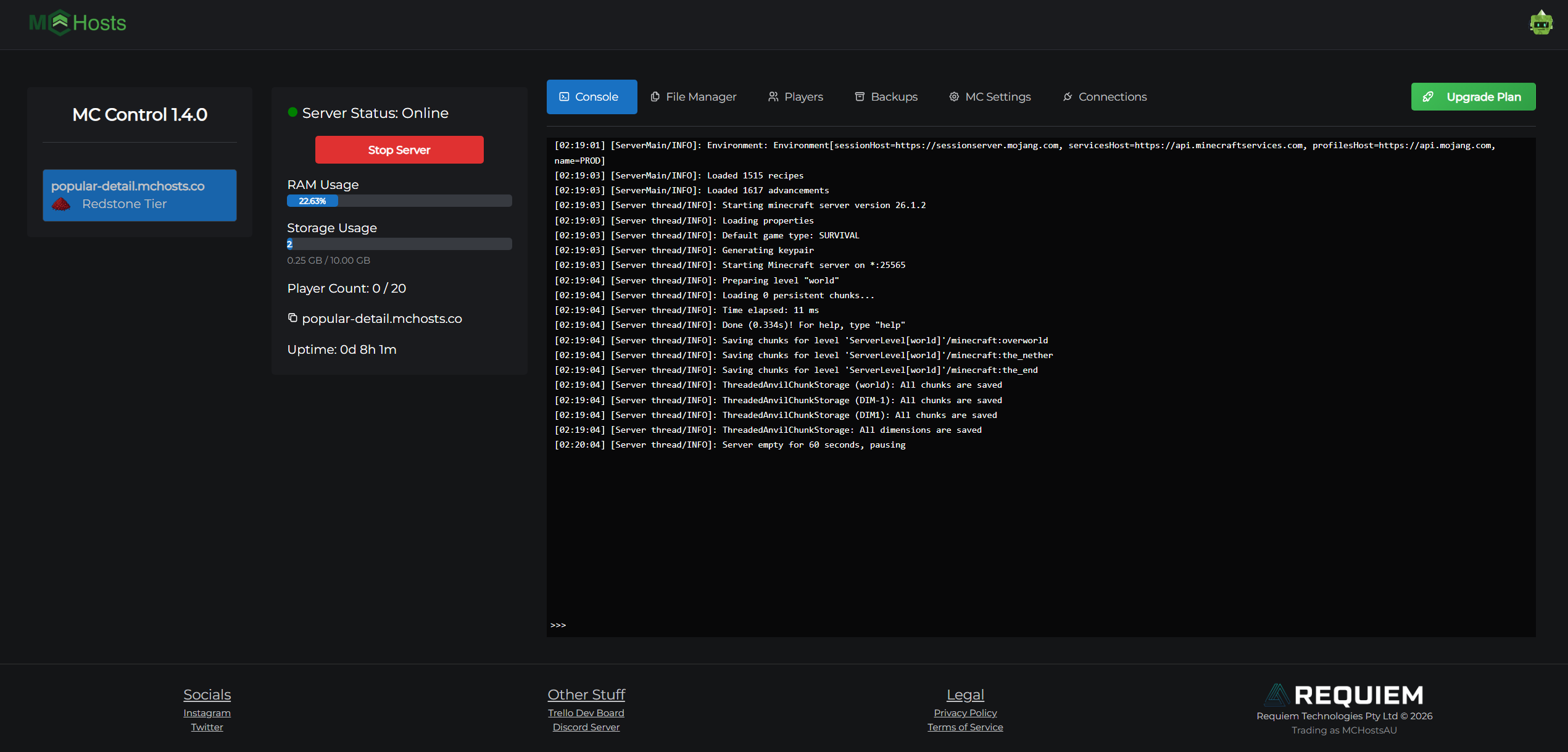
The MCHosts control panel is your server's management hub. Everything from starting and stopping your server to editing files and configuring settings is done here.
URL: control-panel.mchosts.com.au
Logging in
Sign in with your MCHosts account (the same email and password used on mchosts.com.au).
Selecting a server
If you have more than one server, use the server selector at the top of the page to switch between them. Each server has its own independent state - starting or stopping one does not affect the others.
Tabs
The control panel is divided into eight tabs:
| Tab | Purpose |
|---|---|
| Dashboard | Live server stats - start/stop, RAM, storage, player count, uptime |
| Console | Live server log stream and command input |
| Files | Full file browser for your server directory |
| Players | Manage whitelist, ops, bans, and banned IPs |
| Backups | Create, restore, and manage local and off-site backups |
| MC Settings | Gameplay, world settings, server version, and scheduled restarts |
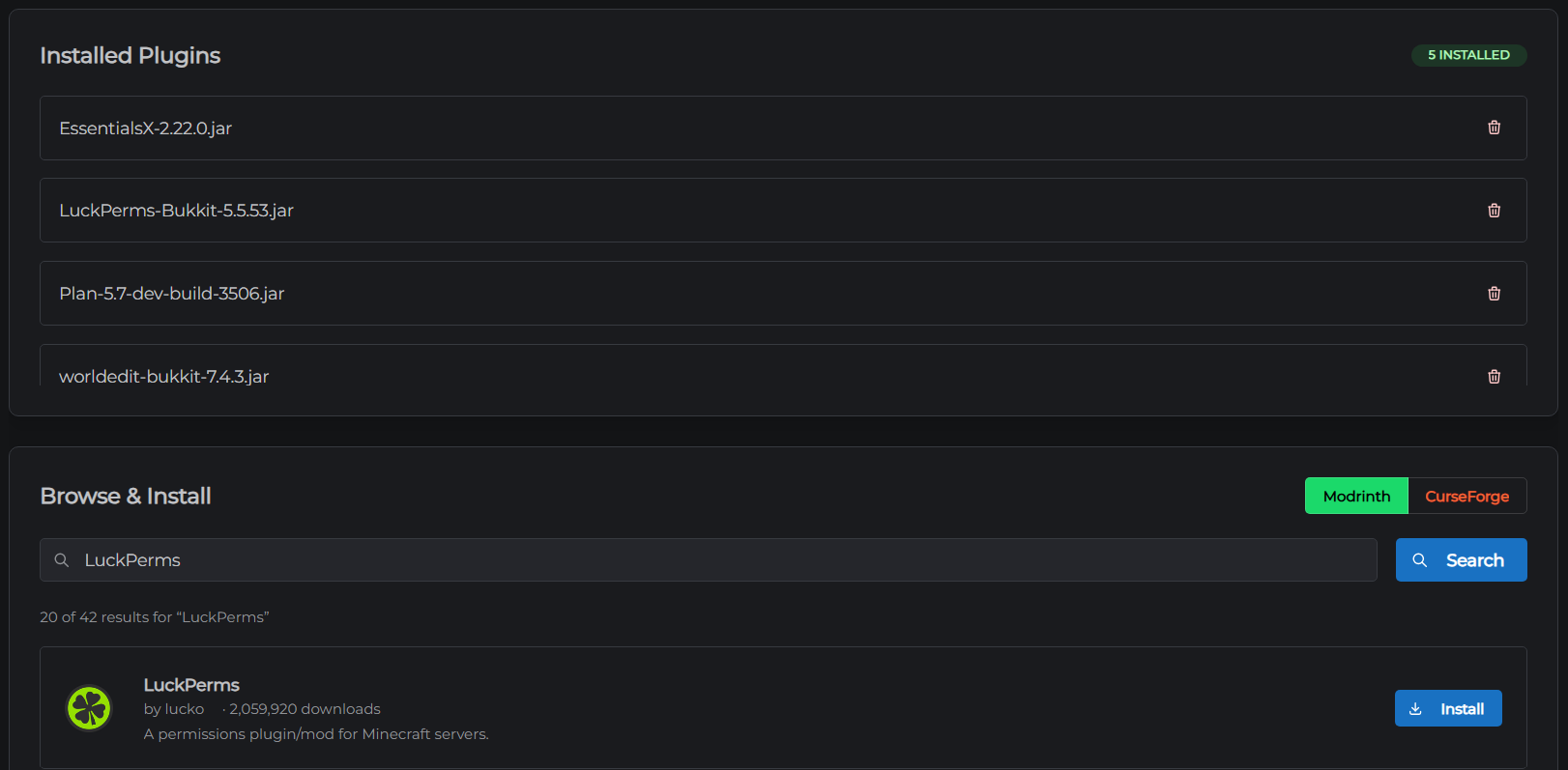
| Plugins & Mods | Browse and install plugins or mods directly from Modrinth and CurseForge |
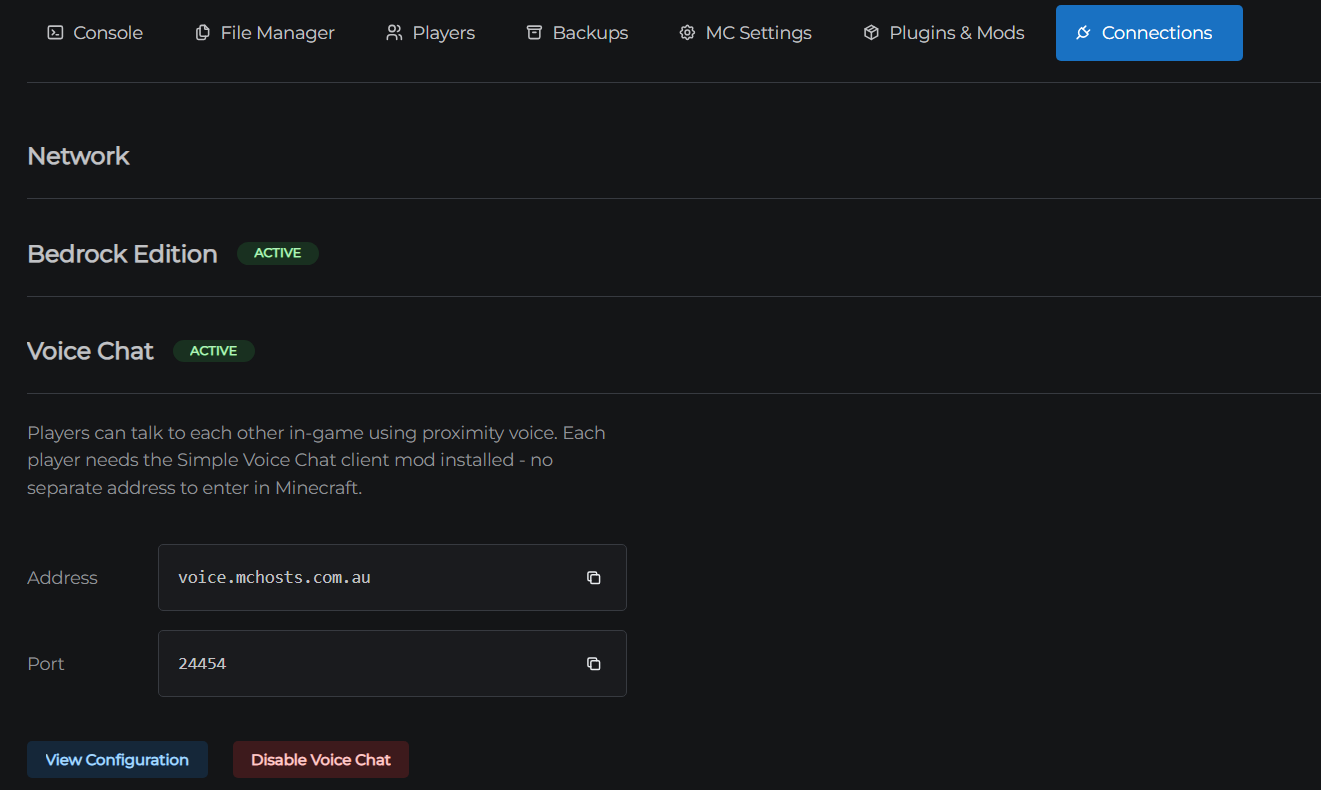
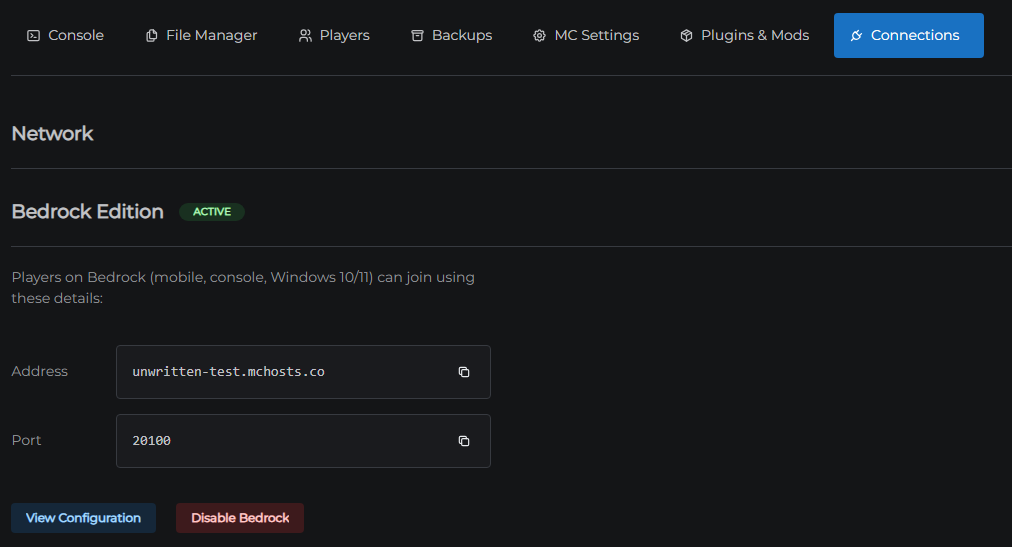
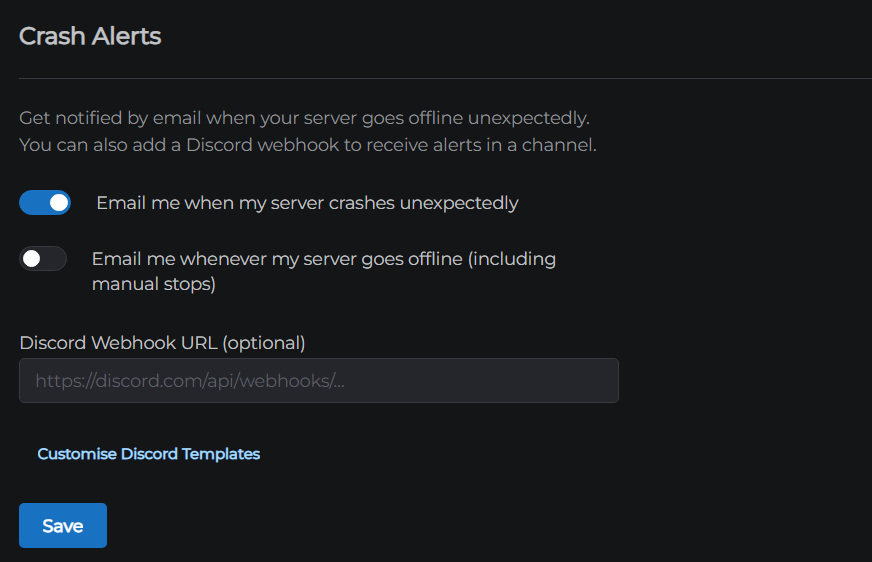
| Connections | Custom domain, Bedrock Edition, Voice Chat, SFTP access, crash alerts, and MySQL databases |
Loading state
When you first open the control panel (or switch servers), the dashboard shows a skeleton loading animation while it connects to your server. This typically takes a few seconds.
This is a series
These articles walk through each tab of the control panel in order. Use the navigation links at the bottom of each article to move to the next section.
Next: Dashboard →