Changing Your Mumble Server Settings
Your Mumble server's password, welcome message, limits and public listing are all on the Config tab of your control panel.
Stop your server first
Mumble only reads its settings when it starts, so the Config tab only saves while your server is stopped. Stop it from the Overview page, make your changes, click Save, then start it again.
Joining
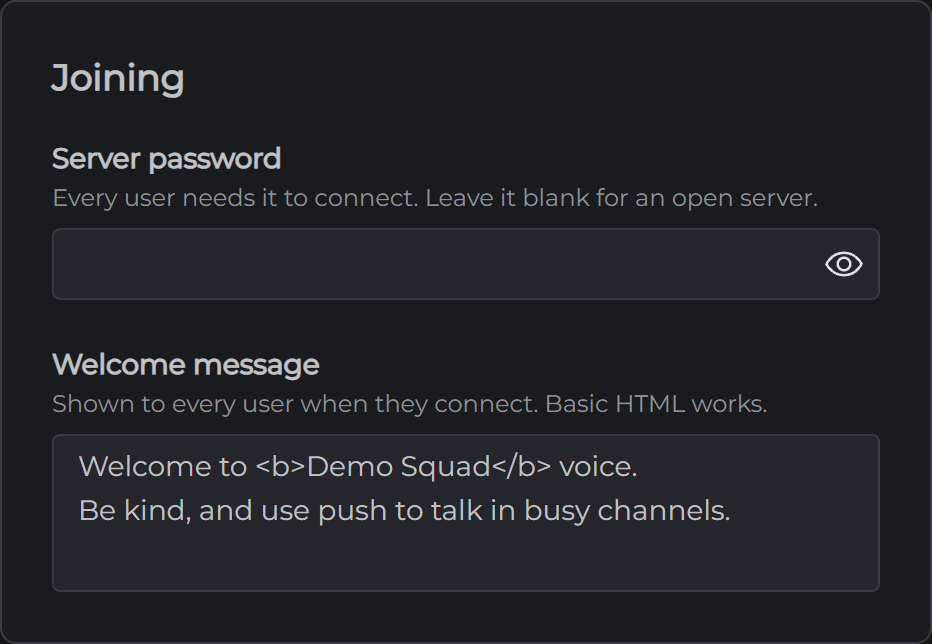
Server password is the password every user needs to connect. Leave it blank and any user with your address and port can join.
Welcome message is shown to every user when they connect. A new server starts with "Brought to you by MCHosts", and you can change it to anything you like. Basic HTML works, so <b> makes text bold.
Limits
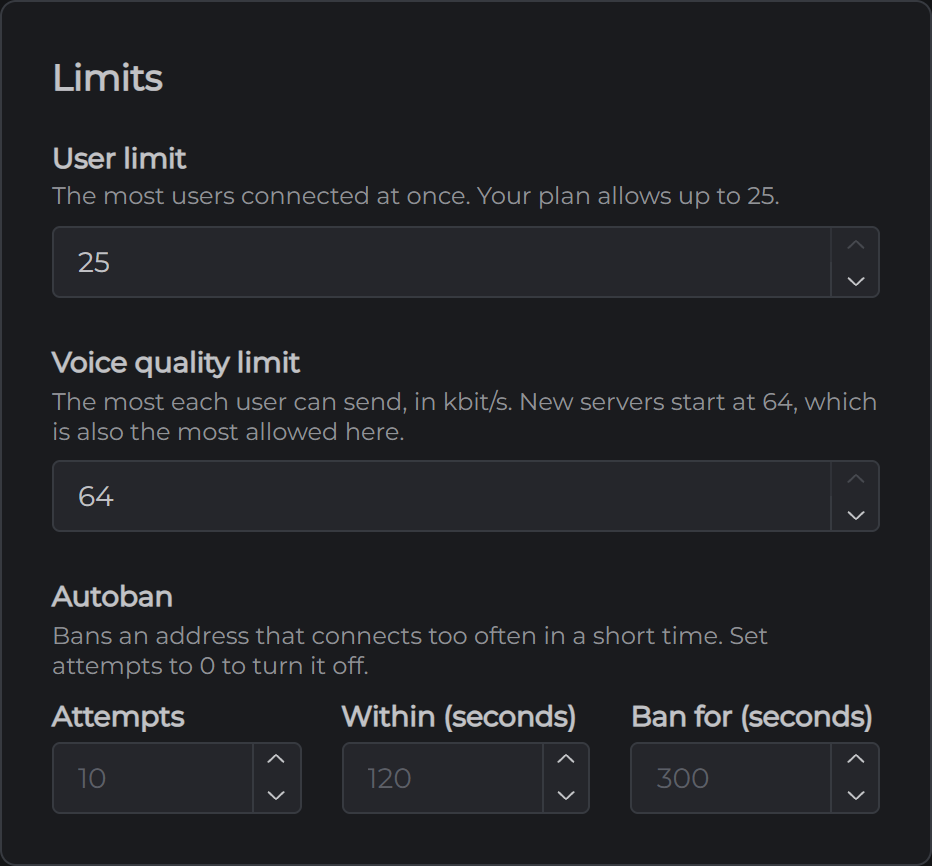
User limit is the most users who can be connected at once. Your plan's number is the most, and you can set it lower. When it's full, the next user to connect is told the server is full.
Voice quality limit is the most each user's voice can send, in kbit/s. It can be 16 to 64, and new servers start at 64. Mumble's normal voice quality fits under 64, so most groups never need to change it.
Autoban turns away an address that connects too often in a short time. If several of your users share one internet connection, see Mumble Autoban & Shared IPs.
Chat and channels
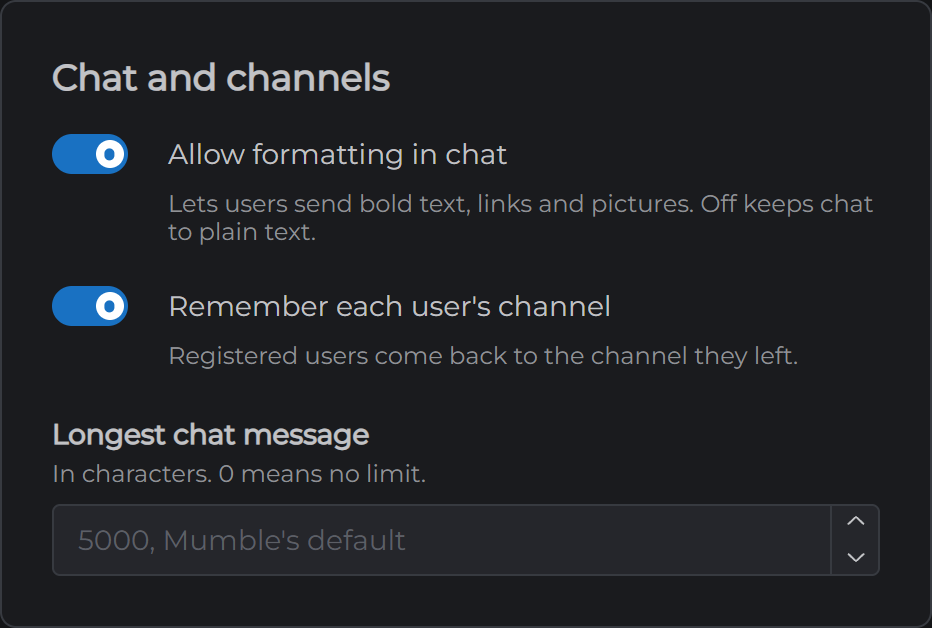
Allow formatting in chat lets users send bold text, links and pictures. Turn it off to keep chat to plain text.
Remember each user's channel brings registered users back to the channel they left.
Longest chat message is counted in characters. Set it to 0 for no limit.
Public server list
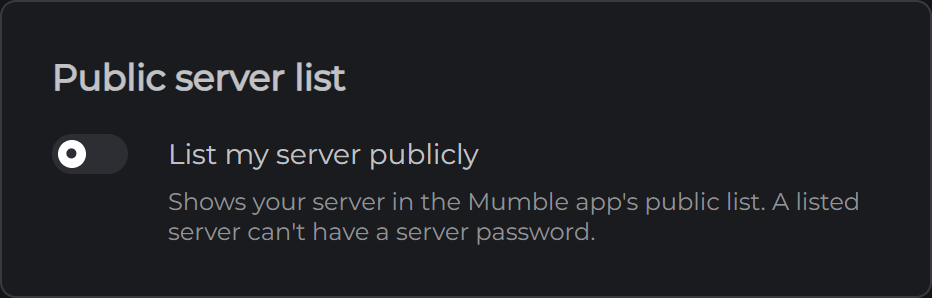
Turn on List my server publicly to show your server in the Mumble app's public list, where any Mumble user can find it. It needs a name for the list, a list password and a website address. The list password stops any other server being listed under your name. A listed server can't have a server password, so clear that first.
Listing is off unless you turn it on.
Everything else
The rest of Mumble's settings live in mumble-server.ini on the Files tab. The block at the top of that file is written by MCHosts every time your server starts, so changes there are replaced. The exceptions are users and bandwidth, which you can lower but not raise.
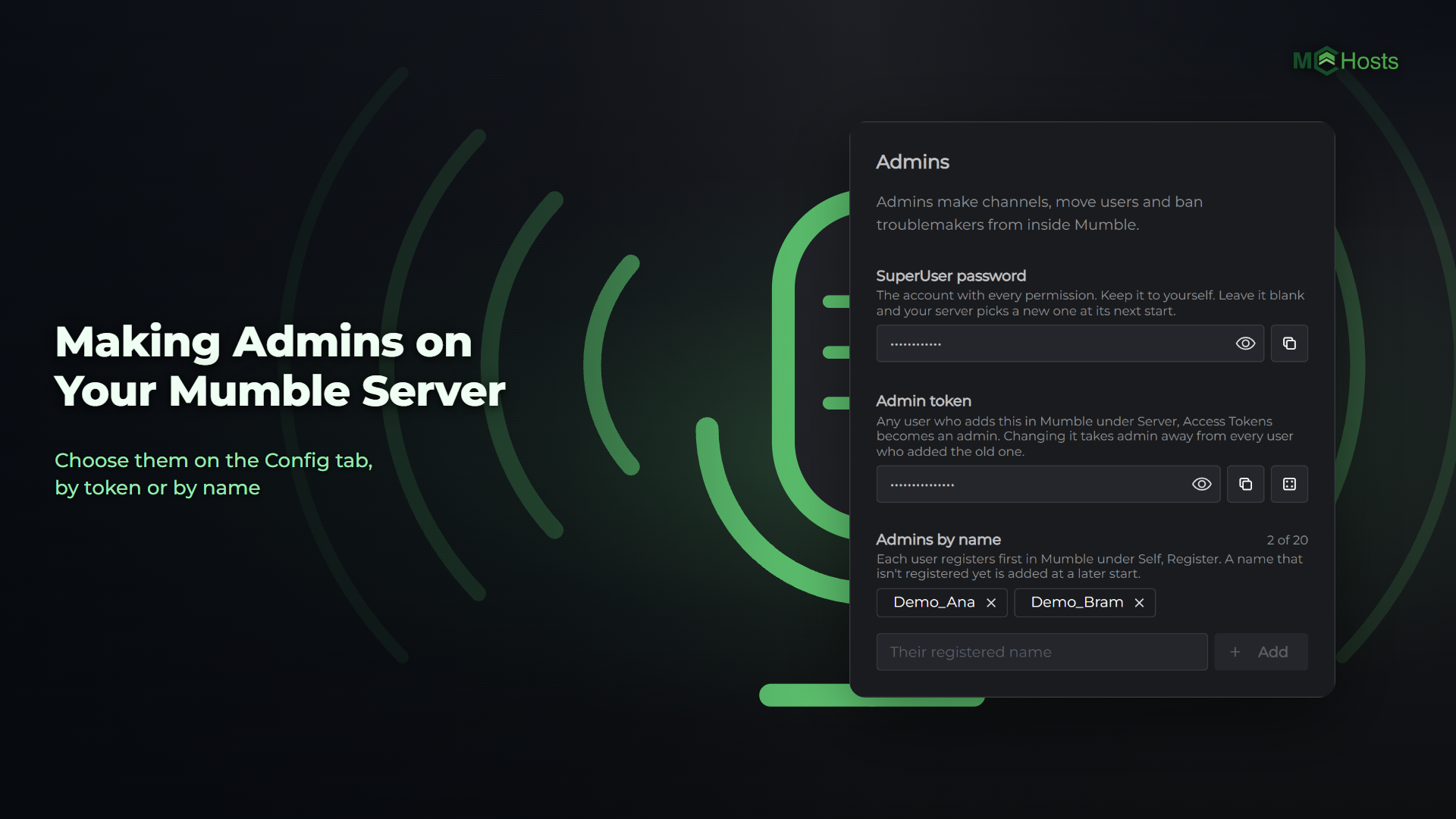
To choose your admins, see Making Admins on Your Mumble Server.