Bedrock Players on Your Network
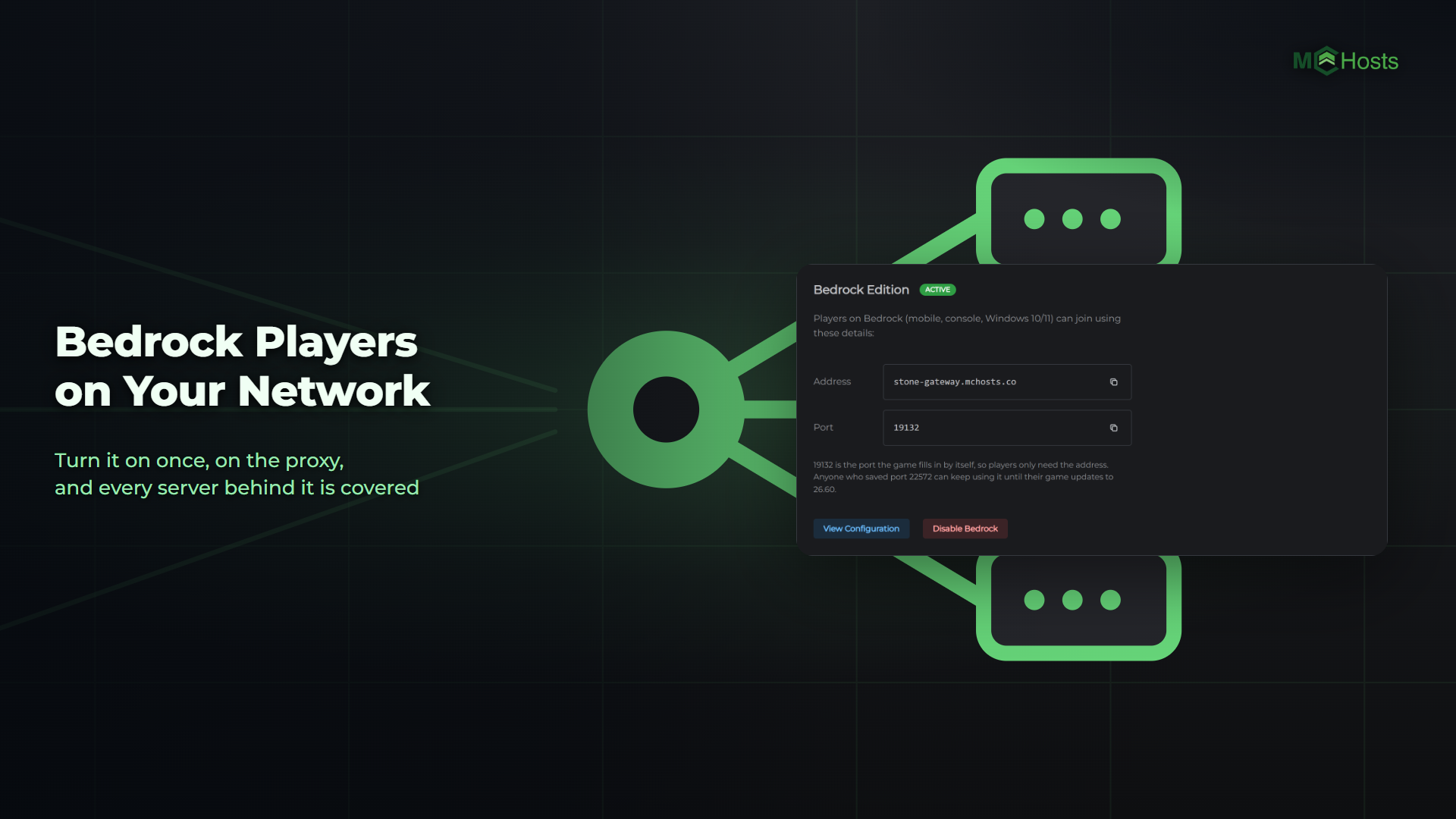
Players on phones, consoles and the Windows Bedrock app can join your network through the proxy. GeyserMC runs on the proxy and translates for every server behind it, so the servers themselves need nothing added.
1. Turn it on
Open your proxy in the control panel and go to the Settings tab. In the Bedrock Edition card, click Enable Bedrock Support and confirm.
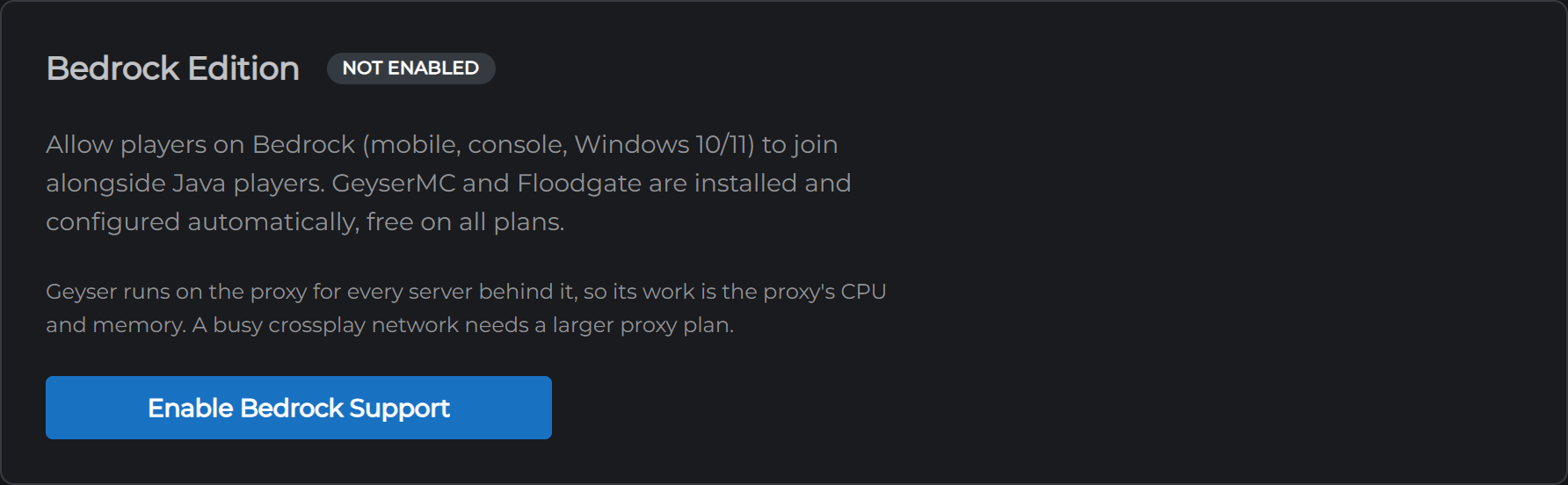
Your proxy installs GeyserMC and Floodgate, writes their settings, then restarts to open the port. Everyone on the network is disconnected for that restart, so pick a quiet moment. Disabling Bedrock restarts the proxy too.
2. Give players the address
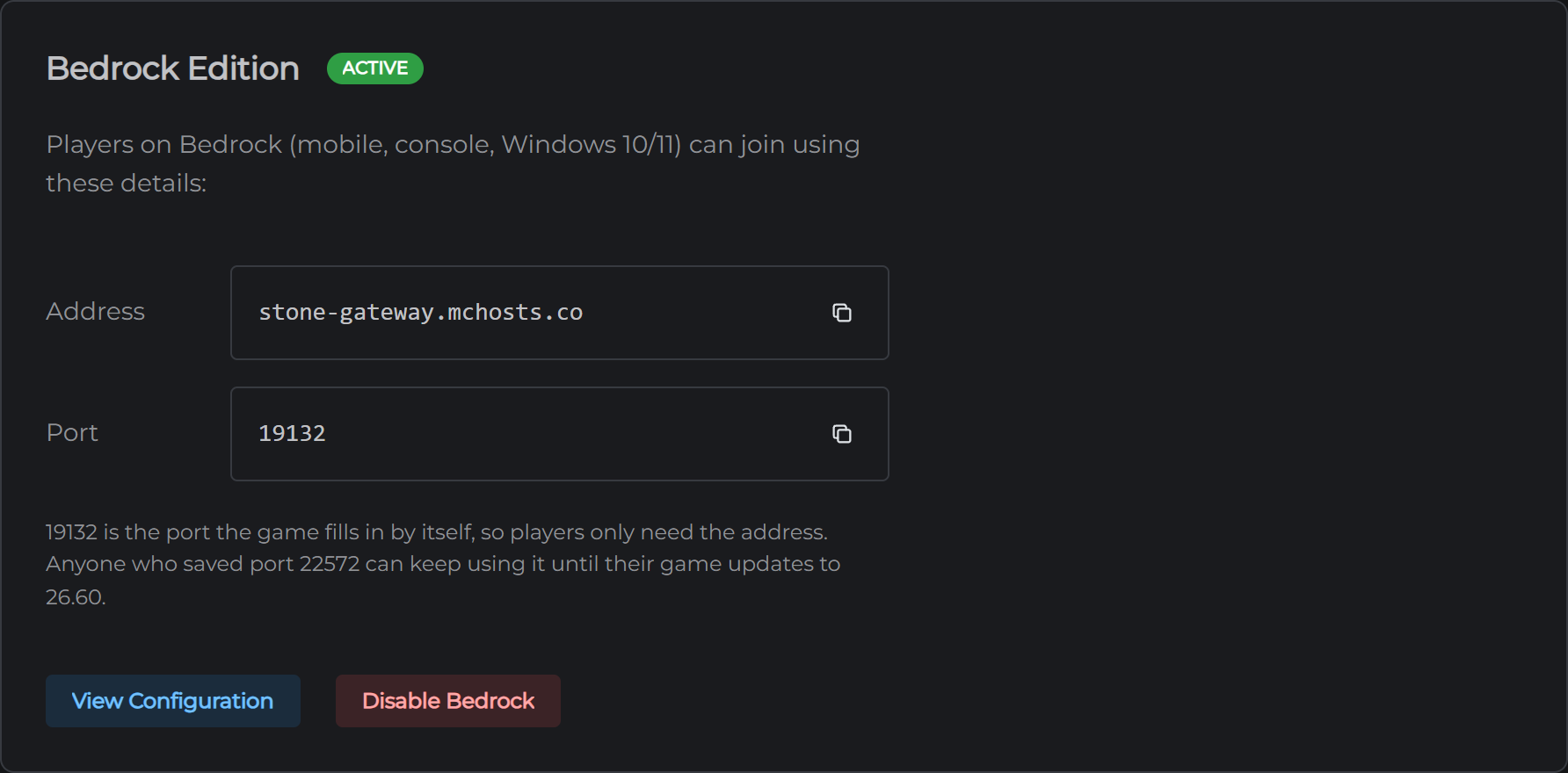
When the card shows Active, it lists the address and port Bedrock players use. The address is your proxy's, and the port is 19132, which the Bedrock app fills in on its own. Players only need the address.
A Bedrock player lands on the same first server as everyone else and moves between servers the same way. Their name on the network starts with a dot, which is how Floodgate keeps it from clashing with a Java account of the same name.
Your servers need nothing
GeyserMC goes on the proxy only. Don't enable Bedrock on the servers behind it. If one of them already has it on from before it joined the network, turn that off and leave the proxy's on.
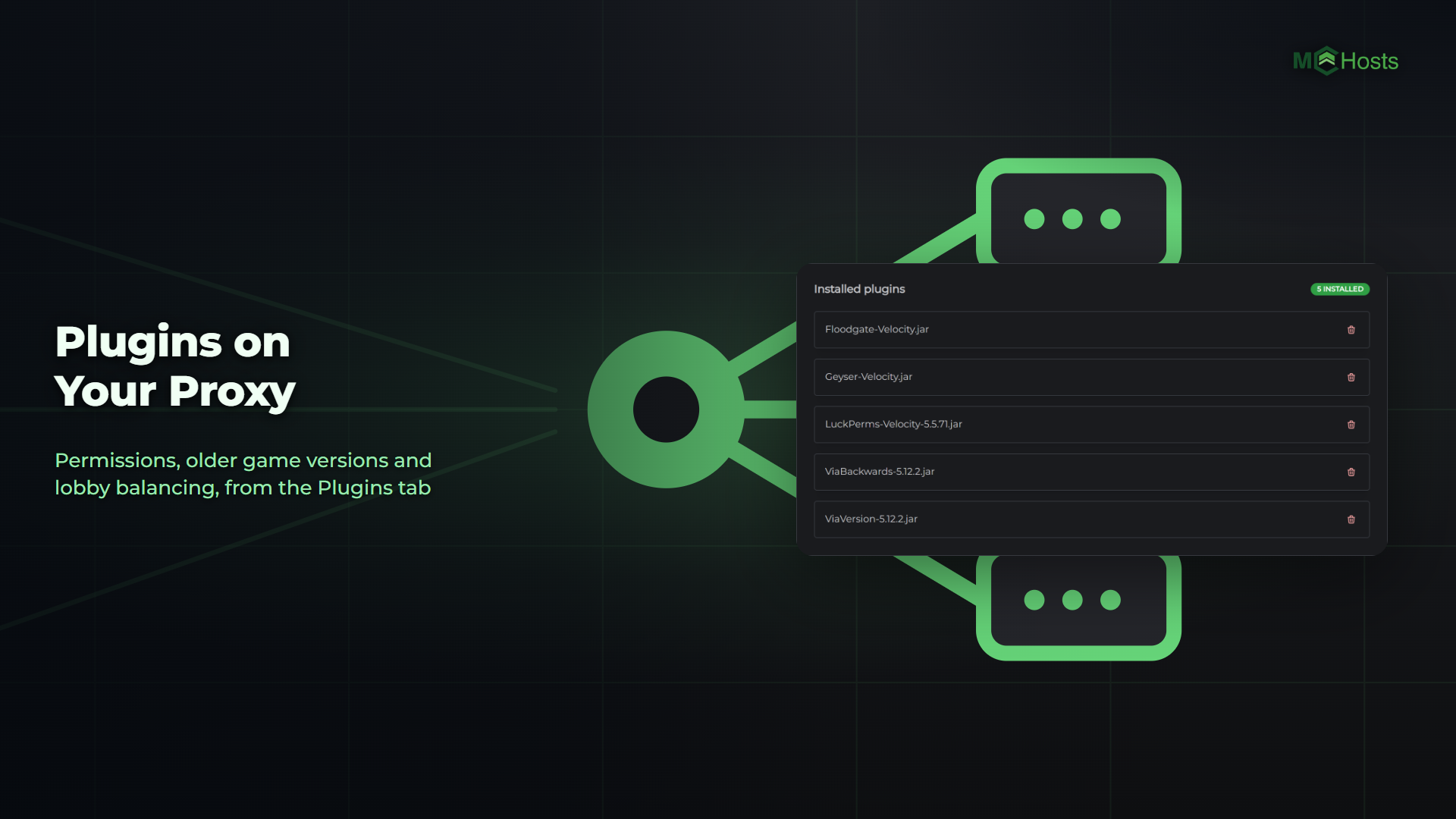
Each server does need to accept the Minecraft version GeyserMC speaks, which is the current one. A server on an older version needs ViaVersion on the proxy, which Plugins on Your Proxy covers.
Two things to know
It uses the proxy's resources. Translating for Bedrock players is work, and on the proxy it's the proxy's CPU and memory doing it for the whole network. A small crossplay group is fine on either plan. A busy crossplay network needs more CPU, so add extra vCores with Upgrade Server under My Plan.
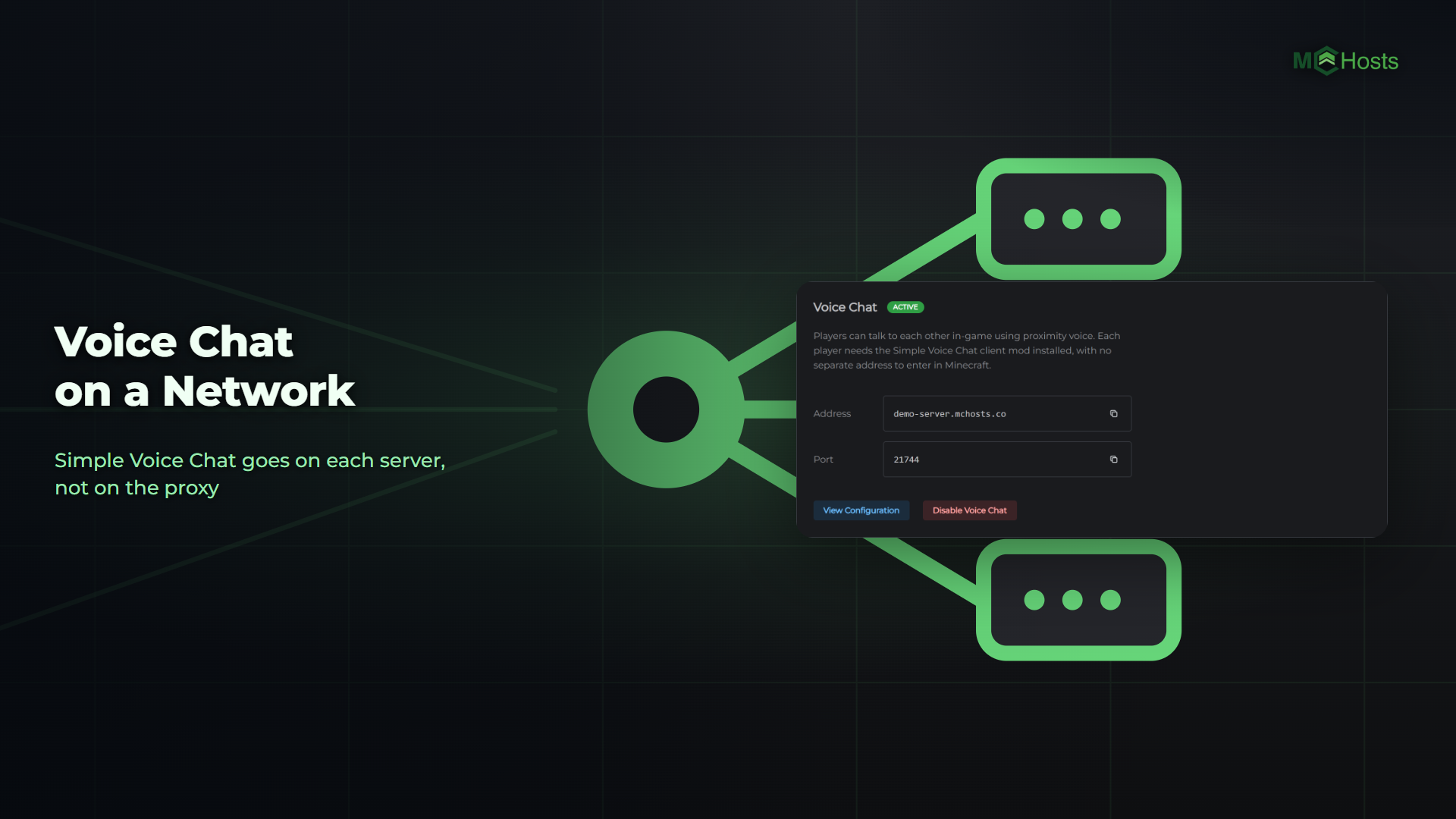
Voice chat is Java only. Simple Voice Chat has no Bedrock version, so Bedrock players can hear nobody and nobody hears them. They can still play and type.