Making Admins on Your Mumble Server
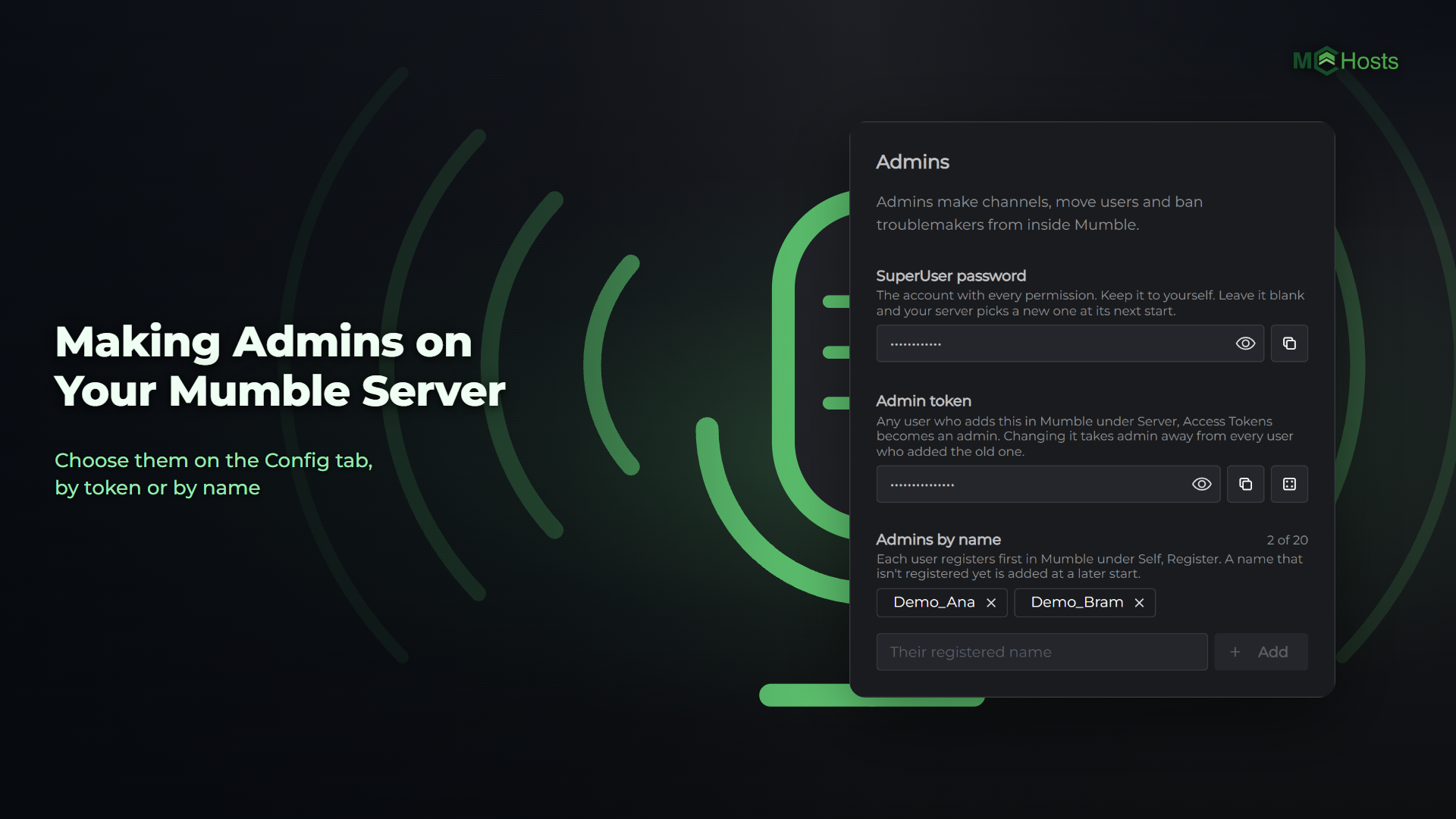
Admins make channels, move users and ban troublemakers from inside the Mumble app. You choose them on the Config tab of your control panel, by token or by name.
Stop your server first
Mumble only reads these settings when your server starts, so the Config tab only saves while your server is stopped. Stop it from the Overview page, make your changes in the Admins card, click Save, then start it again.
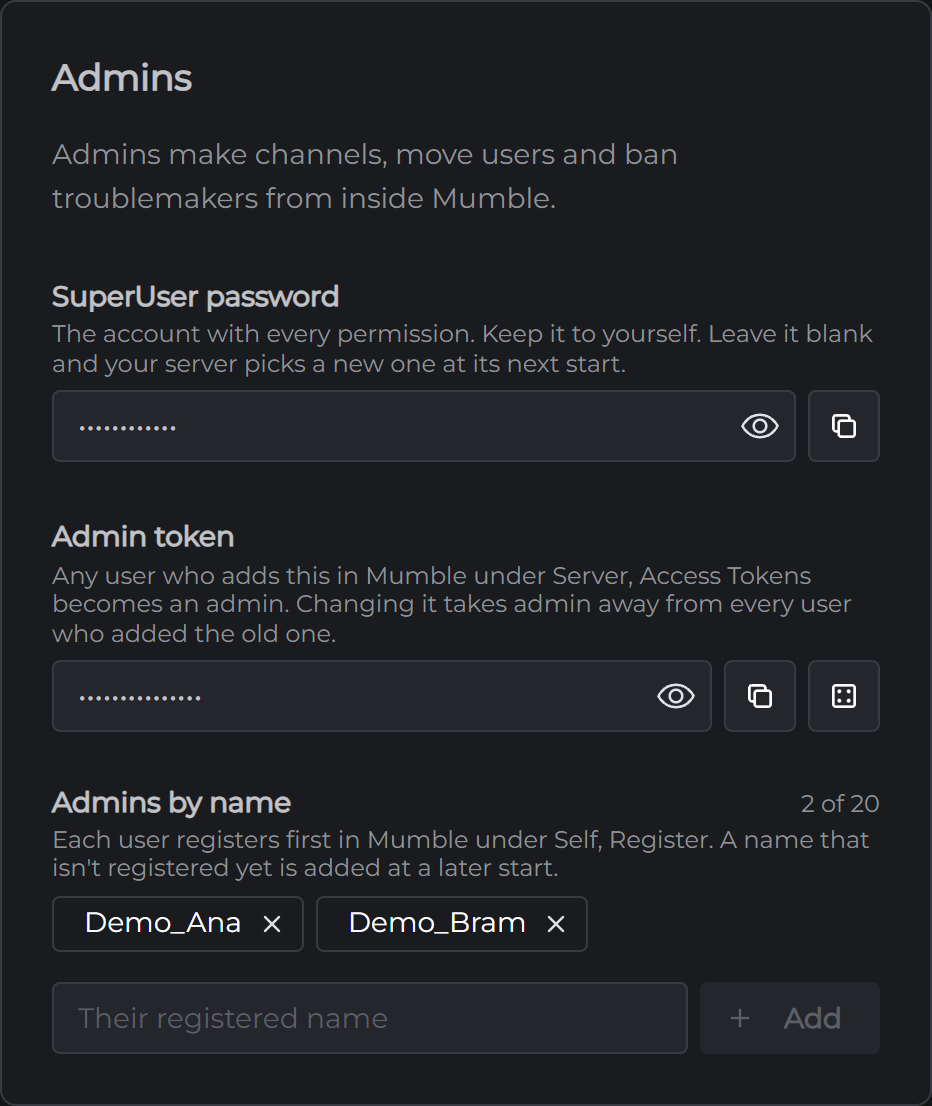
Admins by token
A token works like a password for admins. Any user who adds it in their Mumble app becomes an admin on your server.
- On the Config tab, find Admin token in the Admins card
- Type a token, or click the dice button to make a random one. A token is 8 to 64 letters, numbers, underscores or dashes
- Click Save, then start your server
- Copy the token with the button beside it and send it to your admins
Each admin then adds it in Mumble:
- Connect to your server
- Open the Server menu and click Access Tokens
- Click Add, paste the token and click OK
Changing the token takes admin away from every user who added the old one. It's the quickest way to remove all your token admins at once.
Admins by name
Use this to pick admins one at a time.
- Each admin registers on your server first. In Mumble, they connect, open the Self menu and click Register
- On the Config tab, type their registered name under Admins by name and click Add
- Click Save, then start your server
You can add up to 20 names. A name that isn't registered yet is added at a later start, once that user has registered. To remove an admin, click the X beside their name, click Save and start your server.
The SuperUser password
SuperUser is Mumble's own account with every permission, and its password is in the same card. Keep it to yourself. Your admins can make channels, move users and ban troublemakers, so you shouldn't need it day to day. Leave the field blank and your server picks a new password the next time it starts.
Using your admin powers
In the Mumble app, right-click a channel or a user to see what you can do. Admins can add channels with Add..., and remove a user with Kick... or Ban.... Drag a user onto a channel to move them.
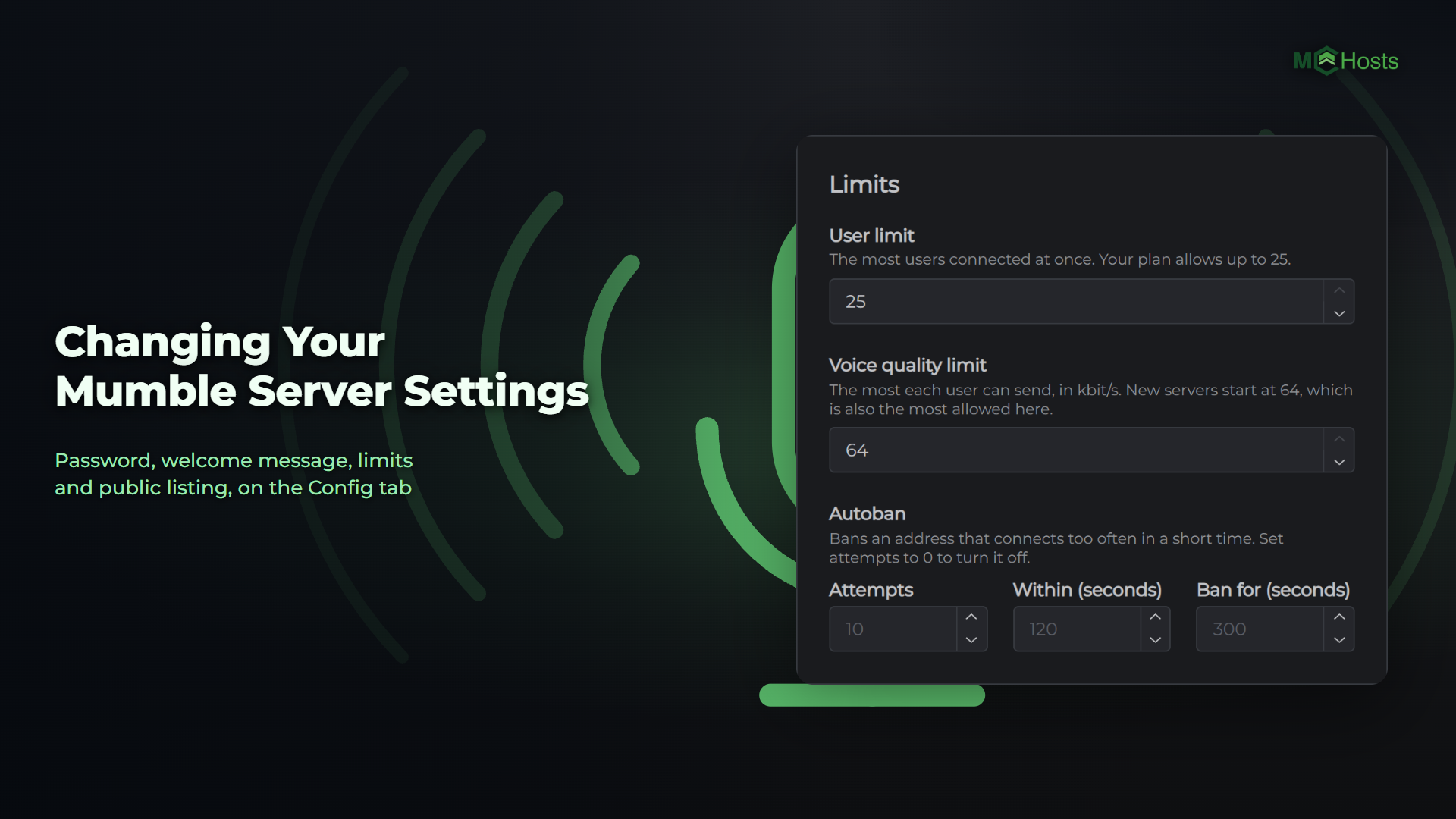
For the rest of your server's settings, see Changing Your Mumble Server Settings.