The New Control Panel
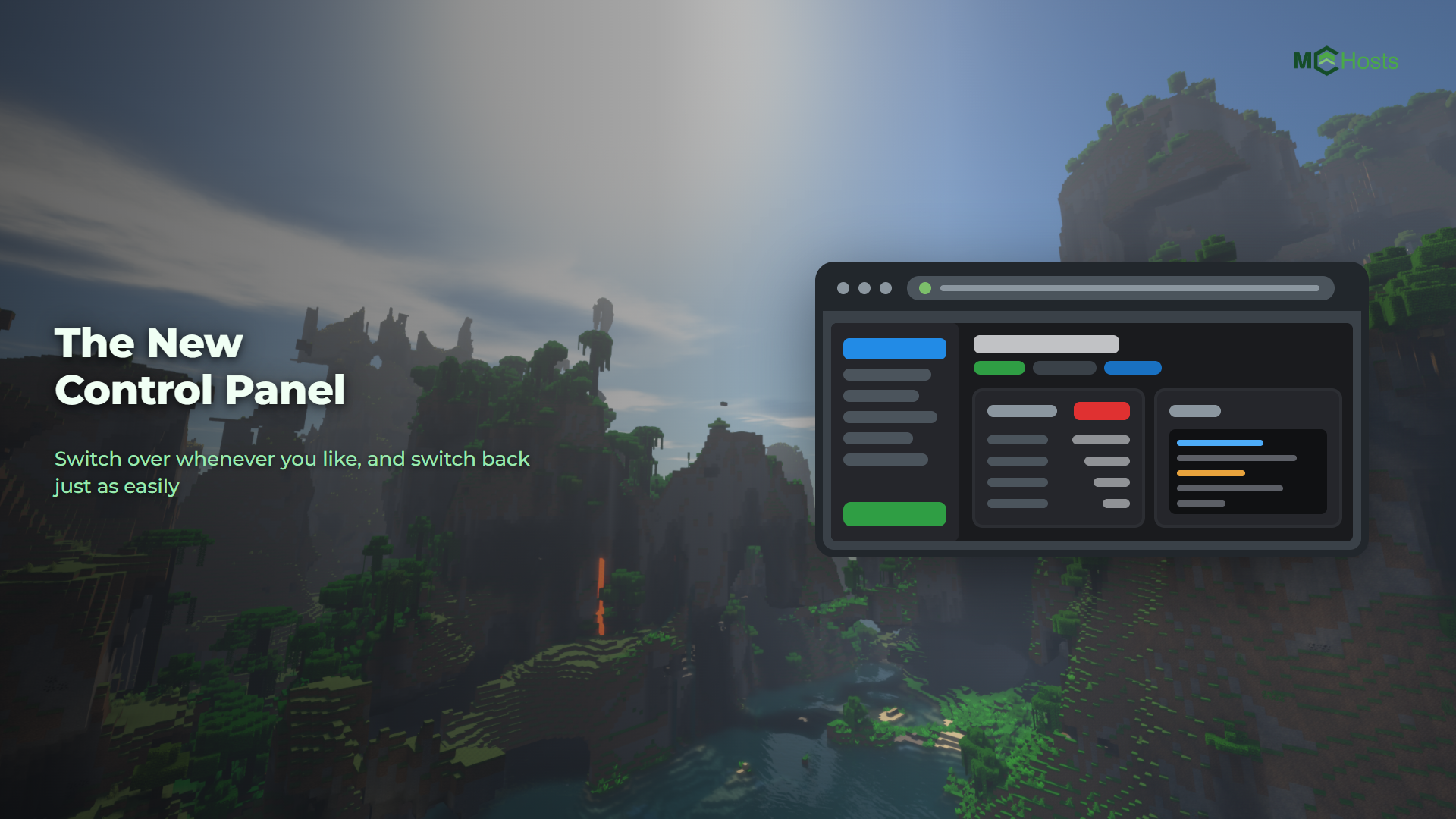
We've rebuilt the control panel. It's opt in, so nothing changes until you switch, and you can switch back whenever you like.
URL: control-panel.mchosts.com.au
Switching over
Sign in and look for Try the new panel in the header. One click and you're in. On a phone it's the wand icon next to your account picture.
Your choice is saved to your account, so it follows you to your other devices.
What you land on
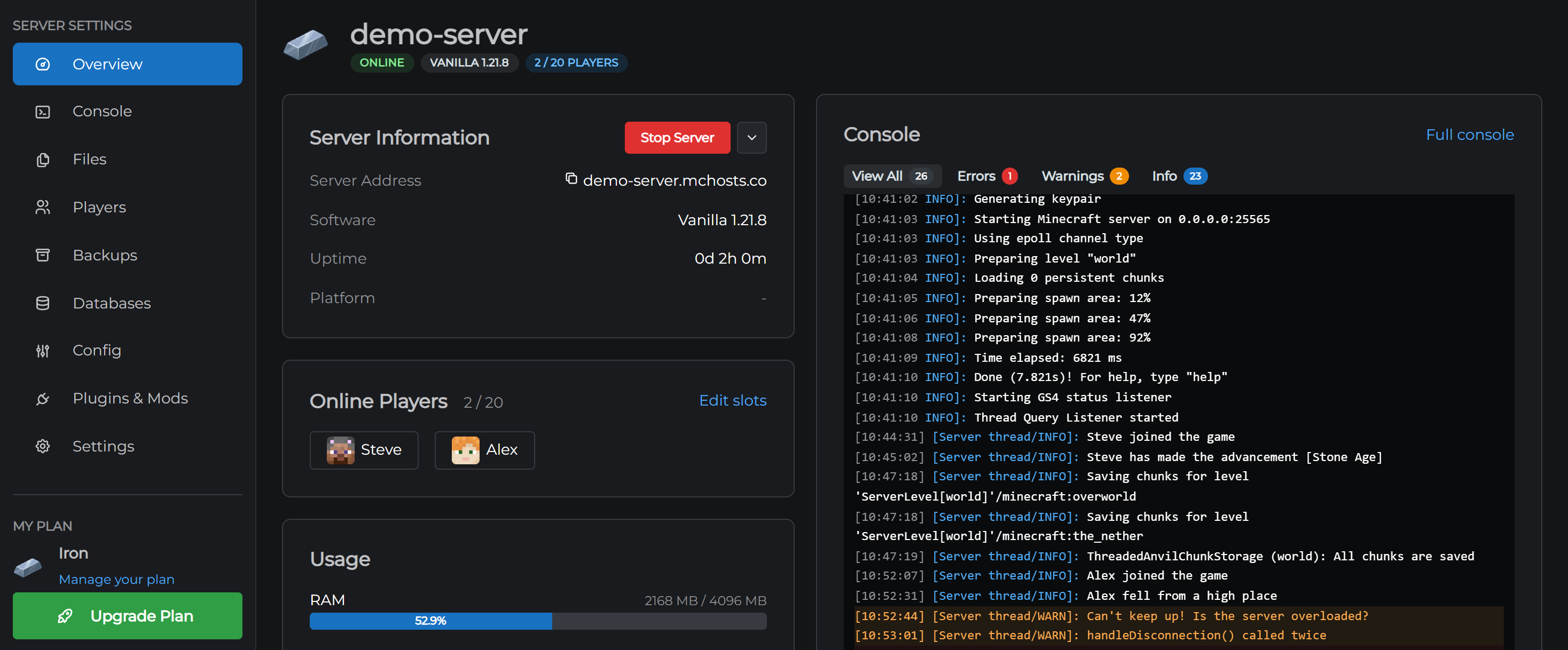
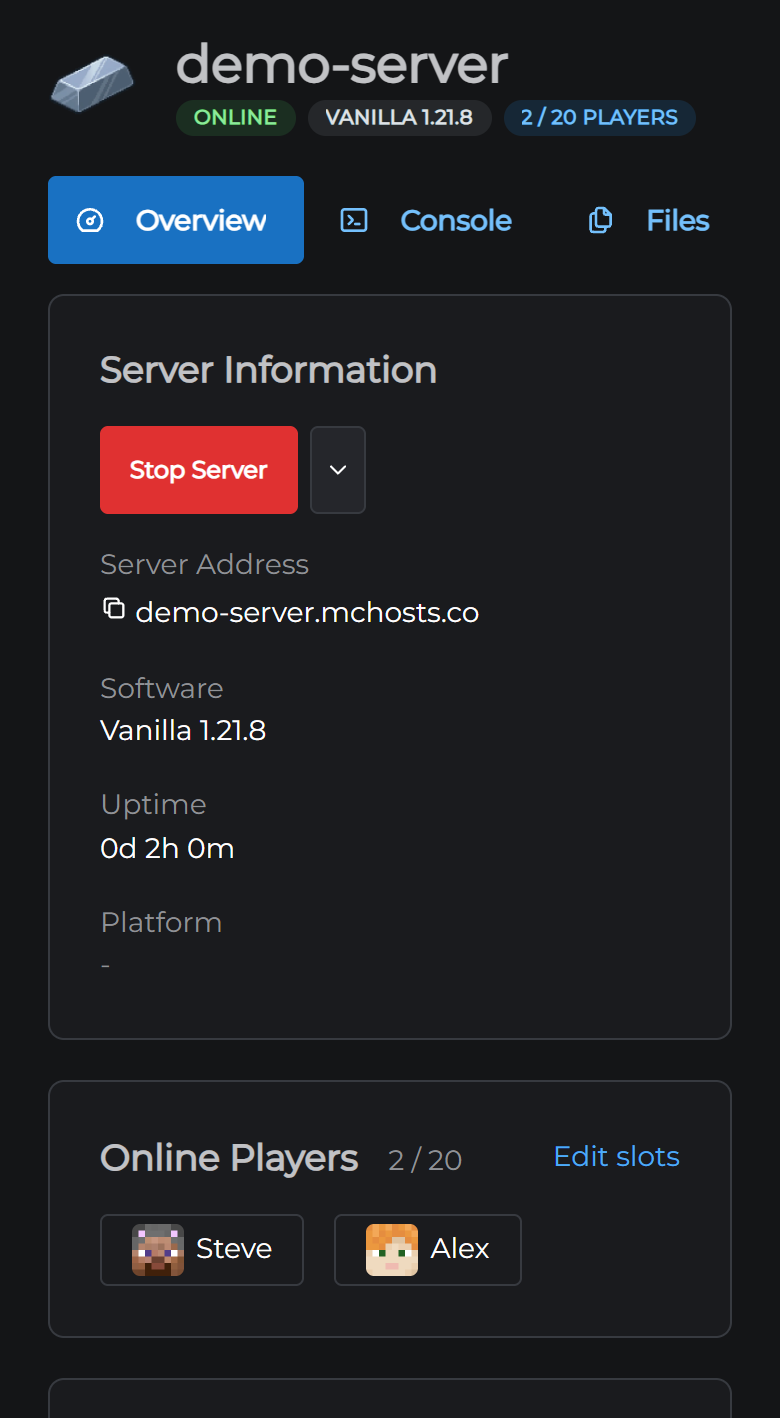
The new Overview tab is the home screen. Your server's address, software and uptime sit on the left, with the power controls at the top of that card. Underneath are the players currently online, with their skins, and your memory and storage use.
On the right is a live view of your console, so you can see your server talking while you do everything else.
The tabs
| Tab | What it's for |
|---|---|
| Overview | Status, power controls, players online, memory and storage, live console |
| Console | The full log, with filters, and a command box |
| Files | Your server's files, and SFTP details |
| Players | Whitelist, operators, bans, banned IPs and giving items |
| Backups | Create, restore and manage local and off-site backups |
| Databases | Create a MySQL database and copy its details |
| Config | server.properties, game rules, the MOTD and startup parameters |
| Plugins & Mods | Install plugins, mods and modpacks |
| Settings | Custom domain, SFTP, crash alerts, Bedrock, voice chat, web services, server version, scheduled restarts and the danger zone |
If you have more than one server, a switcher sits at the top of the sidebar. With one server it stays out of the way.
Console
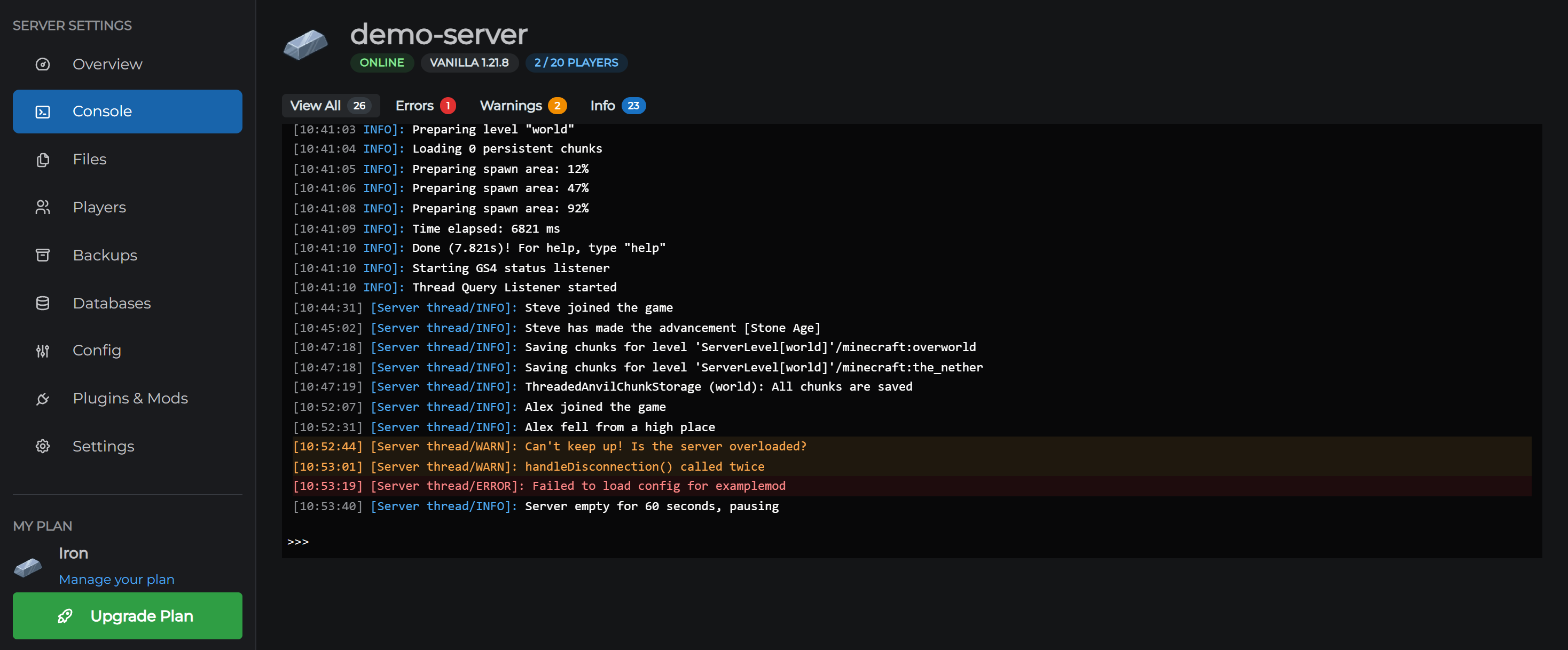
The log is the same log, with one addition: filters. Tap Errors to see only errors, Warnings for warnings, or Info for everything routine. Each one carries a count, so you can tell at a glance whether your server has anything to worry about.
Files
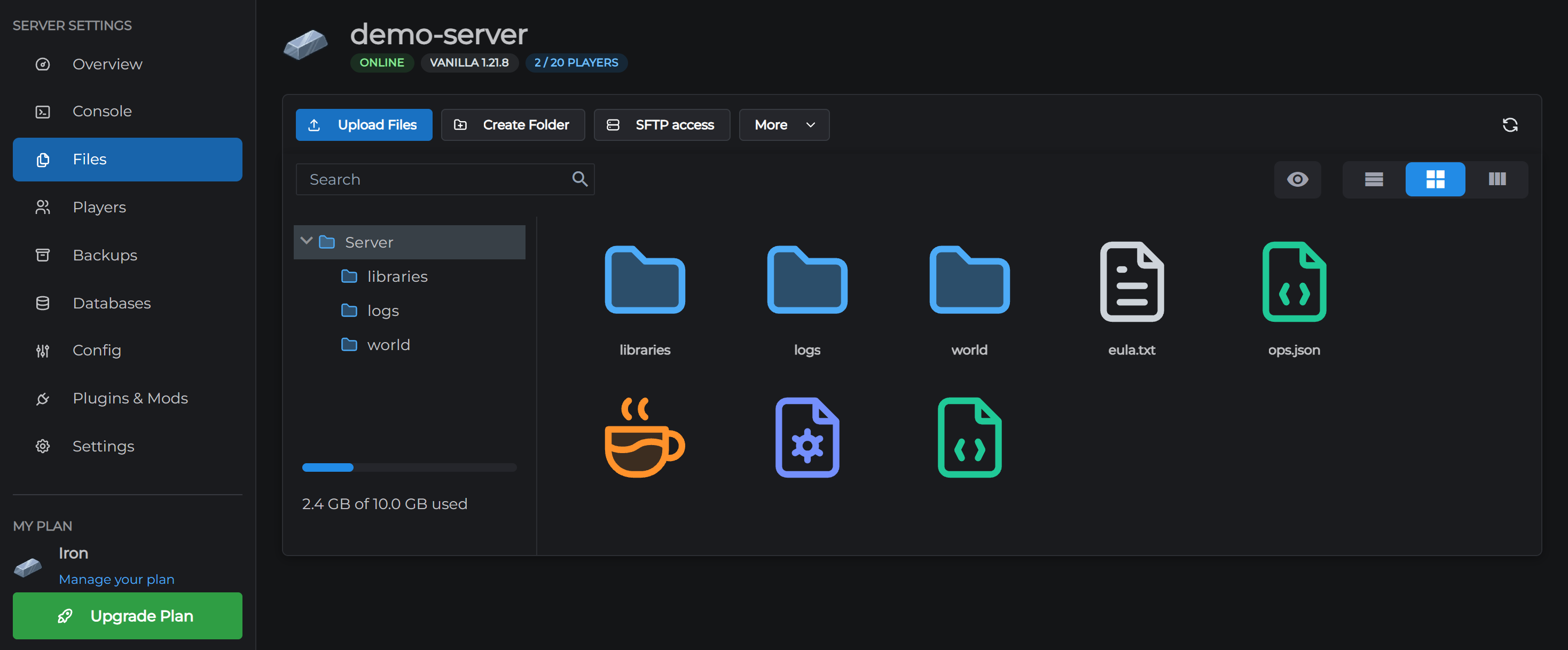
The file manager itself works the way it did after the last update. What changed is the row above it.
Upload Files is now the obvious button, since it's the reason most people open the tab. Import Server and Download Server moved into the More menu, because they act on your whole server rather than the folder you're looking at. Refresh is the icon on the right.
SFTP access is new here. It opens your host, port and username with a copy button on each, and lets you set your password, without leaving the tab. If you're uploading hundreds of files, an SFTP client is the way to do it, and now the details are where you need them.
Players
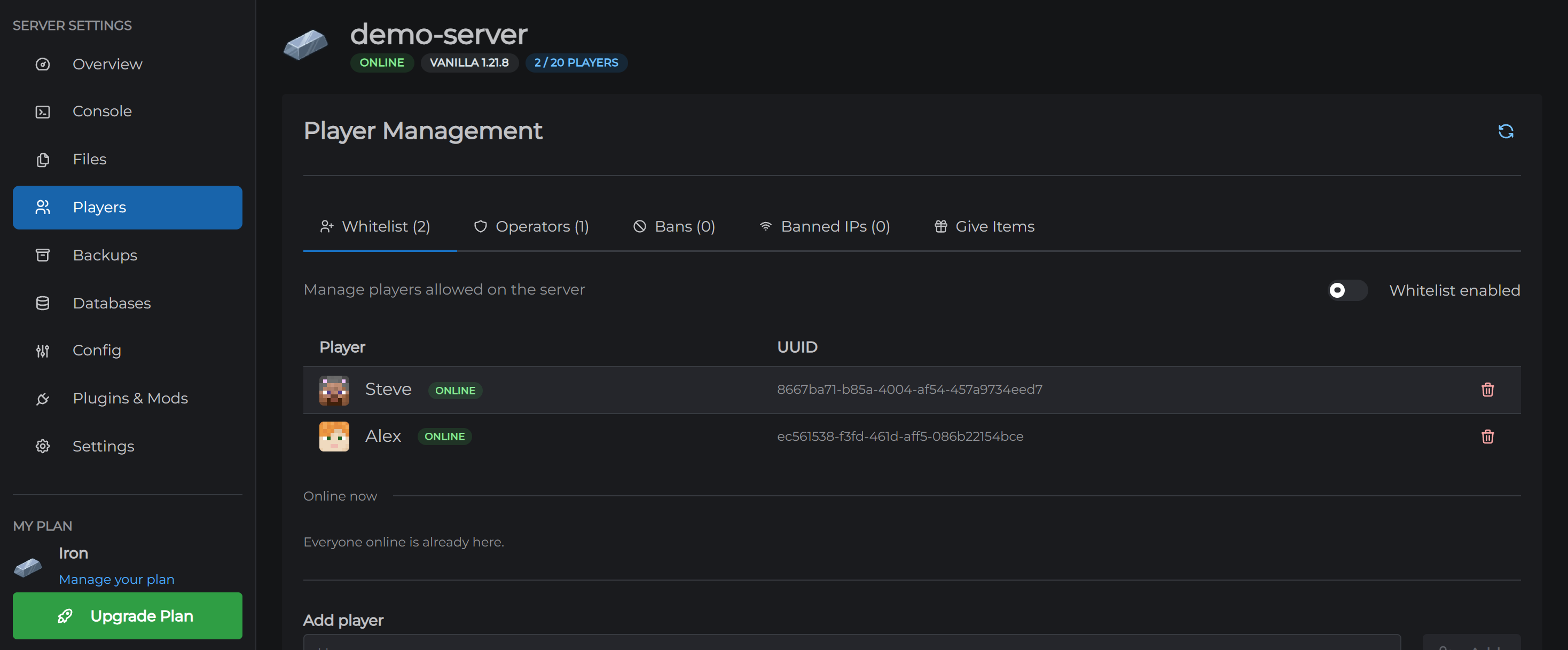
Whitelist, operators, bans and banned IPs are still four lists, and there's still a Give Items tool. What's new is that everyone currently online shows up inside each list, so you can whitelist, op, ban or kick someone without typing their name.
Databases
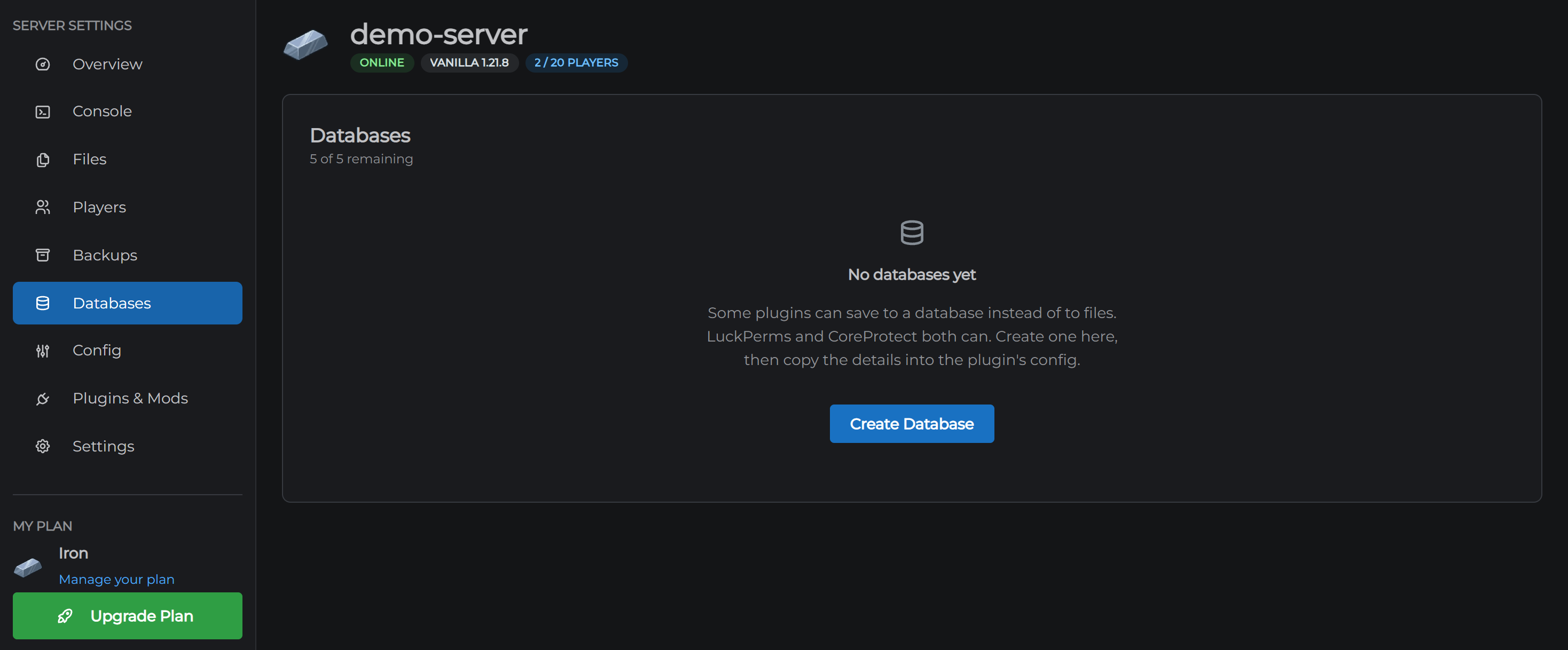
Databases now have their own tab instead of sitting inside Settings. Create one, and its host, port, username and password appear beside it, each with a copy button, ready to paste into a plugin's config. You can also open phpMyAdmin or create a new password from there.
Databases are available on the Iron plan and above.
Plugins and Mods
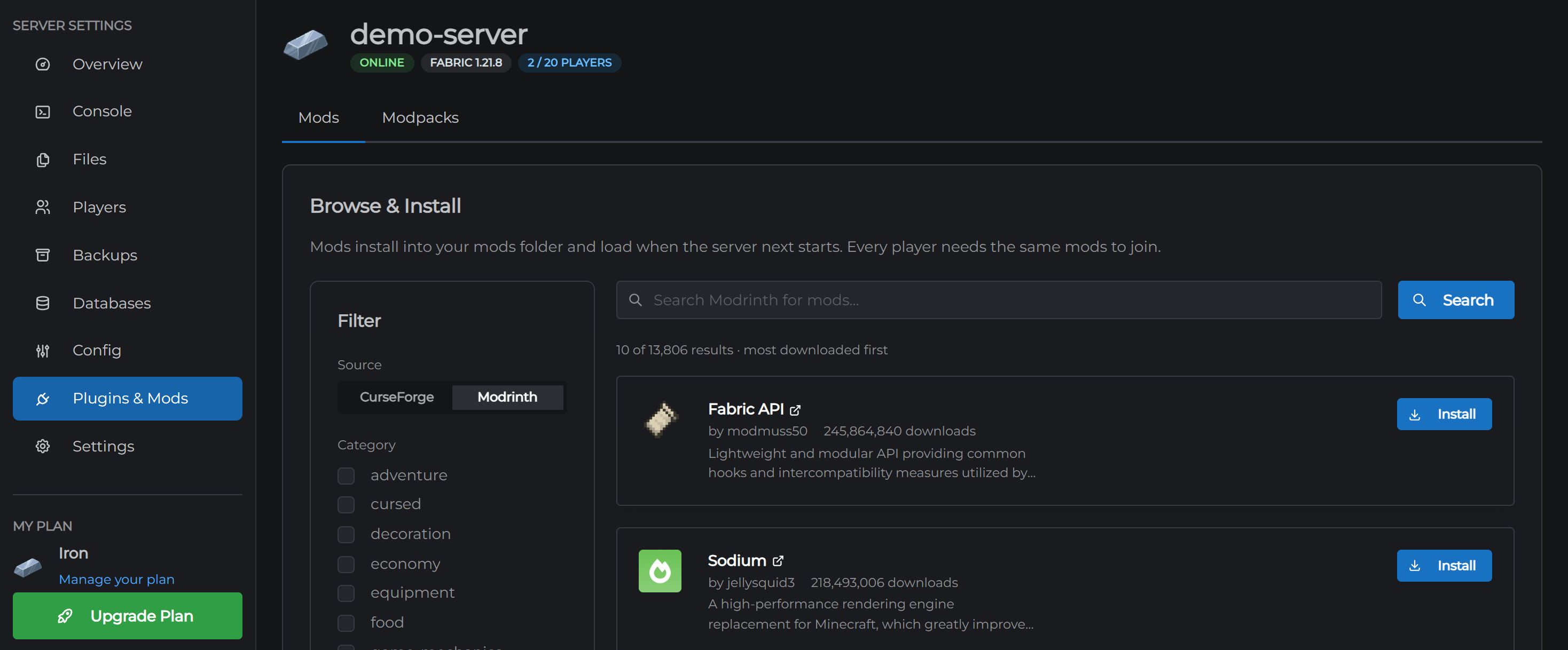
Browsing is much better. Pick Modrinth or CurseForge, filter by category, and by default you only see things with a build for your server's Minecraft version, so you don't install something and find it does nothing. Hover a name to read what it does, or click it to open its page.
The Modpacks tab is beside it. Vanilla servers get it too, since installing a pack rebuilds your server on whichever loader that pack needs.
On your phone
The whole panel works on a phone. The sidebar becomes a row of tabs across the top, cards stack into one column, and the file browser drops to two columns of icons.
Telling us what you think
There's a feedback button in the bottom right corner of every screen. It goes straight to us, and it's the fastest way to get something fixed or added.
Going back to the old panel
Open your account menu, top right, and choose Back to classic panel. It's also at the bottom of the sidebar, and on a phone it's under My Plan at the bottom of the page.
Both panels are here for now, but the old one is on its way out, so tell us anything that's missing before it goes.