Restoring a Backup
Restoring a backup rolls your server back to a previous snapshot, replacing all current server files with the contents of the backup.
Before you restore
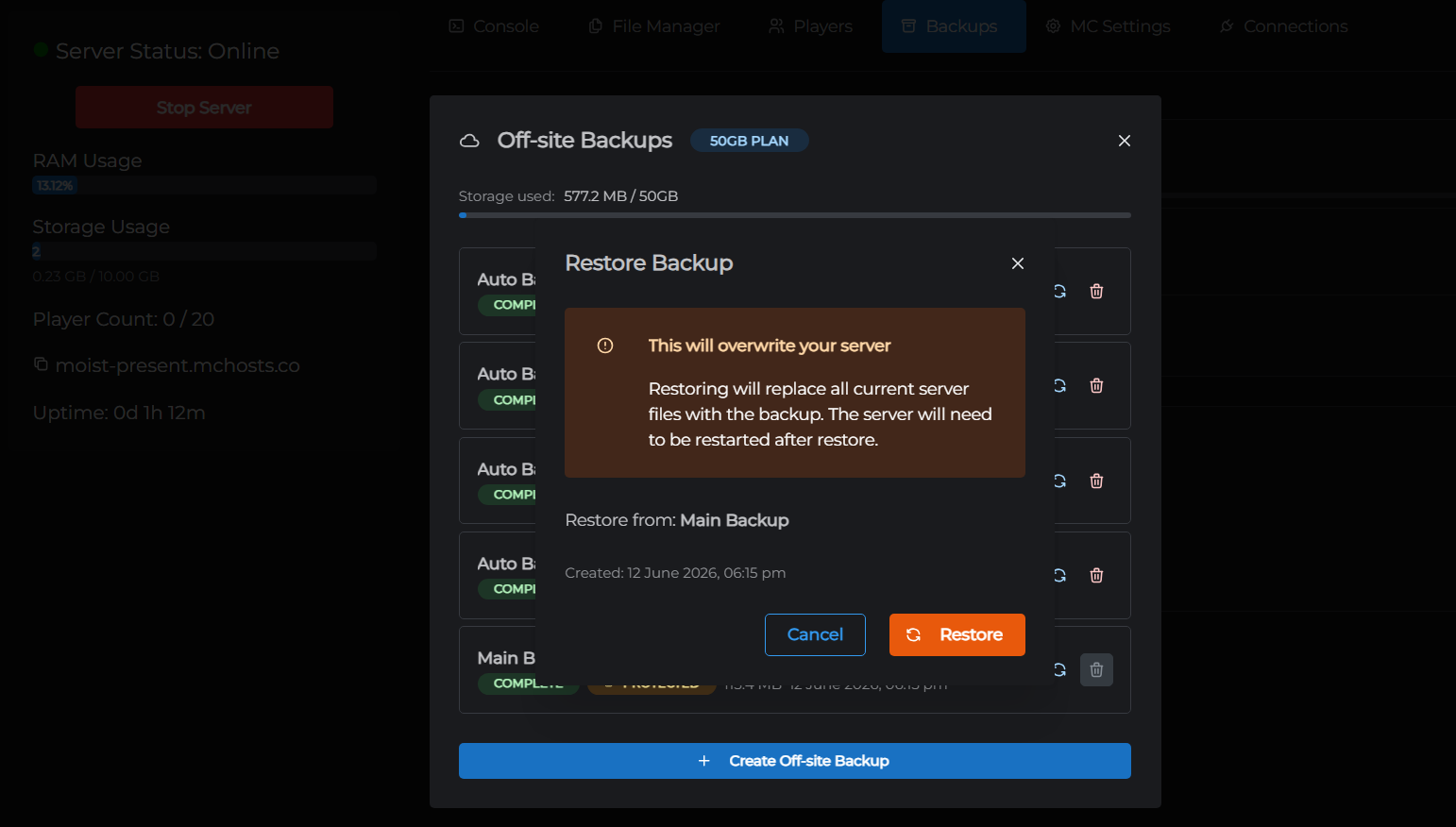
This action cannot be undone. Restoring a backup permanently overwrites your current world, plugins, and configs with the backup's contents.
If your current server state has anything you want to keep, create a new backup first before restoring an older one.
How to restore
- Go to the Backups tab in the control panel
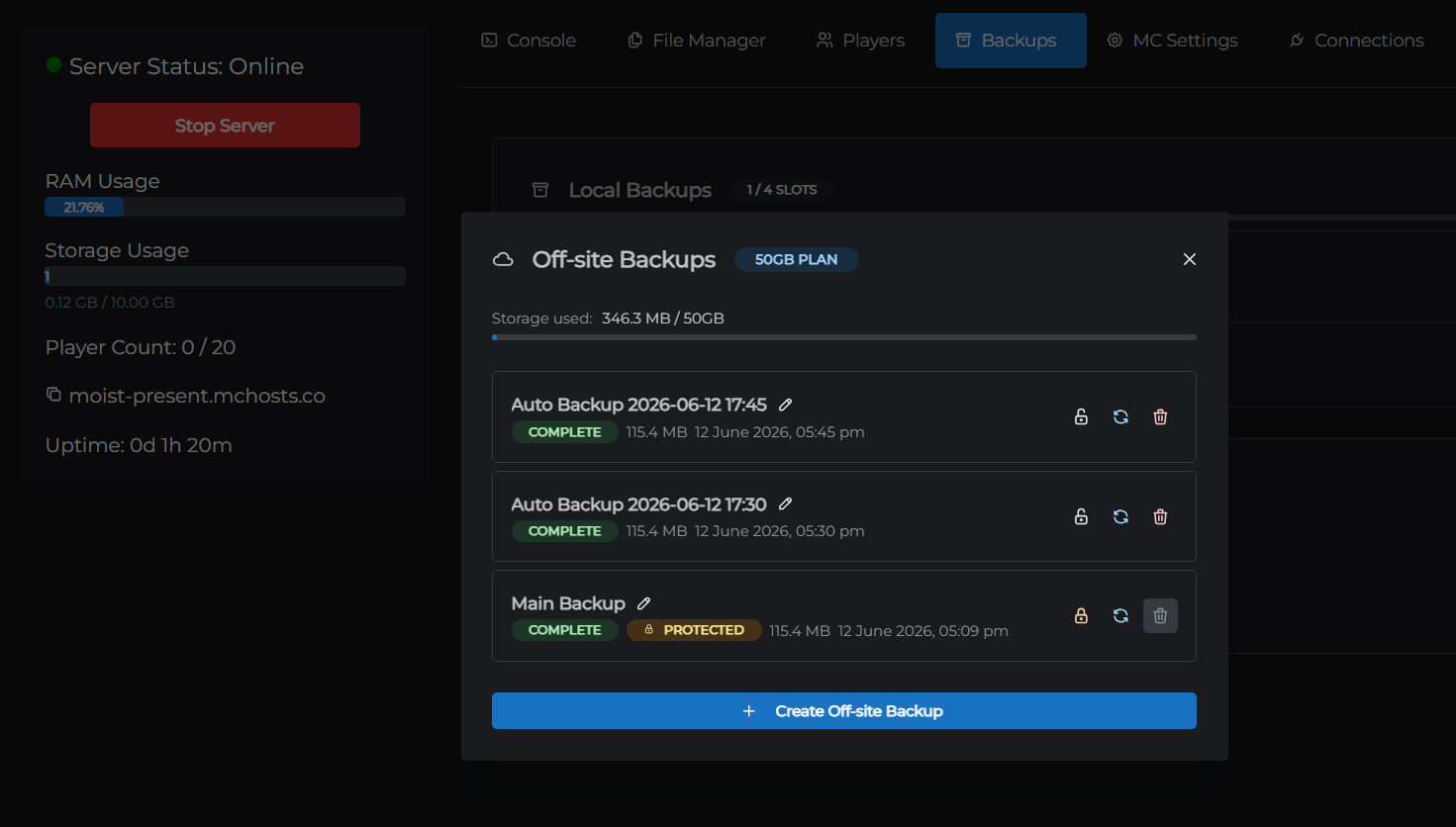
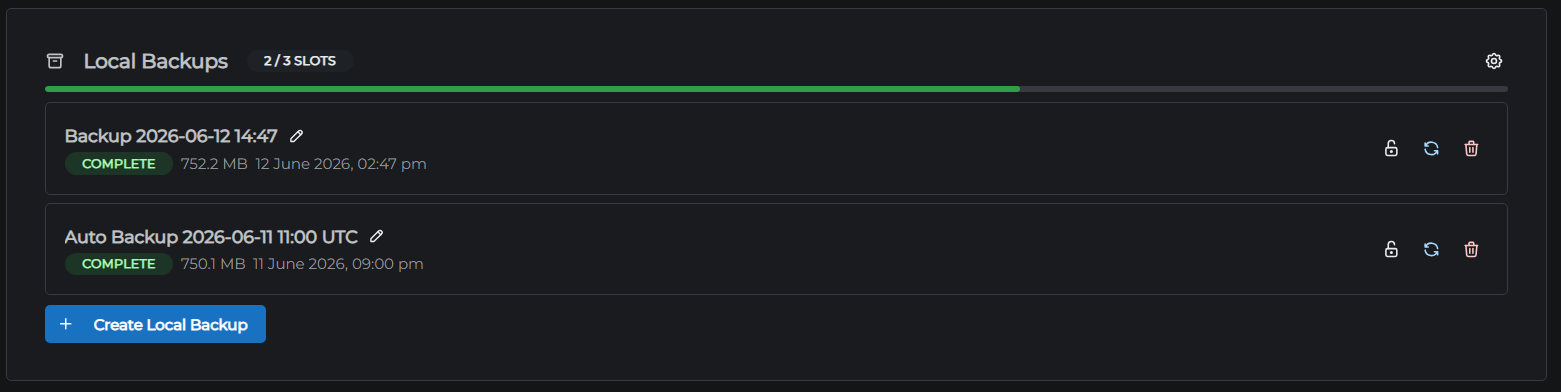
- Find the backup you want to restore (local or off-site)
- Click Restore
- Read the confirmation warning and click Confirm
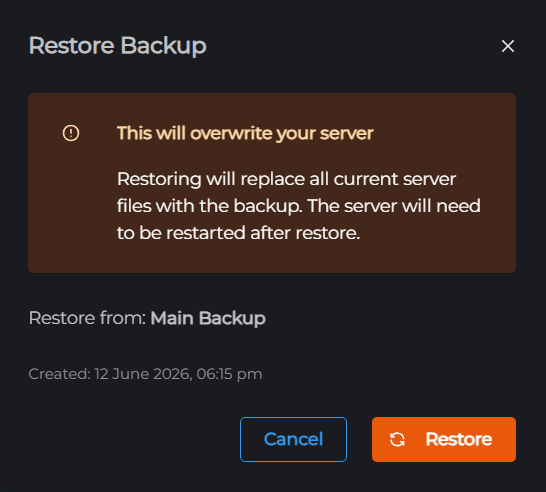
The server stops automatically, the backup is extracted, and the server restarts when restoration is complete.
Restore times
| Backup type | Typical restore time |
|---|---|
| Local backup | Under 1 minute |
| Off-site backup | 2–9 minutes depending on world size |
Off-site restores download the backup from Google Cloud Storage first, then extract it - larger worlds take longer. The maximum allowed time for a restore is 9 minutes. Very large servers may time out; if this happens, contact support.
What happens to the current server files
All files in the server directory are replaced by the backup. Nothing from your current state is preserved - this includes worlds, plugins, configs, and any files you've uploaded since the backup was taken.
After restore
The server restarts automatically when restoration is complete. Players can reconnect once it's back online. Check the Console tab to follow the startup progress.
← Off-site Backups | Next: Automatic Backups →