Off-site Backups
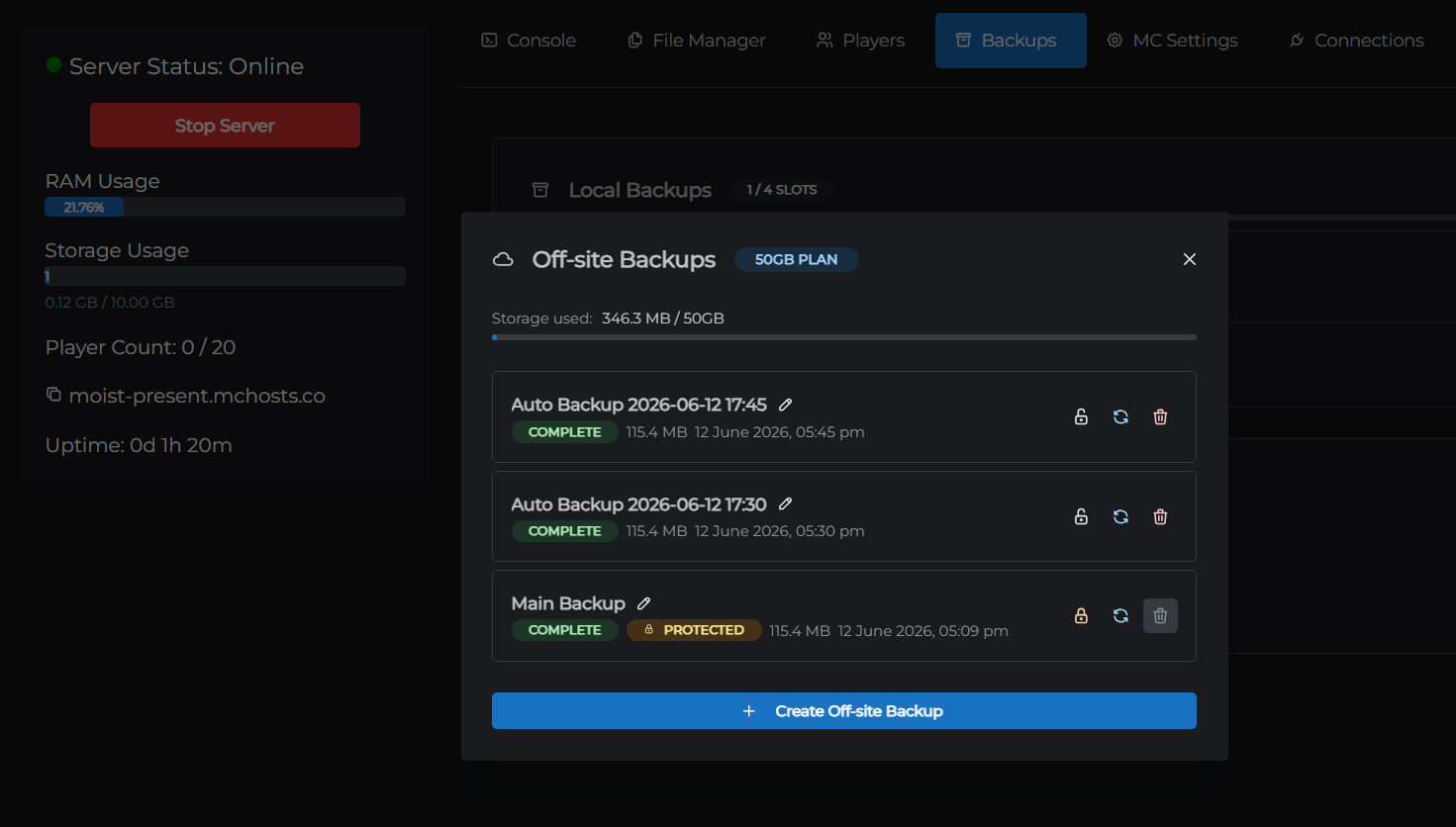
Off-site backups store your server snapshots in Google Cloud Storage - completely separate from your server's disk. This means they don't affect your server's storage usage and are safe even if something happens to your server's disk.
Off-site backups are available as a paid add-on subscription.
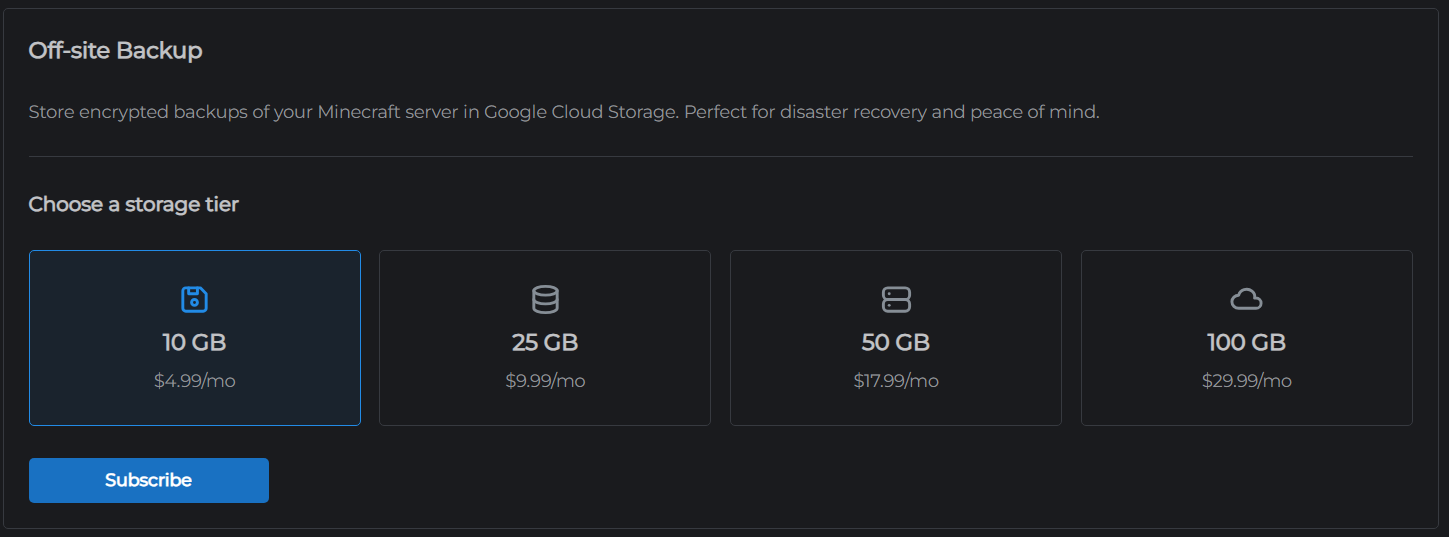
Purchasing the add-on
- Go to mchosts.com.au/user-settings
- Open the Off-site Backup tab
- Choose a storage tier:
| Tier | Storage |
|---|---|
| Starter | 10 GB |
| Standard | 25 GB |
| Large | 50 GB |
| Extra Large | 100 GB |
- Complete the purchase - the add-on is billed monthly
The off-site backup feature becomes available in your control panel immediately after purchase.
Creating an off-site backup
- Go to the Backups tab in the control panel
- In the Off-site Backups section, optionally enter a label
- Click Create Off-site Backup
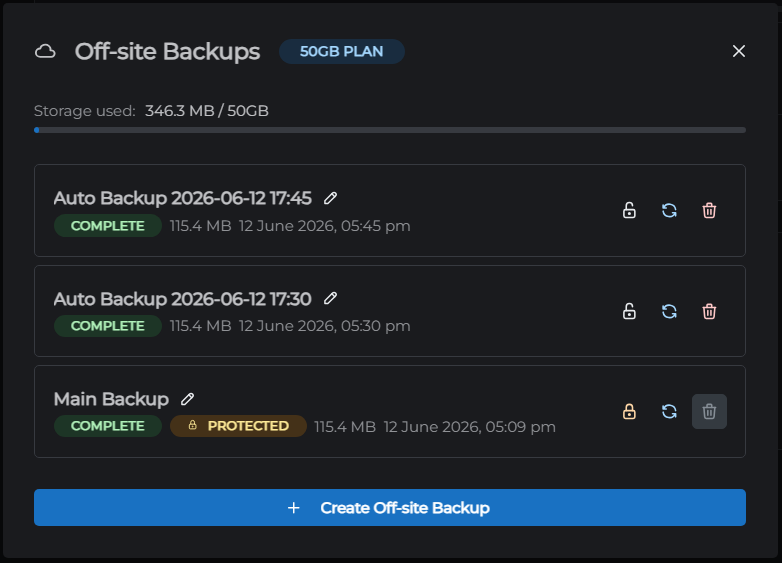
The backup uploads to Google Cloud Storage in the background. A status badge on the entry shows its progress:
| Badge | Meaning |
|---|---|
| In Progress | Upload is running |
| Complete | Backup is stored and ready to restore |
| Failed | Something went wrong - try again |
Storage usage
A progress bar in the Off-site Backups section shows how much of your purchased storage is currently in use (e.g. 12.4 GB / 25 GB). If you're nearing the limit, delete old backups or upgrade to a larger storage tier.
Retention limit
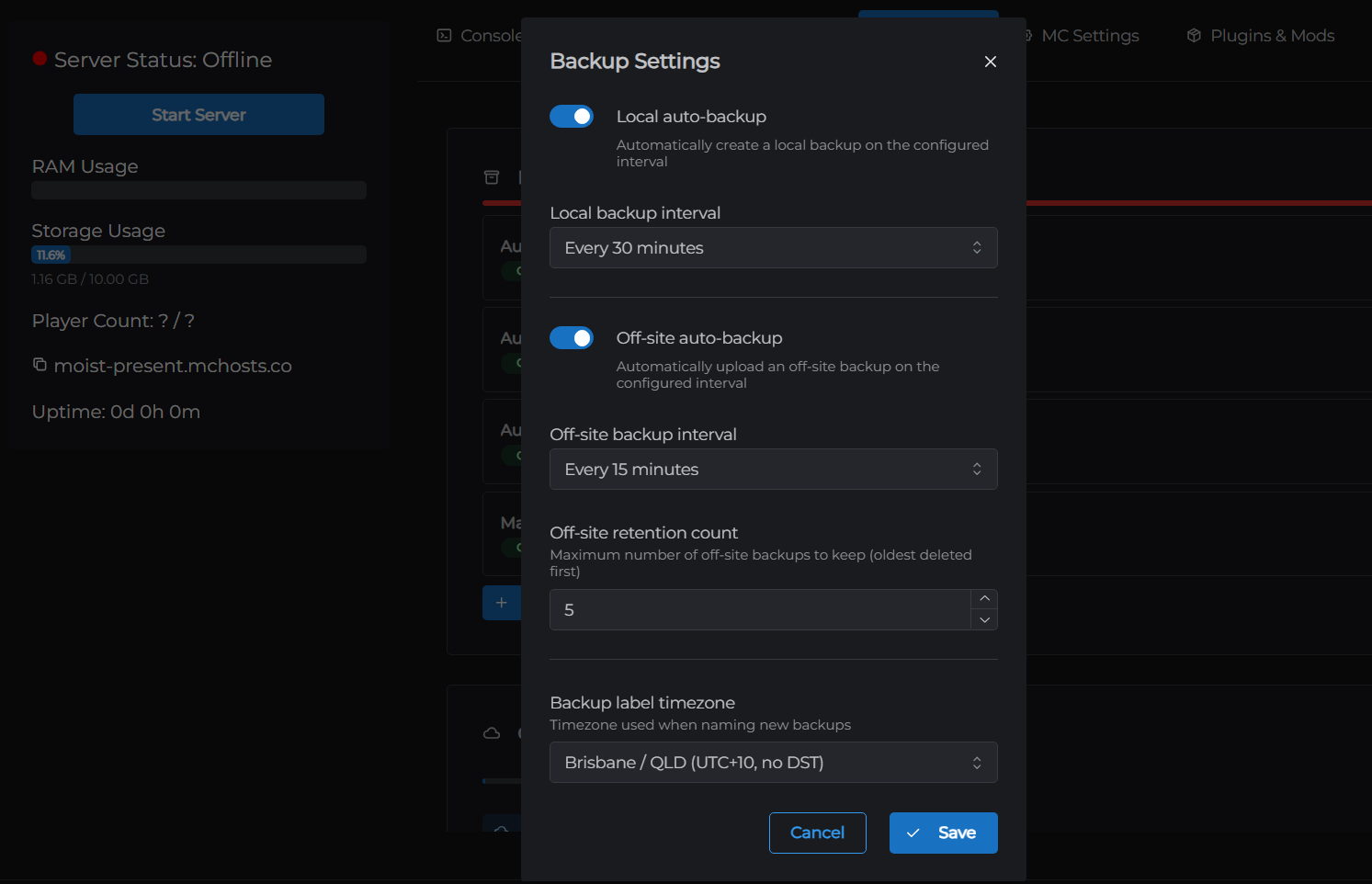
Set a Retention Count in the backup settings. When you create a new backup that would exceed this count, the oldest backup is automatically deleted. This keeps your backup history tidy without manual management. There is no hard cap on retention count - the practical limit is your purchased storage.
Restoring or deleting an off-site backup
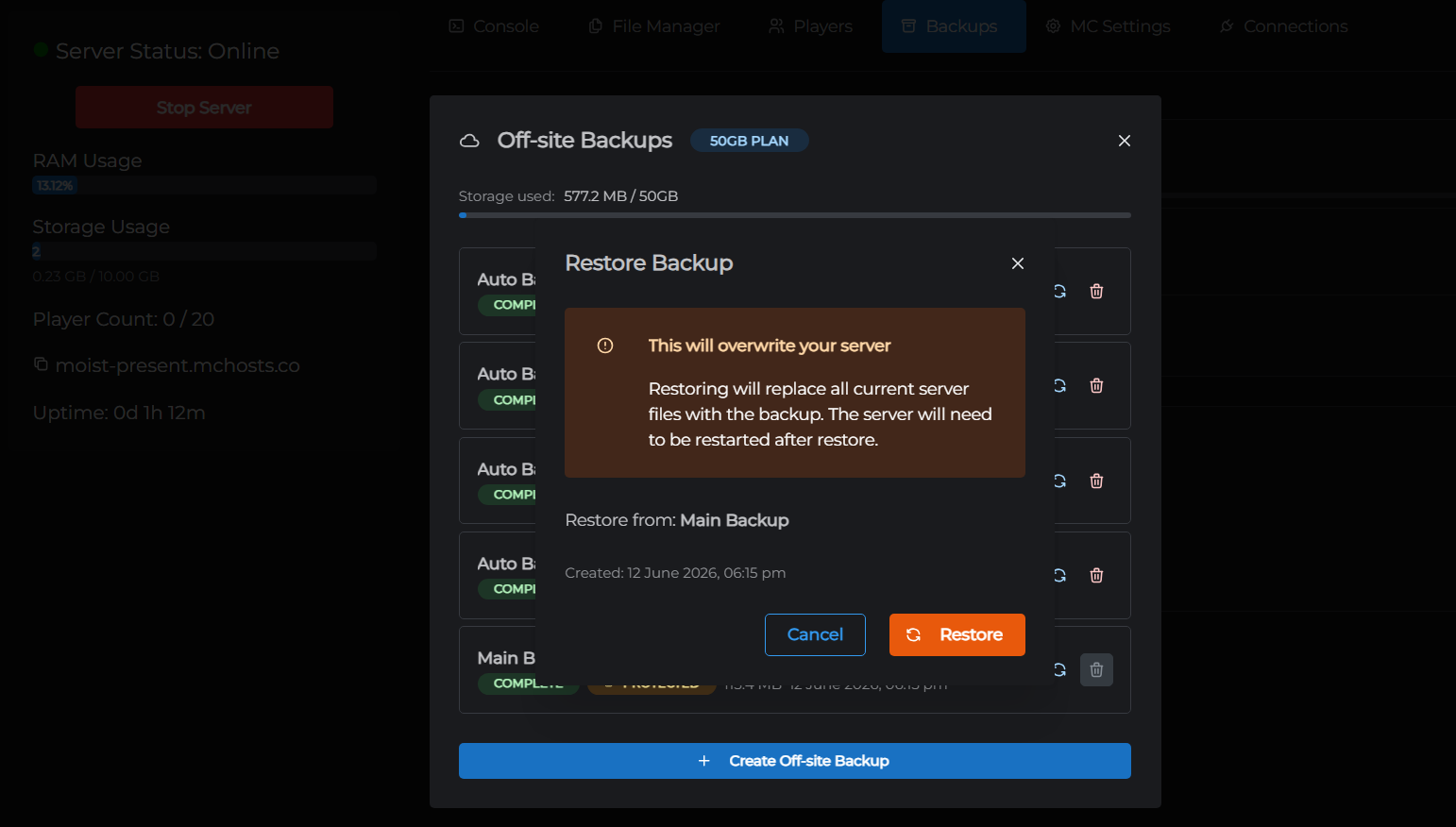
See Restoring a backup for restore instructions.
To delete a backup, click the trash icon on its entry and confirm. The backup is removed from cloud storage and your used storage decreases accordingly.
Cancelling the add-on
- Go to mchosts.com.au/user-settings → Off-site Backup tab
- Click Cancel
The add-on cancels at the end of your current billing period. Your off-site backups remain accessible until then.
Auto backups
Off-site backups can run automatically on a schedule you choose - every 15 minutes to once a day. See Automatic backups to configure this.
← Local Backups | Next: Restoring a Backup →