Automatic Backups
MCHosts can automatically create backups of your server on a schedule you choose - anything from every 15 minutes to once a day. Once set up, backups happen on their own without you having to do anything.
Not available on Sand for local backups. The Sand plan does not support local auto-backup. Off-site auto-backup requires the off-site backup add-on on any plan.
Opening backup settings
- Go to the Backups tab in the control panel
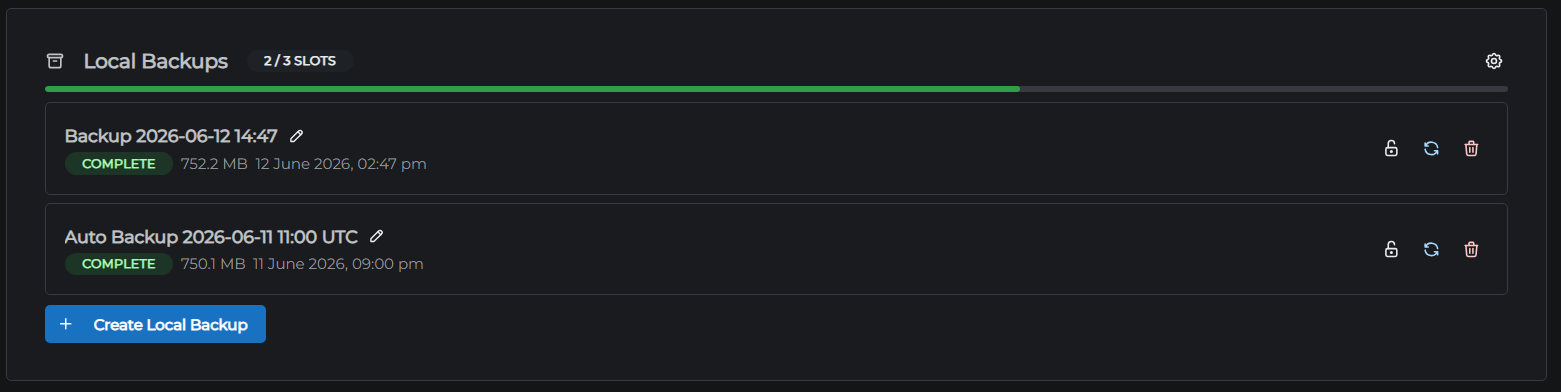
- In the Local Backups section, click the gear icon in the top-right corner of the section
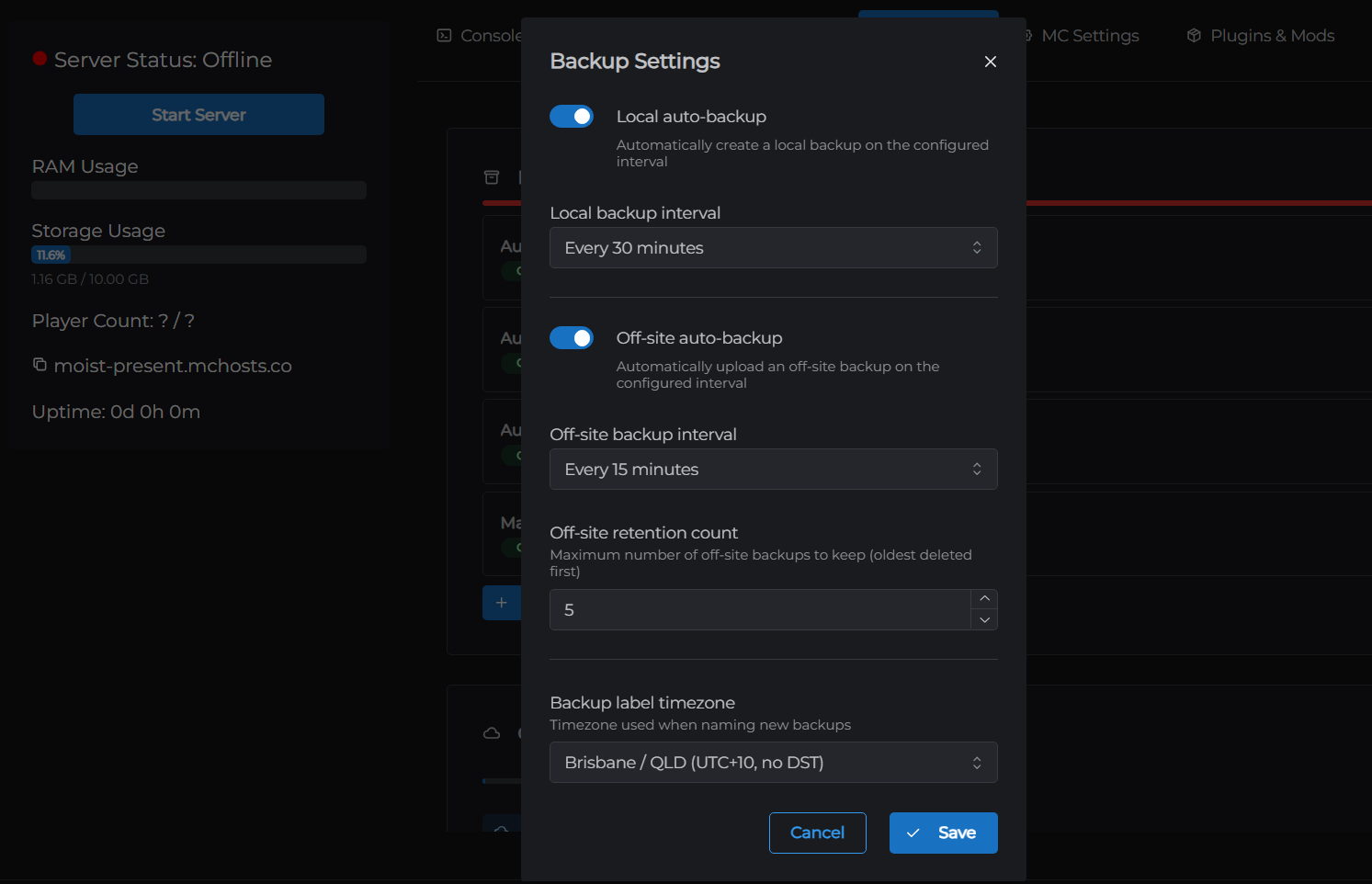
- The Backup Settings modal will open
Settings explained
| Setting | Description |
|---|---|
| Local auto-backup | Turn automatic local backups on or off. Not available on Sand. |
| Local backup interval | How often a local backup is created automatically. Choose from every 15 minutes up to every 24 hours. |
| Off-site auto-backup | Turn automatic off-site backups on or off. Only visible if you have an active off-site backup add-on. |
| Off-site backup interval | How often an off-site backup is created and uploaded. Same interval options as local. |
| Off-site retention count | How many off-site backups to keep. When a new auto-backup is created and this limit is reached, the oldest backup is automatically deleted. Minimum 1, maximum 20. |
| Backup label timezone | The timezone used when naming backups. Change this to your local timezone so backup names show the correct time. |
Click Save after making any changes.
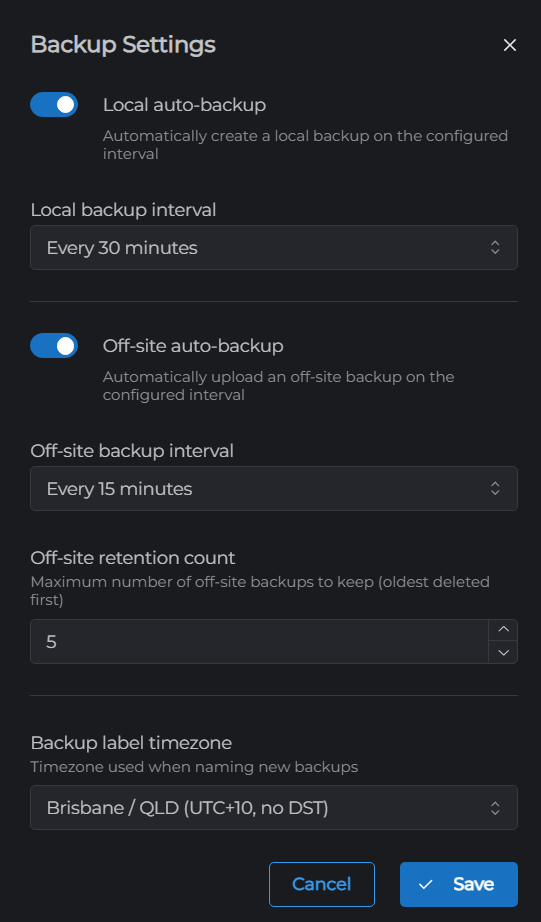
Local auto-backup behaviour
When local auto-backup is enabled, a backup is created automatically at the interval you set. The backup fills your available local backup slots - the number of slots depends on your plan. See Local Backups for the full slot table.
When all slots are full, the oldest unprotected backup is replaced each time a new auto-backup runs. Locked backups are skipped - see Protecting backups below.
Off-site auto-backup behaviour
When off-site auto-backup is enabled, a backup is created and uploaded to Google Cloud Storage at the interval you set. The retention count controls how many are kept:
- If retention is set to
7, you always have the last 7 auto-backups - When the 8th is created, the oldest is automatically deleted (unless it is locked)
- A higher retention count gives you more history to roll back to, at the cost of using more cloud storage
- Locked backups are skipped during eviction
Protecting backups from auto-deletion
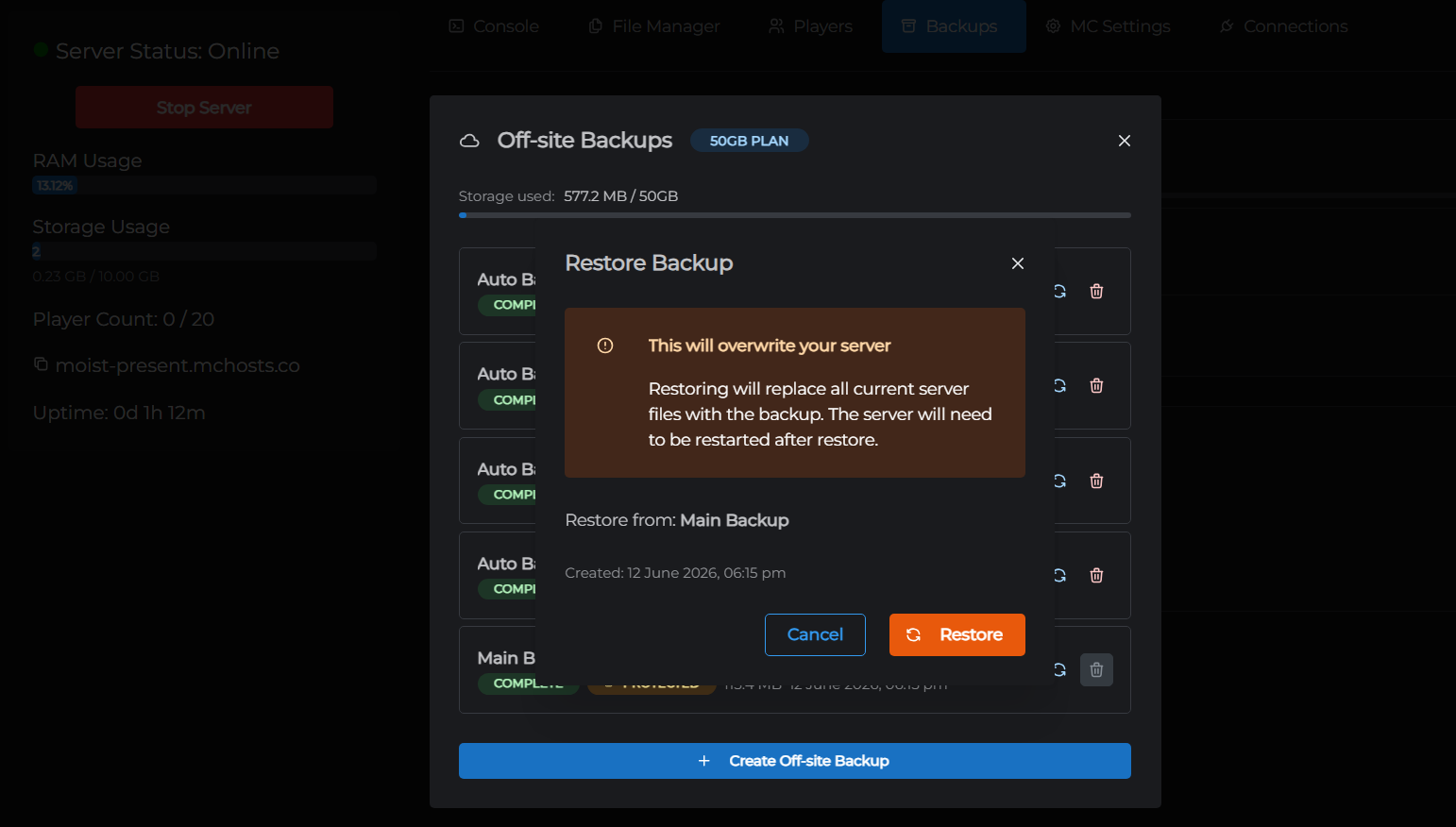
Any backup - local or off-site - can be locked to prevent it from being automatically deleted when slots or retention count are exceeded.
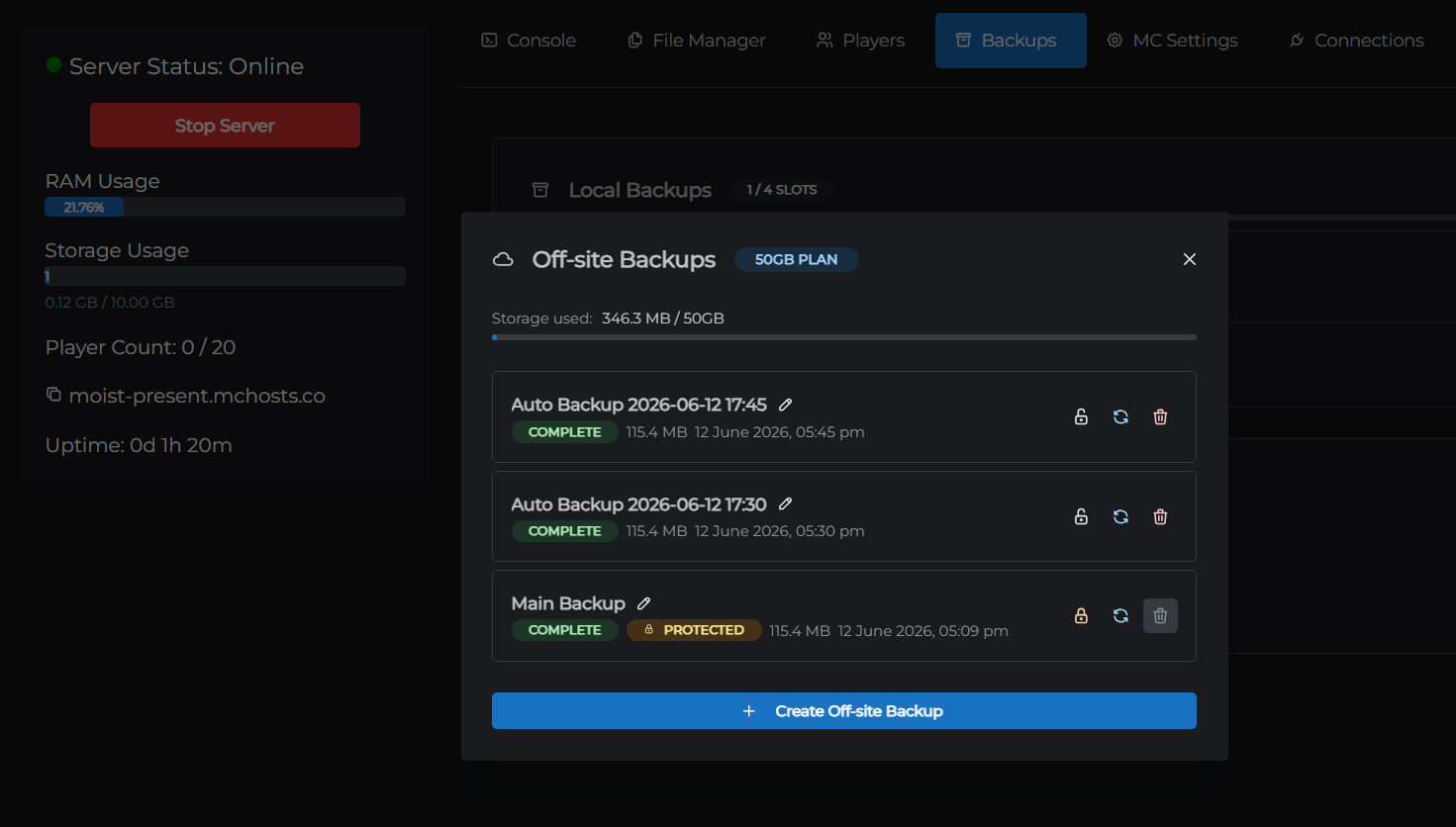
To lock a backup, click the padlock icon on the backup entry. A yellow "Protected" badge will appear. To unlock it, click the padlock again.
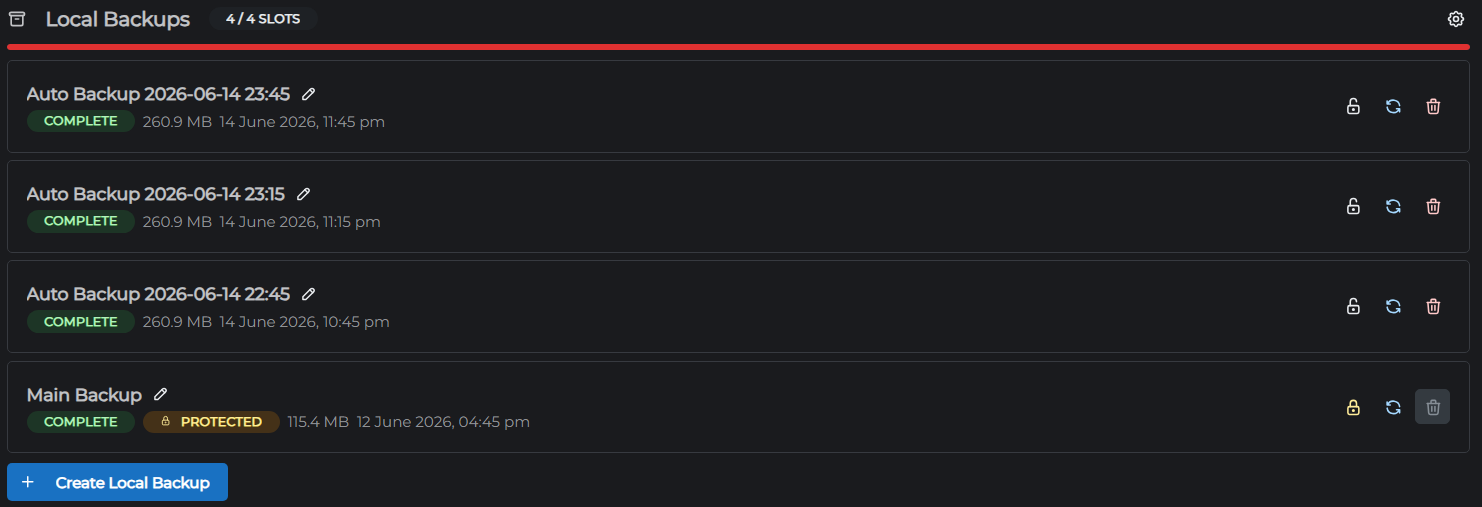
Locked backups are never touched by auto-eviction. If all your slots are locked and auto-backup tries to run, it will skip eviction and no new auto-backup will be created until you unlock a slot or delete a backup manually.
Choosing an interval
| Use case | Suggested interval |
|---|---|
| Active server with regular builds or events | Every 1-4 hours |
| Typical SMP or survival server | Every 12-24 hours |
| Off-site history for rollbacks | Every 24 hours, retention 7-14 |
| High-stakes or competition server | Every 30-60 minutes |
A shorter interval gives you more recovery points. A longer interval uses less storage and puts less load on your server during backups.