Payment Methods
MCHosts takes payments through Stripe. You can save more than one card, choose a default, and pick which card pays for each of your servers.
Viewing saved cards
- Go to mchosts.com.au/my-account
- Open the Billing tab
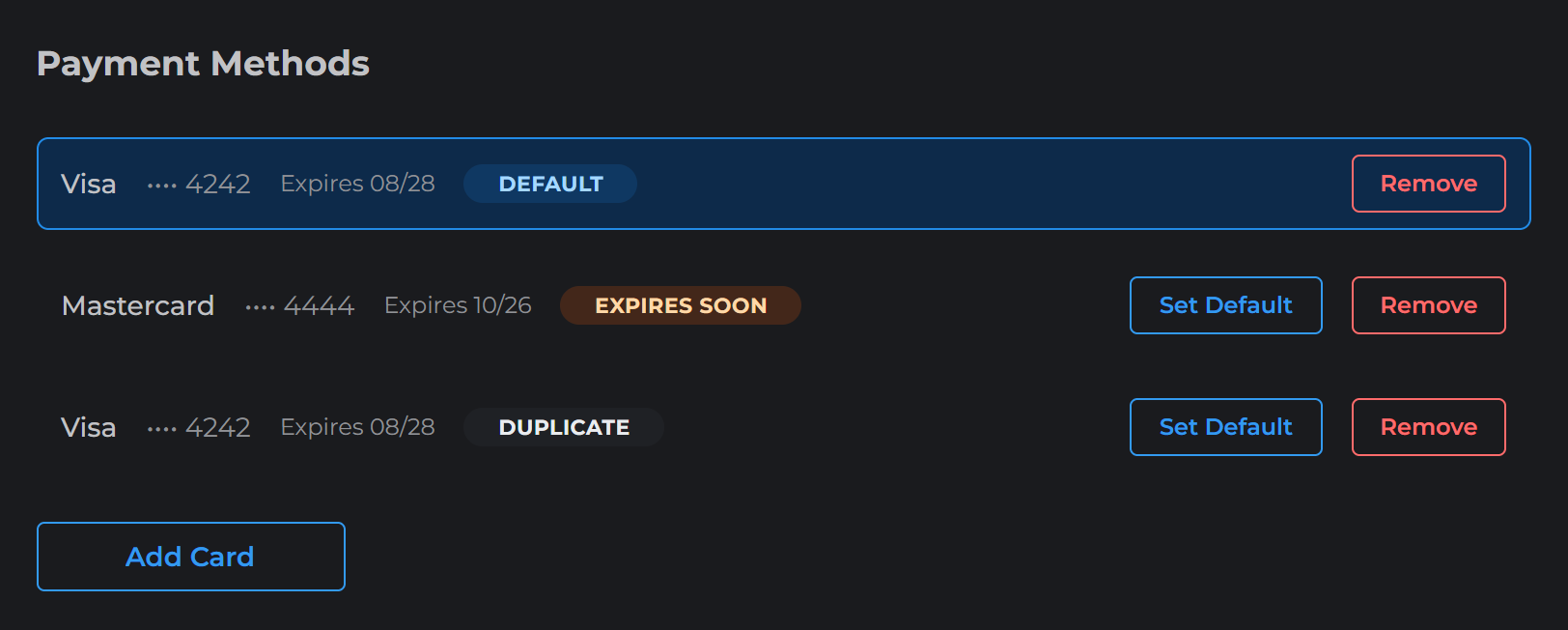
Each card shows its brand, the last 4 digits and the expiry date, and your default card has a Default badge. A card that runs out this month or next shows Expires soon. Once it's past its date, it shows Expired.
Adding a new card
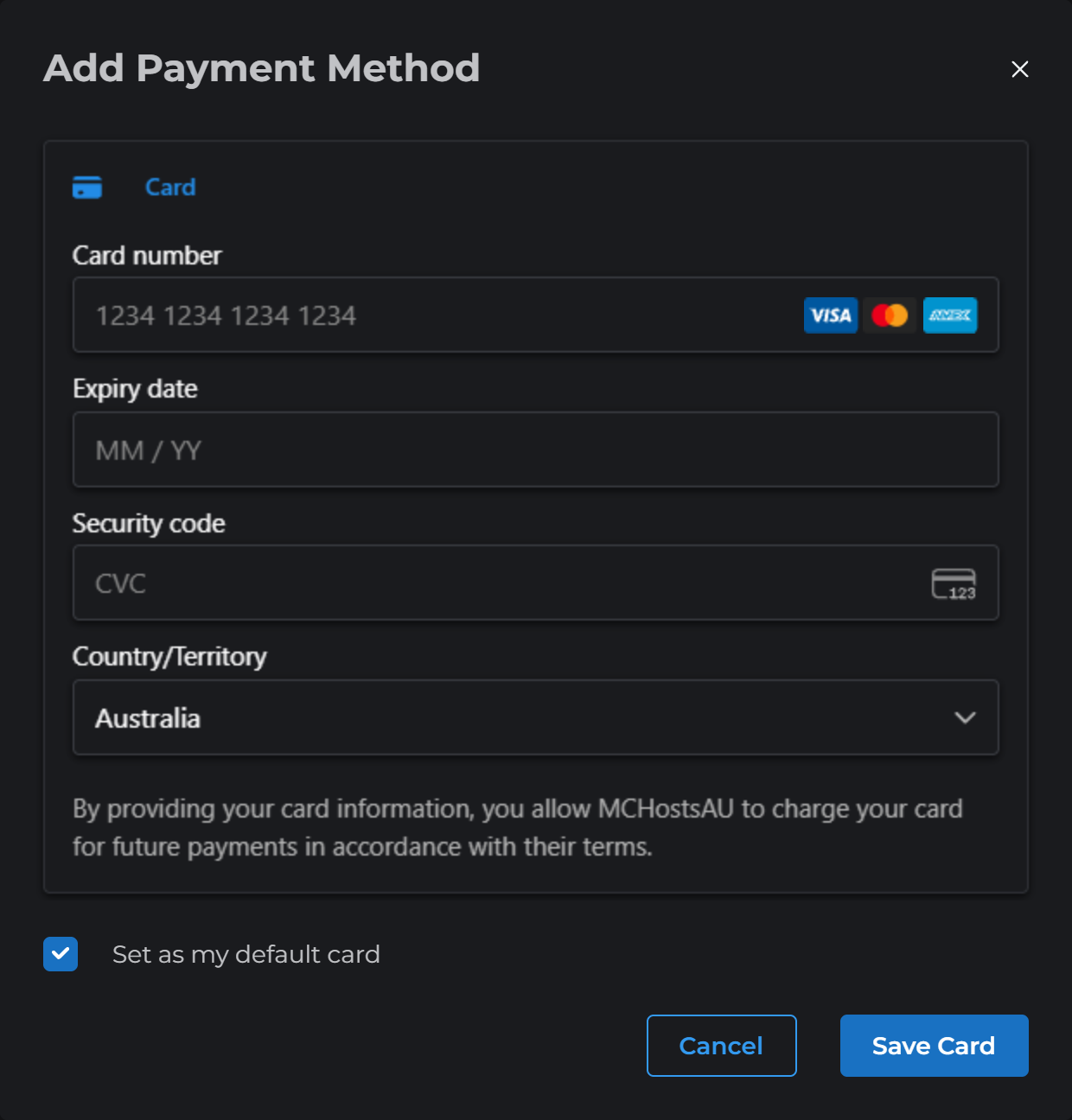
- Click Add Card
- Enter your card details
- Tick Set as my default card if you want your renewals charged to this card
- Click Save Card
Your first card always becomes your default. If you save the same card twice, the extra copy shows a Duplicate badge and you can remove it.
Paying with a saved card
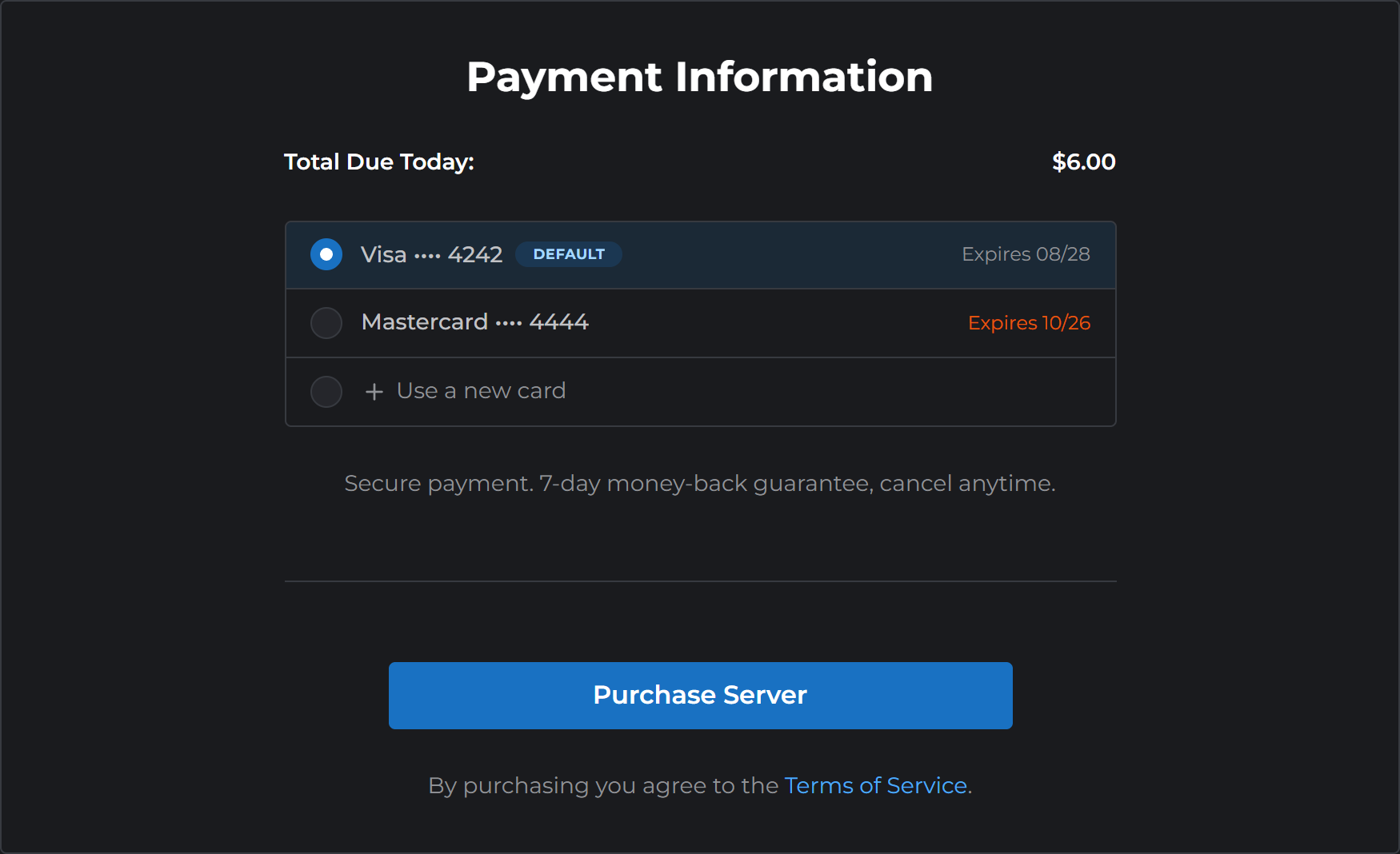
When you buy another server, checkout lists your saved cards and selects your default for you. Click Purchase Server to pay with it.
To use a different saved card, select it in the list. For a card you haven't saved yet, choose Use a new card at the bottom and enter its details. Expired cards stay in the list, greyed out, but you can't select them.
Setting a default card
Click Set Default next to any card.
Your default card pays for every subscription you haven't put on a specific card. When you change your default, we charge those subscriptions to the new card from their next renewal.
Choosing which card pays for each subscription
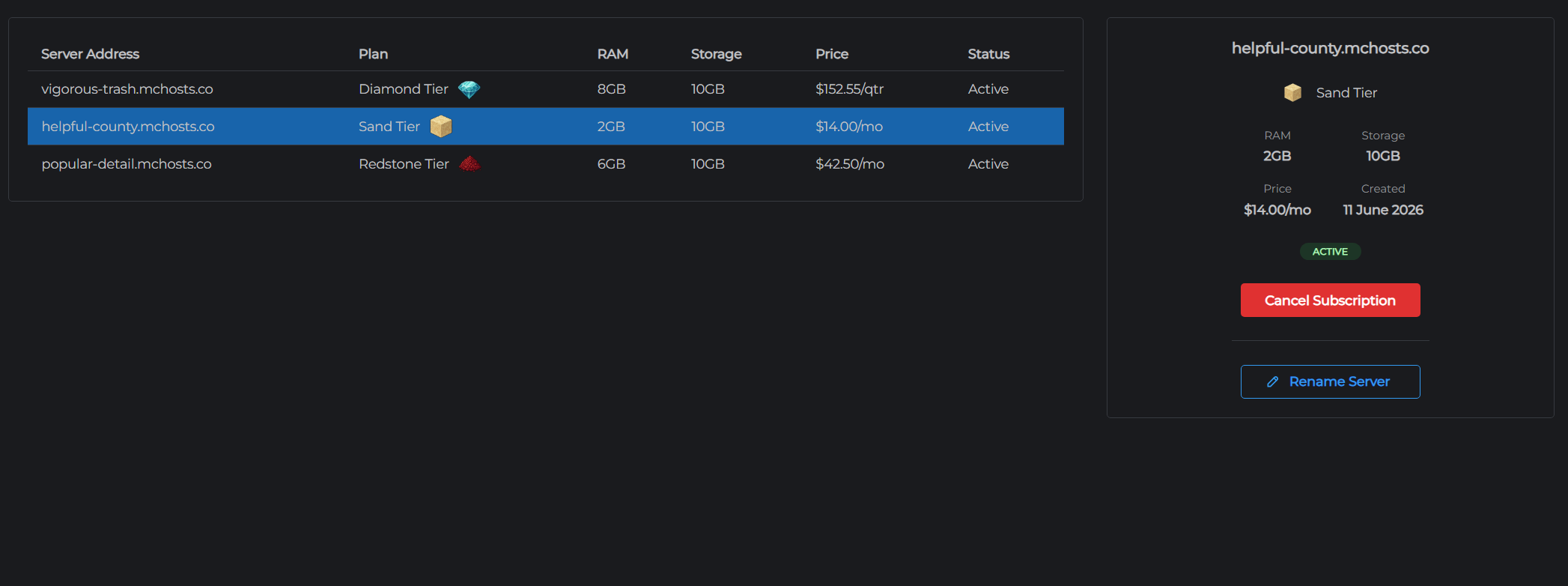
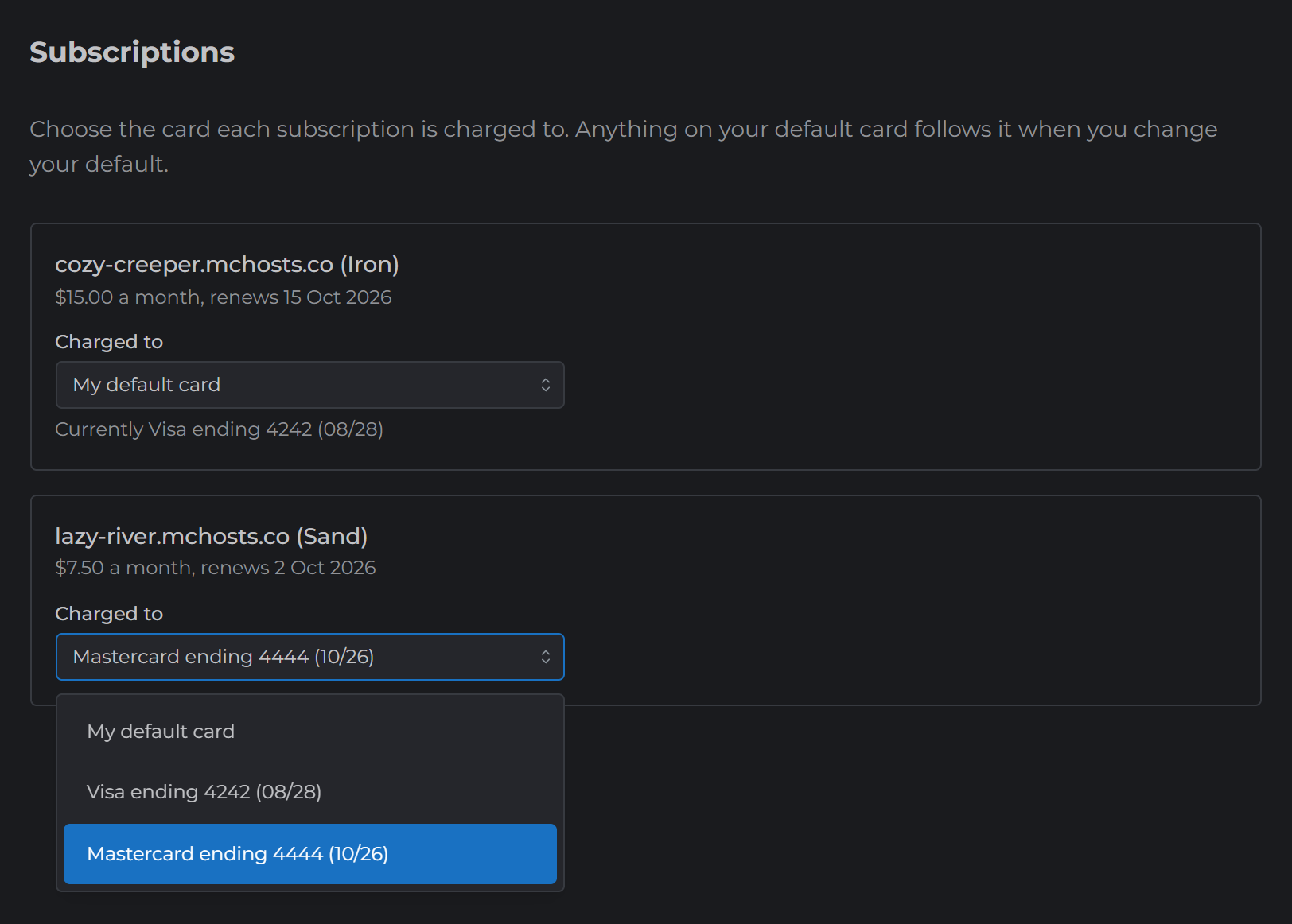
Under Subscriptions in the Billing tab, each server and add-on has a Charged to menu. You'll also find it when you click a server in the Subscription Management tab.
Pick My default card and the subscription moves over whenever you change your default. Pick one of your cards instead and we charge that card every time, whatever your default is.
We only warn you about your default card expiring. If you put a subscription on a different card, keep an eye on that card's expiry date yourself.
When your card is about to expire
We email you about a month before your default card expires, and the Billing tab shows a warning too.
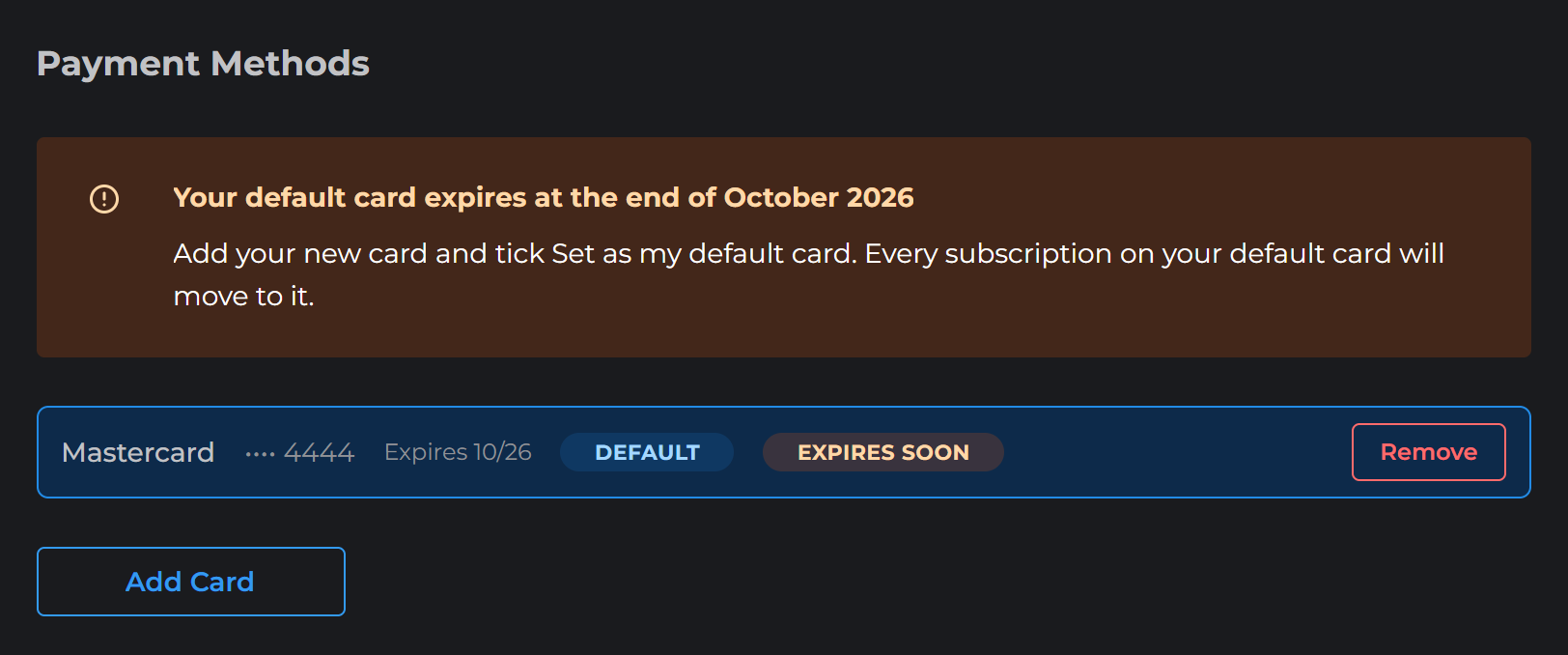
To keep your servers running:
- Click Add Card and enter your new card
- Tick Set as my default card
- Click Save Card
Every subscription set to My default card moves across on its own. If any subscription is set to a specific card, change its Charged to menu as well.
Removing a card
Click Remove next to a card to take it off your account. If a subscription was set to that card, it switches to your default card.
Note: You cannot remove a card if it is the only saved card on an account with an active subscription. Add a replacement card first, then remove the old one.
Failed payments
If a payment fails at renewal, we email you a link to the Billing tab. To sort it out:
- Check the expiry date of the card that subscription is charged to
- Add a new card if you need one, then make it your default or pick it in that subscription's Charged to menu
- Contact your bank if the card is valid but still declining
We retry the payment automatically, so once the card is sorted you don't need to do anything else. Subscriptions with repeated failed payments may be suspended. Contact support if you're having billing issues.