Download Your Server from Shockbyte
Leaving Shockbyte? Here is how to download your world, or your whole server, so you can take it with you.
Shockbyte launched a new control panel at panel.shockbyte.com. This guide follows the new panel. If your server still uses the older Multicraft panel, the steps will look different, and their knowledgebase covers the old panel separately.
Step 1 - Shut down your server
In the Shockbyte control panel, press Shut Down. Copying a world while the server is writing to it can corrupt the download.
Step 2 - Download your world
- Open the Files tab
- Tick the box beside your world folder
- On plugin servers such as Paper or Spigot, also tick
world_netherandworld_the_end - Click Download
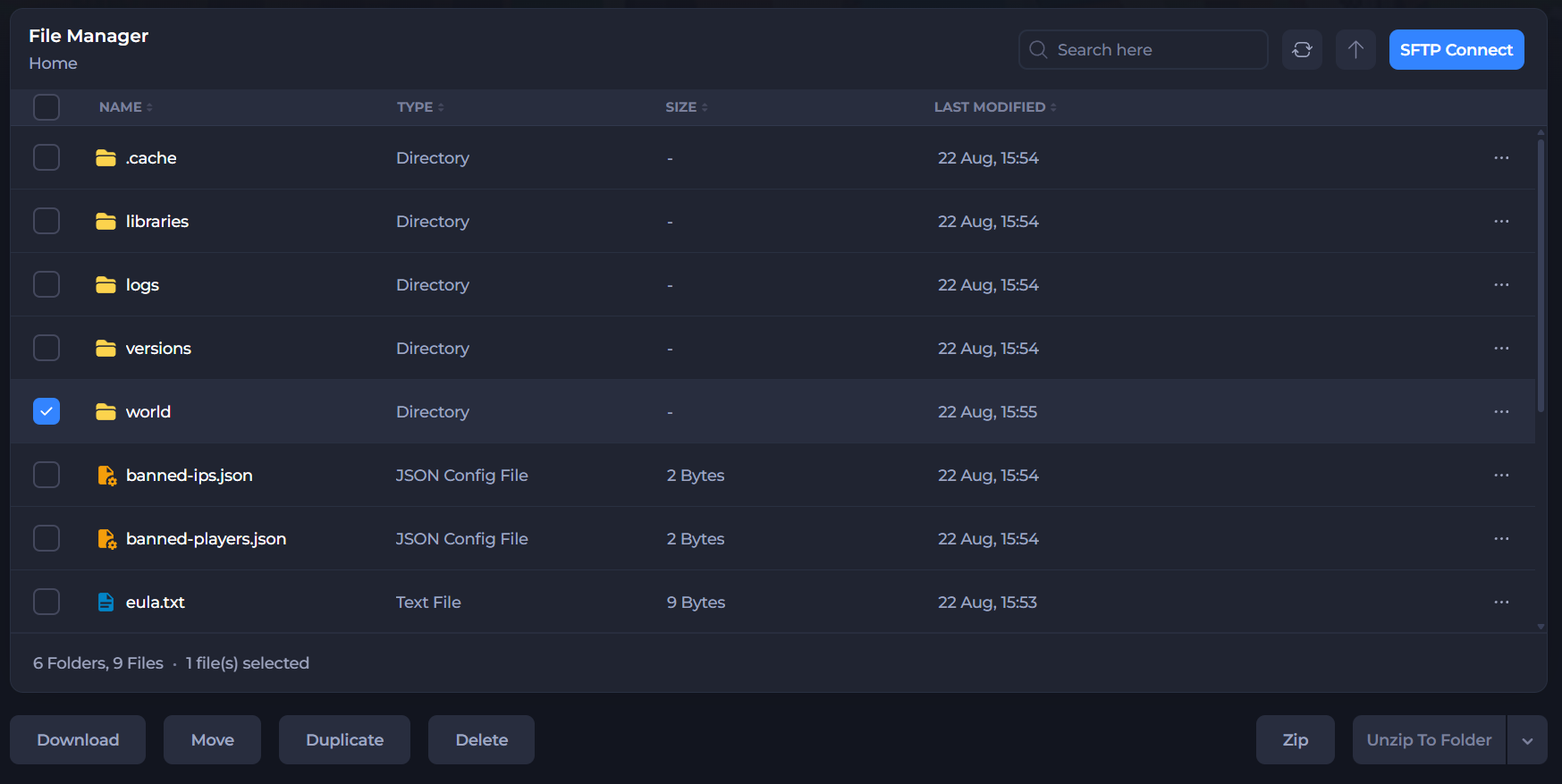 Your selection is delivered to your browser as a single zip file.
Which folders do I need? On a Vanilla or modded server there is just one world folder, and the Nether and End live inside it (as DIM-1 and DIM1). On plugin servers the Nether and End are the separate world_nether and world_the_end folders, so grab all three.
Downloading your whole server
If you want everything, not just the world:
- In Files, tick every folder and file
- Click Zip and give the archive a name
- Download the zip through the panel, or over SFTP if it is large
You can also use the Backups tab, select your instance, click Create Backup, and download that.
Large servers - use SFTP
For big downloads, go to Files then SFTP Connect. The page shows your SFTP login details. Your password is your panel password, and the username is unique to your server, so copy it exactly as shown. Put those details into a free program like FileZilla or WinSCP and drag your folders to your desktop.
Next step
World in hand? Head to Move Your Existing Server to MCHosts to bring it across.