Download Your Server from PebbleHost
Moving away from PebbleHost? This guide covers getting your world, or your whole server, off their panel and onto your computer.
Step 1 - Stop your server
Log in at panel.pebblehost.com and stop your server, so nothing is being written to the world while you copy it.
Step 2 - Download from the File Manager
- Click File Manager in your server's sidebar
- Tick the checkbox on your world folder. On plugin servers such as Paper or Spigot, also tick
world_netherandworld_the_end - Right click one of the selected items and choose Download
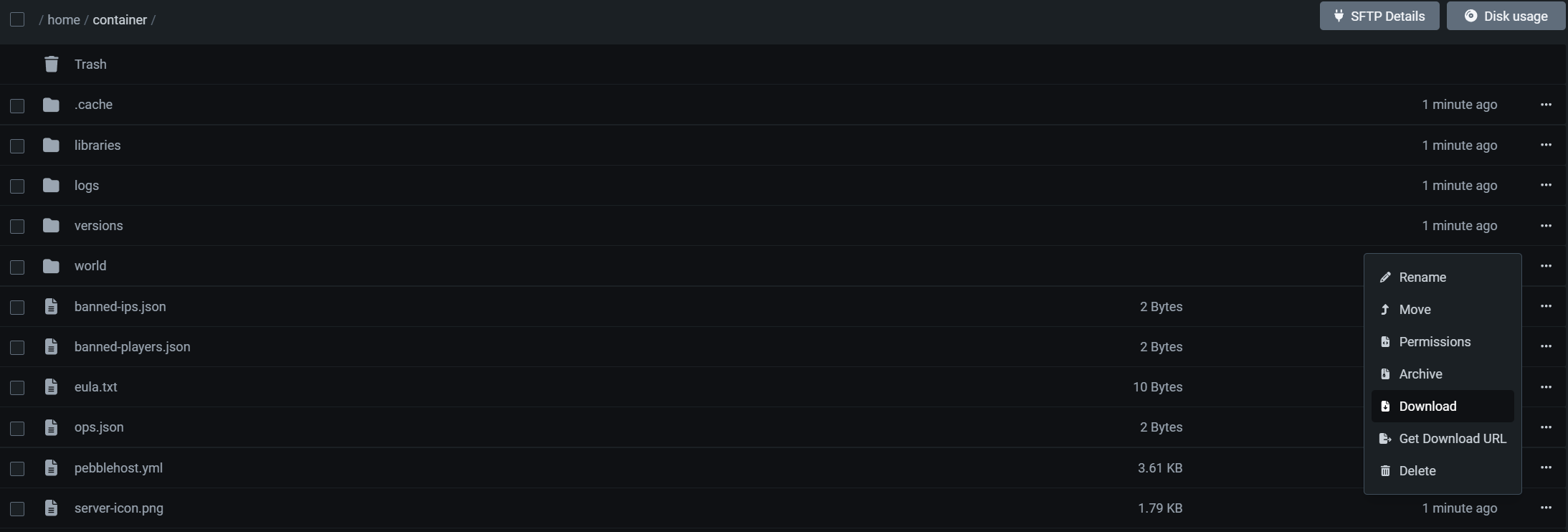
The file manager automatically zips your selection and downloads it as one file. For a single file or folder you can also click the ... button next to it and choose Download.
Large servers - use SFTP
For big worlds, click the SFTP Details button at the top of the File Manager page. The host is the server address shown there, the username is your PebbleHost email with some extra characters added to the end (copy it exactly as displayed), and the password is your panel password. Put those into a free program like FileZilla and drag your folders to your desktop.
Alternative - backup exports
PebbleHost can also export a backup of the whole server, though how it works depends on your plan:
- Premium servers: go to Advanced then Backups / Restore, click Request Download Link, and the button becomes Download when the export is ready
- Budget servers: you need to request the download link through a billing ticket instead
Either way, the link expires after 48 hours, and the archive is a .tgz file. Windows needs the free 7-Zip to open those, extract once to get a .tar, then extract that.
Next step
Files in hand? Head to Move Your Existing Server to MCHosts to bring your world across.