Download Your Server from BisectHosting
Moving on from BisectHosting? This guide walks you through getting your world off their Starbase panel and onto your computer.
Step 1 - Stop your server
Log in to the Starbase panel at games.bisecthosting.com and stop your server. Downloading a world while it is running risks a corrupted copy.
Step 2 - Download your world from the Files tab
- Open the Files tab
- Tick the checkbox on your world folder. The folder name can vary depending on your server's save file name setting, so check what yours is called
- On plugin servers such as Paper or Spigot, also tick the
world_netherandworld_the_endfolders - Click Download
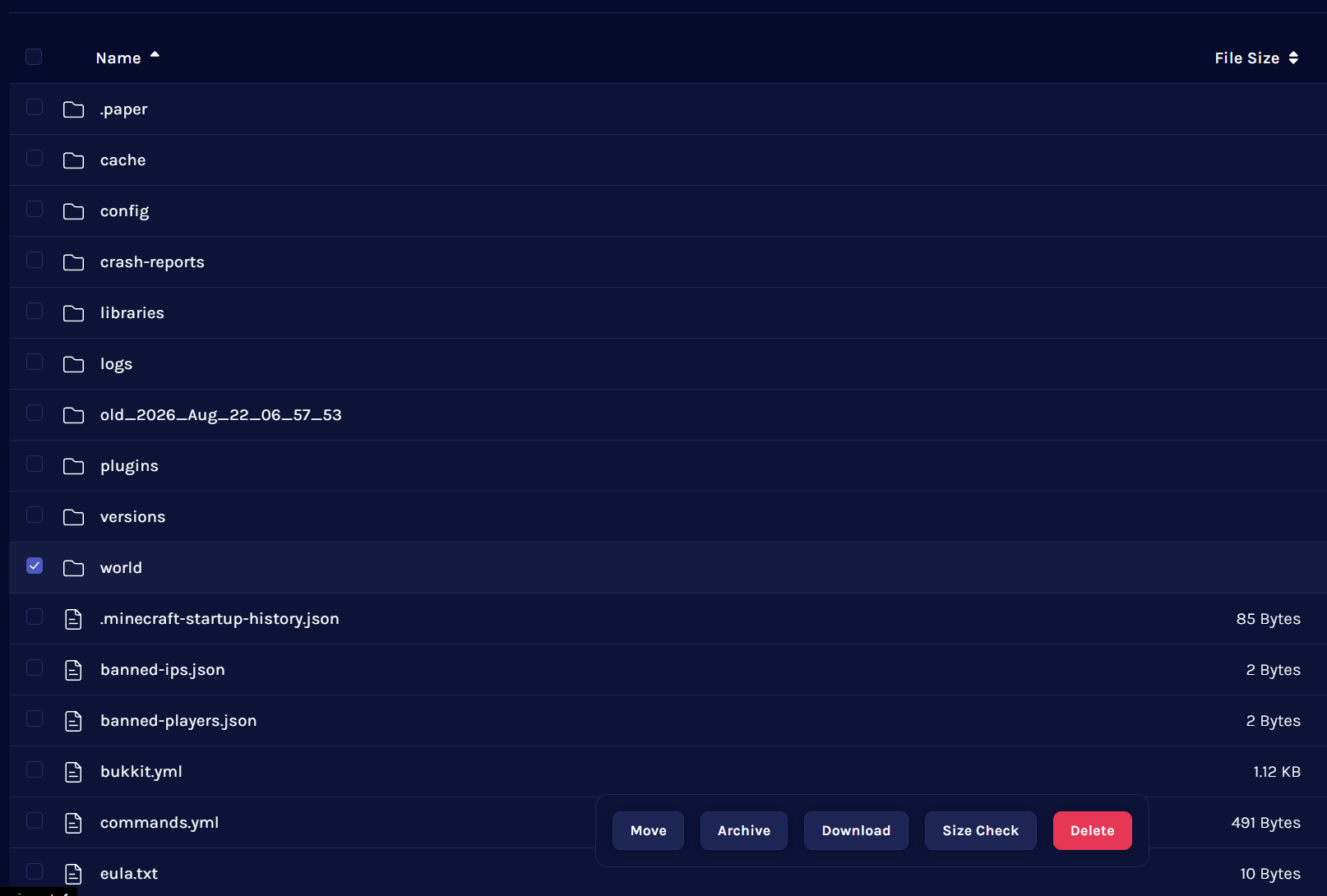
The download arrives as a .tar.gz archive rather than a normal zip. Windows cannot open these by itself, so install the free 7-Zip to extract it. Extract it once to get a .tar file, then extract that.
Alternative - the Backup Manager
Every BisectHosting plan includes the Backup Manager, which can hand you the whole server:
- Click Backups in the sidebar
- To create one, click Configure on a backup slot, name it, choose Manual, and back up all files
- To download one, hover over Edit on the backup, click Download, choose Download all files, and click Download
Large servers - use SFTP
For big worlds, open the Files tab and click the SFTP button. You can launch their SFTP client directly, or copy the shown details into a free program such as WinSCP on Windows or Cyberduck on Mac. The password is your panel password. Their panel file manager may also refuse very large single files, in which case SFTP is the way around it.
Next step
Once your world is on your computer, head to Move Your Existing Server to MCHosts to bring it across.